How to Check Current Print Jobs in the Windows 11 Queue

- 19 steps
- Needs administrator rights
- Includes a restart or sign-out
The print queue in Windows 11 lists every document that is waiting to print or currently printing. It helps you spot a stuck file, see why a printer has stopped, or clear a blocked job. Windows handles print jobs through a background service called the Print Spooler. This system tool holds each job and passes it to the printer in order.
The queue opens from the Settings app or from the classic Control Panel. Both methods work on Windows 11 Home and Pro. Clearing a frozen queue by restarting the spooler needs an administrator account, which is covered in the last section.
Open Settings with Win+I, then go to Bluetooth & devices Printers & scanners, click your printer, and select Open print queue. The window lists every waiting document with its status, owner, size and page count. For a job that is printing right now, double-click the printer icon in the system tray instead.
Using the Settings App to View Print Jobs
The Settings app is the usual route. You open your device list, pick your printer, and open its queue. The queue window shows each document with its status, owner, size and number of pages, so you can see at once what is holding up the printer.
You can also reach the same page without clicking through menus. Search for Printers & scanners in the Start menu and open the result. Typing ms-settings:printers into the Run box (Win+R) opens the same page. The steps below follow the full path: Settings Bluetooth & devices Printers & scanners.
- Press Win+I to open Settings. The Settings window appears.

Windows 11 Start menu with Settings gear icon highlighted. - Select Bluetooth & devices from the left-hand menu. The device options appear on the right.

Windows Settings menu highlighting the Bluetooth and devices option for printers - Click Printers & scanners. A list of every printer and scanner installed on the computer appears.
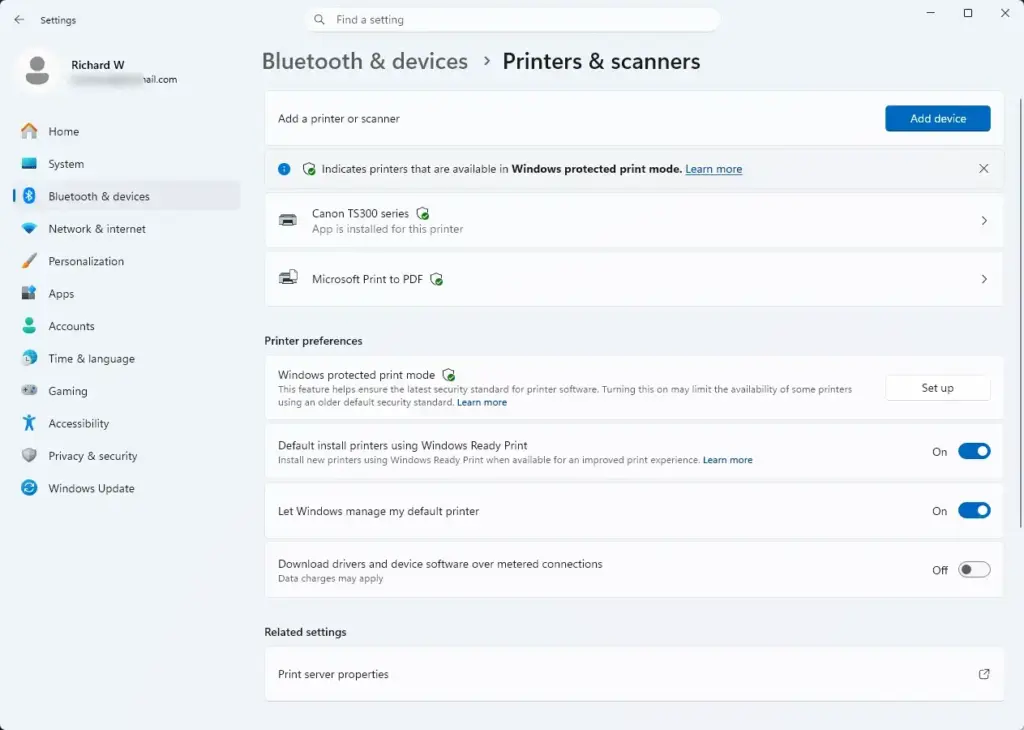
Settings › Bluetooth › Printers - Click the printer whose queue you want to inspect. Its settings page opens.
- Click Open print queue near the top of the page. A separate window opens, listing every active document waiting to print.
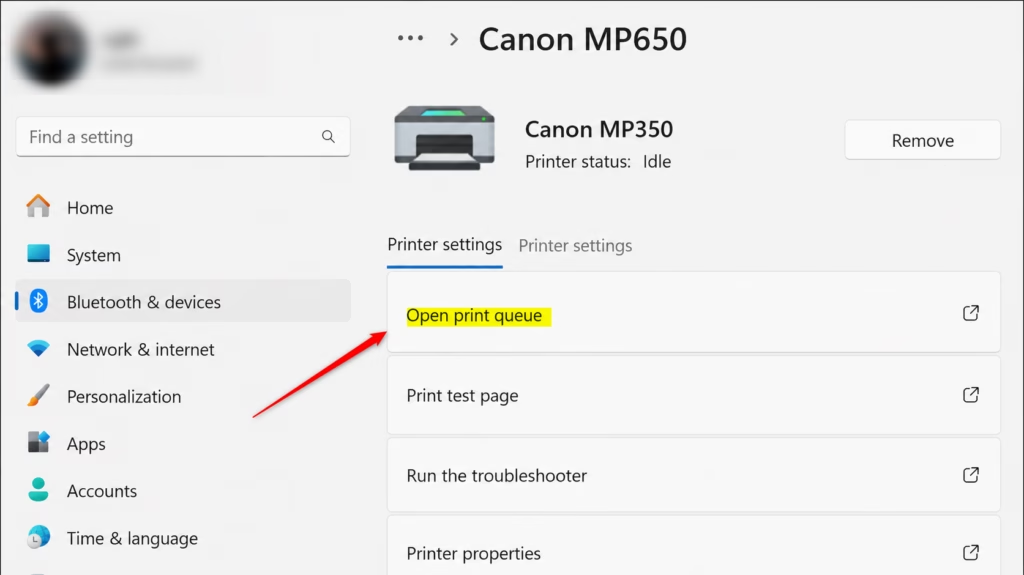
Clicking the Open print queue button to check print queue on this computer
If your printer is not in the list, it is not installed on this PC, so there is no queue to open. Check that it is powered on and connected. You can also add it with the Add device button on the same page.
Read the Status column in the queue window. A job marked Error or Paused is usually the one blocking everything behind it.
Using the Control Panel for Detailed Queue Management
The classic Control Panel suits anyone who prefers the older layout or cannot find the printer in Settings. It leads to the same queue window by a different route.
- Open the Start menu, type
Control Panel, and press Enter. Control Panel opens. - Under the Hardware and Sound category, click View devices and printers. A window of connected hardware opens.
- Find your printer in the list. Printers are usually grouped under a Printers heading.
- Right-click the printer icon and select See what’s printing from the context menu. The active queue window opens.
If Control Panel opens in Category view, you will see the Hardware and Sound heading. In the icon views (large or small icons), Devices and Printers appears directly instead. Open it from there and continue with step 3.
Managing and Canceling Stuck Print Jobs
Most of the time you only need to cancel the one job that is stuck. If that does not work, restart the Print Spooler service and clear its temporary files.
Cancel a single job
- Open the print queue using either method above.
- Right-click the frozen document and select Cancel.
- If Windows asks you to confirm, click Yes. The document should disappear from the list, and the next job in line starts printing.
To clear everything at once, open the queue window’s menu bar and choose Printer Cancel All Documents. Cancelling can take a few seconds. If a job stays on Deleting and will not go away, the queue is frozen and you need the steps below.
Restart the Print Spooler and clear the spool folder
Before you start, make sure you are signed in with an administrator account, or have an administrator’s password ready. Stopping the Print Spooler and deleting files in the spool\PRINTERS folder both require administrator rights. With a standard account, the Stop option stays greyed out or the delete fails with a permission error.
Use this method when the whole queue is frozen and will not clear through the normal window.
- Open the Start menu, type
Services, and press Enter. The Services window opens. Confirm the prompt if Windows asks for permission. - Scroll down the list of system services to find Print Spooler.
- Right-click Print Spooler and select Stop. The Status column should no longer show Running.
- Open File Explorer and go to
C:\Windows\System32\spool\PRINTERS. Delete the files inside that folder. These are the temporary print files stuck in the directory. Leave the folder itself in place. If Windows asks for administrator permission, click Continue. - Return to the Services window, right-click Print Spooler, and select Start. The status returns to Running and normal printing can resume.
What to do next
If clearing individual jobs does not restore your printer’s responsiveness, try the following in order:
- Restart the physical printer. Turn it off, wait about ten seconds, and turn it back on.
- Remove and re-add the device in Printers & scanners. Select the printer, choose Remove, then use Add device to install it again.
Before you remove the printer, check that the queue is empty. Also check that the printer’s status in the queue window does not say Offline. An offline printer is often a connection problem, not a stuck job, so check the USB cable or the network connection first.
Have a question about this guide?
Answered by AI from this guide. Good questions may be added to this page — please don't include personal details.
Did this guide fix your problem?

About the Author
Richard
Tech Writer, IT Professional
Richard is a writer at Geek Rewind who turns complex IT tasks into clear, step-by-step guides. He draws on years of hands-on experience in system administration and enterprise IT operations, focusing on Windows, Linux and WordPress: the problems people actually run into, and the fixes that work. His server and WordPress guides come from systems he runs himself. Richard builds and maintains the platform behind Geek Rewind, from its Ubuntu servers and Nginx configuration to its custom WordPress plugins. Many new tutorials start with readers' questions, and he's always glad to answer them in the comments.
No comments yet — be the first to share your thoughts!