What to Do When Windows 11 Print Queue Fails to Clear

When the Windows 11 print queue won’t clear, a job is usually stuck in the Print Spooler service. The spooler holds your documents and passes them to the printer one at a time. If one job hangs, everything behind it waits and the Cancel option often does nothing. Stopping the spooler, deleting the stuck files and starting it again fixes this in most cases. The steps below work the same on Windows 11 Home and Pro.
Try the simplest fix first, before you stop any services:
- Open Settings Bluetooth & devices Printers & scanners
- Click your printer, then click Open print queue. The list of waiting documents appears.
- Click the printer’s menu (or the Printer menu in older queue windows) and choose Cancel all documents. Confirm if Windows asks.
If the list empties, you are done. If a job stays there marked “Deleting” or “Error”, or the queue won’t open, continue with the methods below.
Stuck jobs in the Windows 11 print queue sit in the Print Spooler service, so stopping that service, deleting the files in 📁C:\
Clear the Print Queue by Restarting the Print Spooler Service
Both the Print Spooler service and the spool folder are protected, so you need an administrator account. On a standard account, Windows asks for an administrator password, and without one the Stop and Start options stay greyed out or the delete fails.
Follow these steps to restart the Print Spooler service and clear the stuck jobs:
- Press Win+R to open the Run dialog.

Run dialog - Type services.msc and press Enter. The Services window opens with an alphabetical list.
- In the Services window, find Print Spooler. The Status column should say Running.
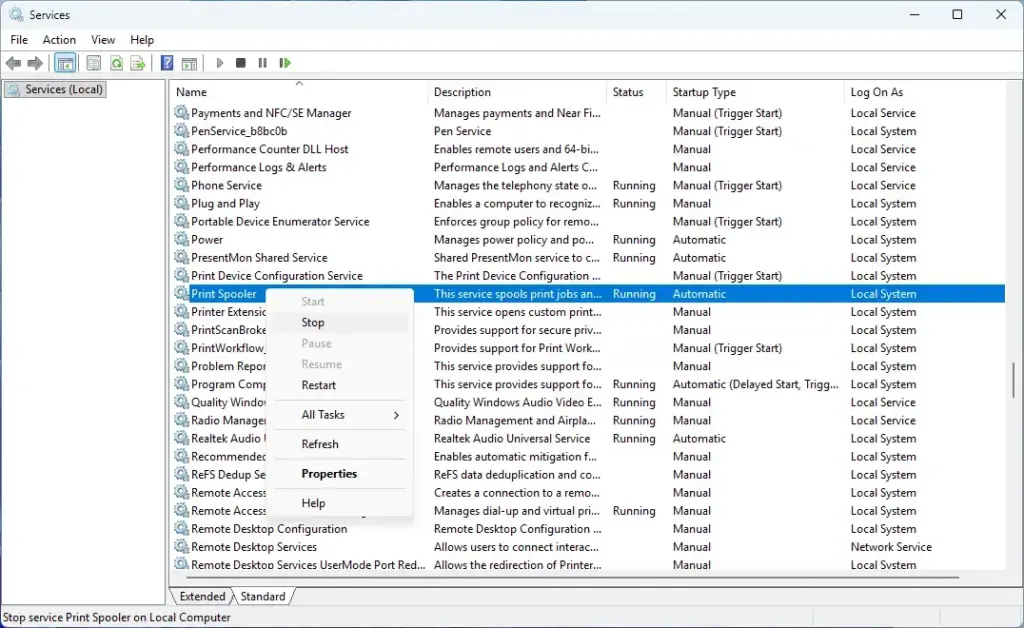
- Right-click Print Spooler and choose Stop. The Status column goes blank when the service has stopped.
- Minimize the Services window without closing it. You need it again in a moment.
- Press Win+E to open File Explorer .
- Go to 📁C:\
Windows\ . You can paste the path into the address bar. If Windows asks for permission, click Continue. The folder holds the waiting print jobs and may look empty if hidden files are off.System32\ spool\ PRINTERS - Select all the files in the PRINTERS folder (press Ctrl+A) and delete them. These files are the stuck print jobs. Delete only the files inside the folder and leave the PRINTERS folder itself in place.
- Return to the minimized Services window.
- Right-click Print Spooler and select Start. The Status column shows Running again.
Your print queue should now be empty, and you can try printing again. The deleted jobs are gone for good, so send the documents to the printer again. There is nothing to undo, because the service simply starts with a clean queue.
Alternative Method: Using the Command Prompt
If you prefer the command line, you can clear the queue with Command Prompt. It does the same job as the Services method: it stops the Print Spooler service, deletes the stuck files and starts the service again. You must run it as an administrator, otherwise the commands fail with an “Access is denied” or “system error 5” message.
- Type cmd in the Windows search bar .
- Right-click Command Prompt and select Run as administrator. Click Yes if User Account Control asks.
- In the Command Prompt window, type the following command and press Enter: net stop spooler. Windows reports that the Print Spooler service was stopped successfully.
- Then run this command: del 📂%systemroot%\
System32\ \* /Q. The /Q switch deletes the files without asking you to confirm each one.spool\ printers - Finally, restart the Print Spooler service by entering this command: net start spooler. Windows reports that the service was started successfully.
This approach also clears the print queue so you can print your documents.
You can also use Windows Terminal, which is the current alternative to opening Command Prompt on its own. Press Windows + X and choose Terminal (Admin). On some builds the entry is called Windows Terminal (Admin). Click Yes on the User Account Control prompt. The window usually opens in a PowerShell tab, where you can follow these steps:
- Type Stop-Service -Name Spooler and press Enter. The prompt returns with no message when it works.
- Delete the files inside C:\Windows\System32\spool\PRINTERS using File Explorer, as in the Services method above. In PowerShell, del is an alias for a different command and does not accept the /Q switch, so File Explorer is the safer route. You can also open a Command Prompt tab in the same window and use the del command shown earlier.
- Type Start-Service -Name Spooler and press Enter.
Check Printer Connections and Drivers
If clearing the print queue didn't fix the issue, check your printer's connections and drivers:
- Check that cables are securely connected for wired printers. Try a different USB port or cable if you have one.
- For wireless printers, make sure your printer is on the same Wi-Fi network as your computer. A printer that has dropped off the network leaves jobs waiting.
- Update printer drivers by going to Settings Bluetooth & devices Printers & scanners, selecting your printer, and choosing Printer properties. Driver options vary by manufacturer. If you don't see an update option there, use the manufacturer's support site or Windows Update. Where the older path in this guide read Settings Devices, Windows 11 now shows it as Bluetooth & devices.
- Run the printer troubleshooter. Go to Settings System Troubleshoot Other troubleshooters, find Printer and click Run. It opens in the Get Help app and checks the spooler, the printer and the driver. It is a good fallback when the queue keeps getting stuck after you clear it.
Regularly updating drivers ensures compatibility with Windows 11 and avoids common printing issues.
If This Didn't Work
If these solutions didn't solve the problem, try uninstalling and reinstalling your printer:
- Go to Settings Bluetooth & devices Printers & scanners
- Select your printer and click Remove. Confirm if Windows asks. The printer disappears from the list.
- Click Add device and wait for Windows to find the printer, then select it. If it doesn't show up, click Add manually and follow the prompts.
Be aware that feature updates or system changes in Windows 11 can reset printer settings, so you may need to repeat these steps. Alternatively, consider connecting your printer directly with a cable to bypass network issues temporarily.
Frequently asked questions
How do I clear a print queue that won't delete?
Restart the Print Spooler service. Open Services (press Windows + R, type services.msc), right-click Print Spooler and select Stop. Navigate to C:\Windows\System32\spool\PRINTERS and delete all files inside. Return to Services, right-click Print Spooler, and select Start. This clears stuck jobs the system won't remove normally.
Why doesn't my print queue clear after I print?
Stuck print jobs prevent new ones from processing. Restart the Print Spooler service to clear them. Open Services (Windows + R, type services.msc), stop Print Spooler, delete files in C:\Windows\System32\spool\PRINTERS, then restart the service. After this, your queue should process normally again.
How do I force my printer to clear the queue?
Stop and restart the Print Spooler service, which handles all queued jobs. Open Services (Windows + R, services.msc), right-click Print Spooler and choose Stop. Delete everything in C:\Windows\System32\spool\PRINTERS. Right-click Print Spooler again and select Start. This forces a complete queue reset.
How do I cancel a print job that is stuck in the printer queue?
Right-click Print Spooler in Services (Windows + R, services.msc) and select Stop. This halts the stuck job. Delete files in C:\Windows\System32\spool\PRINTERS to remove it permanently. Then restart Print Spooler by right-clicking and selecting Start. The job is now cancelled and won't reappear.
Still have a question?
Answered by AI from this guide. Good questions may be added to this page — please don't include personal details.
Did this guide fix your problem?

About the Author
Richard
Tech Writer, IT Professional
Richard is a writer at Geek Rewind who turns complex IT tasks into clear, step-by-step guides. He draws on years of hands-on experience in system administration and enterprise IT operations, focusing on Windows, Linux and WordPress: the problems people actually run into, and the fixes that work. His server and WordPress guides come from systems he runs himself. Richard builds and maintains the platform behind Geek Rewind, from its Ubuntu servers and Nginx configuration to its custom WordPress plugins. Many new tutorials start with readers' questions, and he's always glad to answer them in the comments.
No comments yet — be the first to share your thoughts!