How to Select Your Primary Monitor in Windows 11 When Using Multiple Displays

Windows 11 lets you pick which monitor is your main display when you have more than one screen plugged in. Your taskbar , Start menu , and any new windows you open will appear on whichever monitor you set as primary.
To change your primary monitor, open Settings System Display At the top of the screen, you’ll see a diagram showing all your connected monitors. Click the one you want to be your main display, expand Multiple displays, then check “Make this my main display.”
The change happens right away — Windows 11 doesn’t need a restart. Your taskbar and Start menu will move to the new primary monitor immediately, and any apps you open from that point forward will open there by default.
To set your primary monitor in Windows 11, open Settings System Display, click the monitor you want in the numbered diagram, then tick “Make this my main display” under Multiple displays. The change takes effect immediately, and your taskbar and Start menu move to that screen with no restart needed.
What the primary monitor setting actually controls
If you’ve ever logged in and found your taskbar on the “wrong” screen, or a new app always opens on a monitor you don’t want it on, the fix is almost always to change which display is set as primary rather than moving windows around one at a time.
This is different from display order (Monitor 1, Monitor 2, and so on) and different from which monitor is your “main” one physically — Windows doesn’t care which screen is bigger or in the middle. It only cares which one you’ve told it is primary.
Check which monitor is currently primary
Before changing anything, confirm which display Windows currently treats as primary. This saves you from toggling the wrong monitor by mistake.
- Open Settings . Press Win+I, or right-click the desktop and choose Display settings.
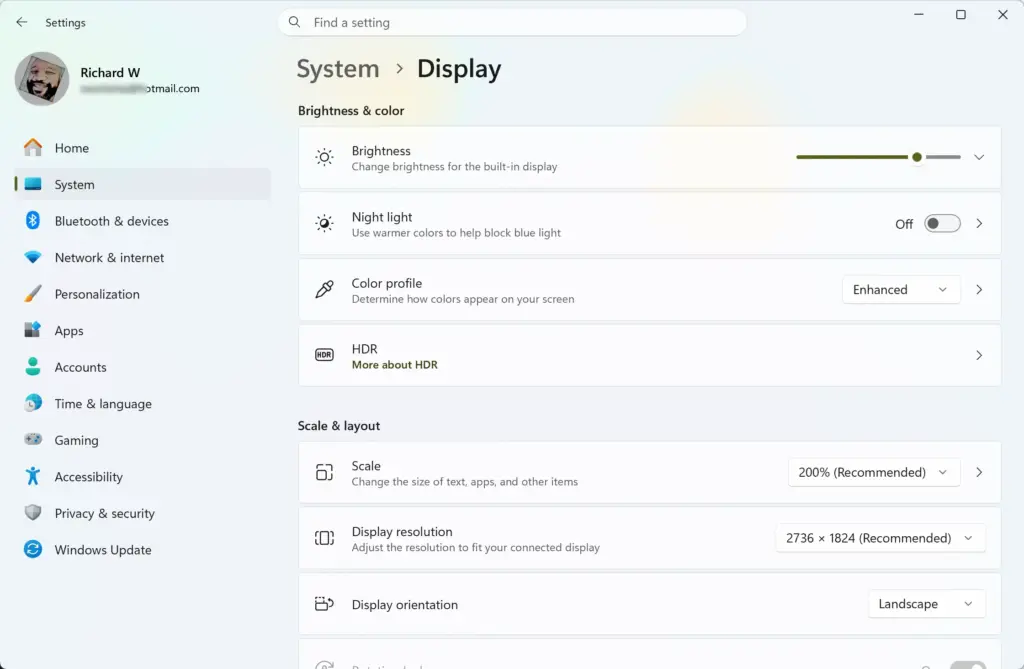
Settings › System › Display - Go to System Display You’ll see a diagram near the top showing all connected monitors as numbered boxes (1, 2, 3, and so on).
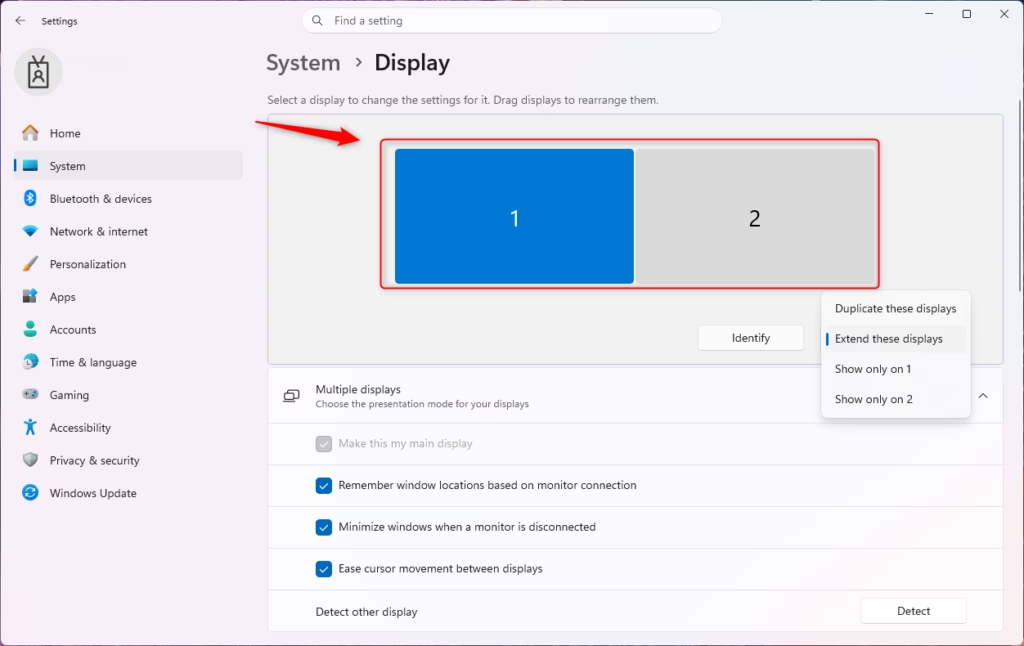
Windows 11 multiple displays settings showing arrangement options. - Click Identify if you’re not sure which box corresponds to which physical screen. Windows briefly shows a large number on each monitor so you can match them up.
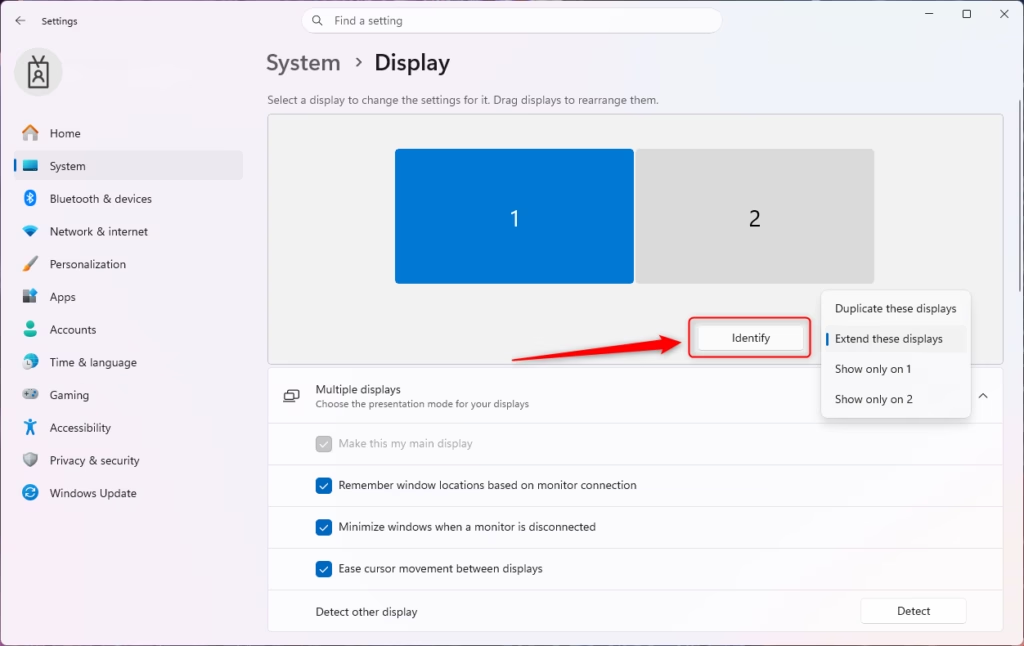
Windows 11 multiple displays identify screen numbers. - Click each monitor box one at a time and scroll down to the Multiple displays section. The monitor with Make this my main display already checked (and greyed out, since it’s already active) is your current primary display.
Set a different monitor as primary
This is the main fix most readers are looking for. It works the same way whether you’re switching from a laptop screen to an external monitor, or between two desktop monitors.
- Open Settings System Display You’ll see the same numbered monitor diagram described above.
Windows 11 multiple displays settings showing arrangement options. - Confirm your displays are set to Extend these displays. Scroll down to the Multiple displays dropdown and check it. You can’t set a primary monitor while displays are set to Duplicate these displays — the option won’t appear because, in that mode, both screens show identical content and the concept of “primary” doesn’t apply.
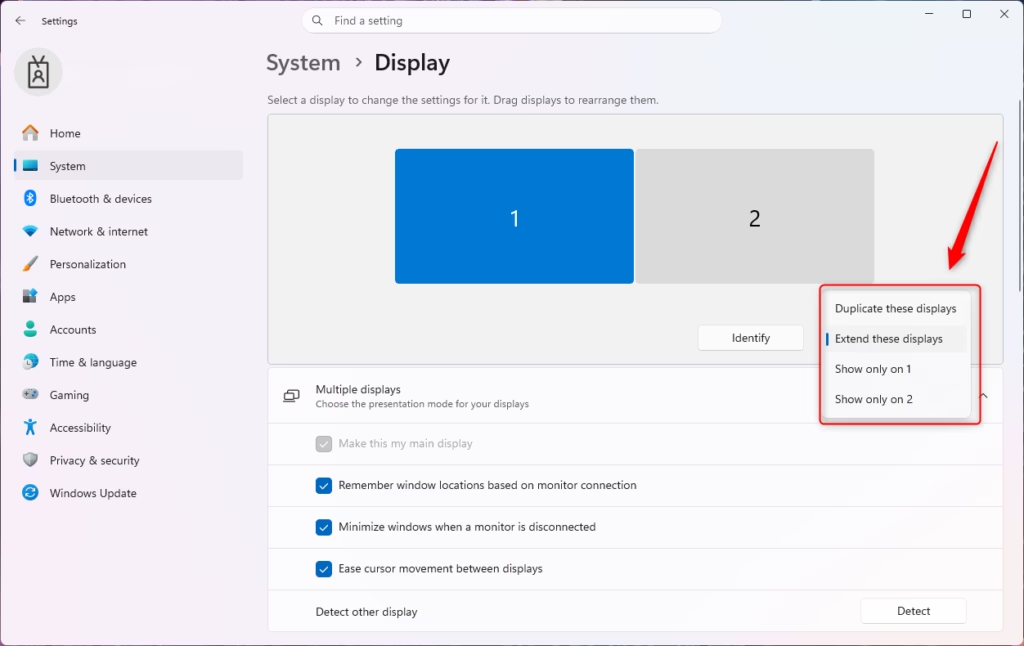
Windows 11 multiple displays project options for screen duplication. - Click the monitor you want to make primary in the diagram. It highlights to show it’s selected.
- Scroll down and turn on “Make this my main display”. This checkbox only appears for the monitor you’ve selected, and only if that monitor isn’t already primary. Once you check it, your taskbar , Start menu , and desktop icons shift to that screen immediately.
You’ll know it worked because the taskbar jumps to the newly selected monitor without any prompt to confirm or restart. If nothing moves, re-check that you selected the correct monitor number in the diagram — it’s easy to click the wrong box, especially with three or more displays.
Why “Make this my main display” is missing or greyed out
Competitors covering this topic skip over the most common reason readers get stuck: the option isn’t always available. Here’s what causes it, since none of this is obvious from the Settings page itself.
- The monitor is already primary. The checkbox appears checked and disabled — there’s nothing to toggle because it’s already set.
- Your displays are set to Duplicate these displays instead of Extend these displays. Switch the Multiple displays dropdown to Extend these displays first.
- You’re connected over a wireless display (Miracast) or casting to a TV. Wireless-projected screens generally can’t be set as the primary display.
- You’re in a Remote Desktop session. Display settings inside a remote session apply to that session only, not to the physical PC, and primary monitor options behave differently there.
- Your graphics driver’s own control panel (Intel Graphics Command Center, NVIDIA Control Panel, or AMD Software) has its own display configuration open at the same time. Close those utilities and make the change in Windows Settings instead, since the two can conflict over which monitor is primary.
The primary monitor changes back after sleep, restart, or reconnecting a cable
If your primary monitor setting keeps resetting to a monitor you didn’t choose, it’s almost always a hardware detection order issue rather than a Windows bug. A few things to try:
- Check the cable and port you’re using. Monitors connected to certain GPU outputs (particularly the one nearest the motherboard on some cards) get detected first and are sometimes defaulted to primary. Swapping which port each monitor uses can change this.
- Re-set the primary monitor after reconnecting. If a monitor is unplugged and plugged back in, Windows can re-assign display numbers and reset which one is primary. Go back through Settings System Display and reapply Make this my main display.
- Update your graphics driver. Outdated GPU drivers are a common cause of displays being misdetected on wake from sleep. Check for updates through Windows Update or your GPU manufacturer’s own update tool.
If Windows boots straight to a black screen or shows the login screen on a monitor that isn't even turned on, the display that's acting as primary at startup may be one you've disconnected since the last session. Disconnect all monitors, wait a few seconds, then reconnect only the one you want as primary before powering on. This often resets which screen shows the login screen. In the GPU control panel, check that no monitor is manually forced into a specific display slot that conflicts with what's physically connected.
Undo the change
To switch back, repeat the same steps: open Settings System Display, click the monitor that was previously primary, and turn on Make this my main display again. There's no confirmation dialog and no restart required in either direction, so you can switch back and forth freely while you figure out which setup you prefer.
Taskbar or apps not following the new primary monitor
If you want the taskbar visible on every screen rather than just the primary one, that's a separate setting: go to Settings Personalization Taskbar, open Taskbar behaviors, and turn on Show my taskbar on all displays.
Fullscreen games showing only on the primary monitor
If a game launches in exclusive fullscreen mode (true fullscreen, where the game takes over the entire screen), it generally only displays correctly on whichever monitor is set as primary — moving the game window to another screen while it's running often doesn't work the way it does with normal desktop apps. If you need a game on a non-primary monitor, you have two options: temporarily set that monitor as primary before launching the game, or switch the game's display mode from fullscreen to Windowed or Borderless in its in-game video settings, which lets it run on any monitor regardless of which one is primary.
What to do next
Once your primary monitor is set the way you want, it's worth checking your display arrangement in the same Settings System Display page — drag the monitor boxes in the diagram so they match how your screens are physically positioned on your desk, which makes dragging windows between monitors feel natural. If you regularly switch between a laptop screen and an external monitor, look at setting up a display profile or checking your Night light schedule, since brightness and color settings are handled per-monitor and may need separate adjustment after a primary display change.
Frequently asked questions
How do I change my primary monitor with multiple monitors?
Open Settings System Display At the top, you'll see a diagram of your monitors. Click the one you want as primary, then toggle on "Make this my main display." Windows applies the change immediately without restarting.
How to swap primary and secondary display?
Open Settings System Display. Click on the monitor currently set as secondary in the diagram at the top of the screen. Turn on the toggle for "Make this my main display." Your taskbar and Start menu move to that monitor right away.
Why is my main screen on my second monitor?
Your second monitor is set as primary. Go to Settings System Display, click on the monitor you actually want to be main in the diagram, and toggle "Make this my main display" on. The taskbar will move to your preferred screen.
How do I get my computer to recognize my 2nd monitor?
Plug the monitor into your graphics card or USB-C port, then open Settings System Display. Windows usually detects it automatically. If it doesn't appear, scroll down and click "Detect." You may need to update your graphics drivers if detection still fails.
Still have a question?
Answered by AI from this guide. Good questions may be added to this page — please don't include personal details.
Did this guide fix your problem?

About the Author
Richard
Tech Writer, IT Professional
Richard is a writer at Geek Rewind who turns complex IT tasks into clear, step-by-step guides. He draws on years of hands-on experience in system administration and enterprise IT operations, focusing on Windows, Linux and WordPress: the problems people actually run into, and the fixes that work. His server and WordPress guides come from systems he runs himself. Richard builds and maintains the platform behind Geek Rewind, from its Ubuntu servers and Nginx configuration to its custom WordPress plugins. Many new tutorials start with readers' questions, and he's always glad to answer them in the comments.
No comments yet — be the first to share your thoughts!