Identify Which Monitor Is Which in Windows 11 Display Settings

- 23 steps
- Needs administrator rights
- Includes a restart or sign-out
To tell your monitors apart, press Identify on the Display page. It flashes a large number on each screen for a few seconds, and you match that number to a box in Settings.
This matters when you have two or more monitors and Windows treats the wrong one as the left, right or main screen. Windows 11 labels each display with a number, and those numbers are what the settings page uses. This guide shows how to read them, find each monitor’s model name, and fix the case where a screen does not appear at all.
Nothing here needs administrator rights except the optional driver update near the end, and every method works the same on Windows 11 Home and Pro.
To identify which monitor is which in Windows 11, open Settings, go to System Display, and click Identify under the box diagram. A large number flashes on each physical screen for a few seconds. Match that number to the box with the same number in Settings, then select the box to change that monitor’s settings.
Identify Which Monitor Is Which in 🪟 Windows 11 Display Settings
These steps show a number on every connected screen. You then match each number to a box in Settings. Viewing this page changes no settings.
- Open Settings. Press Win+I, or click Start and select Settings (the gear icon).

Start Menu - Click System in the left menu. The System page opens on the right.
- Click Display. The path is Settings System Display. You can also right-click an empty area of the desktop and choose Display settings to land here directly.
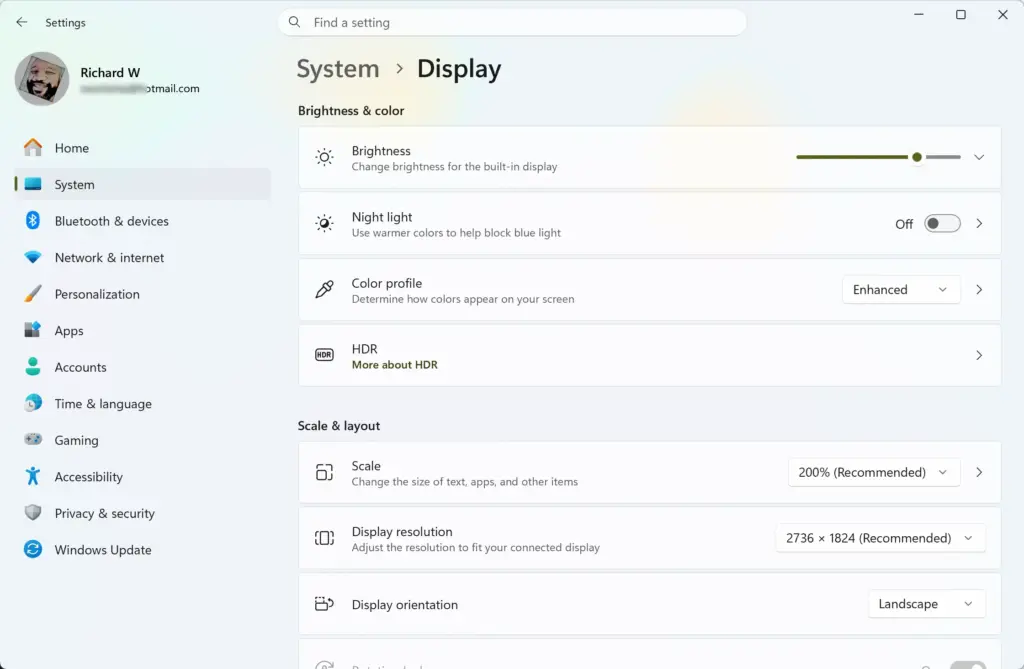
Settings › System › Display - Look at the box diagram at the top of the page. Each box is one monitor, and each has a number in the middle. With two monitors you see boxes labeled 1 and 2.
- Click Identify. It sits just under the diagram. A large number appears on each physical screen, usually near the bottom-left corner, and fades after a few seconds.
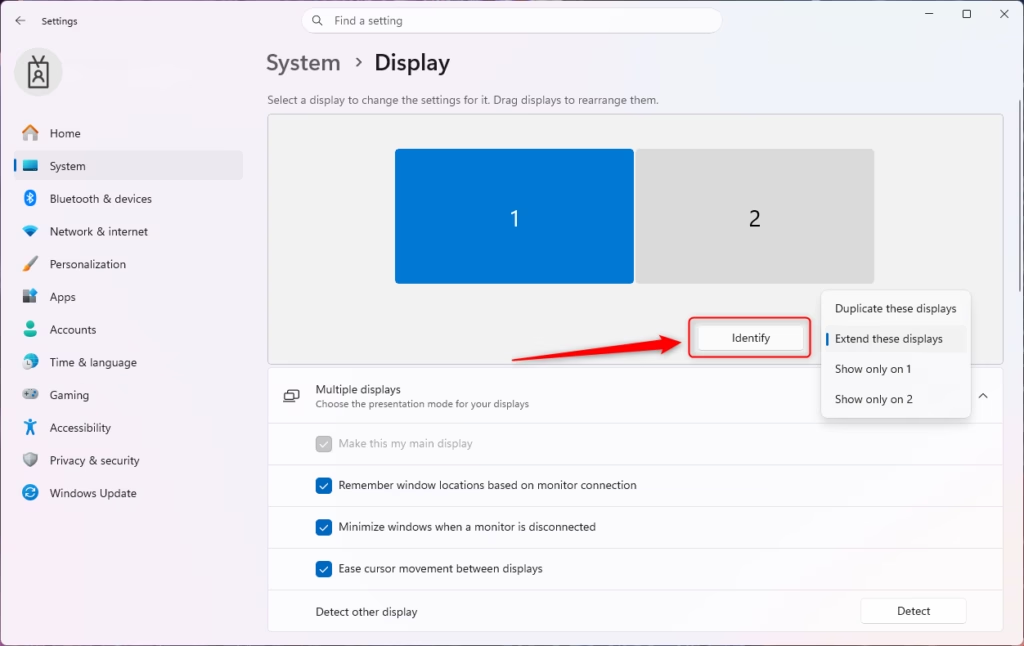
Windows 11 multiple displays identify screen numbers. - Match each number on your desk to the box with the same number. If the number 2 appears on your left monitor, the box labeled 2 in Settings controls that left monitor.
- Click a numbered box to select it. The blue outline shows which monitor you are changing, and every setting below the diagram (resolution, scale, orientation) now applies to that monitor only.
If the number fades before you can read it, click Identify again. You can repeat it as often as you like.
If the Identify button is missing
The Identify button appears only when Windows sees more than one display. With a single monitor, the page shows one box and no button. If you have two monitors connected but see only one box, skip to the troubleshooting section below.
On some builds you also see a Detect button next to Identify. It asks Windows to look again for a screen it missed, which helps with older monitors connected through VGA (an older analogue video plug) or through adapters.
What the Numbers Mean in 🪟 Windows 11
The numbers are labels that Windows assigns. They do not follow the physical order on your desk, and they do not always follow the port you plugged into. Display 1 is not guaranteed to be your left monitor, your main monitor, or your laptop screen.
The position of each box in the diagram does matter, but for a different reason. It tells Windows where the edges of your screens meet, which decides where the mouse pointer crosses from one monitor to the next. If the pointer leaves the wrong side of a screen, the boxes are in the wrong order. The post on arranging multiple displays in Windows 11 Display Settings covers dragging them into the right layout.
The main display
One monitor is always the main display. It holds the Start button and the system clock by default, and many apps open on it first. The main display is not always number 1.
To see which is main, select each box and scroll to the Multiple displays section. The main display has Make this my main display checked, and Windows greys out that option because it is already set.
What you see in Duplicate mode
When Windows mirrors the same picture on both monitors, it merges them into a single box in the diagram. Because both screens show the same image, the numbers do not help you tell them apart. Before you identify anything, switch to extended mode. This gives each monitor its own box in the diagram. Press Win+P, choose Extend, then run Identify again.
Find the Model Name of Each Monitor
A number tells you which screen is which on your desk today. A model name tells you which physical monitor you are dealing with, which helps when two screens look alike or when you need to check a spec. Windows shows the model name on the Advanced display page.
Check the model name in Advanced display
Advanced display shows the make and model of the monitor you select. It also shows the graphics adapter that monitor connects to.
- Open Settings System Display. The monitor diagram appears at the top.
- Click the box for the monitor you want to check. The blue outline moves to that box.
- Scroll down to Related settings. It is near the bottom of the page.
- Click Advanced display. A page opens with details about the selected monitor.
- Open the Select display to view or change its settings list. It names each monitor, such as “Display 1: DELL U2723QE” or whatever model is installed. The number before the model name matches the numbers from Identify.
- Read the Display information section. It shows the monitor name, the graphics adapter it is connected to, the desktop resolution, and the refresh rate.
If the name reads Generic PnP Monitor, Windows is using a basic driver (a generic driver it uses when it cannot identify the model) and cannot read the model name. This is common with adapters, docking stations and older monitors. The monitor works normally, but Windows cannot give you a friendlier label. Check the sticker on the back of the monitor, or open the monitor’s own on-screen menu with the buttons on its bezel, which often has an Information entry.
Match a model to a screen on your desk
When two monitors are the same model, the name will not separate them. Note the number that Identify shows on the screen. Then choose that number from the Select display to view or change its settings list to see its settings.
You can also unplug one monitor’s cable for a moment. The box that disappears from the diagram belongs to that screen. Plug it back in and the box returns, though the number may change.
Set the Right Monitor as Your Main Display
Once you know which monitor is which, you can move the taskbar and Start button to the screen you want. This changes where the taskbar and Start button appear. To undo it, select the other monitor and check Make this my main display.
- Open Settings System Display. The monitor boxes appear at the top.
- Click Identify. Note which number is on the screen you want as main.
- Click the box with that number. The blue outline confirms the selection.
- Scroll to Multiple displays. Click the arrow to expand the section if it is collapsed.
- Check Make this my main display. The taskbar and Start button move to the selected screen within a second or two.
The screen may flicker or go black briefly while Windows redraws the desktop. This is normal. For the full set of options, including resolution and orientation, see how to configure multiple monitors correctly in Windows 11 Display Settings.
If a Monitor Does Not Appear or Identify Shows the Wrong Screen
When a connected monitor is missing from the diagram, Windows has not detected it. The fixes below go from the quickest to the most involved. Try them in order and check the Display page after each one.
- Check the display mode. Press Win+P and choose Extend. If the mode was set to PC screen only, Windows ignores the second monitor until you change it.
- Check the monitor’s input. Many monitors have several inputs (HDMI, DisplayPort, USB-C). Use the buttons on the monitor to select the input that matches the cable you plugged in. A monitor on the wrong input looks disconnected even though Windows sees it.
- Check the connection. Unplug the video cable at both ends, then plug it back in firmly. Try a different port on the graphics card or laptop if one is free.
- Click Detect. If the button appears next to Identify, click it. Windows checks again for displays it missed.
- Restart the graphics driver. Press Win+Ctrl+Shift+B. The screen flashes or goes black for a second, and Windows reloads the graphics driver without closing your apps.
- Restart the PC. A full restart clears detection problems that the shortcut does not.
Update the graphics driver
- Right-click Start and select Device Manager. Approve the prompt if Windows asks for administrator permission.
- Expand Display adapters. Your graphics card or chip appears in the list.
- Right-click the adapter and choose Update driver. A window opens.
- Click Search automatically for drivers. Windows checks for a newer version and installs it if one is found.
- Restart the PC if Windows asks. Then open Settings System Display and click Identify again.
If Windows says the best driver is already installed, visit the website of your graphics card or laptop maker for a newer one.
If Identify shows numbers but the layout is wrong
Sometimes every monitor is detected and numbered, but the left screen acts as the right one. The boxes in the diagram are in the wrong order. Click and drag a box to the other side of its neighbour, then click Apply if it appears. Move the mouse across the screens to confirm the pointer now crosses at the correct edge.
Does Identifying a Monitor Change Anything?
No. The Identify button only displays numbers for a few seconds. It does not change resolution, layout or the main display, and it does not need a restart. Selecting a box also changes nothing until you adjust a setting below it.
If you do drag a box or change the main display by mistake, reverse it the same way. Drag the box back to its old position, or select the other monitor and check Make this my main display. Windows also shows a countdown to keep or revert some changes, such as resolution. If you do nothing, it returns to the previous setting after about fifteen seconds.
Windows remembers settings per monitor and per connection, so your layout often returns when you reconnect the same screens. A different port, a dock or a new graphics driver can make Windows treat a monitor as new, and the numbers or the layout may reset.
What to Do Next
With each screen numbered and named, set the layout so the mouse moves between them the way they sit on your desk. The guide to arranging multiple displays covers that. If one monitor looks washed out or tinted compared with the other, the color management profiles and display color calibration posts help you match them. If text looks different in size between screens, see how to scale text and icons larger or smaller for each monitor.
Frequently asked questions
How to adjust power and sleep settings in 🪟 Windows 11?
Open Settings, click System, then choose Power & battery. Under Screen and sleep, set how many minutes pass before the screen turns off and before your PC sleeps. If your laptop shows both On battery power and Plugged in, set each one separately. Changes take effect right away.
How to calibrate display color in 🪟 Windows 11?
Open Start, type Calibrate display color, and press Enter. The Display Color Calibration wizard opens. On each screen, adjust gamma, brightness, contrast, and color balance, then click Next to continue. Click Finish to apply the new color settings.
How to adjust display settings in 🪟 Windows 11?
Open Settings, click System, then click Display. Use Scale to resize text and apps, and Resolution to change how sharp the image looks. Orientation rotates the screen, and Brightness adjusts how bright it is. For refresh rate, open Advanced display.
Still have a question?
Answered by AI from this guide. Good questions may be added to this page — please don't include personal details.
Did this guide fix your problem?

About the Author
Richard
Tech Writer, IT Professional
Richard is a writer at Geek Rewind who turns complex IT tasks into clear, step-by-step guides. He draws on years of hands-on experience in system administration and enterprise IT operations, focusing on Windows, Linux and WordPress: the problems people actually run into, and the fixes that work. His server and WordPress guides come from systems he runs himself. Richard builds and maintains the platform behind Geek Rewind, from its Ubuntu servers and Nginx configuration to its custom WordPress plugins. Many new tutorials start with readers' questions, and he's always glad to answer them in the comments.
No comments yet — be the first to share your thoughts!