How to Change Your Display Name in Windows 11


The display name is the label Windows 11 shows for your account on the sign-in screen, in the Start menu and in the Settings app . It is separate from your email address and your password. Changing it does not change how you sign in.
There are 2 ways to change it, and which one applies depends on your account type. A Microsoft account takes its name from your online Microsoft profile, so you change it on the Microsoft website. A local account on Windows 11 version 23H2 or 22H2 can be renamed on the PC itself, either from the Control Panel or with the tools below. Before you start, check which kind of account you use under Settings Accounts Your info A Microsoft account shows an email address. A local account shows “Local account”.
Open Netplwiz by pressing Win+R, typing netplwiz and pressing Enter. Select your account on the Users tab, click Properties, and change the Full name field on the General tab. Click OK to save. The new name appears on the sign-in screen and in the Start menu . Microsoft accounts take their name from your online profile, so change it on the Microsoft website instead.
Why Change Your Display Name?
Method 1Using Netplwiz
You open it from the Run box, pick your account, open its properties and edit the Full name field. You need to be signed in as an administrator to change another user’s account.
If you sign in with a Microsoft account, Windows may keep showing the name from your Microsoft profile. In that case, change the name on the Microsoft account website instead.
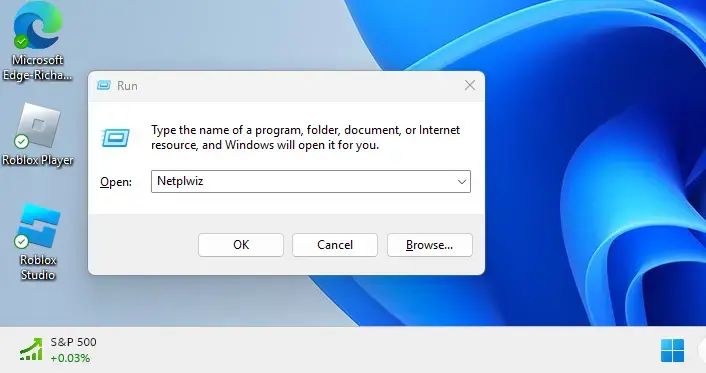
- Press Win+R on your keyboard. The Run window opens in the bottom-left corner of the screen.
- Type
Netplwizin the Open box and press Enter. You can also search for “Netplwiz” in Windows search and open it from the results. The User Accounts window should now appear.
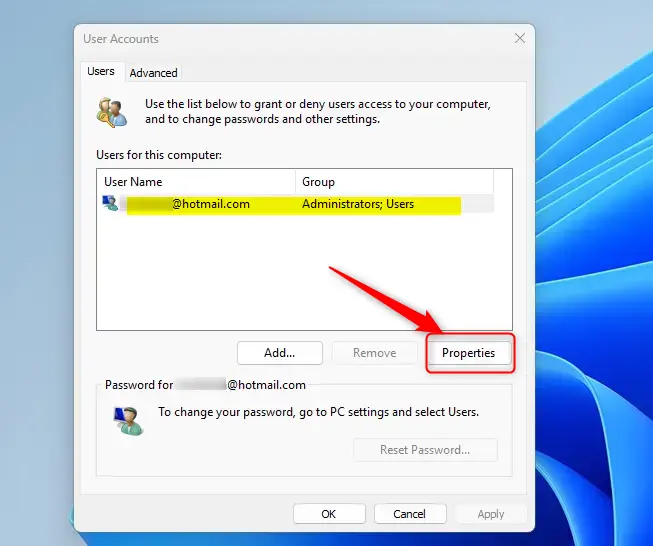
- Look at the list of user accounts on the Users tab and click the account you want to rename. The row is highlighted when it is selected. If you only see your own account, that is normal on a single-user PC.
- Click the Properties button. A small properties window for that account opens. If the button is greyed out, you have not selected an account yet.
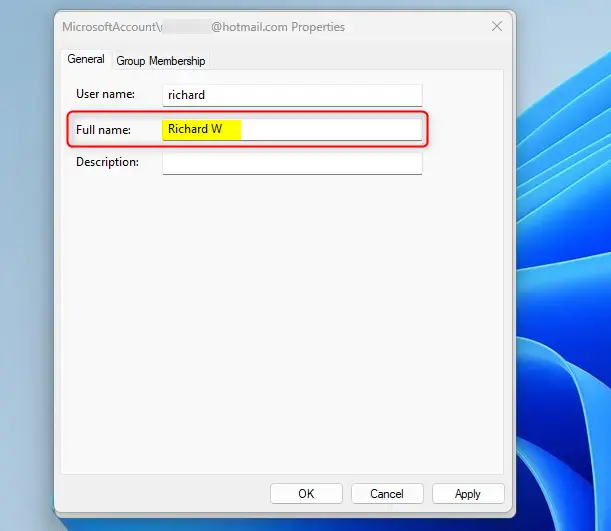
- On the General tab, find the box labeled Full name. Delete the current name and type your new display name. Leave the User name box alone. That is the account name Windows uses internally, and it is not the name shown on screen.
- Click OK to save your changes. Then click OK again in the User Accounts window if it is still open. The new name should show up on the sign-in screen and in the Start menu . If it does not, sign out and back in. To undo the change, repeat these steps and type the old name.
Method 2Using Local Users and Groups Console
If you run Windows 11 Pro, Enterprise or Education, you can also change the name in the Local Users and Groups console. This console is not included in Windows 11 Home. On Home, the Run command either fails or reports that the snap-in is unavailable, so use Netplwiz or the Control Panel instead. The console works with local accounts. It will not change the name of a Microsoft account, which comes from your online profile.
- Press Win+R to open the Run window.
- Type
lusrmgr.mscand press Enter. The Local Users and Groups console opens. If Windows asks for permission, click Yes. If you see an error saying the snap-in cannot be found, you are on Windows 11 Home.
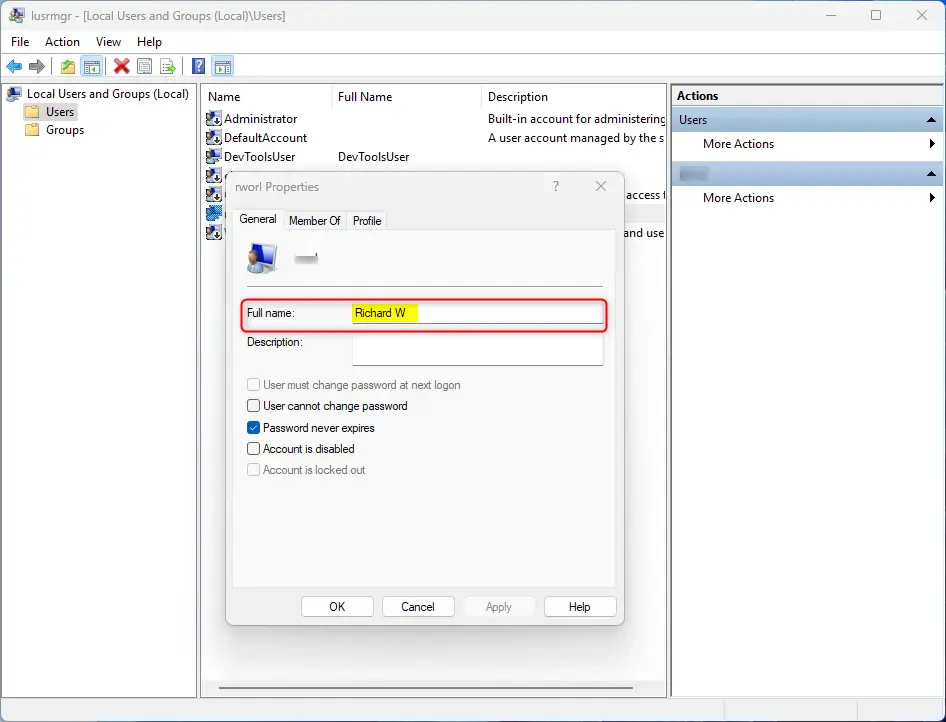
- In the left panel, click the Users folder. The right panel then lists every local account on the PC, with its name and full name.
- Find the account you want to change and double-click it. The properties window for that account opens on the General tab.
- Find the Full name field, delete the current name, and type your new display name. Do not rename the account in the list itself. The Full name field is the one that sets the display name.
- Click OK to save your changes. The Full name column in the list should now show the new name. To undo the change, open the same account again and put the old name back.
What Happens After You Change Your Display Name?
The new display name should appear across Windows right away. The sign-in screen, the Start menu and the Settings app all pick up the update, and so do other people who share the machine. You do not need to restart. If an old name still shows somewhere, sign out and sign back in, and restart the PC if it persists.
If the old name comes back, or the sign-in screen still shows a different name, check whether the account is a Microsoft account. Those names come from your Microsoft profile online, so change the name there. The new name then syncs to the PC the next time you are online.
Summary
Have a question about this guide?
Answered by AI from this guide. Good questions may be added to this page — please don't include personal details.
Did this guide fix your problem?

About the Author
Richard
Tech Writer, IT Professional
Richard is a writer at Geek Rewind who turns complex IT tasks into clear, step-by-step guides. He draws on years of hands-on experience in system administration and enterprise IT operations, focusing on Windows, Linux and WordPress: the problems people actually run into, and the fixes that work. His server and WordPress guides come from systems he runs himself. Richard builds and maintains the platform behind Geek Rewind, from its Ubuntu servers and Nginx configuration to its custom WordPress plugins. Many new tutorials start with readers' questions, and he's always glad to answer them in the comments.
No comments yet — be the first to share your thoughts!