Why Do My Desktop Icons Keep Rearranging in Windows 11

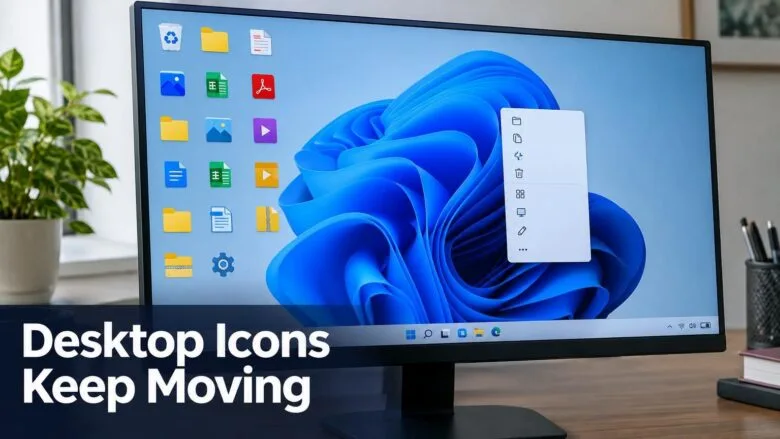
Desktop icons move on their own for one of two reasons. Either Auto arrange icons is turned on, or Windows 11 is changing your screen resolution or monitor layout. Turning off Auto arrange icons and Align to grid stops most of the shuffling. If the icons still move, the display settings are the next thing to check.
Display changes are the most common cause when a layout you set yourself keeps falling apart. Windows can reset icon positions after a monitor disconnects, a laptop wakes from sleep with a different screen setup, or the resolution shifts. The quick fix comes first, followed by the display causes.
None of these steps need a Registry Editor change. They work the same way on Windows 11 Home and Pro.
Desktop icons keep rearranging in Windows 11 because Auto arrange icons is switched on, or because the screen resolution, display scaling or monitor setup changes and Windows recalculates the layout. To stop it, right-click the desktop, open View, and turn off Auto arrange icons and Align icons to grid.
Why 🪟 Windows 11 Rearranges Your Desktop Icons
Windows 11 remembers icon positions for the screen setup it sees at that moment. It ties the layout to the resolution, the display scaling and the monitors connected. When any of those change, Windows recalculates where each icon sits and often packs them into the top-left corner.
The usual causes are:
- Auto arrange icons is on, so Windows moves icons into line whenever you drag one or add a file.
- Align icons to grid is on, so icons snap to invisible grid positions. This looks like rearranging when icon size changes.
- A Sort by choice was applied and the layout was reshuffled to match it.
- The screen resolution or scaling changed, for example after a game, a projector or a remote session.
- A monitor was disconnected, turned off, or woke from sleep late, and Windows briefly treated it as unplugged.
- The graphics driver reset or was updated.
- Icon size changed by accident, for example by holding Ctrl and scrolling the mouse wheel over the desktop.
Work through the sections in this order. The first takes about thirty seconds and fixes most cases where icons snap into neat rows when you drag them.
Turn Off Auto Arrange Icons and Align Icons to Grid
This step stops Windows from forcing icons into fixed positions. It is the first thing to check, because it explains why icons "won't stay where I put them" even when the display never changes.
Check the View menu on the desktop
The path is right-click the desktop > View. Follow these steps:
- Right-click an empty area of the desktop. The compact right-click menu opens. You do not need to select Show more options.
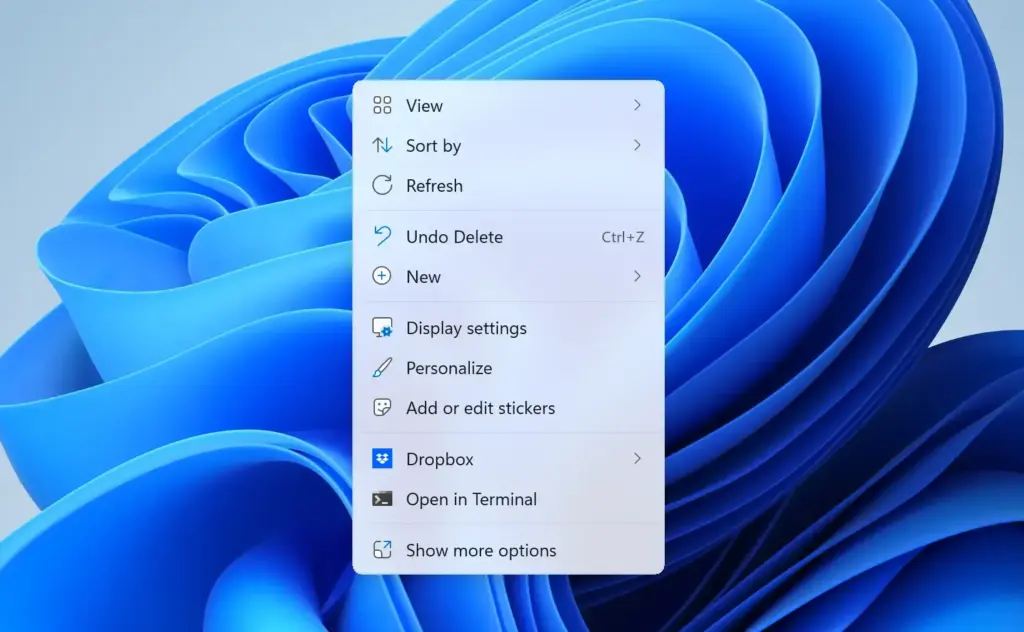
- Select View. A submenu opens with the icon size options (Large icons, Medium icons, Small icons) and a group of switches below them.
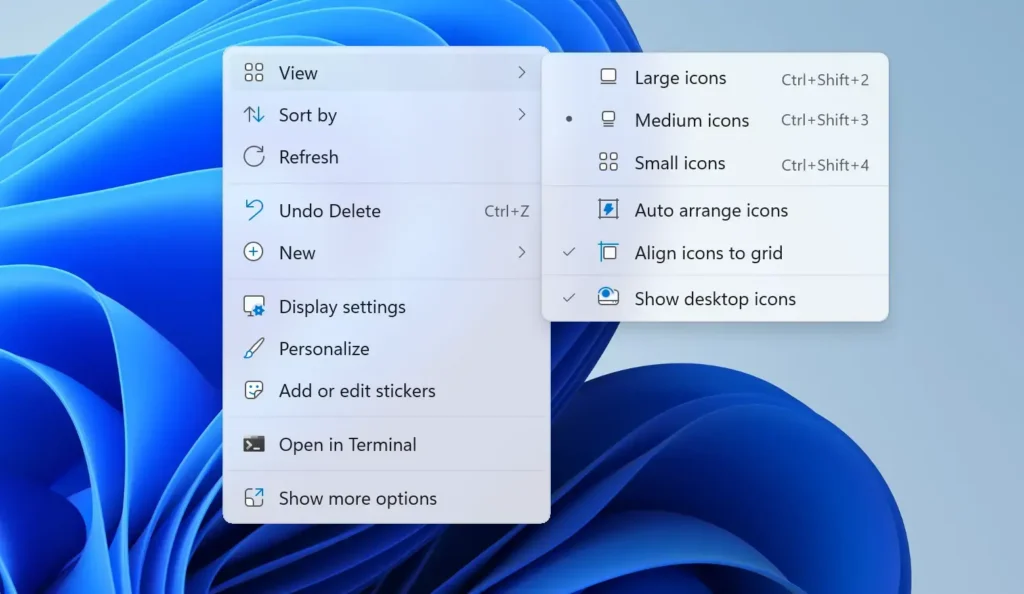
- Look at Auto arrange icons. A tick next to it means it is on. Select it to turn it off. The menu closes.
- Right-click an empty area again and select View.
- Look at Align icons to grid. If you want to place icons anywhere, including between grid positions, select it to remove the tick.
- Drag an icon to a new spot. It should now stay where you drop it.
With Auto arrange icons off, you can leave gaps anywhere on the desktop. With it on, Windows fills from the top-left and you cannot leave gaps. If you want gaps, leave it off.
Align icons to grid is a different setting. It keeps spacing neat but lets you choose which grid cell an icon occupies. You can leave it on if you like tidy rows. Turn it off only if you want free placement.
Check the Sort by setting
The path is right-click the desktop > Sort by. With Auto arrange icons off, choosing an option here sorts the icons once and then stops. With auto arrange on, it keeps applying.
- Right-click an empty area of the desktop.
- Select Sort by. The submenu lists Name, Size, Item type and Date modified.
- Do not select anything if you already have your layout. Selecting an option reorders every icon.
If you accidentally sort, press Ctrl+Z while the desktop is still selected. This only works right after the sort.
If View shows no desktop icons at all
If the desktop is empty, Show desktop icons in the same View submenu is probably off. Select it to turn them back on. Your layout is not lost.
Check for Resolution and Scaling Changes
If you turned off auto arrange and icons still jump, the display is changing. Windows saves your layout against a particular resolution. When the resolution changes, Windows places the icons again, and they often do not return when you switch back.
Set a fixed resolution and scale
The path is Settings System Display This step makes sure the main display uses its recommended resolution, so Windows has nothing to adjust.
- Press Windows key + I to open Settings.

- Select System, then select Display.
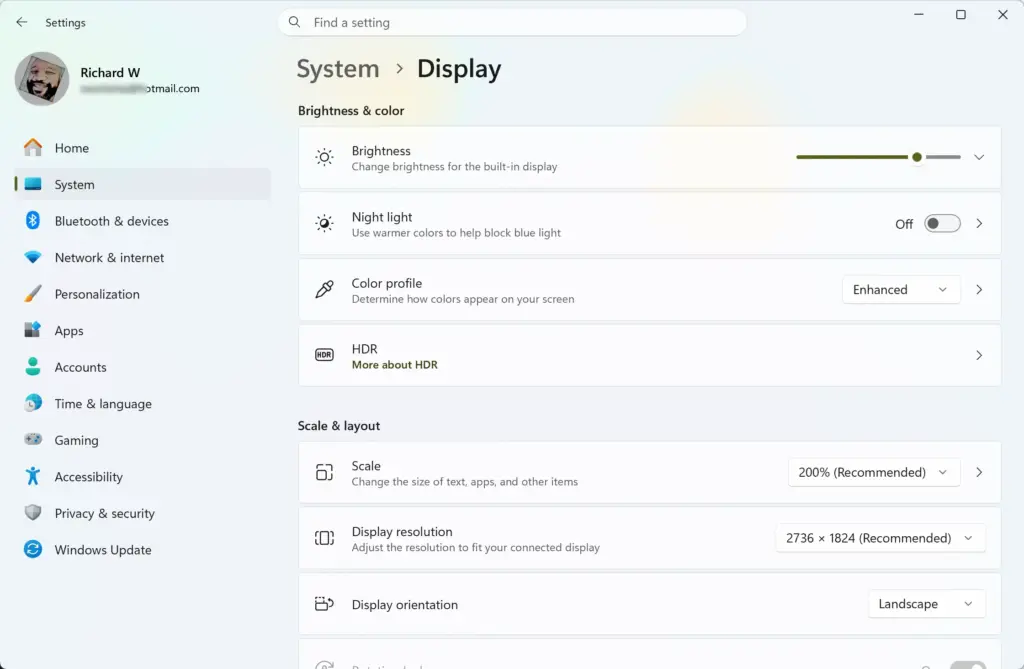
Settings › System › Display - Under Scale & layout, find Display resolution. Note the value. The recommended one is labelled (Recommended).
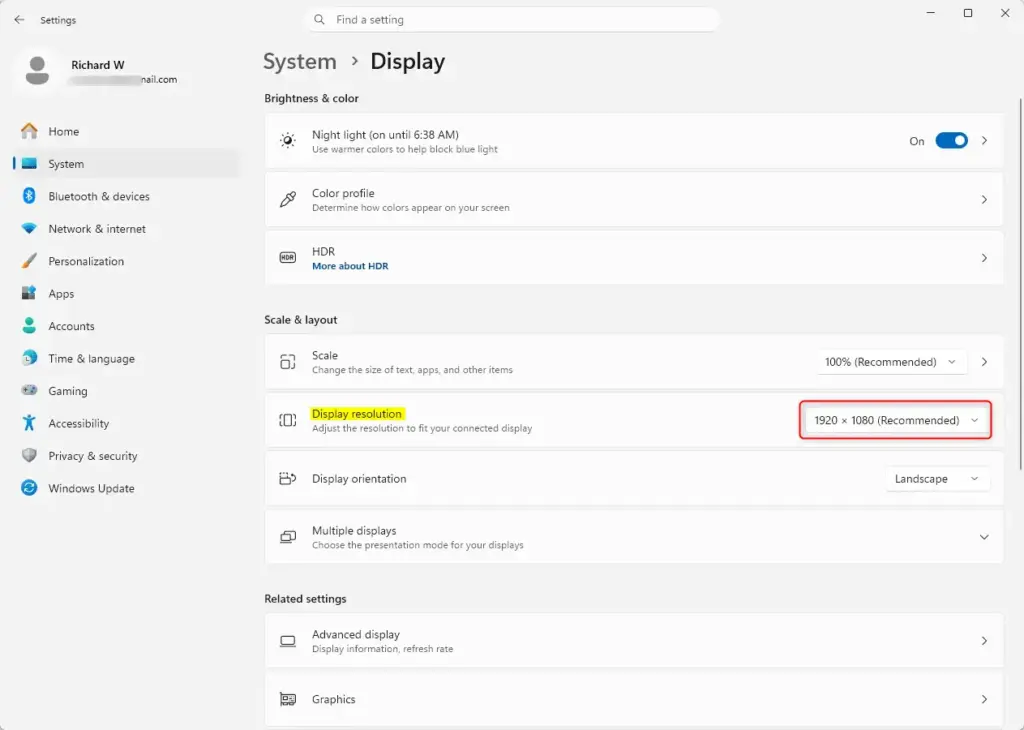
Settings › System › Display › Display resolution - Select the drop-down and choose the (Recommended) resolution if it is not already selected. If the screen goes dark for a moment and asks you to confirm, select Keep changes.
- Check Scale in the same section. Pick the value you want and leave it there.
Arrange your icons again after this change. Windows then stores the layout for this exact setup. Changing the resolution or scale later will shuffle them again, which is normal.
Why games and apps move your icons
Some full-screen games and older apps switch the display to a different resolution while they run. When you quit, Windows returns to your normal resolution and icons may land in new positions. If this happens after playing a game, open the game's video settings and choose the same resolution as your desktop, or use borderless windowed mode if it offers one. Borderless mode does not change the desktop resolution.
Remote Desktop sessions
Connecting to the PC through Remote Desktop can also change the display size. The session uses the resolution of the connecting device, and icons may be repositioned on the remote desktop or when you return to the local screen. If you connect often, use a client window size that matches the PC's resolution. Check the display options in your Remote Desktop client before you connect.
Fix Icon Moves After a Monitor Is Disconnected or Sleeps
If icons rearrange when you wake the PC, plug in a laptop, or turn a monitor off, Windows is likely treating a monitor as disconnected. It then moves icons to the screens that remain. When the monitor returns, the icons stay where Windows put them.
Set your main display correctly
Icons on the desktop belong to the main display. If Windows changes which monitor is main, icons can move to that monitor. The path is Settings System Display
- Open Settings and select System, then Display.
- Select Multiple displays to expand it, if you see it. The section lists display options.
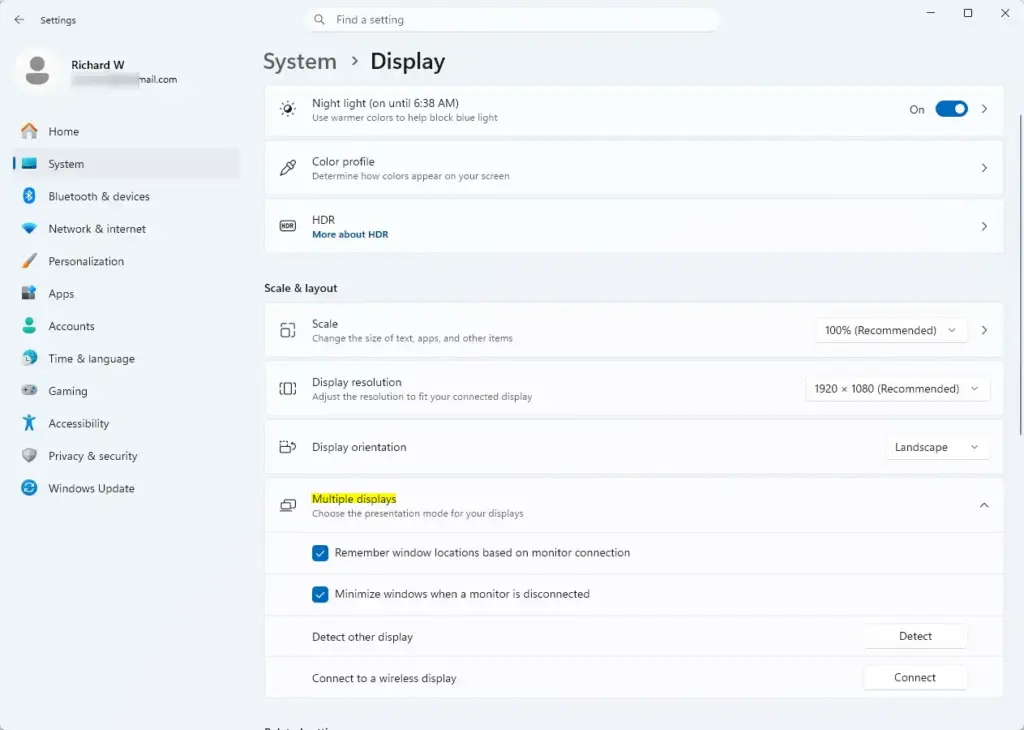
Settings › System › Display › Multiple displays - Select the monitor you want to use as the main one in the preview at the top of the page. A number appears on each monitor in the preview. Select Identify if you are unsure which is which.
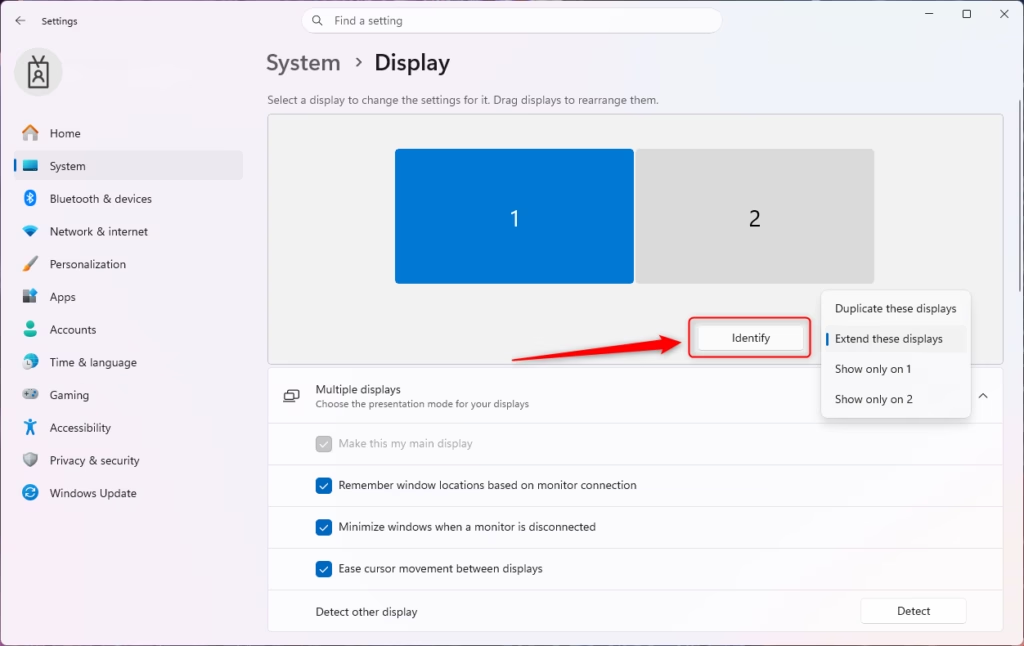
Windows 11 multiple displays identify screen numbers. - Select the Make this my main display check box. This check box shows only for a monitor that is not already the main one.
After this, the icons live on the screen you chose as the main one. If your layout was lost, drag the icons back.
Stop the monitor dropping out when it sleeps
Some monitors drop their signal when switched off or put to standby, and Windows sees that as an unplugged display. You can reduce the chance of it happening with these changes:
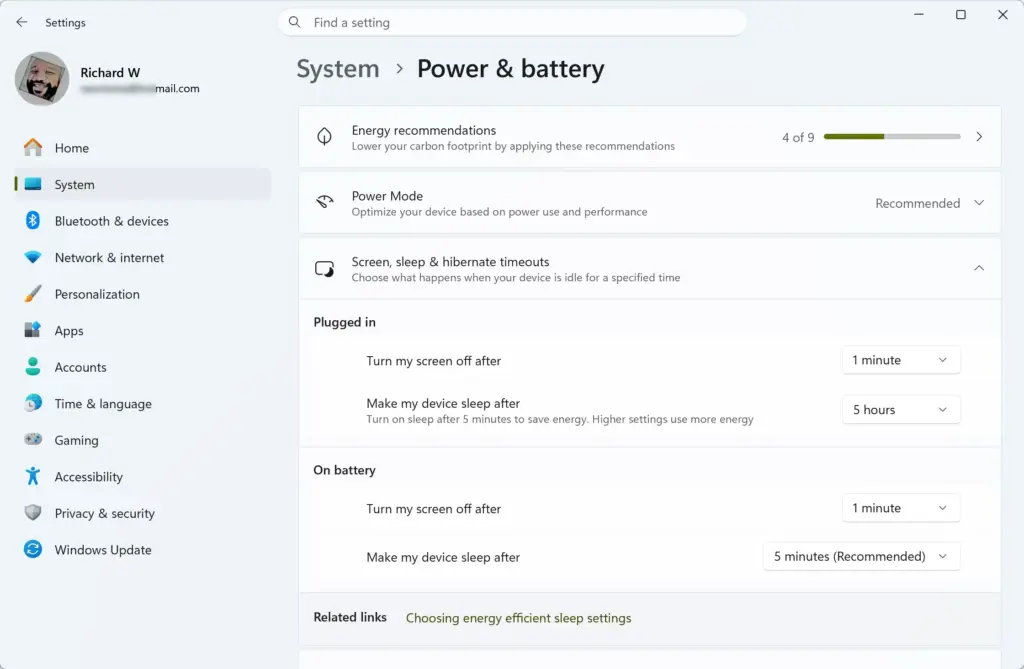
- Leave the monitor powered on and let Windows turn the screen off instead. In Settings System Power & battery, use Screen, sleep, & hibernate timeouts. The label may differ slightly on newer builds.
- Check the cable and port. A loose HDMI or DisplayPort cable can drop the signal for a second. Reseat it, or try a different cable or port.
- If you use a dock, plug the dock in before you wake the laptop, and avoid unplugging it while the PC sleeps.
Cheap HDMI switches and some TVs used as monitors are common culprits. They can drop the signal when switched off, even if the PC stays awake.
Update or Reinstall the Graphics Driver
A graphics driver (the software that runs your graphics card) that resets during use can briefly change the display mode. Windows sees this as a resolution change and rearranges the desktop. If icons move at random times, without a monitor event or game, check the driver.
This step needs administrator rights. Installing or updating a driver asks you to approve a User Account Control prompt.
- Right-click Start and select Device Manager.
- Expand Display adapters. Your graphics card or integrated graphics appears here.
- Right-click the adapter and select Update driver.
- Select Search automatically for drivers. If Windows finds a newer driver, it installs it. If it reports that the best driver is already installed, get the latest driver from your PC or graphics card maker's support page instead.
- Restart the PC when the installation finishes. The screen may flicker or go black briefly during the install. That is normal.
Installing a new graphics driver can reset your icon layout, because the display has to set itself up again. Plan to rearrange your icons once afterwards.
Other Causes to Rule Out
Accidental icon size changes
Holding Ctrl and turning the mouse wheel over the desktop changes icon size. The grid spacing changes with it, so icons look as if they have moved. Right-click the desktop, select View, and pick Medium icons (the default) to return to the standard size.
Third-party desktop tools
Desktop organisers, such as Fences (a tool that sorts icons into labelled zones on the desktop), can move icons on their own schedule. They may also conflict with Windows' own layout. If you use one, check its settings first, and try closing it to see if the problem stops.
Explorer restarting
Windows Explorer draws the desktop. If it crashes or restarts, the desktop is redrawn. Restarting it manually is a quick way to refresh the desktop without signing out.
- Press Ctrl+Shift+Esc to open Task Manager.
- Select Processes in the left pane, if it is not already open.
- Find Windows Explorer in the list, right-click it and select Restart.
- Wait a few seconds. The taskbar and desktop disappear and reappear.
This does not need administrator rights. It does not fix a layout that is already scrambled, but it shows whether the desktop shell itself is misbehaving. If icons rearrange every time Explorer restarts, the cause is a display or auto-arrange setting rather than a corrupt file.
Work or school devices
On a device managed by an employer or school, an administrator may enforce desktop settings that are applied again at sign-in. If your changes disappear after each restart and you do not control the PC, ask your IT team. This article cannot tell you which policy applies to your device, so ask your IT team which settings they enforce.
Save Your Layout So You Can Restore It
Windows 11 has no built-in button to save and restore icon positions. If you change monitors often, a third-party layout tool is the practical option. Free tools such as DesktopOK can save a layout and restore it later. Download them only from the maker's own site, and check what they change before you run them.
A simpler approach is to keep the PC on one resolution and monitor setup. Windows keeps the layout for each setup, so you only need to arrange icons once per configuration.
If this didn't work
If icons still move, note when it happens: after waking the PC, after plugging in a monitor, or after closing a game. That points you to the matching section above. A Windows feature update, a graphics driver reinstall or a new user profile can reset your icon layout and View settings. and your View settings, so check them again after any of those. To go back to the default behaviour, right-click the desktop, select View, and tick Auto arrange icons again.
Have a question about this guide?
Answered by AI from this guide. Good questions may be added to this page — please don't include personal details.
Did this guide fix your problem?

About the Author
Richard
Tech Writer, IT Professional
Richard is a writer at Geek Rewind who turns complex IT tasks into clear, step-by-step guides. He draws on years of hands-on experience in system administration and enterprise IT operations, focusing on Windows, Linux and WordPress: the problems people actually run into, and the fixes that work. His server and WordPress guides come from systems he runs himself. Richard builds and maintains the platform behind Geek Rewind, from its Ubuntu servers and Nginx configuration to its custom WordPress plugins. Many new tutorials start with readers' questions, and he's always glad to answer them in the comments.
No comments yet — be the first to share your thoughts!