Lock Desktop Icons in Place in Windows 11

- 14 steps
- Needs administrator rights
- Includes a restart or sign-out
Locking desktop icons in place in Windows 11 means stopping Windows from shuffling them into new positions. The quickest way is to right-click the desktop, open View, and turn off Auto arrange icons. Optionally, turn off Align icons to grid as well.
Windows 11 has no setting that makes icons undraggable, so “lock” here means keeping the layout you set. This post covers that setting, the cases where icons still move, and how to restore a layout after Windows rearranges it. None of the steps need administrator privileges.
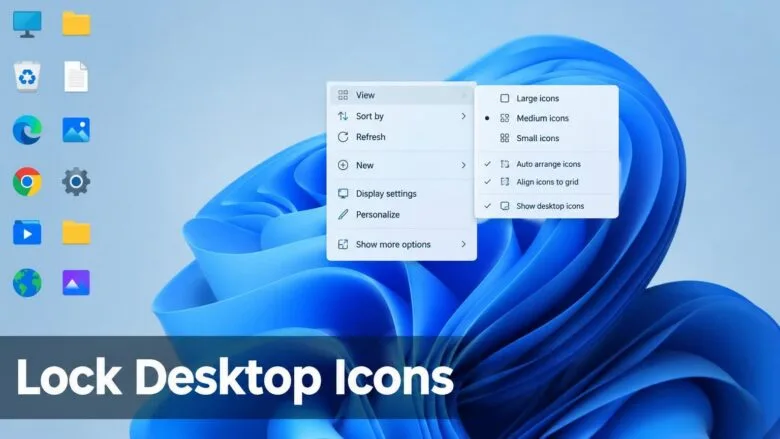
Right-click an empty area of the desktop, point to View, and click Auto arrange icons to turn it off. With that option off, Windows stops pulling icons back into the top-left stack, so the layout you drag them into stays put. Windows 11 has no setting that makes icons undraggable, so this is as close to a lock as the system gets.
What “Locking” Desktop Icons Means in 🪟 Windows 11
Windows controls icon placement with two options on the desktop’s View menu. Auto arrange icons packs icons into columns starting at the top-left corner and refills any gap you leave. Align icons to grid snaps each icon to an invisible grid of evenly spaced slots.
With Auto arrange icons switched on, you cannot leave a gap or park an icon in a corner. Windows pulls it back into the stack. Switching it off lets every icon stay where you drop it, and that is the closest Windows 11 comes to a lock.
Two limits apply. You can still drag icons by accident, because Windows does not block it. And some events, covered below, can still move icons even with the options set correctly.
How to Lock Desktop Icons in Place in 🪟 Windows 11
These steps turn off the automatic arranging that moves your icons, so your layout stays as you set it. The menu names below match Windows 11 version 22H2 (released in 2022) and later. Check your version in Settings System About. The View menu sits in the main desktop menu, so you do not need Show more options.
- Press Win+D. This hides all open windows and shows the bare desktop. Press the same keys again later to bring your windows back.
- Right-click an empty area of the desktop. Click blank space, not an icon. A menu appears with entries such as View, Sort by, and Refresh.
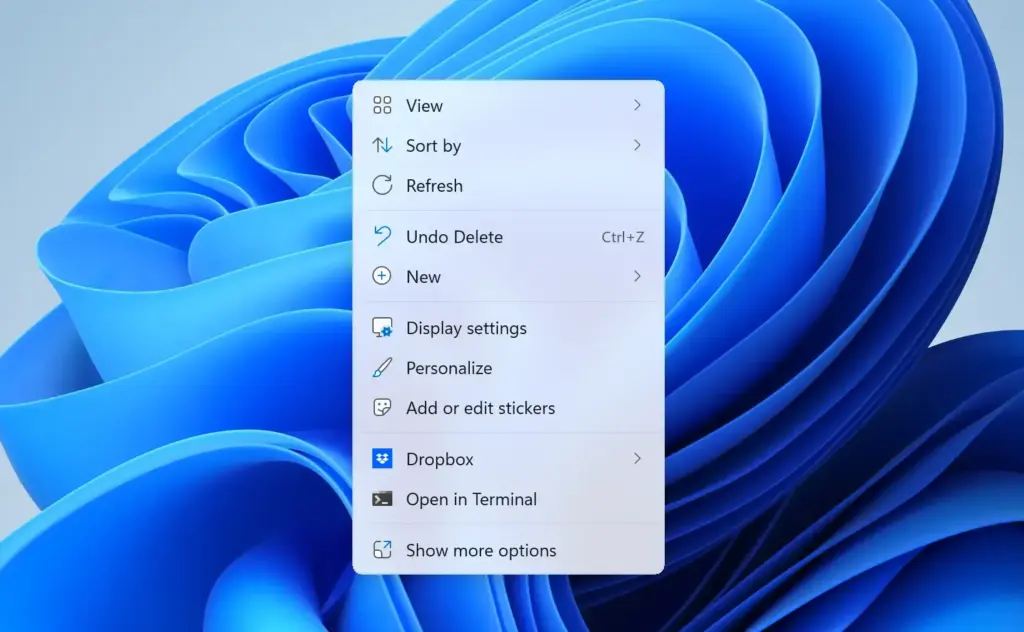
- Point to View. A submenu opens with the icon sizes (Large icons, Medium icons, Small icons) and three options with check marks.
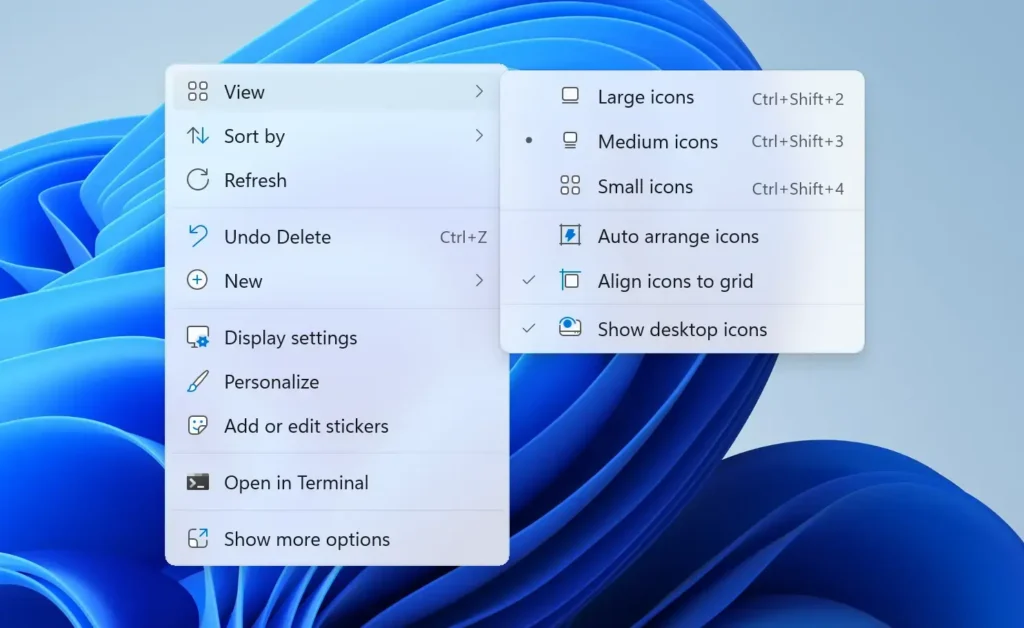
- Check that Show desktop icons has a tick. If it has no tick, click it. Your icons appear. If the tick is already there, press Esc to close the menu and move on.
- Click Auto arrange icons if it has a tick. This turns the option off. The menu closes after one click, so a tick that is gone means the option is off. Reopen the menu to confirm.
- Reopen View and look at Align icons to grid. Leave the tick on if you want neat, evenly spaced rows. Click the option to clear the tick if you want to place icons freely. The next section helps you choose.
- Drag each icon to where you want it. Hold the left mouse button on the icon, move it, and release. With Auto arrange icons off, the icon stays where you drop it instead of jumping back into line.
- Click an empty area of the desktop. This deselects any highlighted icons so you can see the final layout.
- Right-click the desktop and click Refresh. The icons should stay exactly where you left them. If they jump back to the top-left, Auto arrange icons is still on, so repeat steps 2 to 5.
Choose Between Align Icons to Grid On or Off
Keep Align icons to grid on if you want a tidy desktop. Icons land in the nearest slot when you drop them, so rows and columns line up for you. This is the better choice for most people, because small drag mistakes correct themselves.
Turn it off if you want icons in exact spots, such as a group of shortcuts placed next to a picture on your wallpaper. Icons then stay exactly where you release them. The cost is that they can sit unevenly or overlap if you drop one carelessly.
Either setting keeps your layout where you put it, as long as Auto arrange icons stays off. The next section covers the icon size, which affects both settings.
Set the Icon Size Before You Arrange Anything
Change the icon size first, then place your icons. The grid spacing depends on the icon size, so switching between Large icons, Medium icons, and Small icons after you arrange can shift icons into different slots. The same menu has all three sizes under View. The post on how to change desktop icon size in Windows 11 covers the other ways to resize them, including the mouse shortcut.
Also decide which icons you want on the desktop before you start. Adding or removing the system icons later, such as This PC or Recycle Bin, changes the layout. The guide to adding or removing default desktop icons in Windows 11 shows how, and it is best done before you arrange.
Why Desktop Icons Still Move After You Lock Them
Turning off Auto arrange icons stops Windows from re-sorting icons during normal use. It does not stop every event that rearranges them. Two causes account for most cases.
Display Changes
Windows stores icon positions relative to the screen. When the screen changes, it can move icons to fit. Typical triggers are a change in screen resolution, a change in display scaling (the size setting for text and apps), and plugging a monitor or docking station in or out. A graphics driver update (new software for your graphics card) or a driver reinstall can also reset the resolution for a moment, which has the same effect.
If your icons scatter every time you plug in an external display, the display change is the cause, not your settings. Check the layout after each change, and keep a reference copy (see the next section) so you can put things back quickly. The post on why desktop icons keep rearranging in Windows 11 goes deeper into these causes.
Accidental Drags and Sorting
Windows 11 has no built-in way to make icons undraggable. Some utilities from other companies save and restore icon layouts, but Microsoft does not make them. Research any program carefully before you install it.
Keep a Reference Copy of Your Layout
A picture of your finished desktop lets you rebuild it by hand if Windows moves things. This costs a few seconds and works on every edition of Windows 11.
- Press Win+D. This clears your windows so the icons are visible.
- Press Win+Shift+S. The screen dims and a snipping toolbar appears at the top.
- Click the full-screen snip button. This captures the whole screen. Windows copies the image to the clipboard and shows a notification.
- Open Paint and press Ctrl+V. The screenshot appears in the canvas.
- Press Ctrl+S and save the file. Choose a location such as the Pictures folder and give it a name like Desktop layout.
The Snipping Tool toolbar has several buttons. Hover over each one to see its name, then choose the full-screen option. If the toolbar does not appear, open the Snipping Tool app from the Start menu and choose the full-screen option there.
If the View Options Are Missing or Do Not Work
Several things can get in the way. Each has a different fix.
- No icons on the desktop. Show desktop icons is probably switched off. Turn it on from the View menu. The guide to hiding or showing desktop icons in Windows 11 explains it, and the post on showing hidden desktop icons through the Personalization settings covers the Settings route.
- Options greyed out or missing. On a work or school PC, an administrator may manage the desktop. Contact your IT department. This post does not cover a Group Policy setting or a Registry Editor change for locking icons, because no verified one is available.
- The tick comes back after you turn the option off. You may have right-clicked an icon instead of empty space, or clicked the option twice. Reopen View and check the tick again.
- The View menu looks different. The menu names here apply to current Windows 11 builds. If your menu has different entries, check your version in Settings System About.
How to Undo the Change
Turning the automatic arranging back on reverses the change. Right-click an empty area of the desktop, point to View, and click Auto arrange icons so the tick appears. Icons snap into columns from the top-left at once.
Windows does not save the earlier custom positions for later use, so take the screenshot in the previous section first if you want to restore your arrangement later. Turn Align icons to grid back on the same way, from the same menu.
What to Do Next
Restart your PC once and check that the icons are where you left them. If a monitor or driver change scatters them later, use your screenshot to put them back, then read why desktop icons keep rearranging to trace the cause. If you want a cleaner desktop instead, hide the icons without moving them.
Have a question about this guide?
Answered by AI from this guide. Good questions may be added to this page — please don't include personal details.
Did this guide fix your problem?

About the Author
Richard
Tech Writer, IT Professional
Richard is a writer at Geek Rewind who turns complex IT tasks into clear, step-by-step guides. He draws on years of hands-on experience in system administration and enterprise IT operations, focusing on Windows, Linux and WordPress: the problems people actually run into, and the fixes that work. His server and WordPress guides come from systems he runs himself. Richard builds and maintains the platform behind Geek Rewind, from its Ubuntu servers and Nginx configuration to its custom WordPress plugins. Many new tutorials start with readers' questions, and he's always glad to answer them in the comments.
No comments yet — be the first to share your thoughts!