Windows 11 Printers: Setup, Print Queue and Fixes

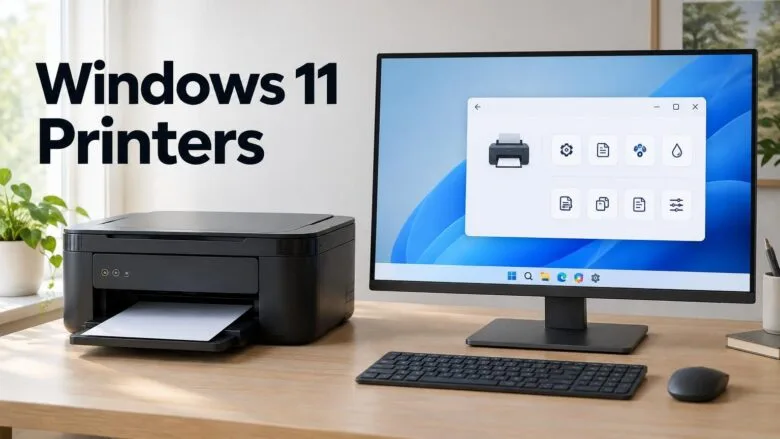
Printing in Windows 11 depends on four parts working together: the printer, its driver, the Print Spooler service that holds your documents, and the print queue you can see on screen. When something fails, the symptoms often look alike, so people try the wrong fix first. This page groups the 37 guides by the task you are doing, from first installation to clearing stuck jobs and repairing a broken spooler. If your printer is new, begin with installation. If it has already stopped working, go to the fixes section.
Install a printer or scanner and choose the default
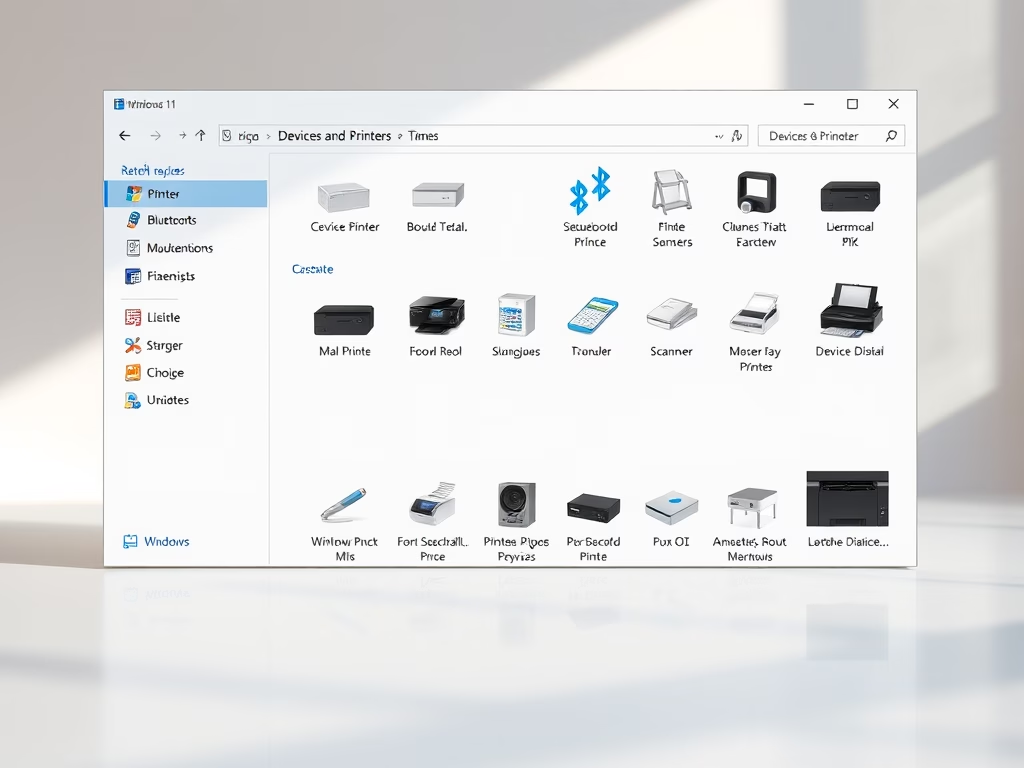
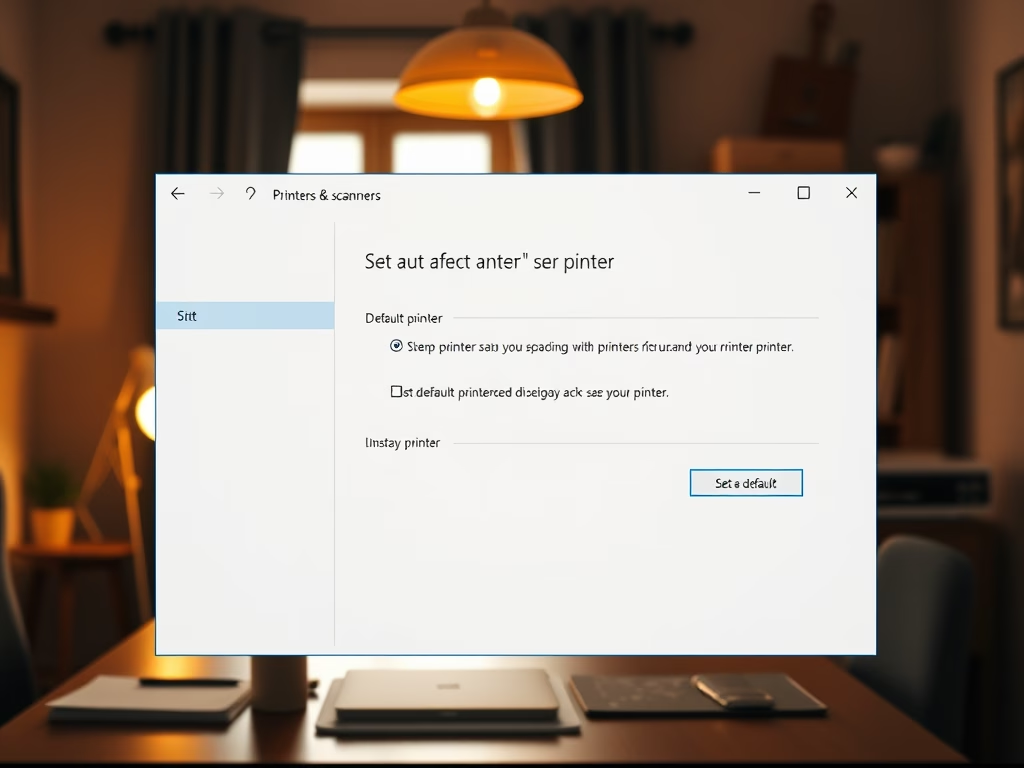
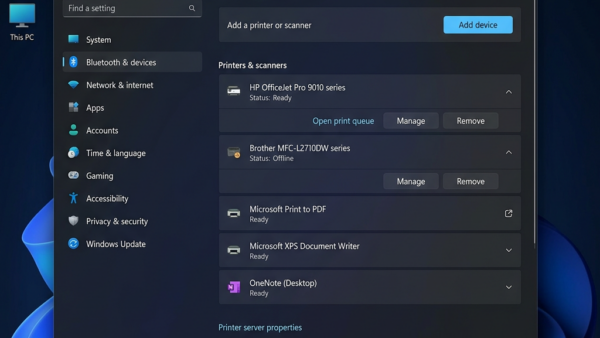
Most people need this group once, when they buy a printer or move to a new PC. It covers wired, wireless and Bluetooth connections, scanner setup, and choosing which printer Windows sends jobs to by default.



Share a printer or control who can print to it
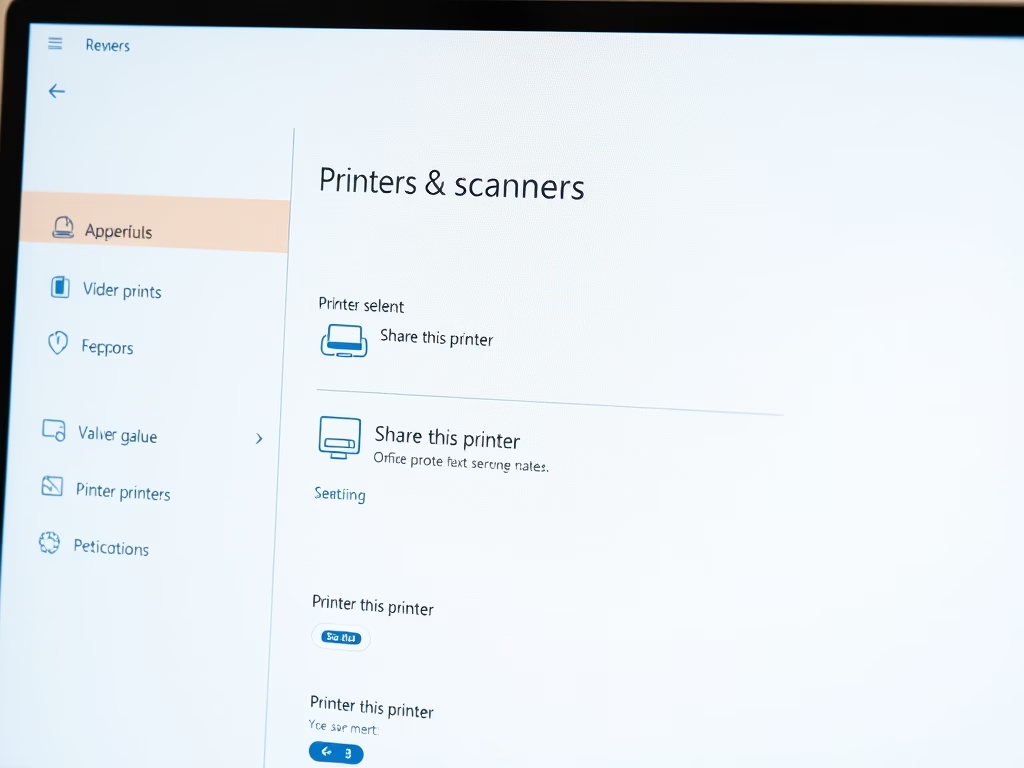
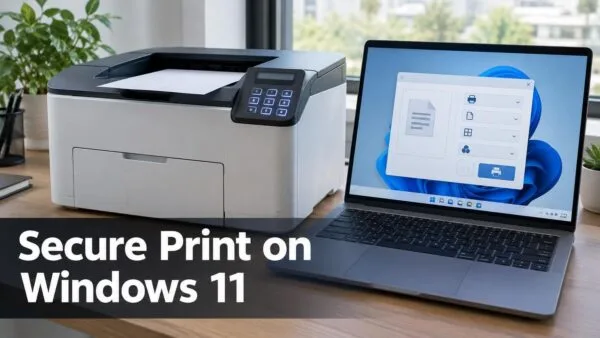
Use these guides when a printer is attached to one PC and other computers on your network need to print to it. Secure Print holds a job until someone releases it at the printer, on printers that support the feature.

Check, pause and clear jobs in the print queue
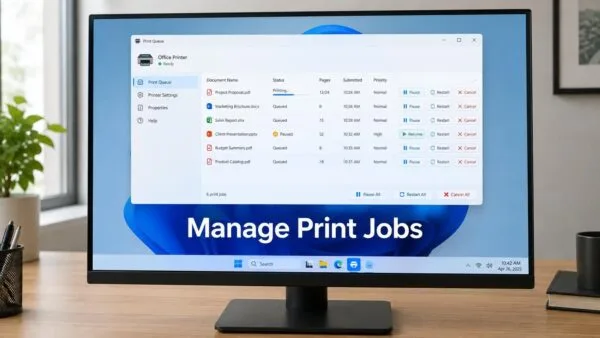
The print queue lists documents waiting to print. These guides show how to view, pause, cancel and clear them. Check what is waiting before you clear the queue, so you know what you are removing.


Fix printing when it stops working
Work through this group when a printer is listed but will not print, disappears from Devices, or the print queue will not empty. Problems with the Print Spooler and printer drivers cause most of these failures. Start with the overview of fixes, then move to the spooler and queue guides if the problem persists.
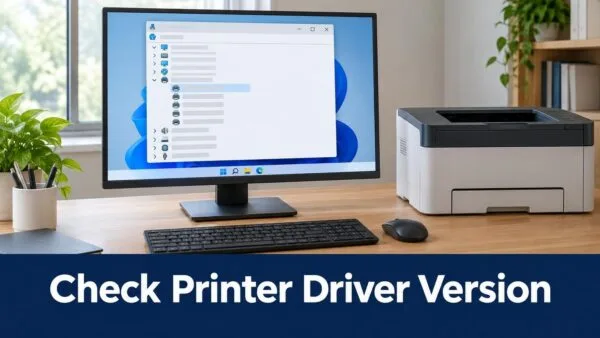
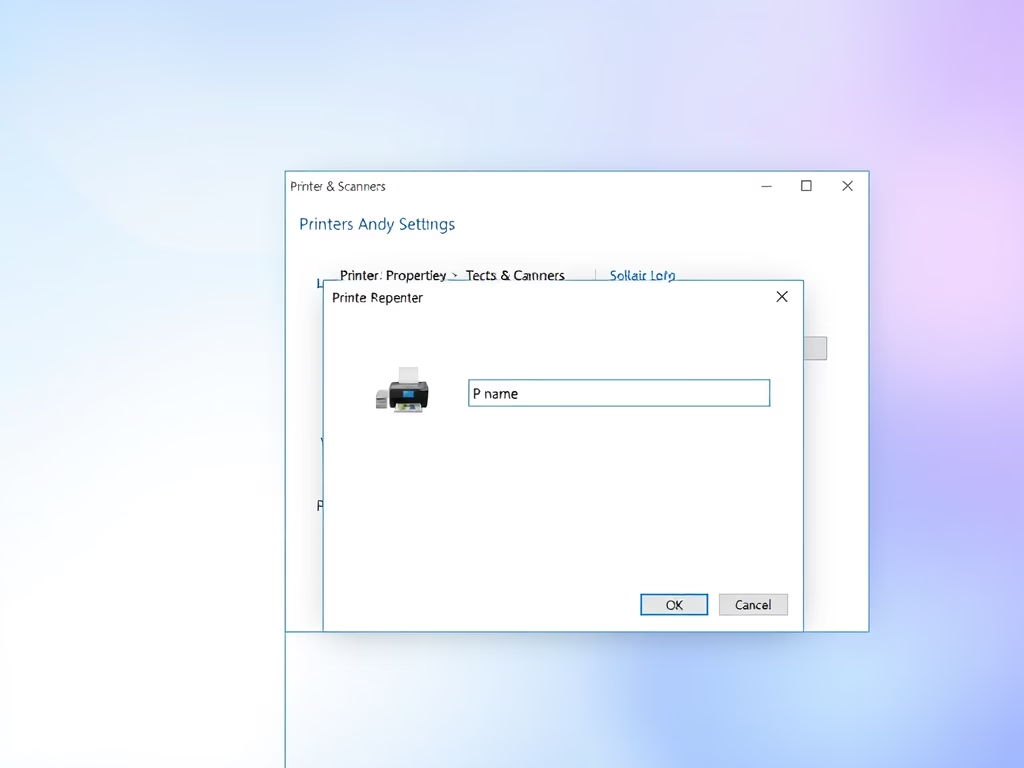
Remove, rename or change how a printer behaves
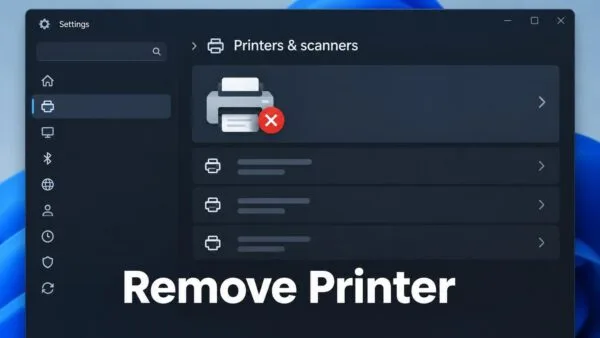
These guides cover removing a printer you no longer use, removing its driver, renaming it so it is easier to pick out, and the settings that control how it appears. Reinstalling the printer brings back anything you remove, so these steps are safe to try. Test the result with a single page after each change.

Have a question about this guide?
Answered by AI from this guide. Good questions may be added to this page — please don't include personal details.

About the Author
Richard
Tech Writer, IT Professional
Richard is a writer at Geek Rewind who turns complex IT tasks into clear, step-by-step guides. He draws on years of hands-on experience in system administration and enterprise IT operations, focusing on Windows, Linux and WordPress: the problems people actually run into, and the fixes that work. His server and WordPress guides come from systems he runs himself. Richard builds and maintains the platform behind Geek Rewind, from its Ubuntu servers and Nginx configuration to its custom WordPress plugins. Many new tutorials start with readers' questions, and he's always glad to answer them in the comments.
No comments yet — be the first to share your thoughts!