How to Pause and Resume Printing in Windows 11

- 6 steps
- Needs administrator rights
- Includes a restart or sign-out
Pausing and resuming printing in Windows 11 stops or restarts your print jobs using the print queue. The queue is a built-in window that lists every document waiting for the printer. You can open it from the printer icon in the taskbar notification area, which appears while a job is printing, or from the Settings app. Pausing is useful when you run out of paper, need to swap a low ink cartridge, or want to hold back a mistaken job before it prints.
Stopping a print job takes just a few clicks. You can pause the whole printer or hold back a single document without losing your place in line. The steps are the same on Windows 11 Home and Pro, and you do not need to restart the PC.
Open Settings, go to Bluetooth & devices Printers & scanners, select your printer, click the Printing tile under Advanced Printer Settings, then click Pause. Click Resume to start printing again.
What is a Printer?
A printer is a hardware device that connects to your computer, by USB cable, Wi-Fi or a network, and puts digital documents and photos onto physical paper. When you choose to print a file, your computer sends that data to the printer. The printer then uses ink or toner to create a hard copy you can hold.
When you click Print, Windows does not send the file straight to the paper. It first hands the document to the print queue (also called the print spooler), which stores each job and passes them to the printer one at a time. The printer then uses that data to print the document onto paper and produce a physical copy.
This is why pausing works. The queue holds jobs on the computer, so you can stop sending them to the printer without deleting anything.
Why Would You Pause Printing?
You might want to pause printing for several reasons. You might be changing the ink or toner cartridge, fixing a paper jam, or reloading the paper tray. You might also have sent the wrong file and want a moment to stop it. Windows 11 lets you pause printing and then resume it later without losing your place.
How to Pause and Resume Printing in 🪟 Windows 11
To pause printing in Windows 11 and manage your active print queue, open the Settings app and go to Bluetooth & devices, select Printers & scanners, and click your printer. From there, open the print queue to pause any active job and resume it whenever you are ready to start printing again.
- Open the Settings app: Click the Start menu button and select Settings. Or press the Win+I on your keyboard. The Settings window opens with a list of categories on the left.
- Go to Bluetooth & Devices: In the Settings window, click Bluetooth & devices in the menu on the left. The page on the right now lists your connected devices.
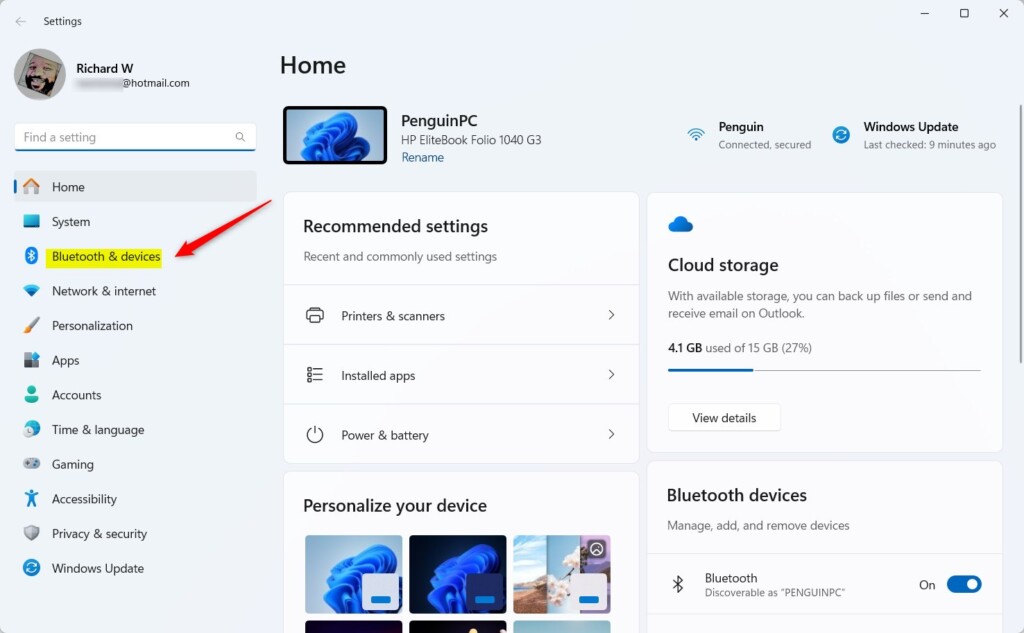
Windows 11 Bluetooth & devices settings page showing connected hardware. - Find Printers & Scanners: On the right side, click Printers & scanners. You will see a list of every printer Windows knows about. If yours is missing, check that it is powered on and connected, then try again.
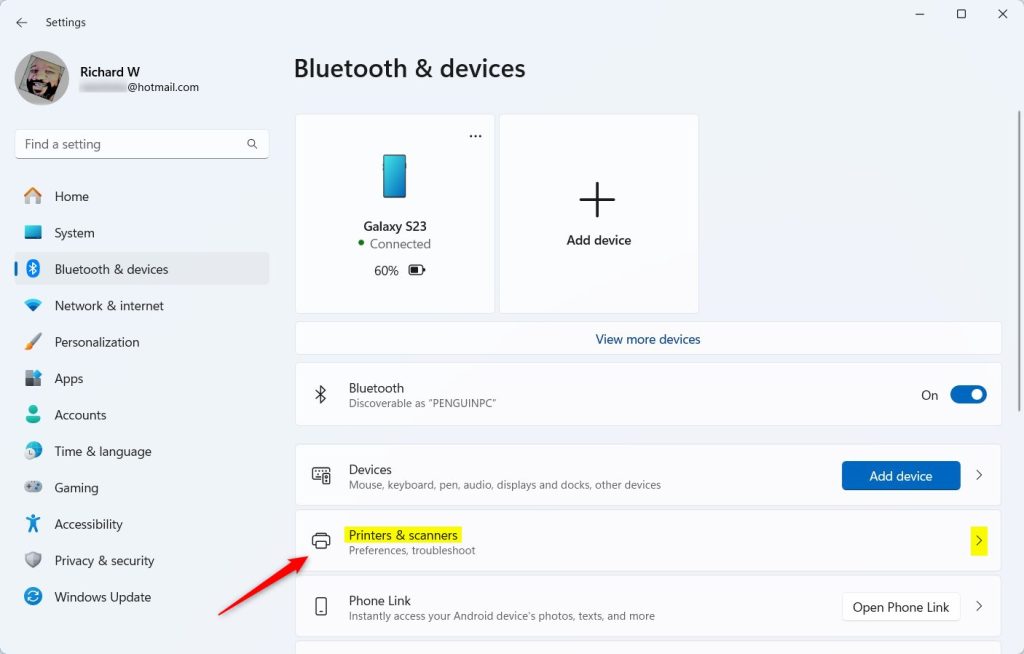
Printers and scanners tile in the Settings app - Select your printer: Click the printer you want to pause or resume printing for. Its settings page opens, showing options for that printer only.
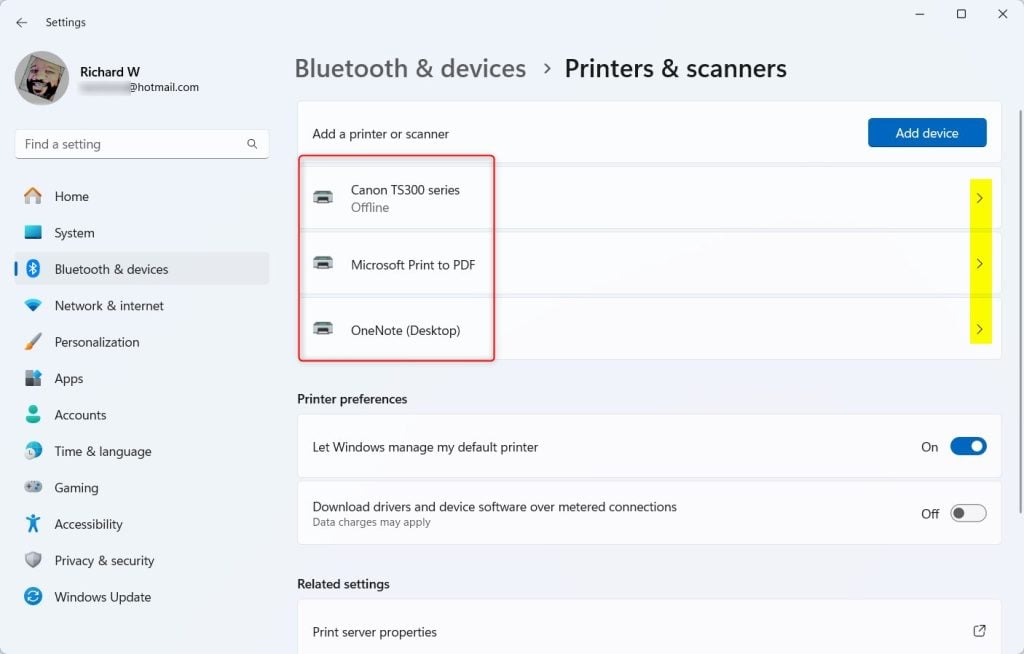
List of printers in Settings - Pause or Resume printing: Under Advanced Printer Settings, click the Printing tile. Then click the Pause button to stop printing. The queue should now show the printer as paused.
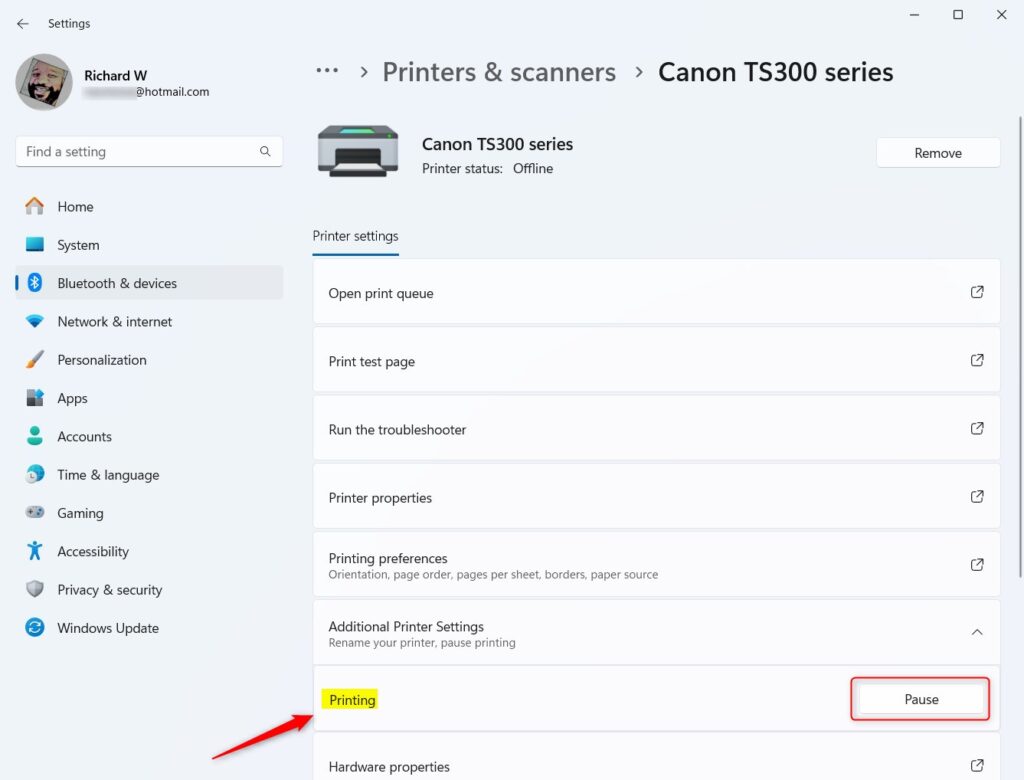
Pause printing button
When you want to start printing again, click the Resume button. Waiting jobs should start moving again, in their original order.
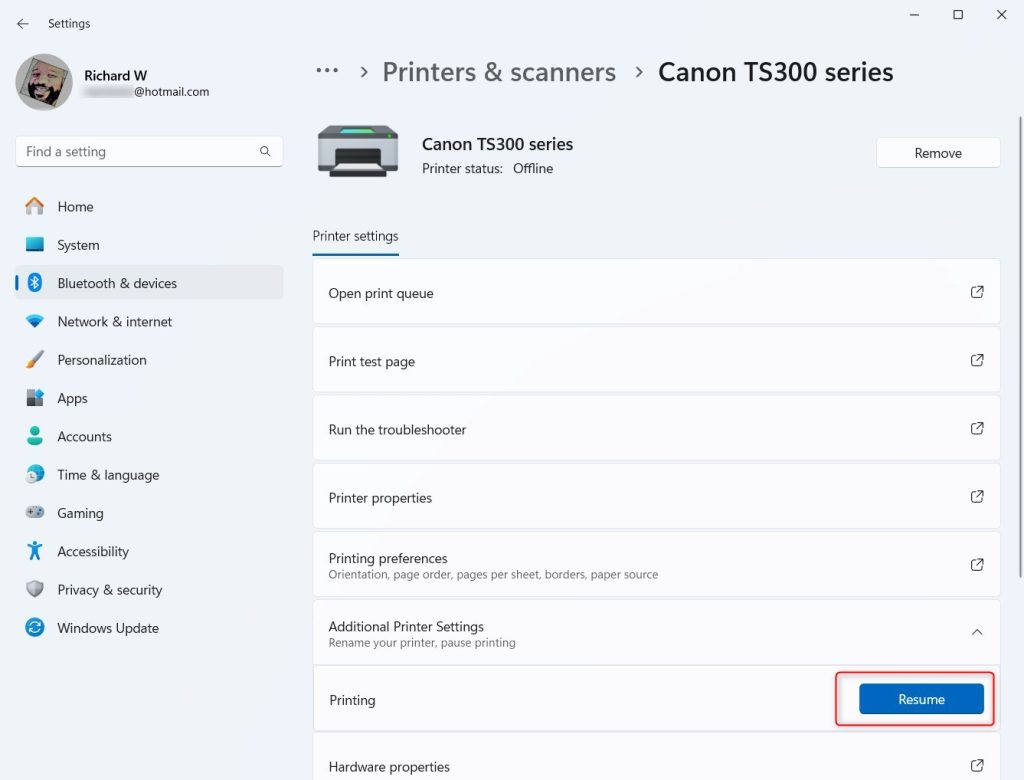
Resume printing button
Good to know: depending on your Windows 11 build, the printer page may instead show an Open print queue button. This opens the classic queue window. There, the Printer menu has a Pause Printing option, and clicking it again resumes the printer. To hold back a single document, right-click it in the queue and choose Pause. Choose Resume to release it, or Cancel to remove it. If a job seems stuck, Restart sends it to the printer again from the beginning.
If options are greyed out, the job probably belongs to another user. Managing other people’s jobs requires an administrator account. - When finished, close the Settings app. Pausing is a setting on the printer, so it stays in effect after you close the window until you click Resume. Do not forget to resume, or your next print job will sit in the queue and never come out.
Summary
Windows 11 makes it simple to pause and resume print jobs right from the Settings app. Pause the whole printer when you need to deal with paper or ink, or pause a single document from the queue when only one job is the problem. Nothing is lost while the printer is paused, and clicking Resume undoes the change.
Have a question about this guide?
Answered by AI from this guide. Good questions may be added to this page — please don't include personal details.
Did this guide fix your problem?

About the Author
Richard
Tech Writer, IT Professional
Richard is a writer at Geek Rewind who turns complex IT tasks into clear, step-by-step guides. He draws on years of hands-on experience in system administration and enterprise IT operations, focusing on Windows, Linux and WordPress: the problems people actually run into, and the fixes that work. His server and WordPress guides come from systems he runs himself. Richard builds and maintains the platform behind Geek Rewind, from its Ubuntu servers and Nginx configuration to its custom WordPress plugins. Many new tutorials start with readers' questions, and he's always glad to answer them in the comments.
No comments yet — be the first to share your thoughts!