How to Find a Printer IP Address in Windows 11

A printer IP address is the unique set of numbers your Windows 11 PC uses to find and talk to your printer over a Wi-Fi or Ethernet network. Most home printers use local network addresses that start with 192.168 or 10.0. For example, you might see something like 192.168.1.45.
You can find this address through Windows 11 settings, network tools, or your router when your printer goes offline or stops printing. This guide covers the two quickest routes on the PC: File Explorer and the Settings app . Both work on Windows 11 Home and Pro, and neither needs administrator rights just to look.
Open File Explorer , click Network in the left pane, right-click your printer, and select Properties. The IP address appears in the Properties window, usually starting with 192.168 or 10.0. If it doesn’t show, check the Device information tab in Settings Bluetooth & devices Printers & scanners
Method 1Find the Printer IP Address Using File Explorer
You can find your printer IP address in Windows 11 using File Explorer by viewing the properties of the printer under Network. This works well when your printer is already installed on your home network and you need its address to fix connection drops or set up scanning tools. The PC and the printer need to be on the same network for the printer to show up.
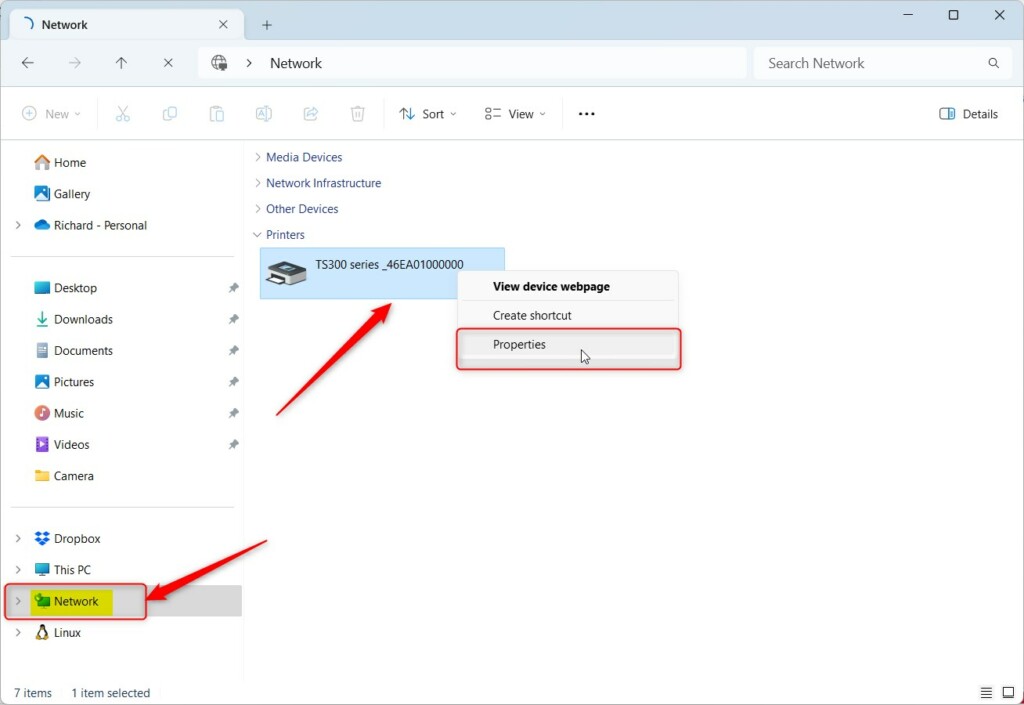
- Open File Explorer by clicking the folder icon on your taskbar , or press Win+E on your keyboard. A File Explorer window opens.
- In the left pane, click Network. You may need to wait a few seconds for your devices to show up.
- If Windows shows a banner saying network discovery and file sharing are turned off, click the banner and choose to turn them on. Your devices should then be listed. Without network discovery, the printer often will not appear here.
- Look through the list of devices, usually under a Printers group, and find the printer you want to check.
- Right-click the printer’s name and select Properties. If you only see a short menu, choose Show more options first.
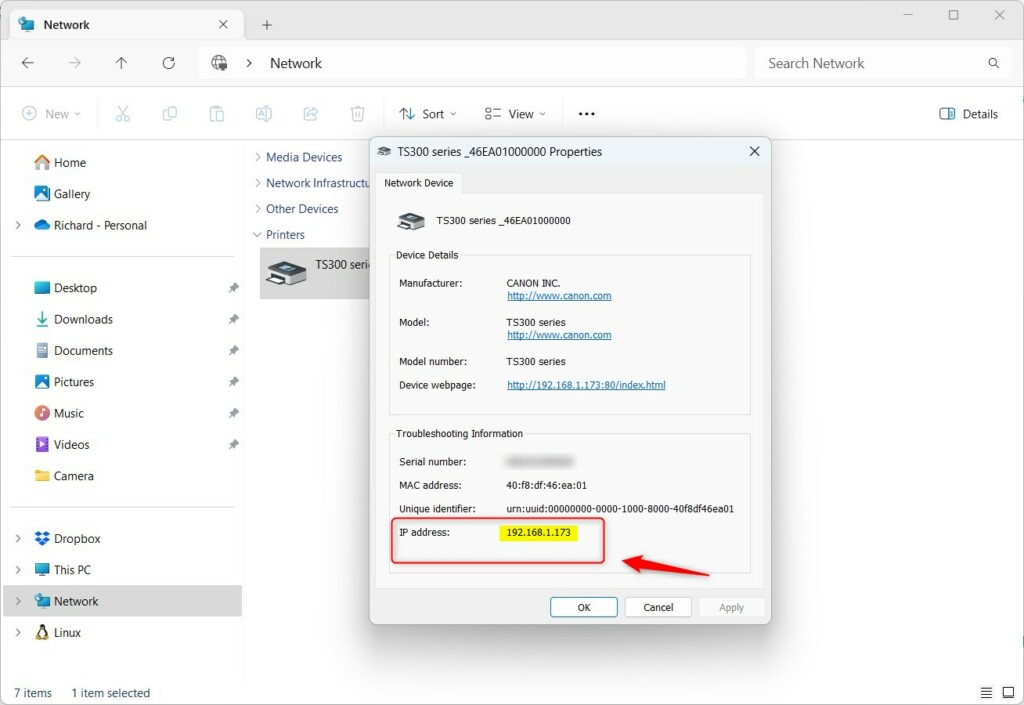
The Properties window appears. Look for the IP address listed there. That is the exact number your printer uses on the network. If you don’t see it on the first tab, click through the other tabs in the window, as the network details can sit on a separate one depending on the printer driver.
Then use the Settings method below.
Method 2Find the Printer IP Address Using 🪟 Windows 11 Settings
The Windows 11 Settings app lets you locate your printer IP address without opening any advanced network tools. You check the details page for your specific printer to see its current network connection information. What you see varies by manufacturer, because some drivers show the address and others show very little.
- Click the Start button and select Settings (the gear icon). The Settings app opens.
- Choose Bluetooth & devices from the left menu.
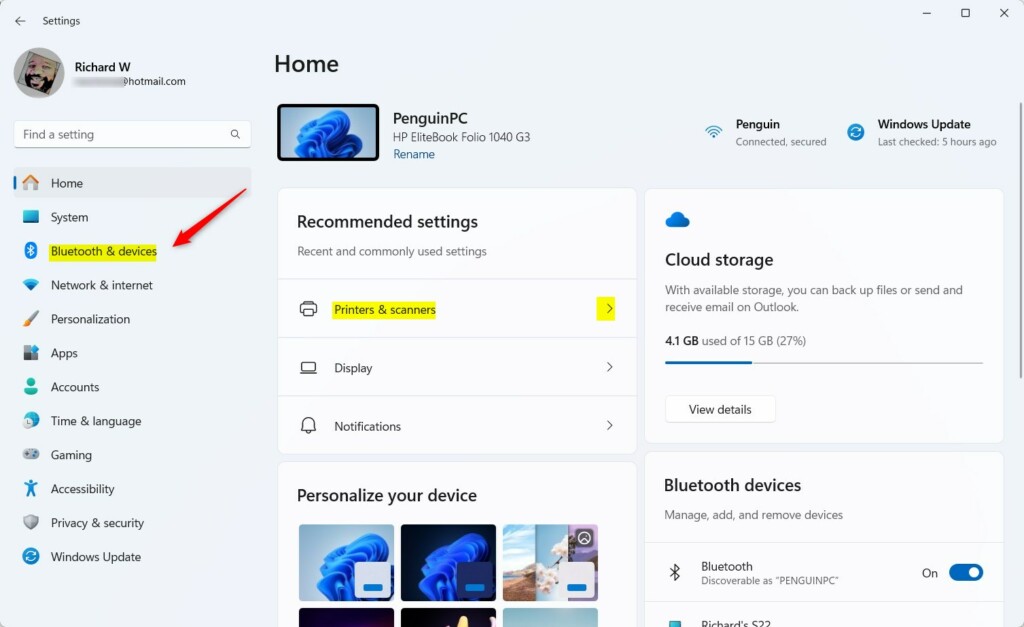
- Click Printers & scanners. Your installed printers are listed.
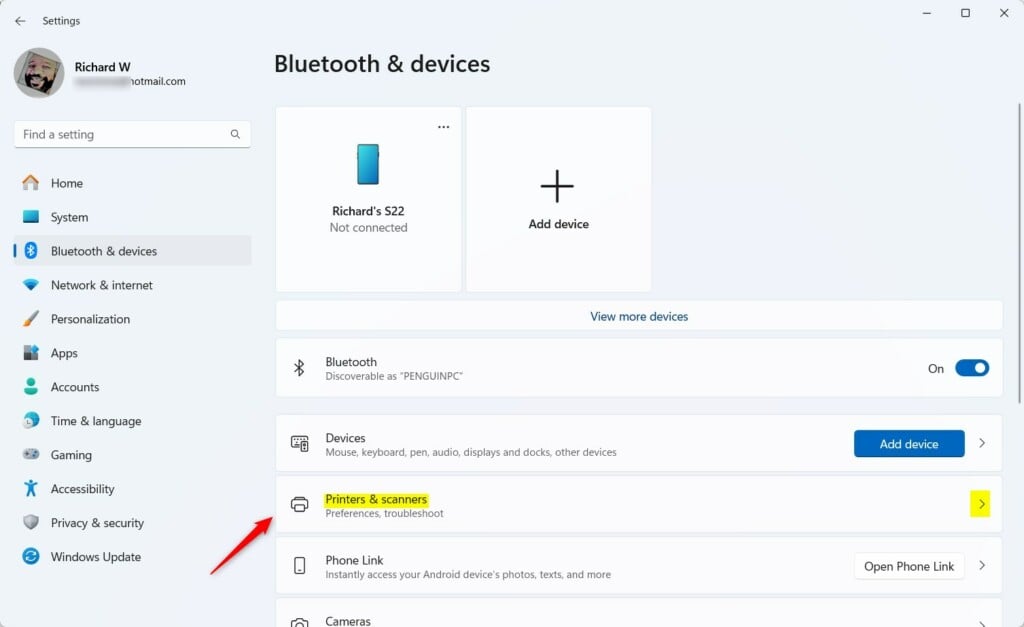
- Select the printer you want to check. Its settings page opens.
- Click Device information or More information if available. Some printers use a different label, and some don't show this section at all.
- Look for the IP address in the details shown.
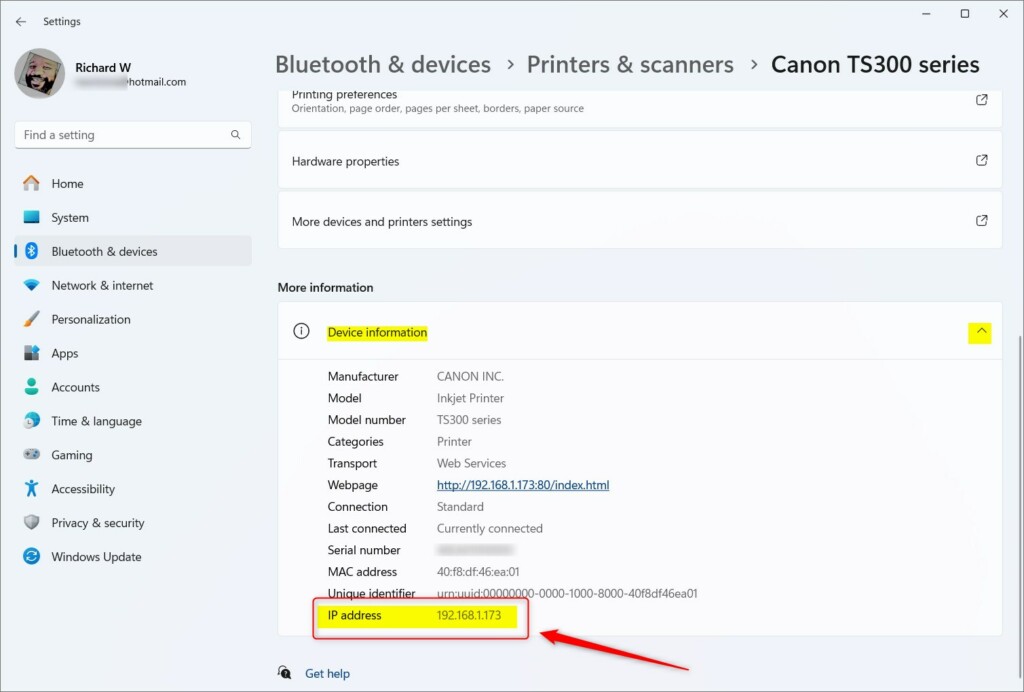
If no IP address appears, try Printer properties on the same page and look at the Ports tab. For many network printers, the port name or address there is the IP. You can also check the printer's own display or its network status page, or look at the connected devices list in your router.
Why Knowing Your Printer's IP Address is Helpful
Here are the most common reasons you will need the number:
- If your printer isn't working right, knowing its IP address helps you fix it. You can ping it, open its web page, or confirm Windows is pointed at the right address.
- When setting up a new printer, the IP address is often needed. Windows asks for it if you add the printer manually.
- In offices with many printers, the IP address helps you find the exact one you want, especially when several have similar names.
If it keeps changing and breaks printing, consider reserving a fixed address for it in your router settings.
Summary
Finding your printer IP address in Windows 11 takes only a few moments using either File Explorer or the Settings app. Once you have this number, you can reconnect missing devices, fix offline printing errors, or add the printer to other computers on your home network.
Finding a printer's IP address assists in connecting that printer to a Windows 11 computer. The "How to Add a Wireless Printer on Windows 11" guide offers step-by-step instructions for users needing help setting up wireless printers without cables.
Was this guide helpful?

About the Author
Richard
Tech Writer, IT Professional
Richard is a writer at Geek Rewind who turns complex IT tasks into clear, step-by-step guides. He draws on years of hands-on experience in system administration and enterprise IT operations, focusing on Windows, Linux and WordPress: the problems people actually run into, and the fixes that work. His server and WordPress guides come from systems he runs himself. Richard builds and maintains the platform behind Geek Rewind, from its Ubuntu servers and Nginx configuration to its custom WordPress plugins. Many new tutorials start with readers' questions, and he's always glad to answer them in the comments.



No comments yet — be the first to share your thoughts!