How to Show or Hide the Network Folder in Windows 11

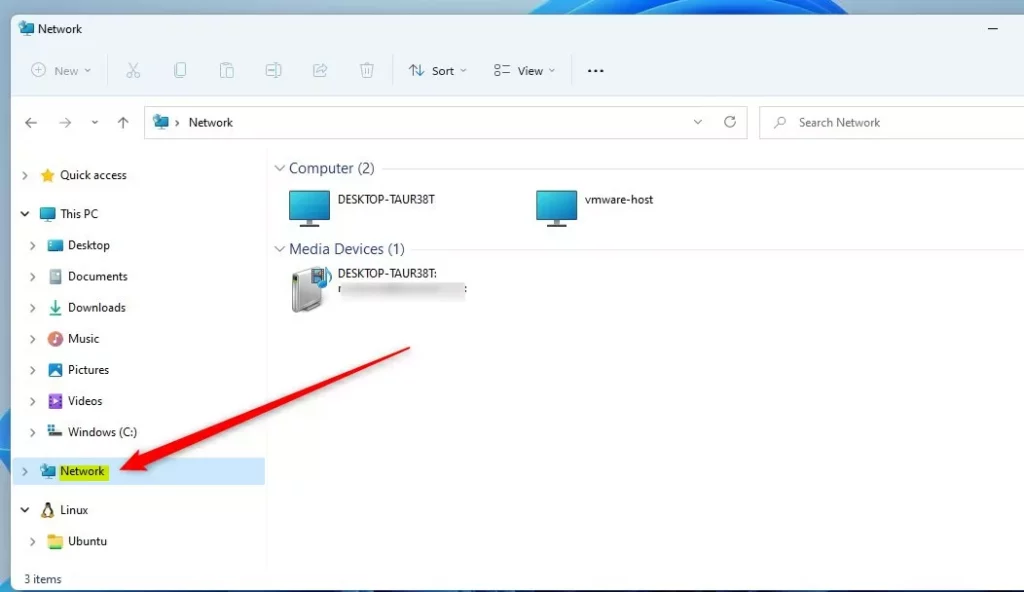
The Network folder in Windows 11 File Explorer is a shortcut in the left-hand navigation pane. It lists other computers and devices on your local network, such as file shares, media servers and printers. Windows 11 usually shows it by default. If you never share files across a network, you can hide it to tidy up the sidebar.
You can bring the shortcut back whenever you need it. This tutorial covers three methods: the right-click menu , Folder Options, and the Registry Editor. The registry method works on both Windows 11 Home and Pro, and it is the one to try if the menu options are missing on your build.
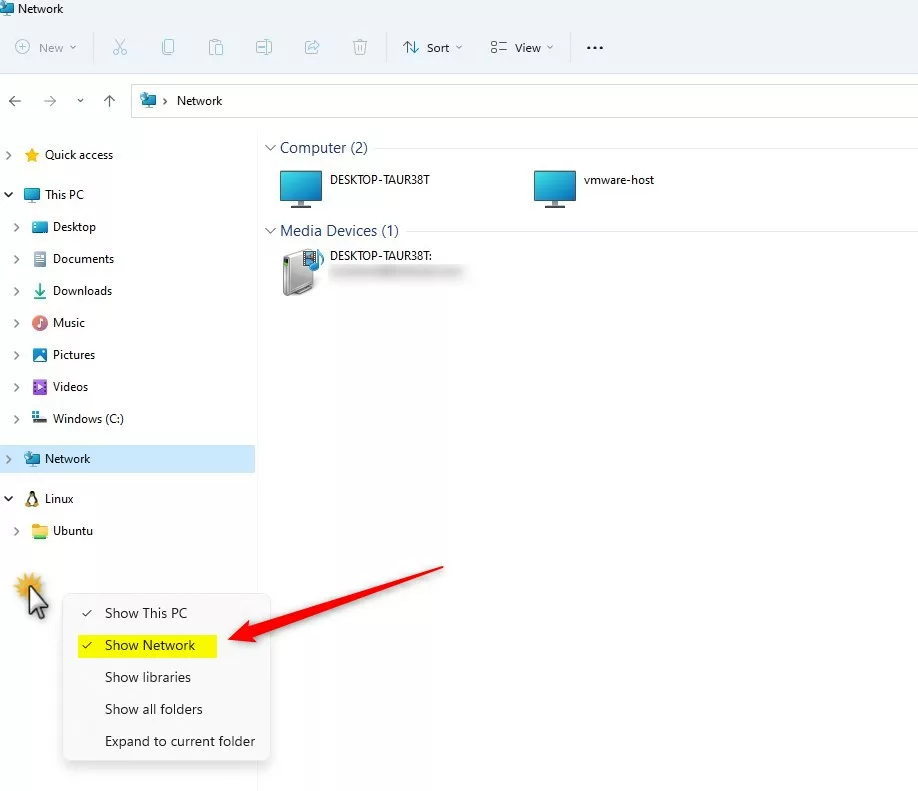
Right-click an empty space in File Explorer ’s left navigation pane and click Show Network to display the folder, or click it again to hide it. The change takes effect immediately without restarting.
What does the Network folder look like?
Here is an example of the Network folder in the File Explorer navigation pane:
How to Show or Hide the Network Folder Quickly
You do not have to go through any settings windows. It works the same on Home and Pro, and you do not need to restart. The exact menu entries can vary slightly between Windows 11 builds. If you do not see Show Network in the menu, use one of the other two methods below.
- Open File Explorer . You can press Win+E to open it quickly.
- Look at the left side of the window, where your folders are listed (the navigation pane).
- Right-click on an empty space in that left pane. Do not click on a folder. If the pane is full, scroll down or make the window taller to find a blank area.
- A context menu appears with several options for the navigation pane.
- Click Show Network to add the Network folder if it is missing. A check mark appears next to the option, and the Network folder shows up in the sidebar.
- To hide the folder, right-click the empty space again and click Show Network to remove the check mark. The Network folder disappears from the sidebar.
Show or Hide the Network Folder Using Folder Options
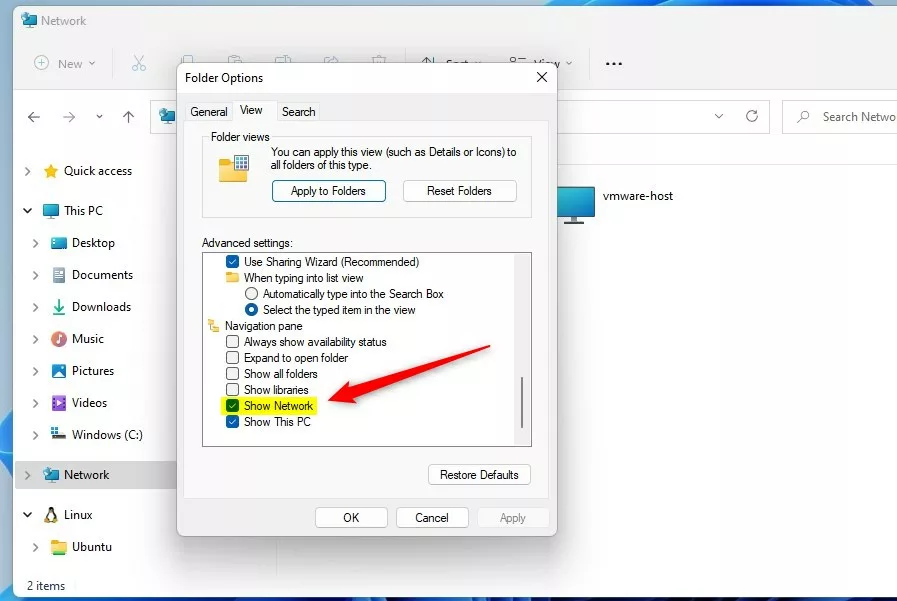
Folder Options gives you the same setting in a regular dialog box. Use it if the right-click menu does not show the option, or if you prefer to see all the navigation pane settings together. It works on both Home and Pro, and the change applies as soon as you click OK.
- Open File Explorer.
- Click the three dots ... in the toolbar at the top, then select Options. The "Folder Options" window opens.
- Click the View tab.
- In the Advanced settings list, scroll down to the Navigation pane section.
- Check the box next to Show Network to show the folder.
- Uncheck the box to hide the folder.
- Click OK to save your changes. The sidebar updates right away. If it does not, close File Explorer and open it again.
If the Show Network entry is not in the list on your build, use the registry method below.
Show or Hide the Network Folder Using Windows Registry (Advanced)
It changes a value for your user account only, so other users on the PC are not affected. Before you start, consider creating a restore point or exporting the key first (File Export in Registry Editor). That gives you an easy way back if something goes wrong.
Steps:
- Press Win + R on your keyboard, type
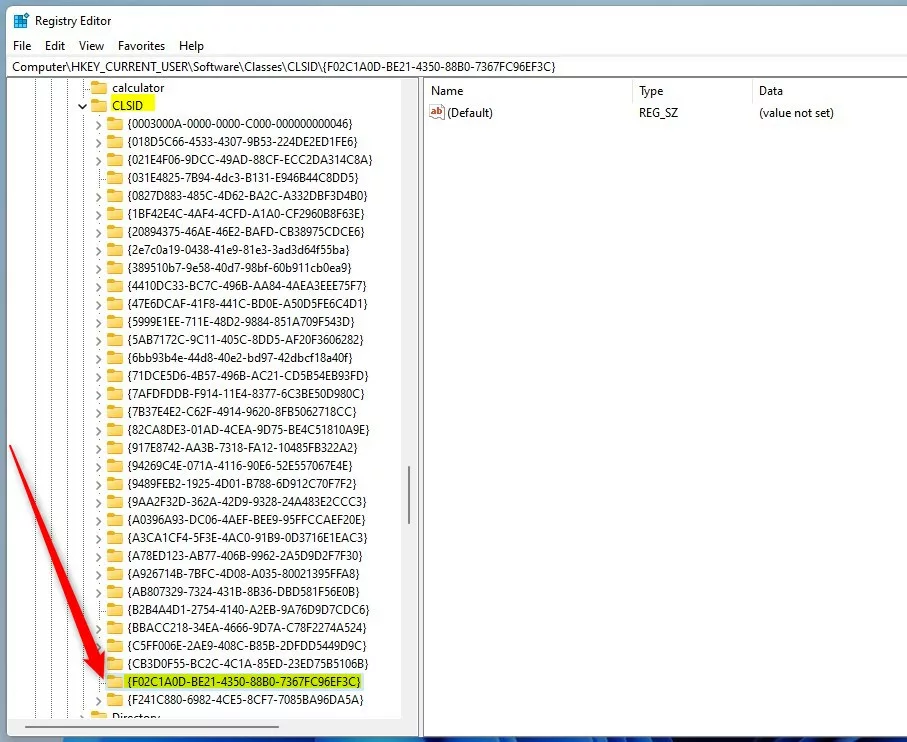
regedit, and press Enter. If User Account Control asks for permission, click Yes. The Registry Editor opens. - Navigate to this key in the left pane:Registry
HKEY_CURRENT_USER\Software\Classes\CLSID\{F02C1A0D-BE21-4350-88B0-7367FC96EF3C} - If you do not see the
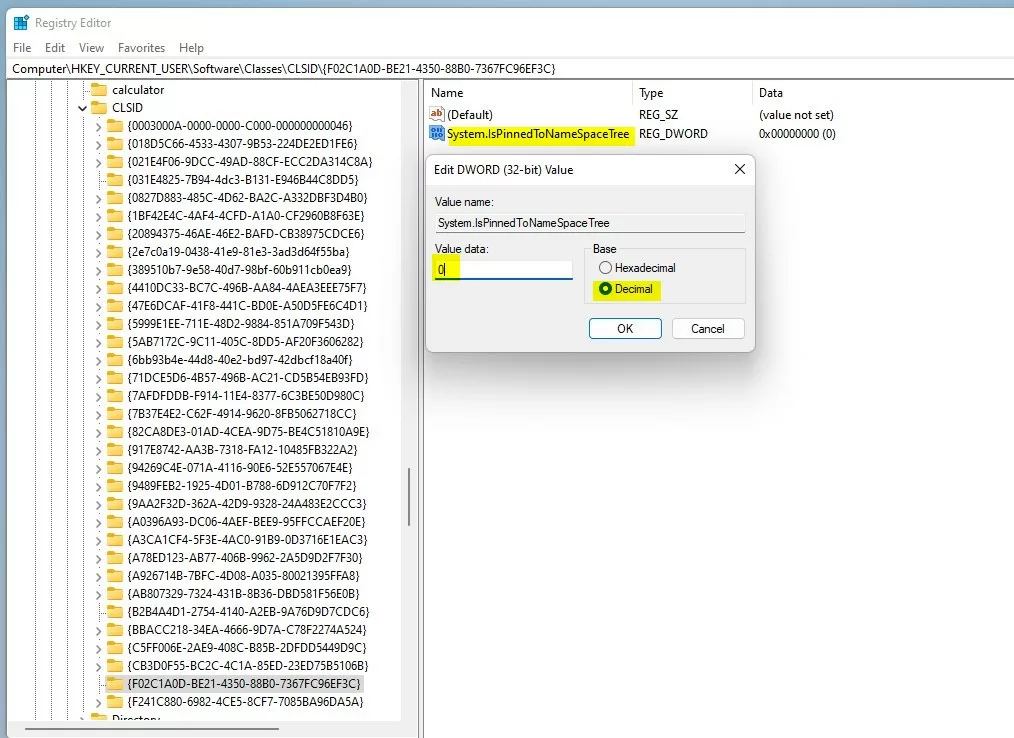
{F02C1A0D-BE21-4350-88B0-7367FC96EF3C}folder, right-click onCLSID, select New Key, and name it{F02C1A0D-BE21-4350-88B0-7367FC96EF3C}. - Click the new folder to select it. In the right pane, right-click an empty area and choose New DWORD (32-bit) Value. A new value appears in the right pane with its name ready to edit.
- Name the new value
System.IsPinnedToNameSpaceTree. - Double-click the value. In the Value data box, enter:
- 1 to show the Network folder.
- 0 to hide the Network folder.
- Click OK, then close the Registry Editor.
- Restart your computer. After you sign back in, open File Explorer and check the sidebar.
To undo the change, open the same key again and set the value back to its previous number. You can also import the .reg file you exported earlier.
Summary
- The Network folder in Windows 11 helps you find other devices on your network quickly.
- You can show or hide this folder by right-clicking in the File Explorer navigation pane or by using Folder Options. Neither method needs a restart.
- Advanced users can also use the Windows Registry for more control. That method needs a restart to take effect.
- Hiding or showing this folder does not affect your computer's network connection. It only changes the sidebar shortcut, and you can still reach network devices in other ways, such as by typing their address in the File Explorer address bar.
Controlling the Network folder in Windows 11 keeps your file sidebar clean without cutting you off from connected devices. Whether you use the quick right-click menu, Folder Options, or the Registry Editor, you can show or hide the shortcut in a few clicks.
Was this guide helpful?

About the Author
Richard
Tech Writer, IT Professional
Richard is a writer at Geek Rewind who turns complex IT tasks into clear, step-by-step guides. He draws on years of hands-on experience in system administration and enterprise IT operations, focusing on Windows, Linux and WordPress: the problems people actually run into, and the fixes that work. His server and WordPress guides come from systems he runs himself. Richard builds and maintains the platform behind Geek Rewind, from its Ubuntu servers and Nginx configuration to its custom WordPress plugins. Many new tutorials start with readers' questions, and he's always glad to answer them in the comments.


No comments yet — be the first to share your thoughts!