How to Enable HDR Screenshot Color Corrector in Snipping Tool


The HDR Screenshot Color Corrector in the Windows 11 Snipping Tool fixes washed-out or blindingly bright images when you capture High Dynamic Range (HDR) content. Microsoft added it in Snipping Tool version 11.2405.35.0. It automatically adjusts bright games and videos so your saved pictures look natural on a standard monitor.
This guide shows where the toggle lives, how to switch it on or off, and what to check if you can’t find it.
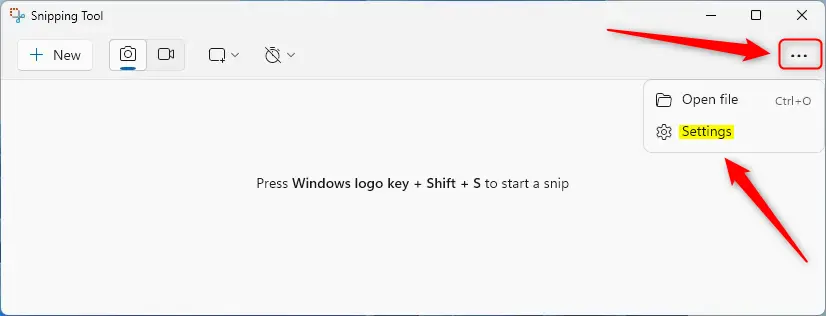
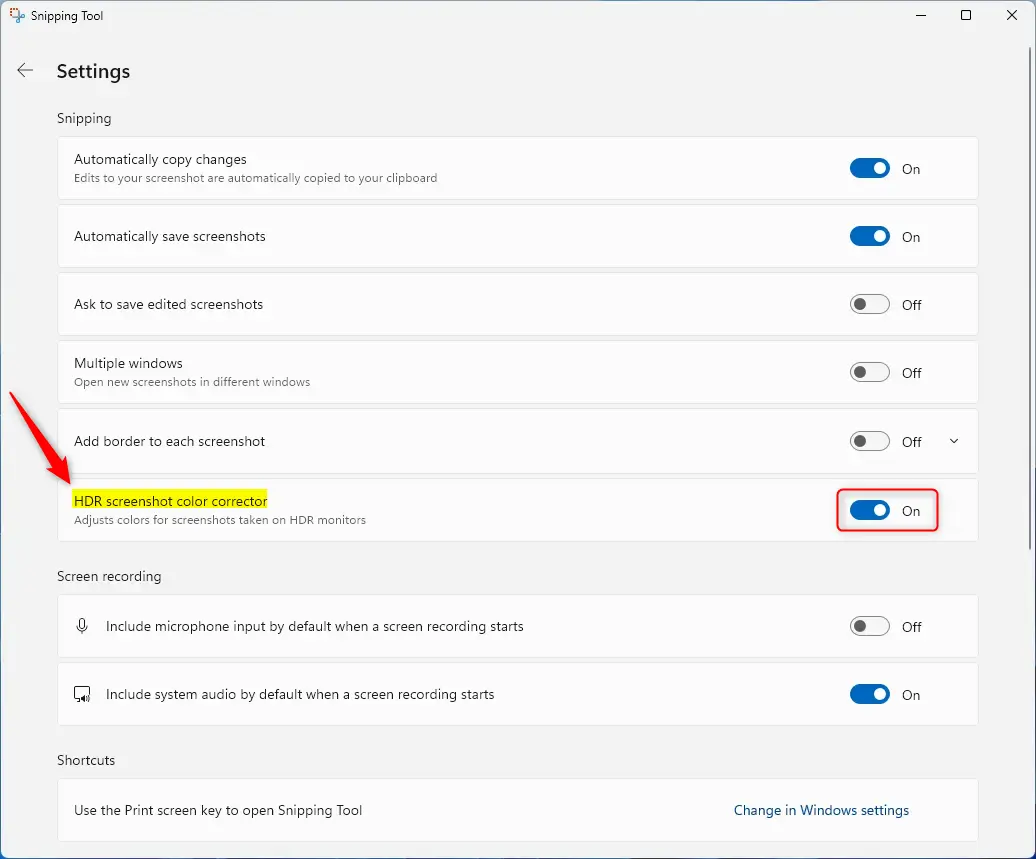
Open the Snipping Tool, click the three dots menu in the top right corner, select Settings, then toggle the HDR screenshot color corrector switch on or off. The change applies immediately to new screenshots without requiring a restart.
What Is the Snipping Tool?
The Snipping Tool is Windows’ built-in screenshot utility. It captures any part of the screen, from the full display down to a single window or a region you draw yourself.
The app also lets you redact sensitive text and manage screen recordings. The HDR option sits in the same Settings page as its other preferences, so you don’t need a separate tool.
Why Should You Know About the HDR Color Corrector?
The HDR Screenshot Color Corrector fixes washed-out or dull images when you take pictures on a high dynamic range display. An HDR screen can show a much wider range of brightness than a standard image file can store. Without correction, the saved picture often looks faded or too bright compared with what you saw live.
With the feature on, colors stay natural and the saved file matches what you saw on your monitor.
Vivid colors shine on HDR screens. This feature bridges the gap between what the hardware shows and what the image file can hold. Your captures keep the look the display intended, and you can share them with people who view them on ordinary screens.
Turning the corrector off makes sense if your monitor doesn't support HDR, or if you prefer to handle color manually in an editor. On older machines, turning it off also reduces the processing the app has to do.
If you never use HDR on your PC, you can leave it as it is. A setting that has no HDR content to work on does nothing useful.
How to Turn the HDR Color Corrector On or Off
- Open the Snipping Tool on your computer. The quickest way is to click Start, type "Snipping Tool" and press Enter. The Snipping Tool window should now be on screen.
- Click the three dots button (See more) in the top right corner of the window. A short menu should drop down.
- Select Settings from the menu. The app's Settings page should open.
- Look for the HDR screenshot color corrector option on the Settings screen. You may need to scroll down a little to see it.
- Toggle the switch to On or Off, depending on what you want. The switch changes state right away. There is no Save button.
Open the Microsoft Store, go to Library, and select Get updates. Then open Snipping Tool again. The option should now appear.
- Close the Snipping Tool when you're done. You don't need to restart Windows. The setting applies to screenshots you take from now on, not to files you already saved. To test it, display HDR content, take a new capture and compare it with what you see on screen.
You turn the HDR Screenshot Color Corrector on or off from the app settings inside the Snipping Tool. It takes just a few clicks from the main menu, so you can change how your images look whenever you want. To undo a change, repeat the same steps and flip the switch back.
In Windows 11 you can find that under Settings System Display The corrector only matters when the screen is showing HDR content.
Summary
Windows 11 uses the HDR screenshot color corrector within the Snipping Tool to align saved captures with what your monitor shows. It is a per-app setting, so changing it affects only screenshots taken with the Snipping Tool.
Was this guide helpful?

About the Author
Richard
Tech Writer, IT Professional
Richard is a writer at Geek Rewind who turns complex IT tasks into clear, step-by-step guides. He draws on years of hands-on experience in system administration and enterprise IT operations, focusing on Windows, Linux and WordPress: the problems people actually run into, and the fixes that work. His server and WordPress guides come from systems he runs himself. Richard builds and maintains the platform behind Geek Rewind, from its Ubuntu servers and Nginx configuration to its custom WordPress plugins. Many new tutorials start with readers' questions, and he's always glad to answer them in the comments.




[…] a built-in screenshot tool in Windows that allows you to capture screenshots of any part of your screen, including full-screen captures, individual windows, or user-defined capture […]