How to Manage Automatic Screen Recording in Snipping Tool


Windows 11’s Snipping Tool saves your video captures automatically, but you can turn this behavior off to manage files manually.
Open the Snipping Tool, click the See more (three dots) button, select Settings, then switch off “Automatically save screen recordings” under Screen recording. The change applies immediately with no restart. Recordings then open in a preview window, and nothing is saved until you click Save or press Ctrl+S.
The Snipping Tool is Windows’ built-in utility for capturing your screen, a single window, or a custom area.
With the Snipping Tool, you can redact text, disable screen capture and recording (including system audio and microphone), and prevent automatic screenshot saving. It also lets you record system audio or microphone input with screen recordings.
A recent update to the app automatically saves recordings to your Videos Screen Recordings folder You can turn this off anytime.
Automatic saving is convenient if you want every recording kept without thinking about it. It may not suit you if you prefer to choose what to keep and watch your storage space yourself. This tutorial shows how to switch the setting on or off and what changes when you do.
Turn on or off automatically saving screen recordings in the Snipping Tool
As mentioned, the Snipping Tool in Windows 11 can automatically save your screen recordings to the Videos Screen Recordings folder
Requirement: Screen recording and the auto-save recording setting only exist in a recent version of the Snipping Tool. The app is updated through the Microsoft Store, not Windows Update alone. If you don't see the setting described below, update the app first:
- Open the Microsoft Store app.
- Select Library in the left pane, then click Get updates.
- Wait for Snipping Tool to finish updating, then reopen it.
If Snipping Tool doesn't appear in the update list, you are probably already on the latest version available for your PC. In that case, check that Windows is fully up to date too, since the Store may roll features out in stages.
Now change the setting:
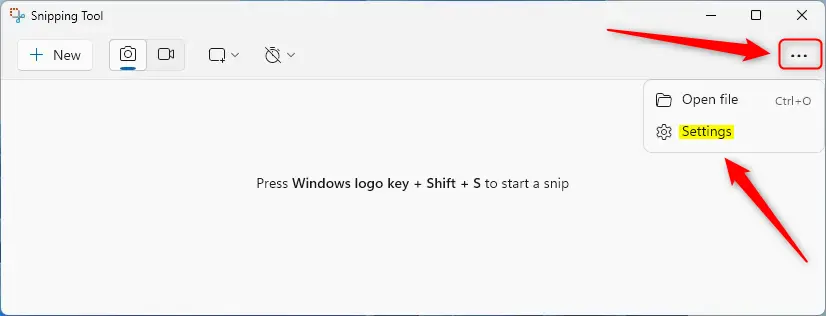
- Open the Snipping Tool, click the See more (three dots) button, and select Settings.
You should now see the Snipping Tool settings page.
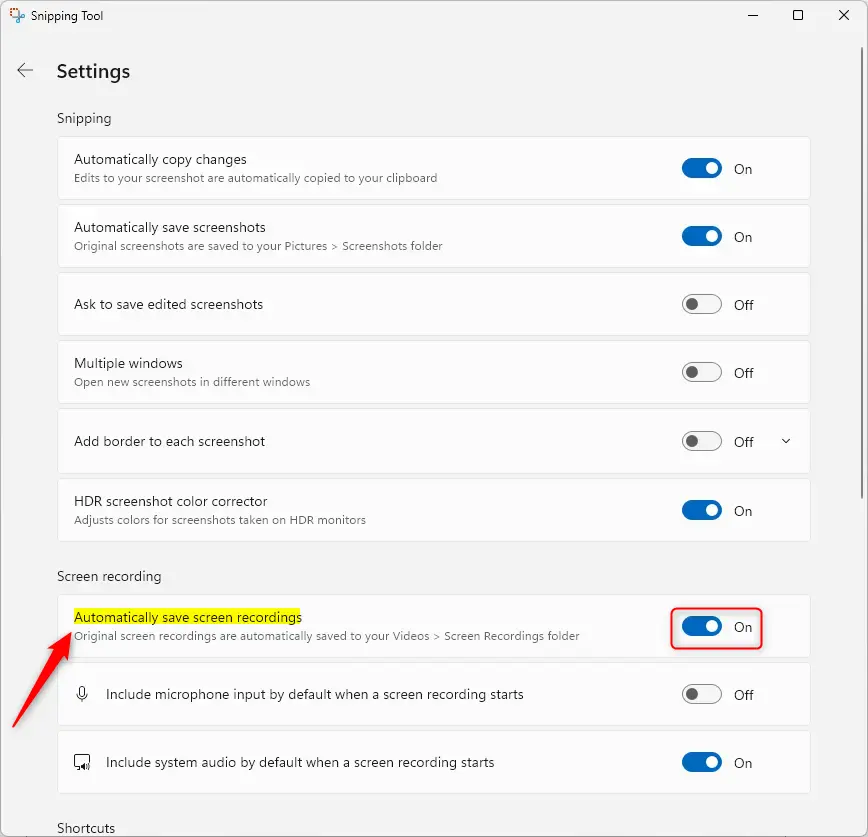
- Under the Screen recording section, find the Automatically save screen recordings tile.
- Toggle the switch to On or Off to enable or disable this setting.
The change applies immediately. You don't need to restart the app or Windows.
- Close the Snipping Tool when you are finished.
What happens when auto-save is off. When you stop a recording, it opens in a preview window instead of going straight to your Videos folder. Nothing is written to disk until you save it. Click the Save button or press Ctrl+S, then choose a name and a folder. If you close the preview without saving, the recording is lost, so check it before you close the window.
Screenshots have a similar setting. On the same settings page, the Automatically save original screenshots option controls whether screenshots are saved on their own. Turn it off if you want to decide for yourself which screenshots to keep.
Changing where recordings are saved. The Snipping Tool doesn't let you pick a separate folder for recordings. They go to Videos Screen Recordings To move them, change the location of the Videos folder itself:
- Open File Explorer, right-click the Videos folder, and select Properties.
- Open the Location tab and click Move.
- Choose the new folder, for example one on another drive, and click Apply.
- When Windows asks whether to move your existing files, choose Yes to bring the current contents along.
To undo it, return to the same Location tab and click Restore Default.
Managing where your video captures go keeps your storage organized. Turning auto-save on or off lets you match the Snipping Tool to how you work. Leave it on if you want nothing lost, or turn it off if you want to save only the recordings you need.
Have a question about this guide?
Answered by AI from this guide. Good questions may be added to this page — please don't include personal details.
Did this guide fix your problem?

About the Author
Richard
Tech Writer, IT Professional
Richard is a writer at Geek Rewind who turns complex IT tasks into clear, step-by-step guides. He draws on years of hands-on experience in system administration and enterprise IT operations, focusing on Windows, Linux and WordPress: the problems people actually run into, and the fixes that work. His server and WordPress guides come from systems he runs himself. Richard builds and maintains the platform behind Geek Rewind, from its Ubuntu servers and Nginx configuration to its custom WordPress plugins. Many new tutorials start with readers' questions, and he's always glad to answer them in the comments.
No comments yet — be the first to share your thoughts!