How to Record Your Screen with Snipping Tool in Windows 11


Screen recording in Windows 11 lets you capture video of your computer display directly through the built-in Snipping Tool app without needing extra software.
Microsoft added this video capture feature in app version 11.2211.35.0, turning the classic screenshot tool into a handy recorder for desktop clips.
When you finish recording, you can trim the video right inside the app and save it as an MP4 file on your PC.
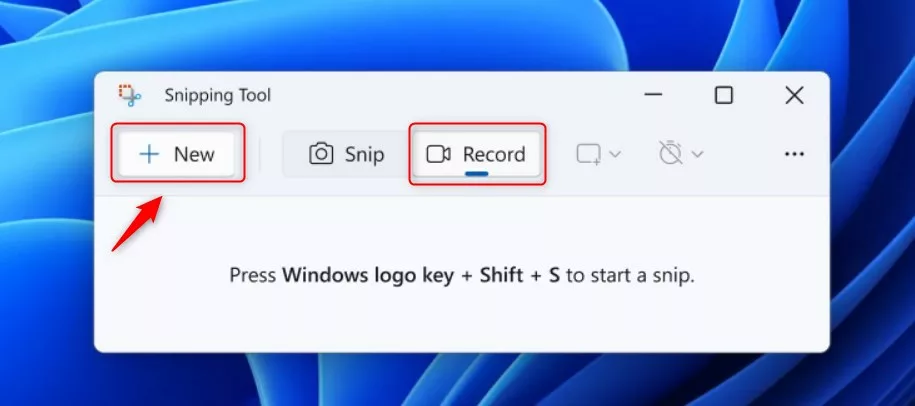
Open Snipping Tool, click the Record icon, then New. Select your desired screen area and click Start . Click the red Stop button when finished to preview and save your MP4 recording.
Prerequisites
Using this feature requires Windows 11. Open the Microsoft Store and update Snipping Tool to version 11.2211.35.0 or higher. This feature lacks support on Windows 10.
Keyboard Shortcuts
Shortcuts make capturing faster. Refer to the following table to navigate the tool:
| Action | Shortcut |
|---|---|
| Open Snipping Tool | Win+Shift+S |
| Start Recording | Click Record button |
How to Record Your Screen
- Open the Snipping Tool app from your Start menu .
- Click the Record icon on the menu bar.
- Click the New button.
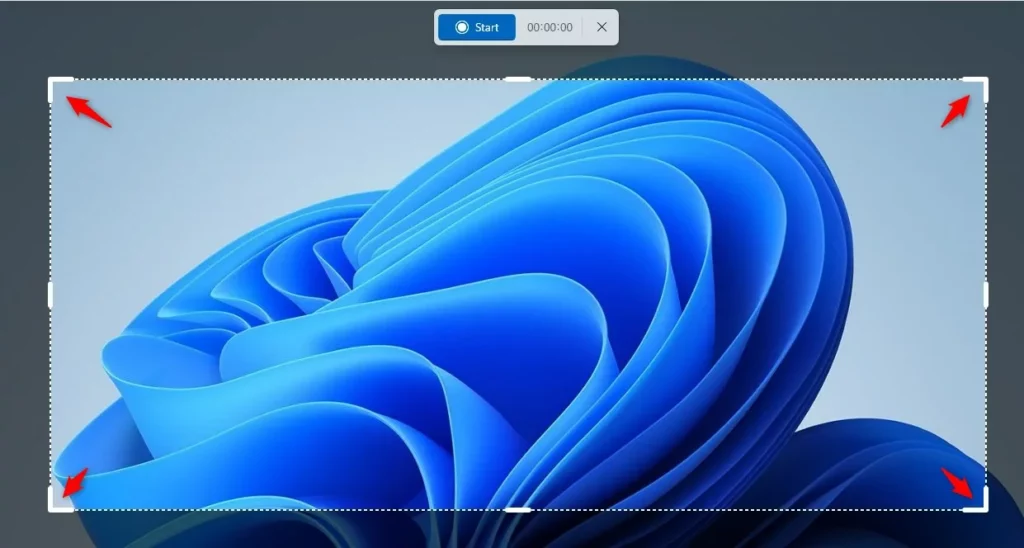
- Use your mouse to drag and select the area of your screen you want to capture.
- Click the Start button to begin recording.
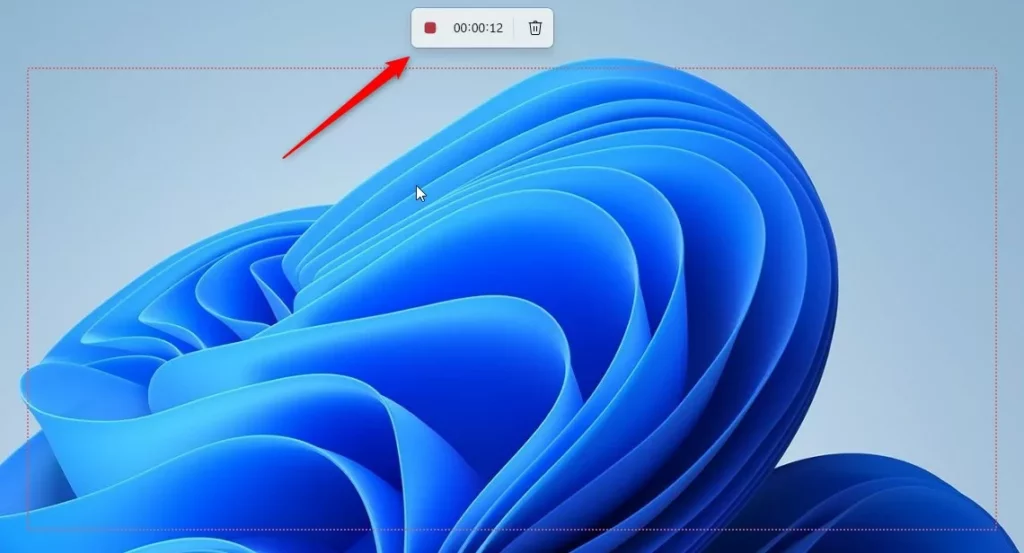
- When finished, click the red Stop recording button.
You can use Snipping Tool screen recording in Windows 11 to capture video without installing any extra software. Open the app from your Start menu , switch to video mode, select the area you want to capture, and click start. Your computer records everything inside the box until you click stop.
Troubleshooting and Settings
Why is the video recording option missing?
Missing record buttons point to an outdated app version. Open the Microsoft Store, go to Library, and click Get updates to fetch the latest version of the Snipping Tool.
Microphone Permissions
Silent recordings require checking privacy permissions. Go to Settings Privacy & security Microphone and make sure Microphone access is turned On. Note: Work or school PCs might block this change, requiring an administrator to unlock the setting.
Summary
- The Snipping Tool is a powerful Windows 11 screen recorder that requires no extra software.
- Always ensure your app is updated via the Microsoft Store to access the latest features.
- Videos are saved as MP4 files in your user videos folder by default.
- Check your microphone permissions if you intend to record voice-over audio.
Snipping Tool screen recording saves your captured videos as MP4 files in your default videos folder automatically. You do not need third-party apps, but you should check that your app is up to date through the Microsoft Store and that your microphone permissions are turned on if you want to record voice audio.
Was this guide helpful?

About the Author
Richard
Tech Writer, IT Professional
Richard is a writer at Geek Rewind who turns complex IT tasks into clear, step-by-step guides. He draws on years of hands-on experience in system administration and enterprise IT operations, focusing on Windows, Linux and WordPress: the problems people actually run into, and the fixes that work. His server and WordPress guides come from systems he runs himself. Richard builds and maintains the platform behind Geek Rewind, from its Ubuntu servers and Nginx configuration to its custom WordPress plugins. Many new tutorials start with readers' questions, and he's always glad to answer them in the comments.




[…] Snipping Tool is a built-in screenshot-capturing and video-recording tool in Windows that allows you to capture a […]
[…] Snipping Tool makes it easy to record your screen. By default, it saves these files to your Videos folder. You can go into the app settings at any […]