How to Enable Print Screen for Snipping Tool in Windows 11


Using the Print Screen key to open Snipping Tool (the built-in screen capture app) lets you take a screenshot with one key press instead of the default Win+Shift+S shortcut. Normally, pressing the PrtSc key only copies your whole display to the clipboard. This setting changes that, so the key opens the Snipping Tool overlay and lets you choose what to capture.
You need Windows 11 version 22H2 or later. The setting is the same on Home and Pro. It takes less than thirty seconds, and you don’t need a restart. To check your version, go to Settings System About and look under Windows specifications. On some recent builds the toggle is already on, so check it before you assume you need to change anything.
Open Settings , go to Accessibility Keyboard, and switch on “Use the Print Screen button to open screen snipping.” Pressing PrtSc then opens the Snipping Tool overlay so you can choose a rectangle, window, full screen or freeform capture. You need Windows 11 version 22H2 or later, and no restart is required.
How to enable Print Screen for Snipping Tool
To enable Print Screen for the Snipping Tool in Windows 11, open the Settings app, go to Accessibility, and turn on the keyboard setting that uses the PrtScn button to open screen snipping. After that you can capture your screen right away, without opening the app first. The numbered steps below show exactly where to click.
- Open the Settings app by pressing Win+I. The Settings window opens with the list of categories on the left.
- Click on Accessibility in the left sidebar. The accessibility options appear on the right, grouped under Vision, Hearing and Interaction.

windows 11 new settings button - Under Interaction, select the Keyboard tile. The keyboard settings page opens, with options such as Sticky keys and Filter keys.
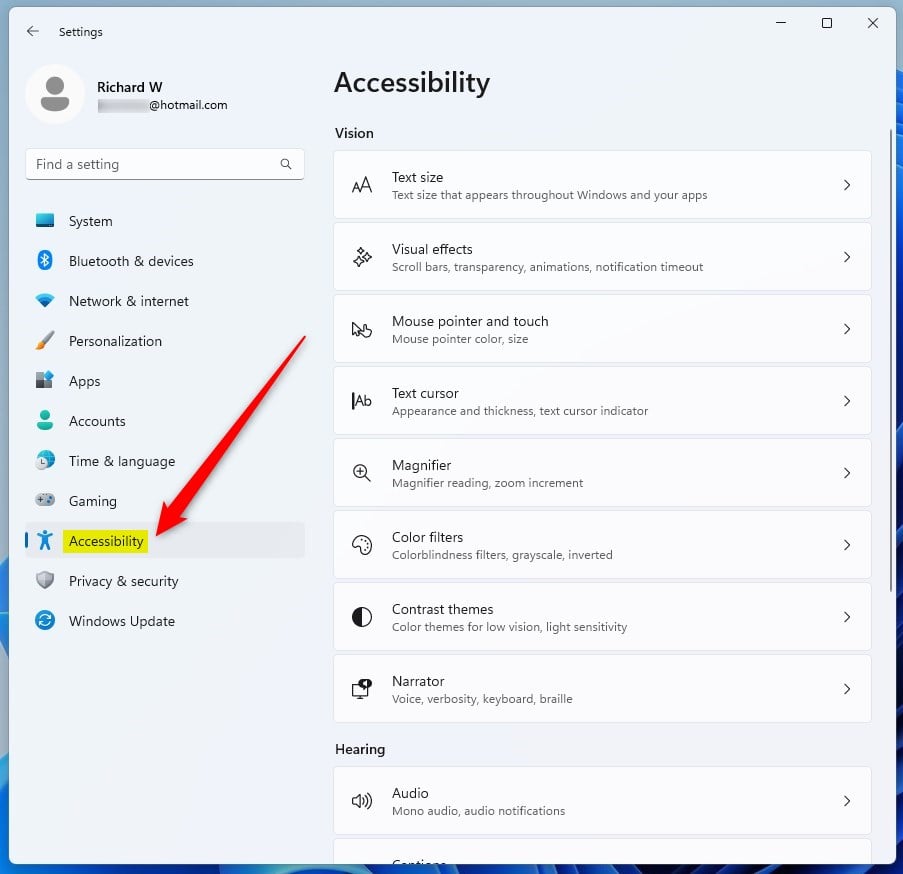
windows 11 accessibility tile - Find the toggle labeled “Use the Print Screen button to open screen snipping”. It is usually further down the page. Scroll if you don’t see it right away.
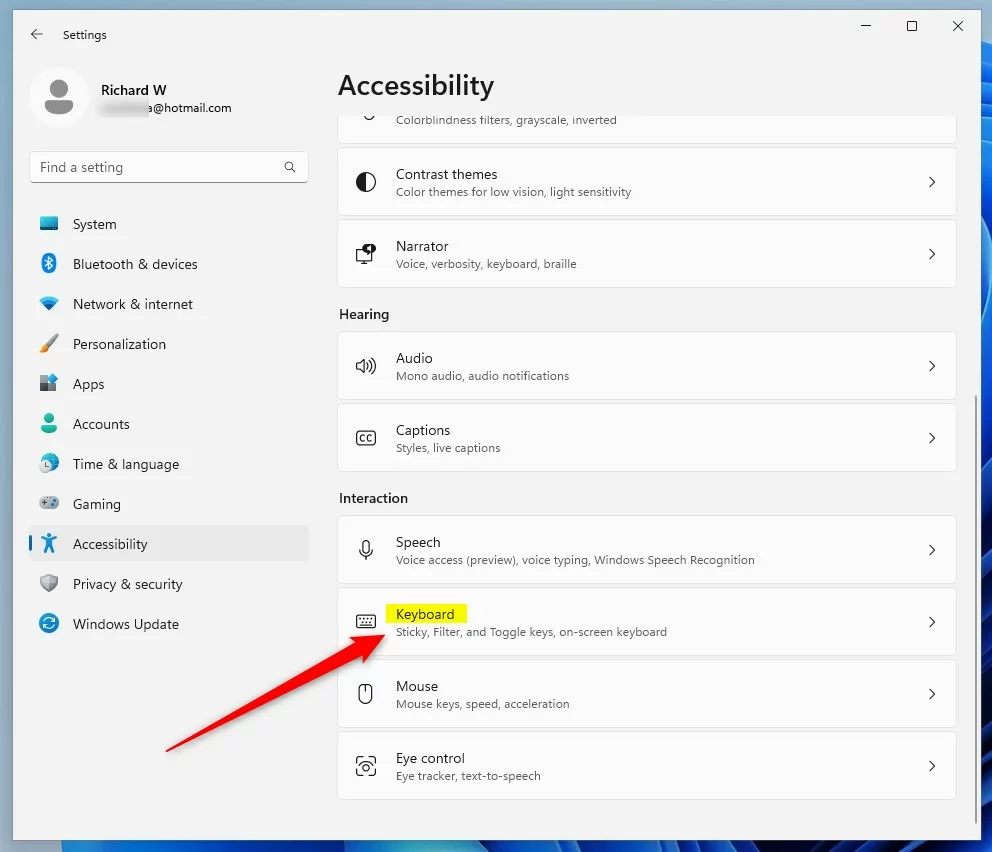
windows 11 accessibility keyboard tile - Switch the toggle to On. The label next to the switch changes to On.
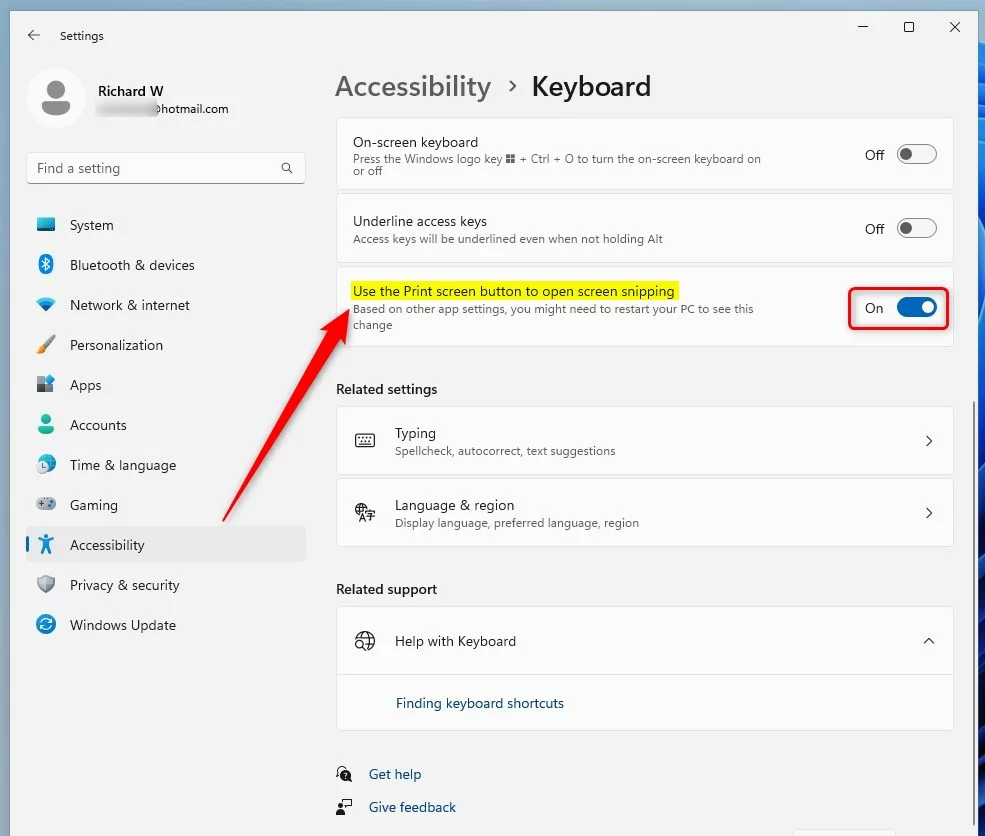
windows 11 keyboard use the print screen button to open screen snipping
The screen should dim and a small toolbar should appear at the top, where you pick a rectangle, window, full-screen or freeform snip. On many laptops you may need to hold the Fn key as well, because Print Screen shares a key with another function.
Troubleshooting: Print Screen not working
If Print Screen still doesn’t open the Snipping Tool, the cause is usually an outdated driver, an outdated app, or another program that has taken over the key. Update your keyboard drivers through Device Manager or install the latest app updates from the Microsoft Store. If that doesn’t help, work through the checks below.
- Keyboard Drivers: Right-click the Start button and select Device Manager. Expand Keyboards, right-click your keyboard, and select Update driver. Choose the automatic search option and let Windows look for a newer driver. Restart the PC if it installs one.
- Background Apps: Ensure the Snipping Tool is updated via the Microsoft Store. Open the Store, go to Library, and install any pending updates. An old version of the app may not respond to the Print Screen key.
- Admin Check: If the key is mapped to a third-party app, such as another screenshot or screen recording tool, you may need Administrator privileges to disable the conflicting software in the Task Manager . Close the other tool, or turn off its Print Screen hotkey in its own settings, and then try the key again.
If the toggle itself was already on, switch it off, wait a moment, and switch it on again. Signing out and back in can also help.
Reverting to legacy behavior
If you want to go back to the old way, where pressing Print Screen just copies your screen to the clipboard instead of opening the Snipping Tool, you can switch the setting off at any time. No restart is needed.
- Press Windows key + I to open Settings.
- Go to Accessibility Keyboard
- Switch "Use the Print Screen button to open screen snipping" to Off.
From then on, Print Screen copies the full screen to the clipboard again, and you can paste it into any app. The Windows + Shift + S shortcut keeps working either way.
How to auto-save screenshots
To automate this, ensure OneDrive is enabled. OneDrive automatically syncs your Pictures\Screenshots folder to the cloud. You can check this in OneDrive Settings Backup Manage backup. Make sure the Pictures folder is switched on there, and screenshots you save to that folder are backed up without any extra steps.
Newer versions of the Snipping Tool also have their own option for saving screenshots automatically. Open the app and look in its settings if you want that behavior without OneDrive.
Summary
Making your Print Screen key launch the Snipping Tool in Windows 11 is a quick way to make taking screenshots easier. It is one toggle in Settings, it works on every edition, and you can reverse it in a few seconds if you prefer the old behavior.
Have a question about this guide?
Answered by AI from this guide. Good questions may be added to this page — please don't include personal details.
Did this guide fix your problem?

About the Author
Richard
Tech Writer, IT Professional
Richard is a writer at Geek Rewind who turns complex IT tasks into clear, step-by-step guides. He draws on years of hands-on experience in system administration and enterprise IT operations, focusing on Windows, Linux and WordPress: the problems people actually run into, and the fixes that work. His server and WordPress guides come from systems he runs himself. Richard builds and maintains the platform behind Geek Rewind, from its Ubuntu servers and Nginx configuration to its custom WordPress plugins. Many new tutorials start with readers' questions, and he's always glad to answer them in the comments.
[…] To start recording your screen, open the Snipping Tool app. […]