How to Use the Copy as Table Feature in Snipping Tool


The Copy as Table feature in Snipping Tool, the built-in Windows screen capture app, turns part of a screenshot into an editable table, so you don’t have to retype numbers and text. It is available from Snipping Tool version 11.2409.22.0 onward. The app finds the rows and columns inside the image for you.
You can take data from a chart, a price list or a web page and paste it into Excel, Word or an email in a few seconds. It is quicker and less error-prone than typing the values yourself.
Open Snipping Tool, take a screenshot of the table, click Text Actions in the toolbar, then right-click the recognised text and choose Copy as table. Paste with Ctrl+V into Excel or Word to get the rows and columns in place. You need Snipping Tool version 11.2409.22.0 or later, which you can update through the Microsoft Store.
How to capture a screenshot as a table
With this feature you can turn a picture of a table, from any web page or app, into real spreadsheet data. You take a screenshot of the table, click Text Actions in the toolbar, copy the table, and paste it into Excel or another program. The whole job takes five steps.
It works on Windows 11 Home and Pro alike. If you don’t see the option, your Snipping Tool is probably older than version 11.2409.22.0. Open the Microsoft Store, go to Library, and check for updates . Snipping Tool is updated through the Store like any other app.
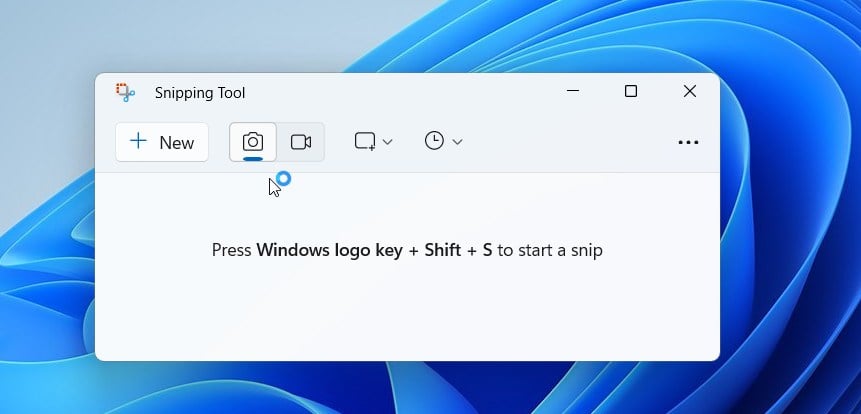
- Open the Snipping Tool app. Click the Start button , type Snipping Tool, and select it from the results. The small Snipping Tool window opens with a New button.
- Take a screenshot of the area that contains the table you want to copy. Click New, or press the Win+Shift+S. The screen dims and your pointer changes so you can select an area. Capture the whole table, including the header row, and keep it as large and sharp as you can. After the capture, the screenshot opens in the Snipping Tool editor. If you used the keyboard shortcut and the editor doesn’t appear, click the notification that pops up in the corner of the screen.
- Drag your mouse to select the table area. Hold the left button and draw a box around the whole table. When you let go, the capture appears in the Snipping Tool window.
- Click the Text Actions button in the toolbar. This will identify the text in your image. Snipping Tool runs text recognition on the capture, and the words and numbers in the picture become selectable. This can take a second or two on a large image.
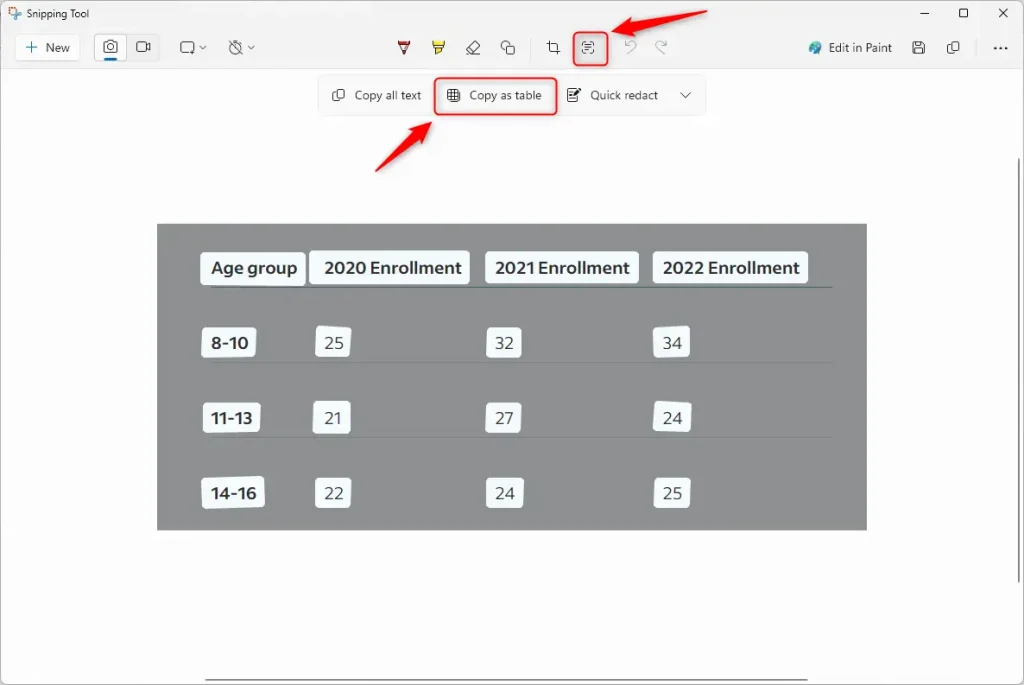
- Select the text in the table, right-click it, and choose Copy as table. Then switch to Excel, Word or your email, click where the table should go, and use the keyboard shortcut
CTRL+Vto paste the data as a table. In Excel, each value should land in its own cell. In Word or an email, you should get a table with the same rows and columns as the screenshot.
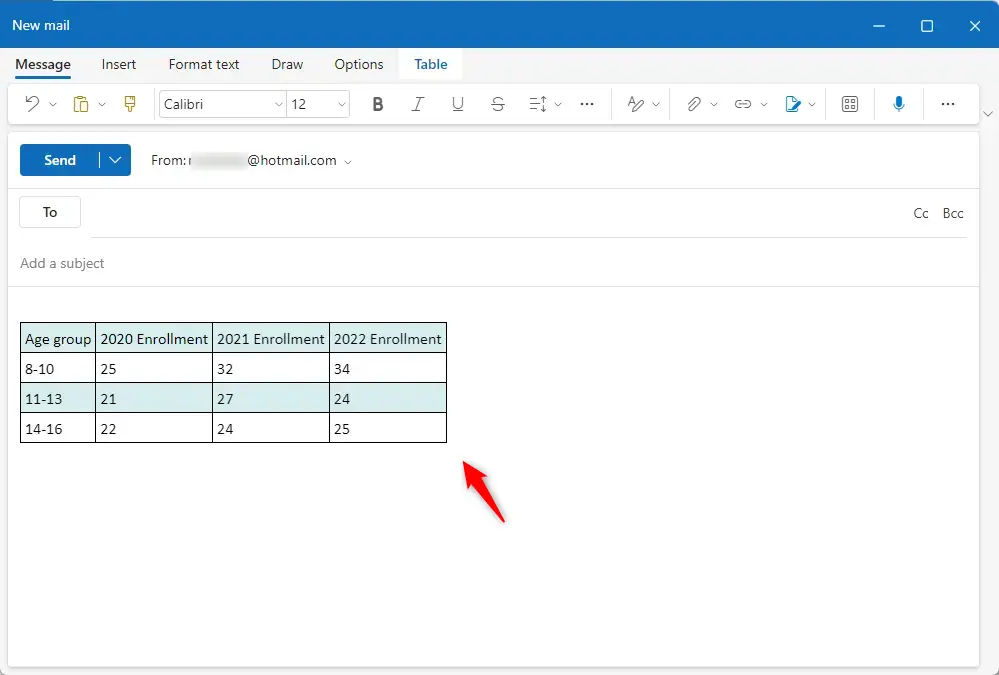
The table is only placed on the clipboard, so copying something else replaces it. Always check the pasted result against the original. Text recognition can misread small or blurry characters, such as 0 and O or 1 and l. It can also struggle with merged cells or tables that have no clear lines between columns. If the result looks wrong, retake the screenshot at a larger size or zoom in on the source first, then try again.
Summary
Copy as table in Snipping Tool is a built-in Windows feature that saves you from retyping data. It runs optical character recognition (OCR) on your screen capture and converts the table into structured text. You can then paste the rows and columns straight into Microsoft Excel or Word.
- The Snipping Tool lets you capture screen areas and turn them into organized data. You need version 11.2409.22.0 or later, which you can update through the Microsoft Store.
- The “Copy as table” feature allows you to move table data from an image directly into a spreadsheet or document, with rows and columns kept in place.
- Use the Text Actions button after taking your screenshot to enable this feature. Then select the table text and choose Copy as table.
- This is a fast way to share information without retyping data manually. Check the pasted numbers against the original, because OCR can make small mistakes.
Have a question about this guide?
Answered by AI from this guide. Good questions may be added to this page — please don't include personal details.
Did this guide fix your problem?

About the Author
Richard
Tech Writer, IT Professional
Richard is a writer at Geek Rewind who turns complex IT tasks into clear, step-by-step guides. He draws on years of hands-on experience in system administration and enterprise IT operations, focusing on Windows, Linux and WordPress: the problems people actually run into, and the fixes that work. His server and WordPress guides come from systems he runs himself. Richard builds and maintains the platform behind Geek Rewind, from its Ubuntu servers and Nginx configuration to its custom WordPress plugins. Many new tutorials start with readers' questions, and he's always glad to answer them in the comments.
No comments yet — be the first to share your thoughts!