How to Use Snipping Tool’s New Text Extractor Feature

The text extractor in Windows 11 Snipping Tool (the built-in screenshot app) copies printed words straight out of an image, so you don’t have to retype them. It is available starting with version 11.2310.35.0. It scans a captured picture, finds the text, and lets you copy it to the clipboard for pasting into other apps.
Flyers, receipts, and photos of printed pages turn into editable words in seconds, with no extra software. Taking a screenshot runs the text scan behind the scenes, so you can highlight and copy what you need right away.
If you don’t see the feature, your Snipping Tool is probably older than the version above. Open the Microsoft Store, go to Library, and install any pending updates. Windows 11 Home and Pro both get the feature, so there is no edition difference to worry about.
Open Snipping Tool, take a screenshot with Win+Shift+S, and click the Text Actions button in the editor toolbar. The app scans the image and makes text selectable; highlight words with your mouse and press Ctrl+C to copy them, or click Copy all text for everything. Paste with Ctrl+V into any app.
Use the Text Actions feature in Snipping Tools
To copy words from any image on your screen, open the app, take a screenshot, and click the Text Actions button on the top toolbar. The tool reads the text in your capture so you can paste it anywhere without typing it out.
- Capture a snip with the Win+Shift+S shortcut, or open Snipping Tool from the Start menu and start a new capture there.
- If you used the shortcut, click the notification that appears after the snip. The image opens in the Snipping Tool editor window. If you used the app directly, the image opens in the editor on its own.
- Click the Text Actions icon on the toolbar. It looks like a document or text symbol. You should see the words in the image become selectable.
If the icon is missing, check the app version and update it as described above. Very small, blurry, or stylized text may not be picked up, so capture a larger or sharper area and try again.
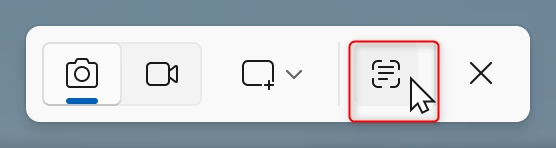
The app scans the image for words. You can copy part of the text or all of it, and you can hide sensitive details before sharing.
- To copy only part of the text, highlight the words you want with your mouse, then copy them with Ctrl + C.
- To copy everything, click the Copy all text button. The text goes to your clipboard.
- Open the app where you want the text, such as Notepad, Word, or an email, and paste it with Ctrl + V.
- To mask sensitive items like phone numbers or email addresses, select the Quick Redact option. The tool covers those items in the image.
Look over the whole picture and confirm everything private is actually covered. Then save the image or copy it for sharing. Automatic detection can miss things, and it won't catch private details that aren't text, such as a face.
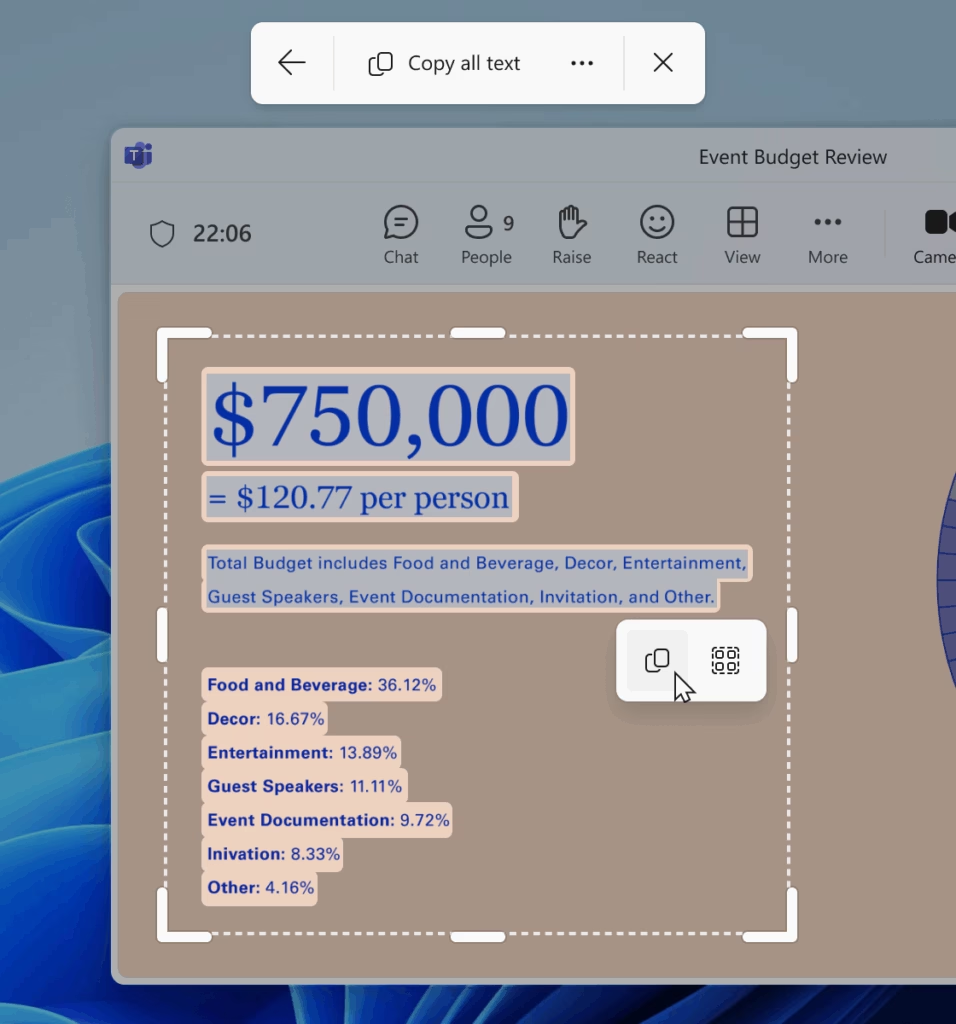
- “Remove line breaks” joins the copied text into one continuous block. This is handy for paragraphs that came out chopped into short lines.
- “Automatically copy text” puts the scanned text on your clipboard without an extra click each time.
To undo either option, open the same menu and switch it off. Checking a setting you turned on earlier is also a good first step when pasted text looks different from what you expected.
The process finishes there.
Reference: Microsoft blog
Conclusion
Turning images into editable text speeds up everyday work. To use it, capture a snip and click the Text Actions icon in the editor window. Then copy part of the text or all of it. Extra tools like Quick Redact help keep private details out of what you share, as long as you check the result before sending it.
Have a question about this guide?
Answered by AI from this guide. Good questions may be added to this page — please don't include personal details.
Did this guide fix your problem?

About the Author
Richard
Tech Writer, IT Professional
Richard is a writer at Geek Rewind who turns complex IT tasks into clear, step-by-step guides. He draws on years of hands-on experience in system administration and enterprise IT operations, focusing on Windows, Linux and WordPress: the problems people actually run into, and the fixes that work. His server and WordPress guides come from systems he runs himself. Richard builds and maintains the platform behind Geek Rewind, from its Ubuntu servers and Nginx configuration to its custom WordPress plugins. Many new tutorials start with readers' questions, and he's always glad to answer them in the comments.
No comments yet — be the first to share your thoughts!