How to Redact Sensitive Info in Windows 11 Screenshots


- 7 steps
- Needs administrator rights
Redacting sensitive info in Windows 11 screenshots hides private details like home addresses, phone numbers, and bank account numbers before you share an image online. The built-in Snipping Tool is the default Windows 11 app for taking and editing screen captures. Its newer versions can find text in a screenshot and black it out in seconds, with no extra software. The pen and highlighter tools are also there if you prefer to cover text by hand.
Skipping this step leaves you open to data leaks and identity theft whenever you post a picture or send it to a friend. A screenshot often shows more than you meant to capture, such as a name in a corner, an email in a tab, or an account number in a sidebar. Masking your personal data before you save or share any screenshot keeps your private life secure.
Open Snipping Tool from your Start menu, take a screenshot, click Text Actions in the editor toolbar, then click Quick redact to automatically hide emails and phone numbers. For other sensitive data, highlight the text and press Ctrl+R to redact it manually.
How to Redact Sensitive Info Using Snipping Tool
You can redact sensitive information in Windows 11 screenshots using the Snipping Tool app that comes with Windows. It helps you hide passwords, phone numbers, or bank details before you save or share the image with other people. The redaction tools below need a reasonably current version of Snipping Tool. If you don’t see them, open the Microsoft Store, go to Library, and install any pending updates for Snipping Tool.
- Open the Snipping Tool from your Start menu . Click Start, type Snipping Tool, and select the app from the results. You should see the small Snipping Tool window or toolbar.
- Take a screenshot of the area you need. Choose the capture area, then drag over only the part of the screen you want. Crop tightly. Anything you leave out of the capture can’t leak. When you release the mouse, the screenshot opens in the Snipping Tool editor, where you can mark it up.

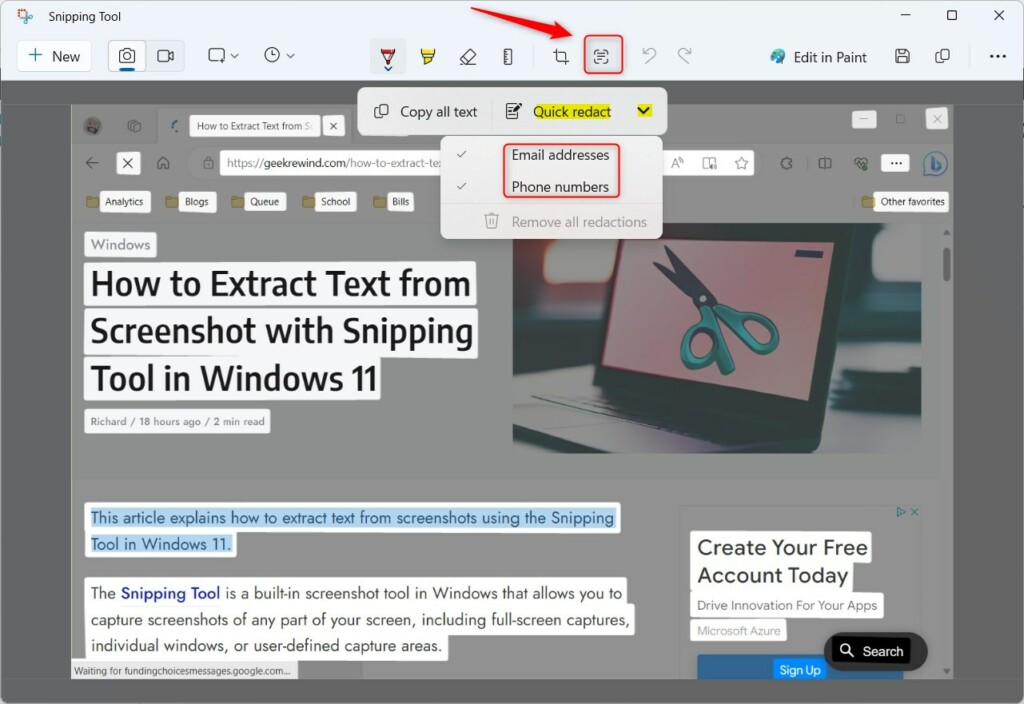
- Click the Text Actions button in the top toolbar of the editor. This uses OCR (Optical Character Recognition, which reads text in pictures) to help the tool detect words automatically. When it finishes, the text in your screenshot becomes selectable, and the Text Actions options appear.
If the button is missing, your Snipping Tool is probably out of date. Update it from the Microsoft Store as described above. OCR works best on clear, sharp text. Very small or blurry text may be missed, so keep that in mind when you check the result later.
- Click Quick redact in the Text Actions options. Quick redact automatically finds and hides sensitive items like emails or phone numbers in your screenshot. The detected items are covered, and you can see right away what was hidden and what wasn’t.
Quick redact only catches the kinds of data it knows how to recognize. Read the whole image after it runs. If you cover the wrong thing, use the Undo button in the toolbar and try again.
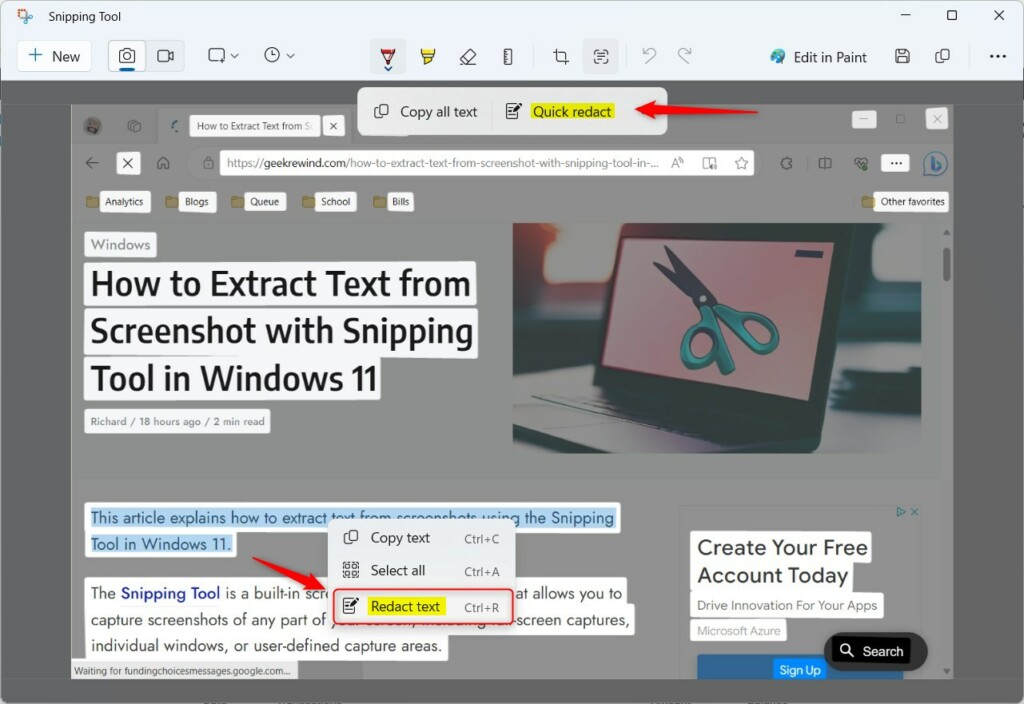
- To hide other data, highlight the text with your mouse. With Text Actions on, the words in the screenshot can be selected like normal text.
- Right-click the selected area and choose Redact text, or press
CTRL + R. The selected text is covered. - Repeat for each item you want to hide, such as names, account numbers, or custom ID numbers that Quick redact doesn’t recognize.
You do not need them to redact a screenshot in Snipping Tool, since that only changes your own image. If you run into this requirement, sign in with an administrator account or ask your IT administrator.
Automated Redaction vs. Manual Masking
Manual image masking provides safer redaction for highly confidential documents, unlike automated redaction, which can miss unique data like custom ID numbers. Do it when the stakes are high: legal papers, bank statements, or anything with a full account number.
Basic image editors like Paint carry risks, so always double-check your work before sharing any screenshots. Zoom in and look at every part of the image, including window titles, browser tabs, and notifications in the corner. Then open the saved file once more as the recipient would see it.
Risks of Basic Image Editors
Drawing a black box over text often fails to remove the underlying data. Someone could potentially increase the brightness or contrast to see what sits underneath. This is especially true if you use a semi-transparent highlighter or a dark color that isn't fully black.
Dedicated redaction tools perform true data scrubbing. If you aren't sure a method really removes the text, don't rely on it for anything sensitive. Test it first: apply the redaction, save the file, then adjust its brightness and contrast in an editor to see whether anything shows through.
Summary
- Use the Snipping Tool for local, secure redaction.
- Use Quick redact for emails and phone numbers.
- Manually mask sensitive data to ensure nothing is missed.
- Avoid basic editors that do not fully scrub data.
- Always check your file for hidden metadata before sharing.
Reference: Microsoft blogs
Have a question about this guide?
Answered by AI from this guide. Good questions may be added to this page — please don't include personal details.
Did this guide fix your problem?

About the Author
Richard
Tech Writer, IT Professional
Richard is a writer at Geek Rewind who turns complex IT tasks into clear, step-by-step guides. He draws on years of hands-on experience in system administration and enterprise IT operations, focusing on Windows, Linux and WordPress: the problems people actually run into, and the fixes that work. His server and WordPress guides come from systems he runs himself. Richard builds and maintains the platform behind Geek Rewind, from its Ubuntu servers and Nginx configuration to its custom WordPress plugins. Many new tutorials start with readers' questions, and he's always glad to answer them in the comments.
[…] can also do things like hide sensitive text, and control settings for recording your screen, sound, and microphone. For more info, check out […]
[…] can also do things like blur or hide text on your screenshots or turn off screen capture and recording. It even lets you choose whether to […]
[…] the Snipping Tool, you can redact text, disable screen capture and recording, including system audio and microphone when recording, […]