How to Turn On or off “Ask to Save Edited Screenshots” in Windows 11

- 5 steps
- Includes a restart or sign-out
The “Ask to Save Edited Screenshots” setting in Windows 11 controls whether the Snipping Tool (the built-in screen capture program) saves your edited pictures without asking first. When it is on, a prompt appears every time you close an edited screenshot in version 23H2 and later. You can then save or discard your changes.
The prompt helps you avoid saving messy edits by mistake and keeps your folders clean. You can switch it on or off in the Snipping Tool settings whenever you want to change how the app handles your captures. The setting works the same on Windows 11 Home and Pro, and you don’t need to restart the PC after changing it.
Open Snipping Tool, click the three dots, select Settings, and toggle “Ask to save edited screenshots” on or off. This controls whether Windows prompts you to save edited screenshots or saves them automatically.
How to Turn On “Ask to Save Edited Screenshots”
In short: open the Snipping Tool app, click the three-dot menu in the top right corner, and open Settings. Find the “Ask to save edited screenshots” option and switch its toggle to the on position. The app will then check with you before it closes an edited image. The full steps are below.
- Open the Snipping Tool app on your Windows 11 PC. Type Snipping Tool in the Start menu search and select the app from the results. The Snipping Tool window should now be open.
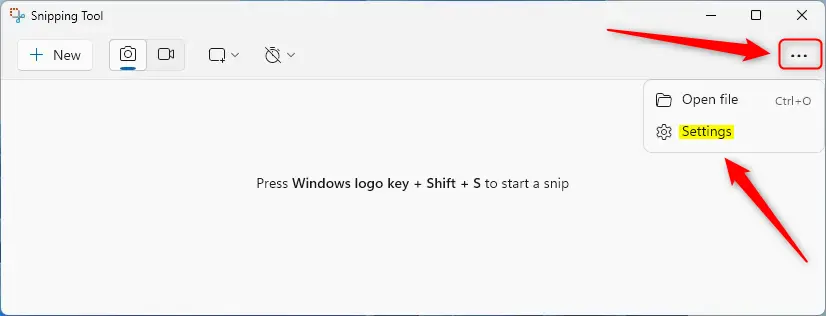
- Click the three dots (See more) button in the top right corner of the app window, then choose Settings from the dropdown menu. The Settings panel should now open.
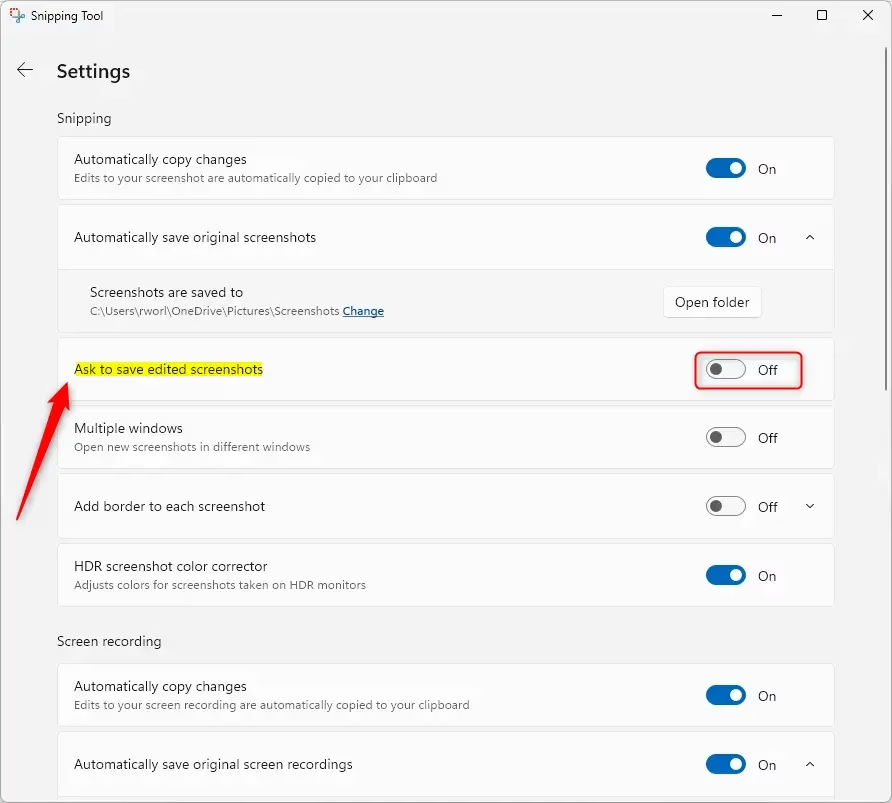
- In the Settings panel, find the Ask to save edited screenshots option. If you don’t see it, scroll down, because the panel lists several options. If it is still missing, your Snipping Tool is probably out of date. Open the Microsoft Store, go to Library, and install any available updates for Snipping Tool.
Snipping Tool settings on menu - Click the toggle switch next to that option to turn it On or Off, whichever you prefer. The toggle should change position and label right away, and the change is saved without a separate Save button. To undo it later, come back to this same screen and click the toggle again.
Toggle for Ask to save edited screenshots in Snipping Tool - Close the Settings window when you’re done. The new behavior applies the next time you edit a screenshot and close it.
With the setting on, the Snipping Tool asks you to confirm before it saves an edited image. You can keep the changes or discard them, so nothing is overwritten by accident.
With the setting off, Windows saves edited screenshots automatically and does not ask for confirmation. In version 22H2, this happened after a single edit.
Summary
The “Ask to save edited screenshots” feature gives you control over your workflow by prompting you to save changes before closing an image. You can turn the prompt on or off at any time in the app settings. Leave it on if you want protection against saving unwanted edits, or turn it off if you prefer faster saving.
You can turn the “Ask to save edited screenshots” feature on or off in the app’s settings. The path is the three-dot menu, then Settings, then the toggle.
This setting decides whether Windows asks you to save edits or saves them automatically. If the prompt ever annoys you or starts to feel too risky, you can flip it back in a few seconds.
Knowing these options makes taking and saving screenshots faster and less error-prone.
For more tips on using the Snipping Tool, check out these helpful guides:
How to Blur or Hide Text in Screenshots
Have a question about this guide?
Answered by AI from this guide. Good questions may be added to this page — please don't include personal details.
Did this guide fix your problem?

About the Author
Richard
Tech Writer, IT Professional
Richard is a writer at Geek Rewind who turns complex IT tasks into clear, step-by-step guides. He draws on years of hands-on experience in system administration and enterprise IT operations, focusing on Windows, Linux and WordPress: the problems people actually run into, and the fixes that work. His server and WordPress guides come from systems he runs himself. Richard builds and maintains the platform behind Geek Rewind, from its Ubuntu servers and Nginx configuration to its custom WordPress plugins. Many new tutorials start with readers' questions, and he's always glad to answer them in the comments.
No comments yet — be the first to share your thoughts!