How to View Screenshot and Screen Recording Recent Activity by Apps in Windows 11

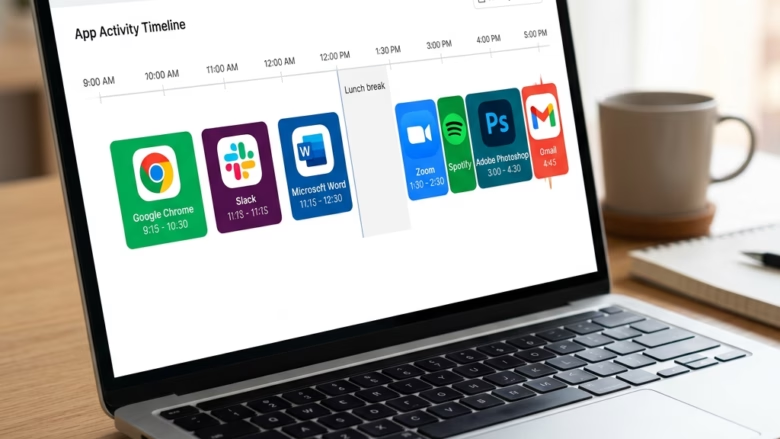
Windows 11 keeps a history of which apps recently captured your screen, either as a screenshot or a screen recording. You can read this log in Settings. It is a quick way to catch software that is capturing your display when it has no reason to.
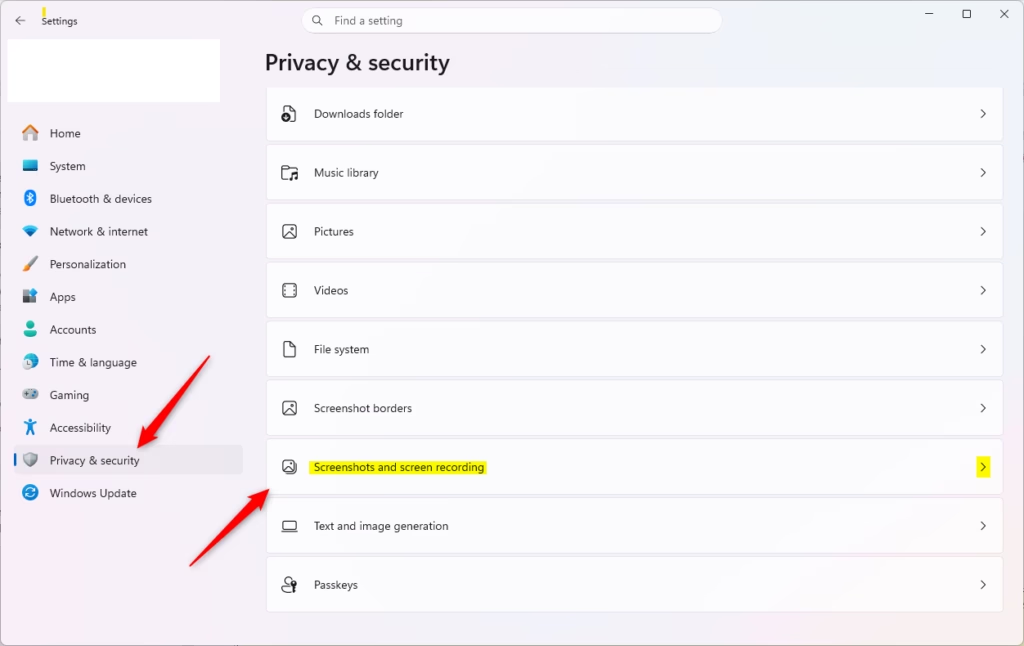
Press Win+I to open Settings , click Privacy & security, scroll to App permissions, and select Screenshots and screen recording. The list shows all apps that captured your screen in the last seven days with their last-used dates.
How to View Recent Activity
The list covers the last seven days and shows every program that used your display in that time. If an app you don’t recognize appears, you can then decide whether to block or remove it. The page is part of newer Windows 11 builds, so very old installs may not have it.
- Press Win+I to open Settings. A window with a left-hand menu appears.
- Click Privacy & security in the left menu. The privacy options appear on the right.
- Scroll to the App permissions section and select Screenshots and screen recording. The capture settings and the activity list open.
Run Windows Update , install the pending updates, restart, and look again.
You can also use this link to go straight to the page: Open Screenshots and screen recording Settings
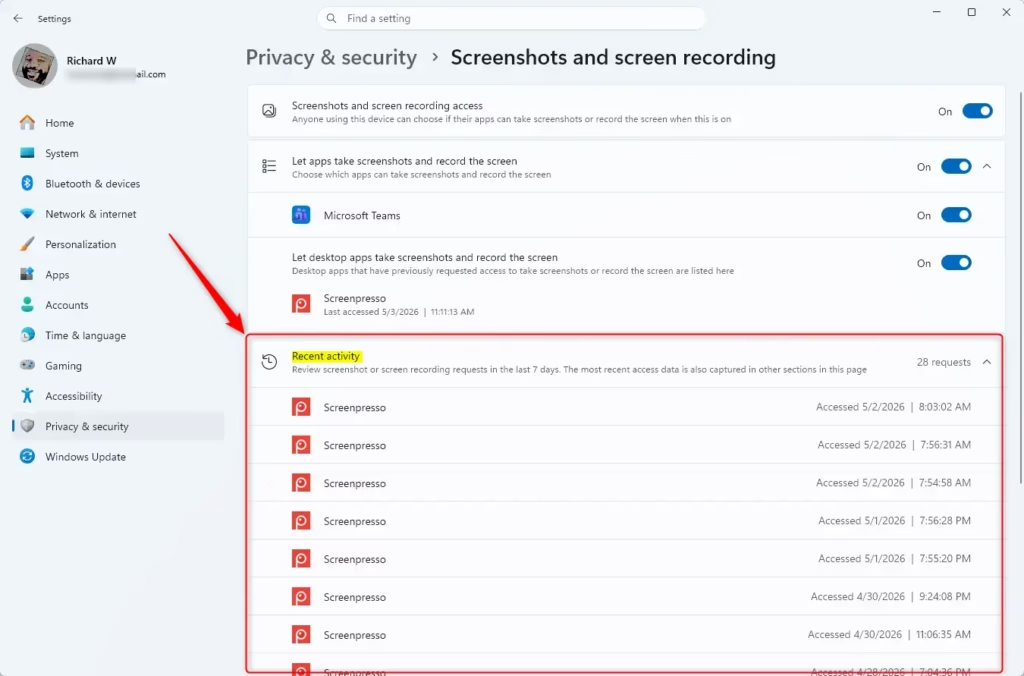
- Find the setting Let desktop apps take screenshots and record the screen. Below it, a list shows the apps that requested access.
- Read the date and time of last use beside each app. Windows 11 keeps this activity log for the last seven days.
- Click Previous and Next to scroll through the full history if it runs to more than one page.
Look for apps you don’t remember installing , or apps that captured the screen at times you weren’t using them. A screen recorder, a remote-support tool or a game overlay showing up is normal. A random utility or an unknown name is worth a closer look. To undo access, turn off the permission for that app if the page offers a switch, or uninstall the app from Settings if you don’t need it.
Understanding Privacy and App Permissions
Older entries drop off as time passes, so check the list regularly if you want to catch something before it ages out.
Troubleshooting and Restrictions
Third-party restrictions can sometimes block screen capture entirely. This usually comes from digital rights management (DRM) or strict corporate security policies, and the result is a black screen in your screenshot or recording. It is not a fault in Windows or in the capture tool. If it happens on a work PC, ask your IT department. If it happens with a streaming app, the protected video is simply being hidden from capture on purpose.
Summary
Reviewing your capture history regularly adds an extra layer of security and makes rogue software easier to spot. A check once a week or so takes under a minute. If something looks wrong, remove the app, run a scan with Windows Security, and change any passwords that could have appeared on screen.
Was this guide helpful?

About the Author
Richard
Tech Writer, IT Professional
Richard is a writer at Geek Rewind who turns complex IT tasks into clear, step-by-step guides. He draws on years of hands-on experience in system administration and enterprise IT operations, focusing on Windows, Linux and WordPress: the problems people actually run into, and the fixes that work. His server and WordPress guides come from systems he runs himself. Richard builds and maintains the platform behind Geek Rewind, from its Ubuntu servers and Nginx configuration to its custom WordPress plugins. Many new tutorials start with readers' questions, and he's always glad to answer them in the comments.



No comments yet — be the first to share your thoughts!