How to Enable or Disable Filter Keys for Accessibility in Windows 11

The filter keys setting is in Settings Accessibility Keyboard, where you turn it on or off with the Filter keys toggle. The change takes effect right away and needs no restart. The right Shift shortcut (hold for eight seconds) only works if the Keyboard shortcut for Filter keys toggle is on. In some Windows 11 builds that toggle is off by default, so turn it on first.
Filter Keys is an accessibility feature that slows down or ignores repeated keystrokes. It helps if you have tremors, limited mobility, or another condition that causes accidental repeated key presses. The steps are the same on Windows 11 Home and Pro.
Open Settings with Win+I, then go to Accessibility Keyboard and switch the Filter keys toggle on or off. The change takes effect immediately with no restart. To turn it on with a shortcut, first enable Keyboard shortcut for Filter keys in the same section, then hold the right Shift key for eight seconds.
What Filter Keys Does
Filter Keys tells the keyboard to ignore brief or repeated keystrokes. It’s meant for people with hand tremors or difficulty controlling precise finger movements. A shaky or slow keypress can register as several presses in a row. A key held down slightly too long can repeat when it shouldn’t. With Filter Keys on, Windows adds a short delay before it accepts a keypress, and it can also slow down how fast a held key repeats.
Filter Keys often turns itself on by accident when someone (or a pet) holds the right Shift key down for several seconds. You’ll hear a beep and see an on-screen message. That’s a built-in shortcut, not a bug. It only works when the shortcut toggle in Settings is on, which is covered below.
How to Turn On Filter Keys from Settings
This is the most reliable way to turn Filter Keys on, and it lets you adjust the timing options at the same time. It’s also where the filter keys setting lives in Windows 11, so you can use these steps just to find it.
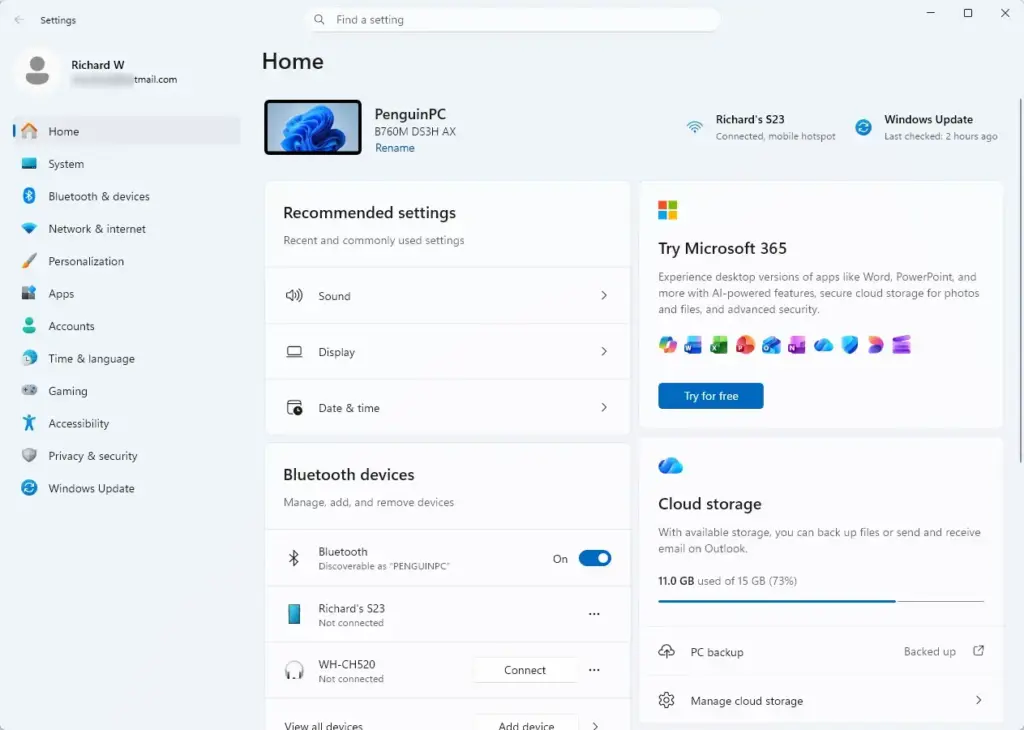
- Open Settings . Press Win+I, or click the Start button and select the gear icon. The Settings window opens on the Home page.
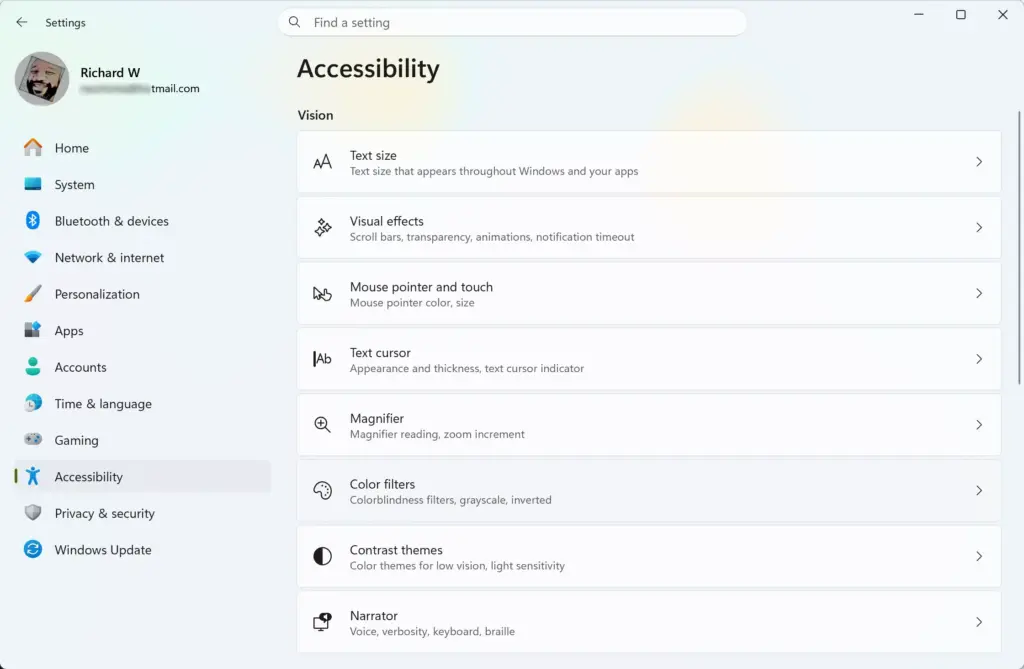
Settings › Home - Click Accessibility in the left-hand menu. The right side of the window changes to show accessibility categories such as Vision, Hearing, and Interaction.
Settings › Accessibility - Click Keyboard under the Interaction section. You’ll see a page with several keyboard-related accessibility toggles, including Sticky Keys, Toggle Keys, and Filter keys.
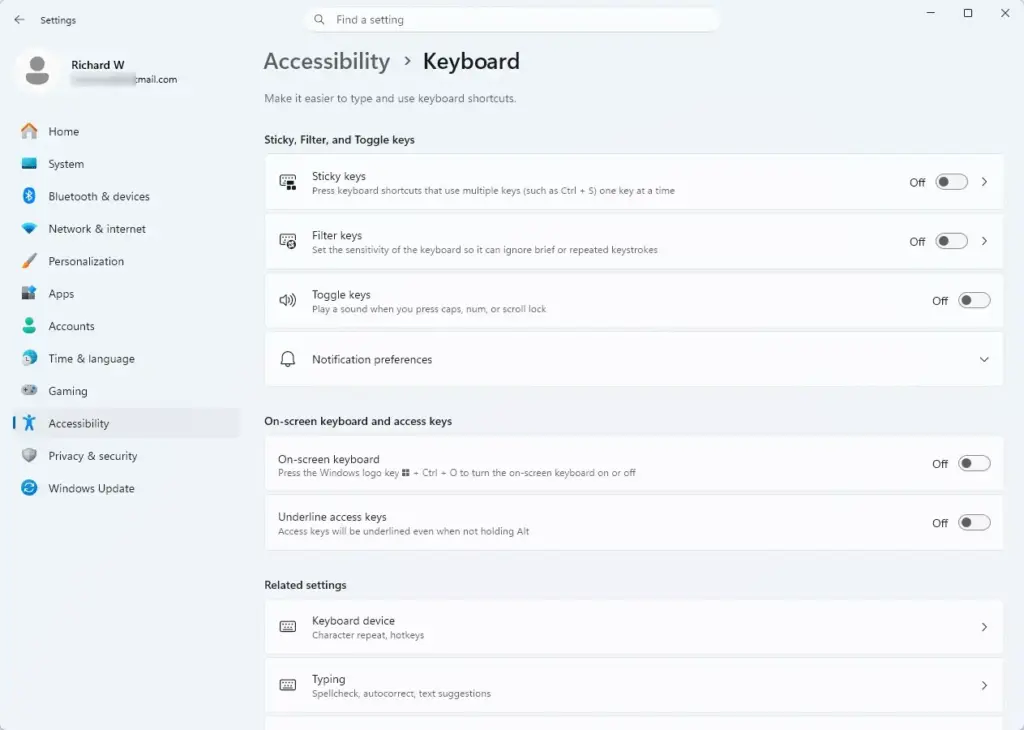
Settings › Accessibility › Keyboard - Turn on the toggle next to Filter keys. It switches from Off to On immediately. Click the row, or the arrow on it, to expand it and show more options.
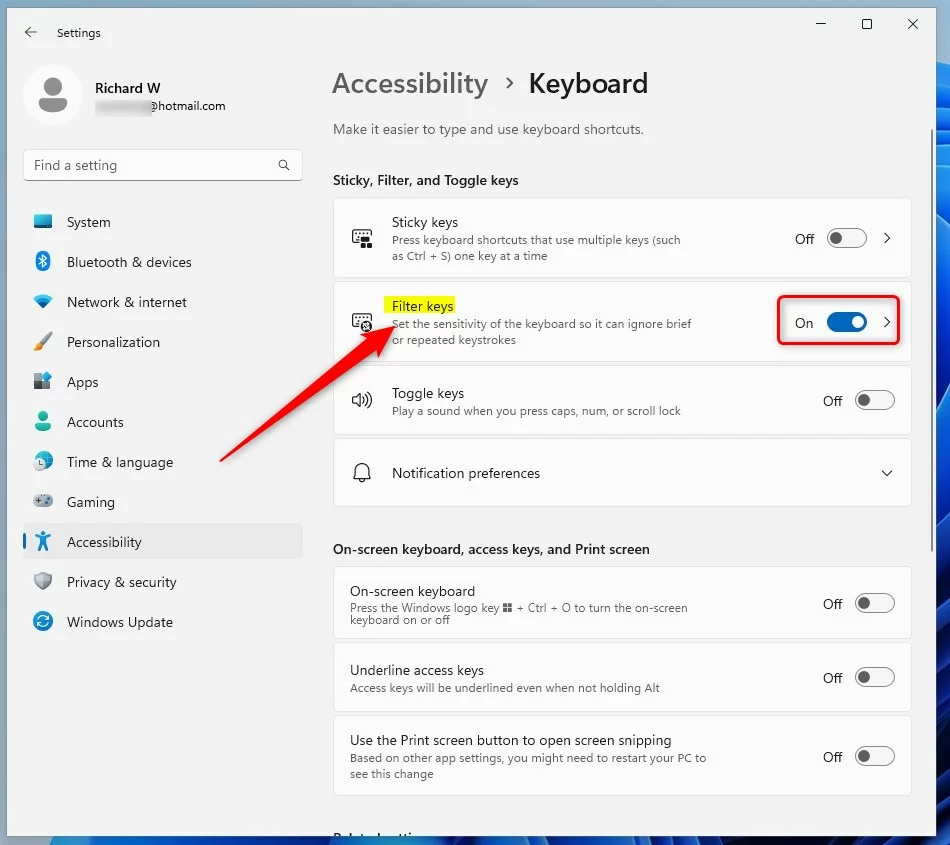
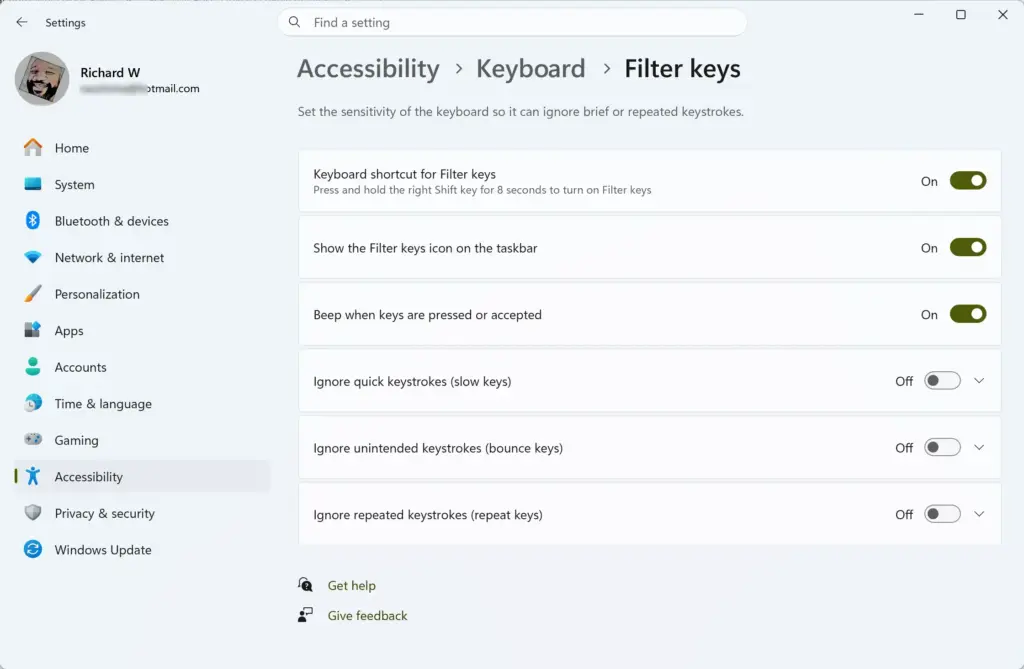
turn on or off filter keys from windows settings app updated - Adjust the timing if needed. In the expanded Filter keys section, set how long a key must be held before it’s accepted and whether repeated keystrokes should be ignored. The exact option names vary a little between Windows 11 versions. Leave the defaults in place unless you have a reason to change them. Most people find they work fine.
Once it’s on, keys may feel slightly less responsive, especially on the first press after a pause. That’s expected. It’s the delay doing its job. To undo it, turn the toggle off again.
How to Turn On Filter Keys with a Keyboard Shortcut
It only works if the shortcut is enabled first. In some Windows 11 builds it’s off by default, so do step 1 before you try the key press.
- Enable the shortcut. Go to Settings Accessibility Keyboard, expand the Filter keys section, and turn on Keyboard shortcut for Filter keys. If you don’t see it, your build may word it differently, or the shortcut may already be on.
- Press and hold the right Shift key for eight seconds. Use the Shift key on the right side of your keyboard. The shortcut doesn’t respond to the left one.
- Watch for the confirmation prompt. Windows shows a small dialog asking if you want to turn on Filter Keys, sometimes with a beep. Click Yes to confirm.
If nothing happens after holding the key, the shortcut toggle is most likely off. Check it in step 1. The disabling section below covers the same toggle, since it controls whether the shortcut works at all.
How to Turn Off Filter Keys from Settings
Turning Filter Keys off reverses the steps above. It’s safe and won’t affect any other settings or apps.
- Open Settings with Win+I.
- Click Accessibility, then Keyboard.
- Turn off the toggle next to Filter keys. It switches back to Off, and your keyboard responds normally again with no delay on keypresses.
If the shortcut is still enabled, holding right Shift for eight seconds can turn Filter Keys back on. The next section shows how to stop that.
How to Stop the Filter Keys Shortcut from Triggering by Accident
This step solves the problem for anyone whose keyboard “randomly” turns Filter Keys on. The usual causes are a pet, a stuck key, or a hand resting on the keyboard.
- Open Settings and go to Accessibility Keyboard, as above.
- Find the shortcut option under Filter keys. Expand the Filter keys section if it isn’t already open.
- Turn off Keyboard shortcut for Filter keys. The wording varies slightly by Windows 11 version. Older builds and Control Panel use wording like “Allow the shortcut key to start Filter Keys.” Once it’s off, holding the right Shift key for eight seconds no longer does anything.
It only stops the accidental keyboard trigger. You can still turn Filter Keys on and off manually from the same Settings page. To get the shortcut back, turn the toggle on again.
Using Control Panel Instead
Control Panel still has a path to the same setting. It’s useful if you’re used to the older interface or Settings is slow to load on the machine you’re working on.
- Open Control Panel. Type Control Panel into the search box on the taskbar and select it from the results.
- Click Ease of Access, then Ease of Access Center. If Control Panel is set to icon view, click Ease of Access Center directly.
- Click Make the keyboard easier to use. This opens a page of keyboard-related accessibility options.
- Check or clear the box next to Turn on Filter Keys. Check it to enable, clear it to disable, then click Apply and OK.
Control Panel and the Settings app control the same underlying setting, so a change made in one shows up in the other. Use whichever is faster for you. The result is the same.
Why Filter Keys Might Be Greyed Out or Missing
A few things can stop you from changing this setting:
- Managed device restrictions. On a work or school PC, an administrator can lock accessibility settings. If the toggle is greyed out, contact your IT department to unlock it.
- A pending Windows update. Occasionally a half-installed update can leave Settings pages temporarily unresponsive. Restart the PC and check again before assuming it's a permissions issue.
- Shortcut toggle still off. If the right Shift shortcut does nothing, the cause is usually this setting, not a fault with your keyboard. Turn on Keyboard shortcut for Filter keys in Settings Accessibility Keyboard
- Account type isn't usually the cause. Unlike some system settings, Filter Keys doesn't need administrator privileges on an unmanaged, personal PC. Any standard user account can turn it on or off.
What to Do Next
If Filter Keys keeps turning itself on and the shortcut toggle didn't stick, check whether a keyboard driver update or a fresh user profile reset the accessibility settings to default. That's a common cause after major Windows updates. From here, look at the other keyboard accessibility options on the same Settings page, like Sticky Keys and Toggle Keys. They're configured the same way and often get adjusted together.
Frequently asked questions
Should I have Filter Keys on or off?
Turn Filter Keys on if you have hand tremors, difficulty with precise finger movements, or accidentally trigger repeated keystrokes. Leave it off if you type normally and don't need the delay. The feature is designed specifically for accessibility needs, so enable it only if it solves a real problem for you.
How do I turn Filter Keys off?
Open Settings and go to Accessibility Keyboard. Find the Filter Keys toggle and switch it off. If you've enabled the keyboard shortcut, you can also hold the right Shift key for eight seconds to turn it off instantly without opening Settings.
What do the Filter Keys do?
Filter Keys tells Windows to ignore brief or repeated keystrokes. It adds a small delay before accepting a keypress and slows how fast a held key repeats. This prevents accidental multiple presses from hand tremors or difficulty controlling precise finger movements.
What is the shortcut key for Filter Keys?
Hold the right Shift key for eight seconds to toggle Filter Keys on or off. This shortcut only works if you've enabled it in Settings under Accessibility Keyboard, in the Filter Keys section.
Still have a question?
Answered by AI from this guide. Good questions may be added to this page — please don't include personal details.
Did this guide fix your problem?

About the Author
Richard
Tech Writer, IT Professional
Richard is a writer at Geek Rewind who turns complex IT tasks into clear, step-by-step guides. He draws on years of hands-on experience in system administration and enterprise IT operations, focusing on Windows, Linux and WordPress: the problems people actually run into, and the fixes that work. His server and WordPress guides come from systems he runs himself. Richard builds and maintains the platform behind Geek Rewind, from its Ubuntu servers and Nginx configuration to its custom WordPress plugins. Many new tutorials start with readers' questions, and he's always glad to answer them in the comments.
No comments yet — be the first to share your thoughts!