How to Enable or Disable Keyboard Shortcut for Toggle Keys in Windows 11

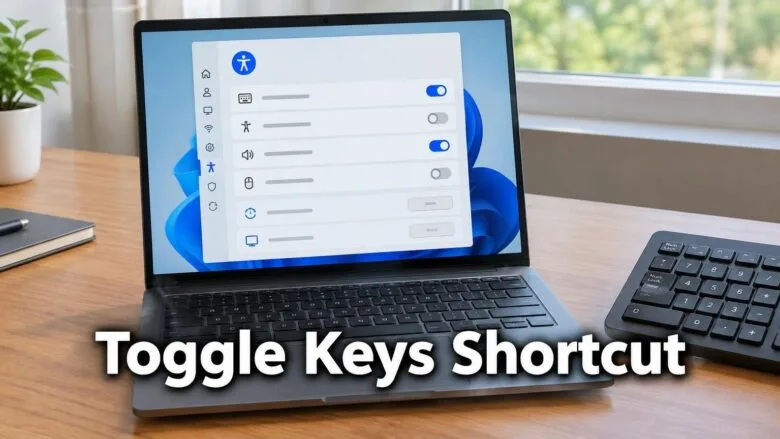
Toggle Keys plays a tone when you press Caps⇩, Num Lock, or Scroll Lock. Turn the Toggle Keys keyboard shortcut on or off for your account in Windows 11 using one of two methods.
By default, you hold the Num Lock key for 5 seconds to turn on Toggle Keys.
If you use a preview build of Windows 11 from the Windows Insider Program, you can turn off the shortcut from the notification prompt. The builds that support this are build 26340.9882 (Experimental 26H2), build 26320.9876 (Beta 26H2), build 26200.10066 (RP 25H2), and build 26300.10066 (RP 26H2).
This prompt appears when you press the Sticky Keys, Filter Keys or Toggle Keys shortcut by accident. Use it to switch off the Toggle Keys shortcut, or use the Control Panel method below.
Windows stores several Toggle Keys settings, including the keyboard shortcut on/off state, in the Flags value (a text setting, shown as REG_SZ in Registry Editor) under this registry key:
HKEY_CURRENT_USER\Control Panel\Accessibility\ToggleKeys
You can change the shortcut in one of two ways, described below.
To turn off the Toggle Keys shortcut in Windows 11, hold Num Lock for 5 seconds, then check “Never turn on Toggle Keys with this shortcut” in the prompt and select Yes.
Option One
Turn Off Keyboard Shortcut for Toggle Keys from Notification Prompt
Use this option to switch off the shortcut right after it triggers. This option turns off only the shortcut. It does not change whether Toggle Keys itself is on.
- Hold the Num Lock key for 5 seconds. Toggle Keys turns on and a notification prompt appears.
- Check the Never turn on Toggle Keys with this shortcut box in the prompt.
- Select Yes.
Option Two
Turn On or Off Keyboard Shortcut for Toggle Keys in Control Panel
Use this option to turn the shortcut on or off at any time. You do not need to trigger it first.
- Open the Control Panel (icons view), then select the Ease of Access Center icon.
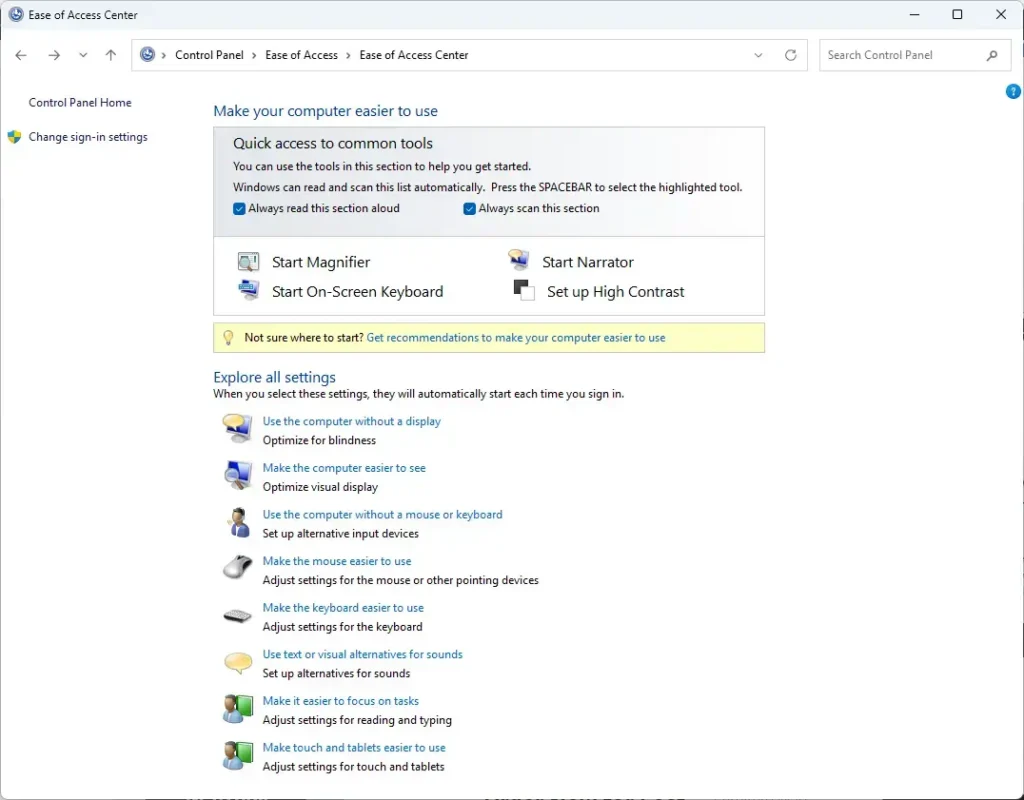
Settings > Accessibility - Select the Make the keyboard easier to use link.
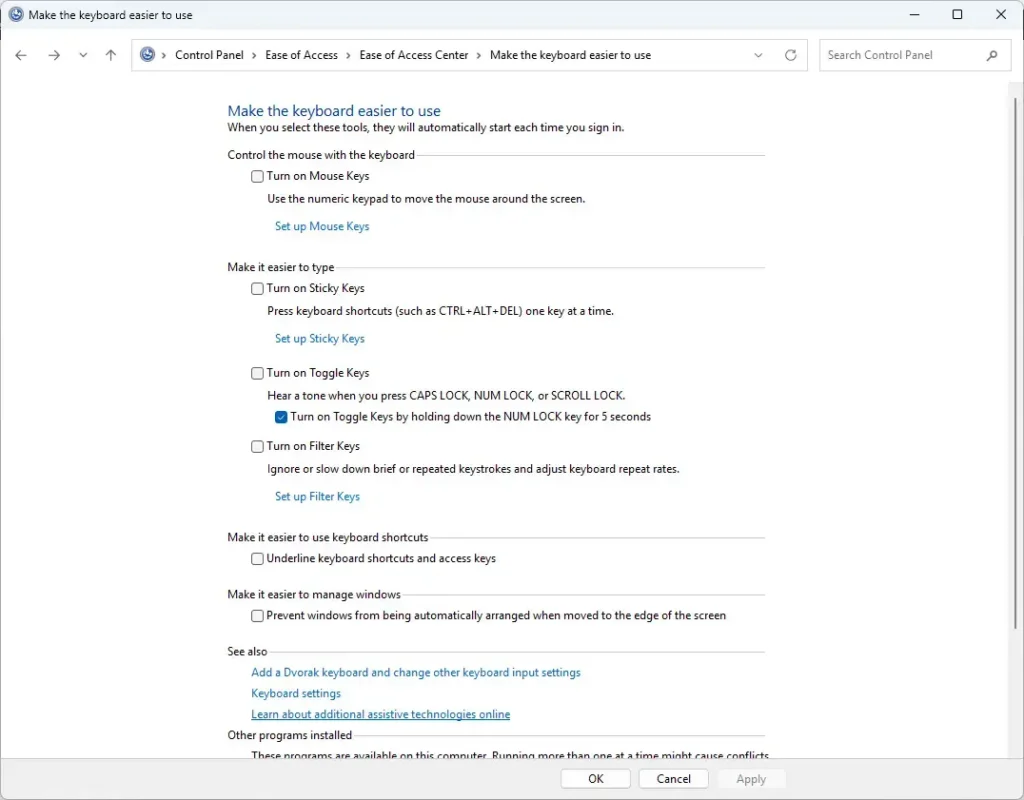
Settings > Accessibility - Choose the shortcut state you want:
- Check Turn on Toggle Keys by holding down the NUM LOCK key for 5 seconds to enable the shortcut (on, the default).Uncheck it to disable the shortcut (off).
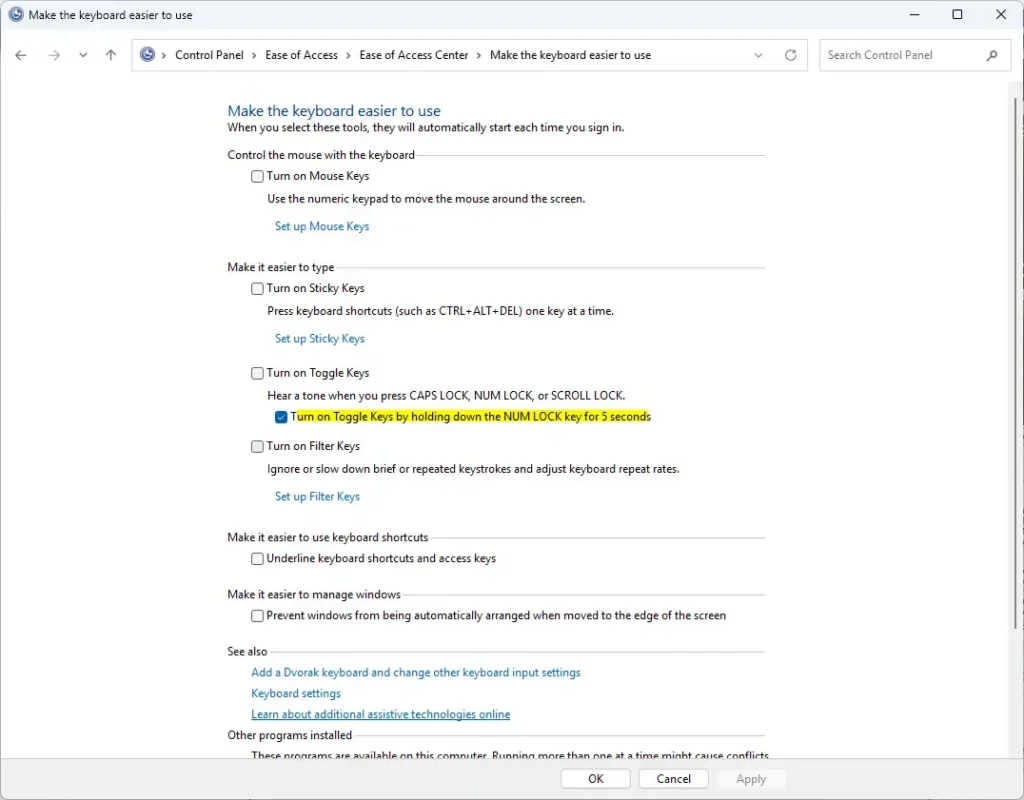
How to Enable or Disable Keyboard Shortcut for Toggle Keys in Windows 11 - Close the Control Panel.
What to do next
Frequently asked questions
How to disable automatic updates in 🪟 Windows 11?
This guide does not cover turning off automatic updates. Pausing updates for a set time is the safer choice, because security updates keep your PC protected. Look for pause options in your Windows Update settings. Turning off updates for good leaves your PC open to security risks.
How to get help in 🪟 Windows 11 keyboard sound?
The Toggle Keys tone plays when you press Caps⇩, Num Lock, or Scroll Lock. To stop the tone, turn off the Toggle Keys shortcut: open the Control Panel, select Ease of Access Center, select Make the keyboard easier to use, uncheck Turn on Toggle Keys by holding down the NUM LOCK key for 5 seconds, then select OK.
How to set up the Windows keyboard for 🪟 Windows 11 for english?
This guide does not cover setting up a keyboard language. Windows 11 lets you add English in its Settings app. Pick the English layout that matches your physical keyboard, such as US or UK, so the keys type the right characters.
How do I make my keyboard bigger I cannot see it on laptop 🪟 Windows 11 10?
This guide does not cover making the keyboard bigger. A laptop's built-in keyboard has a fixed size, so you cannot enlarge it. To use a larger keyboard, turn on the on-screen keyboard, or connect a full-size external keyboard. Magnifier can also make text and items on screen larger.
Still have a question?
Answered by AI from this guide. Good questions may be added to this page — please don't include personal details.
Did this guide fix your problem?

About the Author
Richard
Tech Writer, IT Professional
Richard is a writer at Geek Rewind who turns complex IT tasks into clear, step-by-step guides. He draws on years of hands-on experience in system administration and enterprise IT operations, focusing on Windows, Linux and WordPress: the problems people actually run into, and the fixes that work. His server and WordPress guides come from systems he runs himself. Richard builds and maintains the platform behind Geek Rewind, from its Ubuntu servers and Nginx configuration to its custom WordPress plugins. Many new tutorials start with readers' questions, and he's always glad to answer them in the comments.
No comments yet — be the first to share your thoughts!