How to Enable or Disable Keyboard Shortcut for Filter Keys in Windows 11

Filter Keys is an Accessibility option that controls the keyboard repeat rate (how fast a held key repeats) and ignores repeated keystrokes. By default, holding the right Shift key for 8 seconds turns Filter Keys on. This page shows you how to turn that shortcut on or off for your account in Windows 11.
If you run a Windows Insider build (a test version of Windows 11), you can turn off the shortcut directly from the prompt that appears when you trigger it by accident. It works for Sticky Keys (lets you press Shift, Ctrl or Alt one key at a time), Filter Keys, and Toggle Keys. This applies from build 26340.9882 (Experimental 26H2), build 26320.9876 (Beta 26H2), build 26200.10066 (RP 25H2), and build 26300.10066 (RP 26H2). If you want to change notifications and sounds for these features instead, go to Settings Accessibility Keyboard Notification preferences.
Windows saves several Filter Keys settings, including whether the keyboard shortcut is on, in the Flags string value (REG_SZ, a plain text value) under this registry key:
HKEY_CURRENT_USER\Control Panel\Accessibility\Keyboard Response
Open Settings (Win+I), go to Accessibility Keyboard, click Filter keys, and switch off Keyboard shortcut for Filter keys. The change applies right away with no restart needed. On a Windows Insider build, you can instead tick “Never turn on Filter Keys with this shortcut” in the prompt that appears when you hold the right Shift key for 8 seconds.
Option One
Turn Off Keyboard Shortcut for Filter Keys from Notification Prompt
Use this option to turn the shortcut off when the prompt appears.
- Press and hold the right Shift key for 8 seconds to turn on Filter Keys.
- Check the Never turn on Filter Keys with this shortcut box in the notification prompt.
- Click/tap Yes.
Option Two
Turn On or Off Keyboard Shortcut for Filter Keys in Settings
Use this option to switch the shortcut on or off at any time from Settings.
- Open Settings (Win+I).
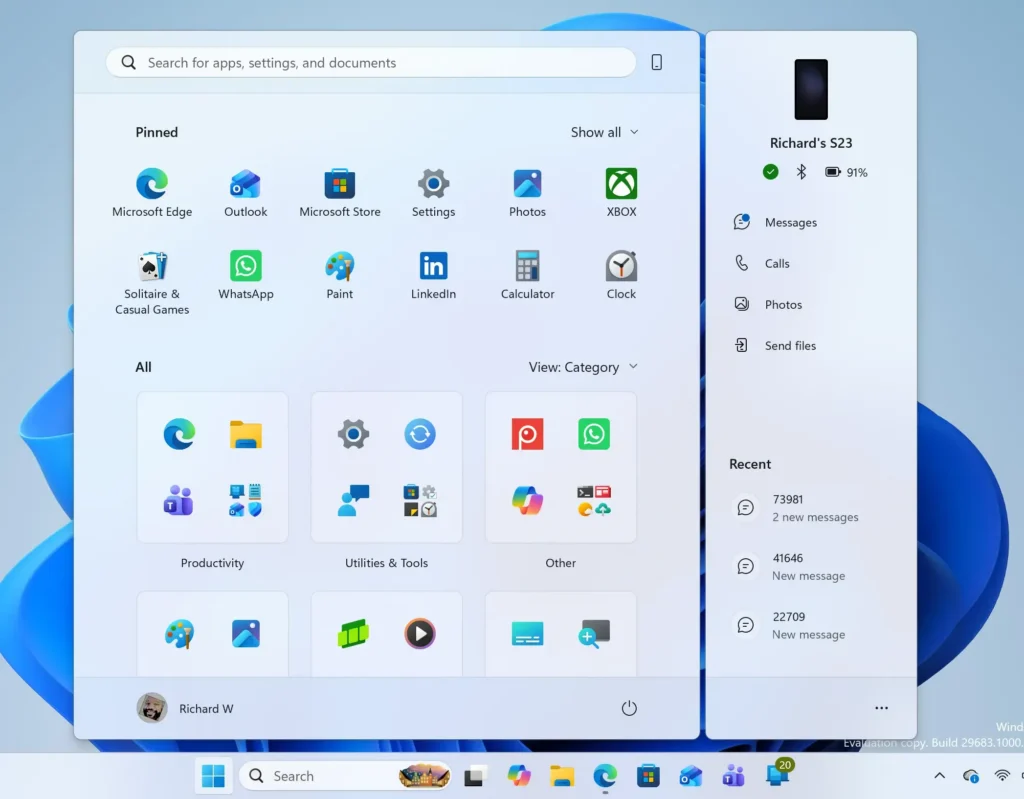
Windows 11 Start menu search panel for opening OpenSSH Client settings - Click/tap Accessibility on the left side, then click/tap Keyboard on the right side.
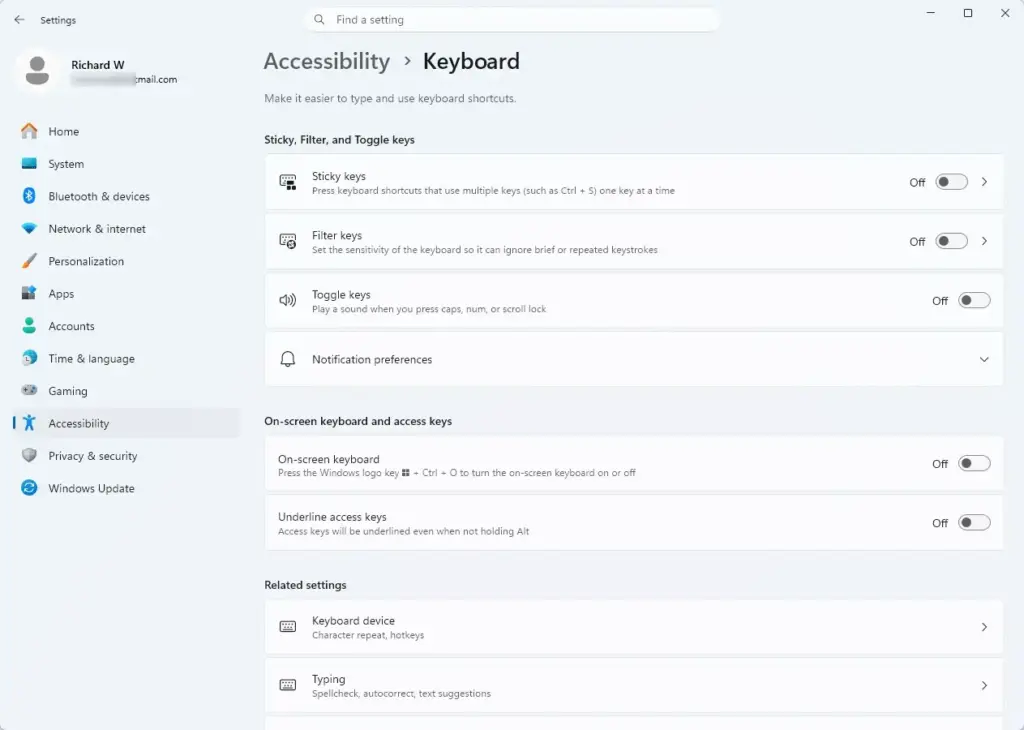
Settings › Accessibility › Keyboard - Click/tap Filter keys.
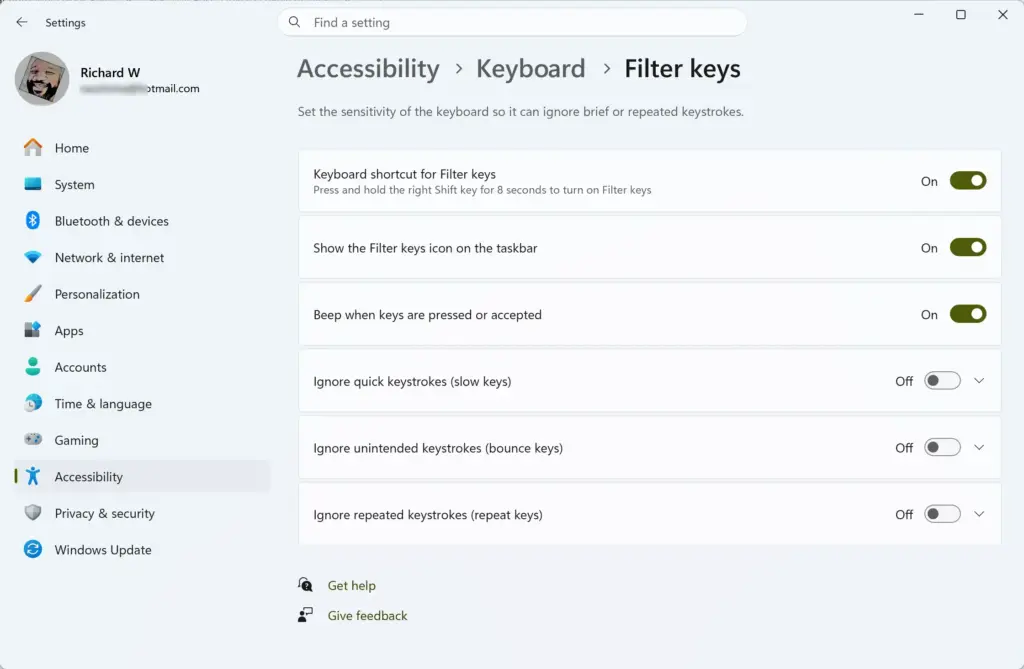
Settings > Accessibility > Keyboard 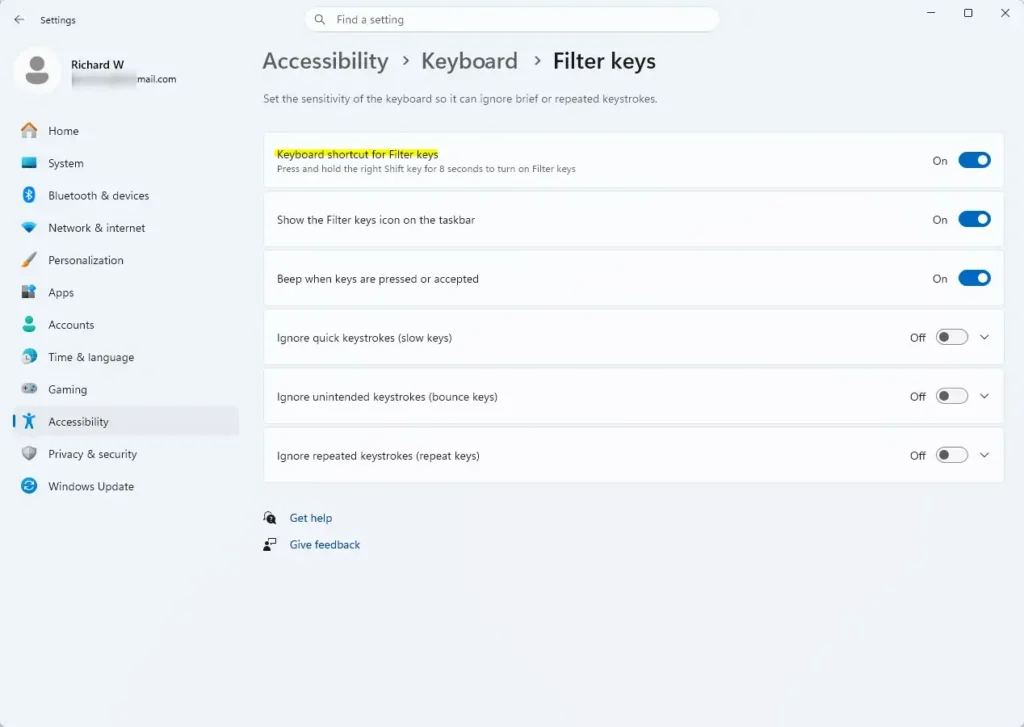
Settings > Accessibility > Keyboard - Turn Keyboard shortcut for Filter keys on (default) or off.
- Close Settings.
Option Three
Turn On or Off Keyboard Shortcut for Filter Keys in Control Panel
Use this option to change the shortcut from the Ease of Access Center in Control Panel.
- Open the Control Panel (icons view), then click/tap the Ease of Access Center icon.
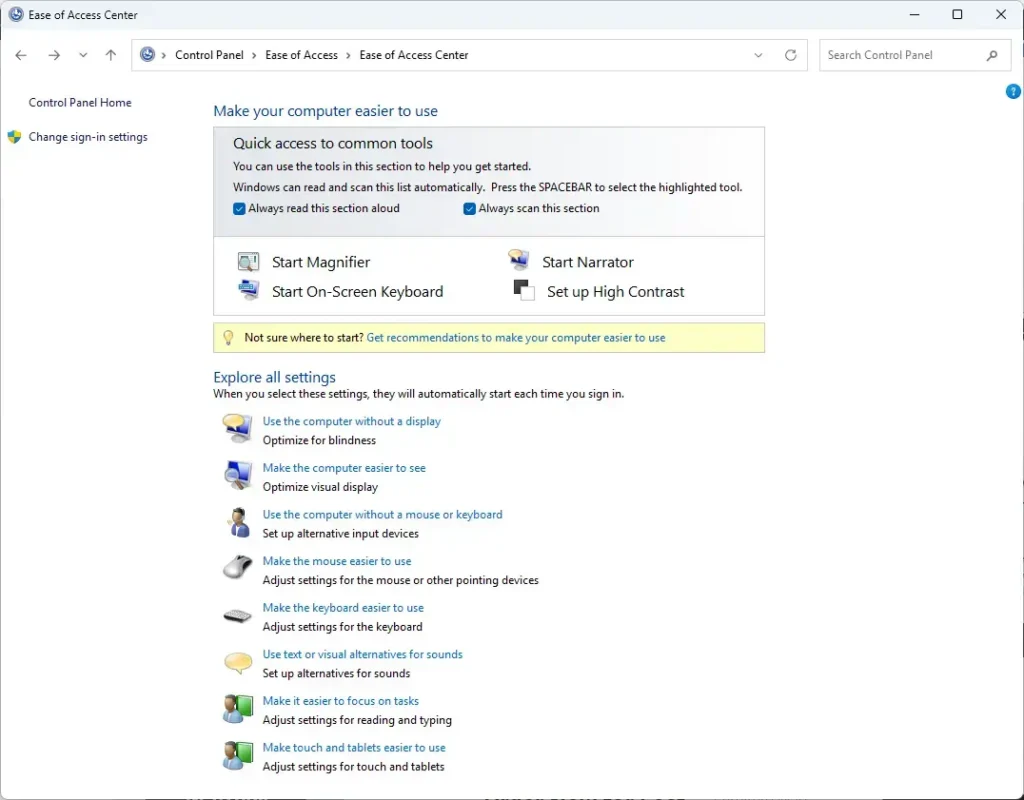
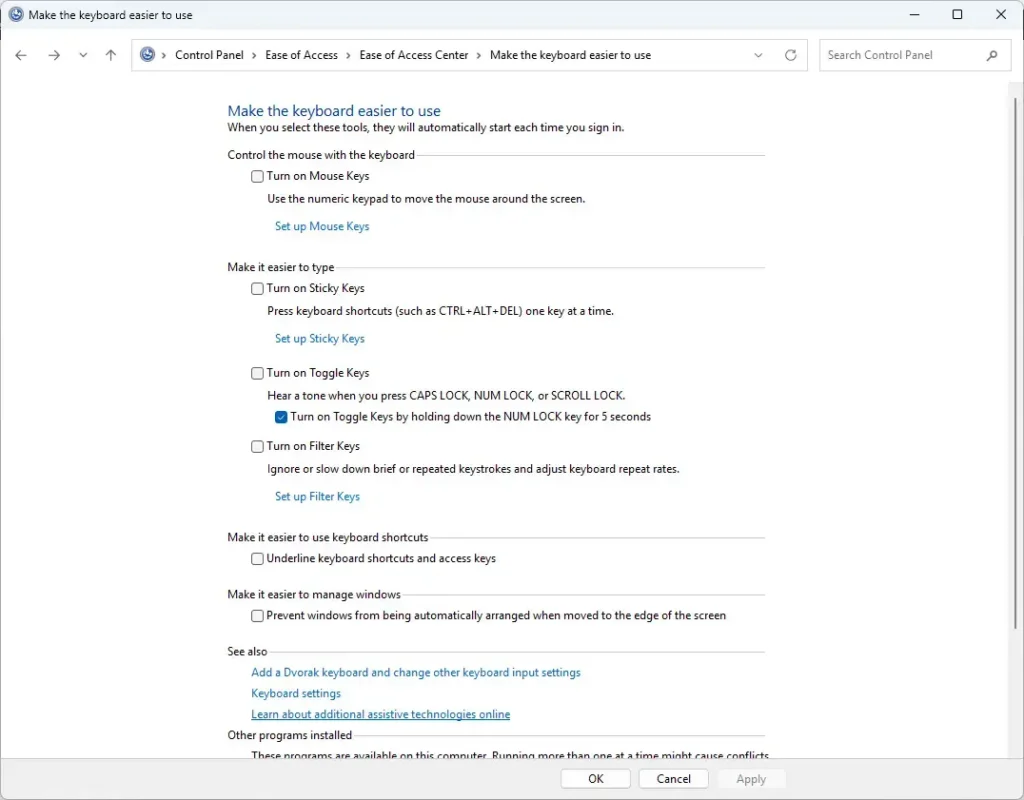
Settings > Accessibility - Click/tap the Make the keyboard easier to use link.
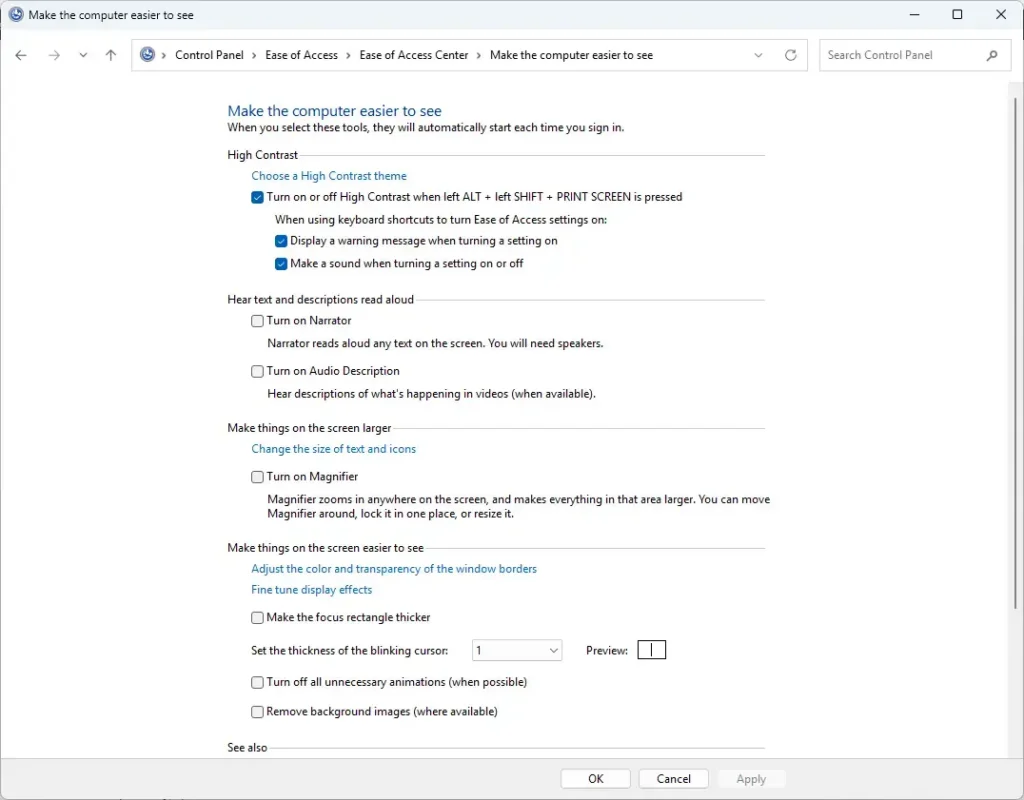
Settings > Accessibility - Click/tap the Set up Filter Keys link.
Settings > Accessibility - Under Keyboard shortcut, turn Turn on Filter Keys when right SHIFT is pressed for 8 seconds on (default) or off, then click/tap OK.
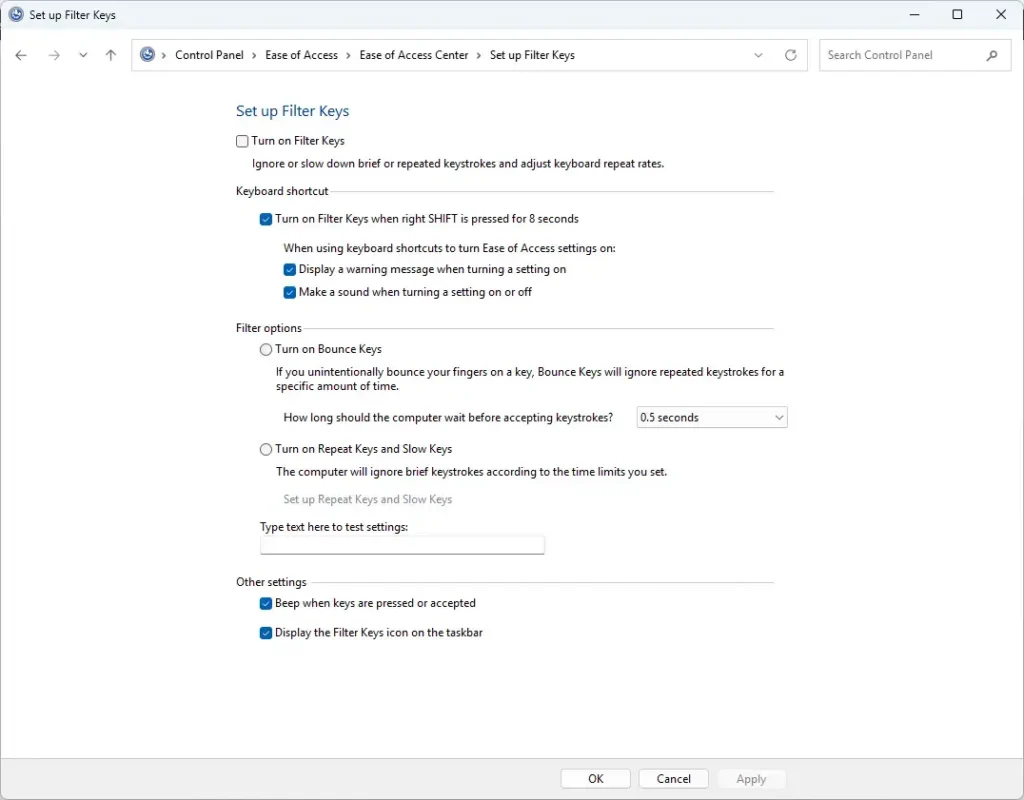
Settings > Accessibility - Close Control Panel.
What to do next
Frequently asked questions
How to disable automatic updates in 🪟 Windows 11?
To stop automatic updates in Windows 11, use the pause option in Windows Update, which holds updates for a set time. Turning updates off completely is not advised, because your PC then misses security fixes. Check your settings after a few weeks to make sure updates resume.
How to get help in 🪟 Windows 11 keyboard sound?
If you mean the beeps Windows plays for Sticky Keys, Filter Keys or Toggle Keys, change them in Settings under Accessibility, Keyboard, then Notification preferences. Other keyboard sounds come from the app or device producing them, so check there.
How to set up the Windows keyboard for 🪟 Windows 11 for english?
Add English to your keyboard by opening your Windows language settings and adding English as a language. Choose the layout that matches your keys, such as US for most English keyboards. Then use the taskbar language switcher, or press Win plus Spacebar, to switch between layouts.
How do I make my keyboard bigger I cannot see it on laptop 🪟 Windows 11 10?
Windows cannot make the physical keys on a laptop bigger. To work with larger keys, connect a full-size external keyboard. You can also open the on-screen keyboard from Windows, which shows keys you click with a mouse or touch screen.
How to turn off filter keys?
Turn off the Keyboard shortcut for Filter Keys so holding right Shift for 8 seconds no longer turns it on. Open Settings (Win+I), then go to Accessibility, Keyboard and Filter keys. Turn off Keyboard shortcut for Filter keys, then close Settings.
What are sticky keys on keyboard?
Sticky Keys is an Accessibility option that lets you press Shift, Ctrl or Alt one key at a time, instead of holding several keys together. It helps people who find key combinations hard to press. You can change its sounds and notifications under Settings, Accessibility, Keyboard.
Still have a question?
Answered by AI from this guide. Good questions may be added to this page — please don't include personal details.
Did this guide fix your problem?

About the Author
Richard
Tech Writer, IT Professional
Richard is a writer at Geek Rewind who turns complex IT tasks into clear, step-by-step guides. He draws on years of hands-on experience in system administration and enterprise IT operations, focusing on Windows, Linux and WordPress: the problems people actually run into, and the fixes that work. His server and WordPress guides come from systems he runs himself. Richard builds and maintains the platform behind Geek Rewind, from its Ubuntu servers and Nginx configuration to its custom WordPress plugins. Many new tutorials start with readers' questions, and he's always glad to answer them in the comments.
No comments yet — be the first to share your thoughts!