How to Uninstall and Reinstall Snipping Tool in Windows 11

Reinstalling Snipping Tool, the built-in screenshot app in Windows 11 for capturing and saving screen images, fixes freezing, crashing and other stubborn bugs. This guide applies to Windows 11 version 22H2 and newer updates.
PowerShell, a command-line tool built into Windows, can also remove the app completely. This tutorial uses the Settings app instead, because it needs no commands. You then download a fresh copy from Microsoft. The whole job takes a few minutes and clears out the corrupted files that make the app fail.
The steps are the same on Windows 11 Home and Pro. You do not normally need to restart the PC, but a restart is a reasonable first move if the new install still misbehaves.
Open Settings Apps Installed apps, find Snipping Tool, click the three-dot menu and select Uninstall. Download the 64-bit installer from Microsoft’s official support page, double-click SnippingTool_x64.exe in your Downloads folder, and approve the installation prompt. The app is ready to use within minutes.
Step 1Remove the Current Snipping Tool
Screenshots you already saved stay in their folders throughout this process. The uninstall removes the app, not your files.
Accessing Your Installed Apps
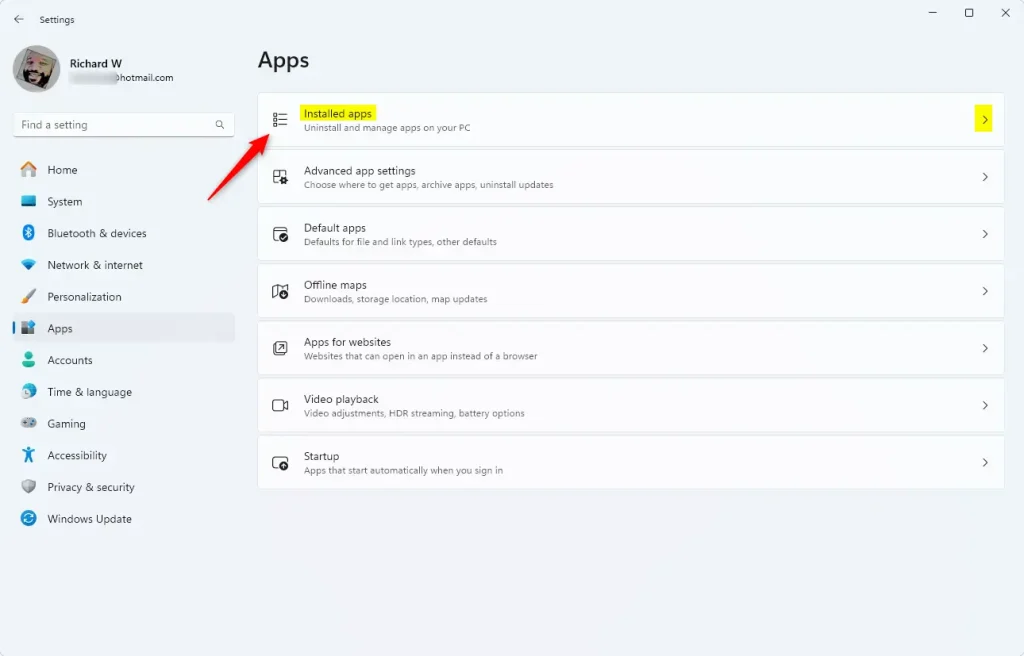
Windows 11 manages installed apps through the Settings app. Follow these steps to find Snipping Tool in the list.
- Open Settings . Press Win+I, or right-click the Start button and choose Settings. The Settings window opens.
- Select Apps in the left-hand list.
- Click Installed apps. You should see a list of every app on the PC. The path is Settings Apps Installed apps
- Find Snipping Tool. Scroll through the list, or type “Snipping” in the search bar at the top. The app should appear as a single entry.
If the search returns nothing, the app may already be missing or damaged. In that case, skip ahead to the download section and install a fresh copy.
Locating and Uninstalling the Snipping Tool
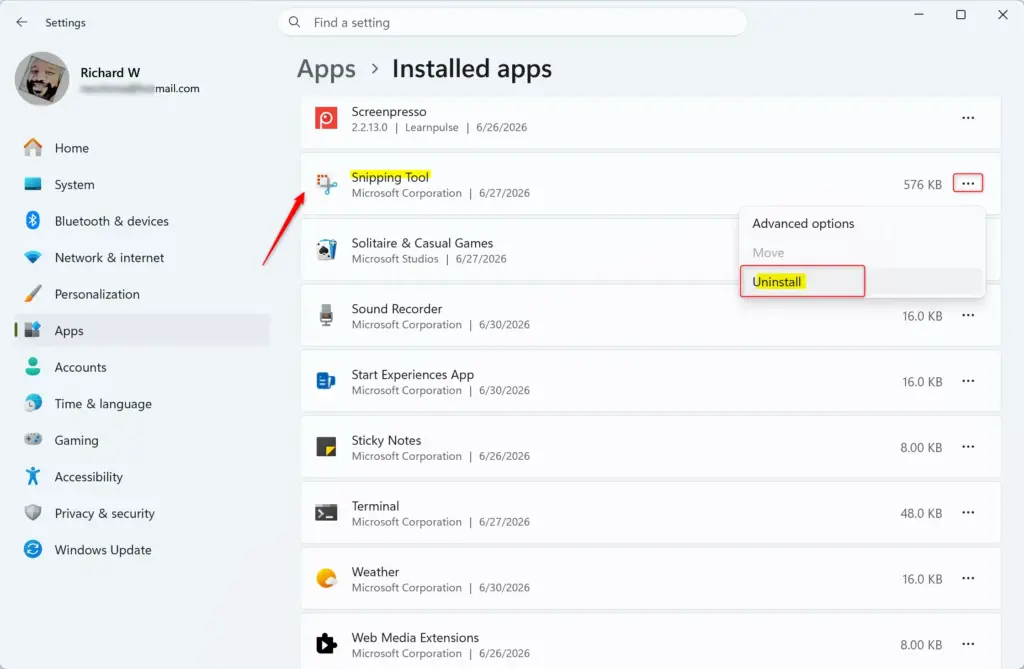
To get rid of the misbehaving version, remove it before installing anything new. With Snipping Tool showing in the Installed apps list, do the following.
- Click the three-dot menu at the right end of the Snipping Tool row. A small menu appears on screen.
- Choose Uninstall. Windows asks you to confirm with the message, "This app and its related info will be uninstalled."
- Click Uninstall again to confirm the removal.
The app disappears from the list within a few seconds. If you change your mind, you can put it back at any time by following the reinstall steps below.
The Snipping Tool is now removed from your computer completely. Check the Start menu search if you want to be sure. Typing "Snipping" should no longer find the app.
Step 2Install a Fresh Copy of Snipping Tool
With the old version gone, you can install a new one from Microsoft. Download the correct installer file from Microsoft's official website, then run the downloaded file to begin the installation. The Microsoft Store is the other place to get the app from Microsoft.
Finding the Right Download
Pick the file that matches your system.
Most computers run 64-bit Windows, so choose the Snipping Tool Windows 64-bit (most common) link.
- Snipping Tool Windows 64-bit (most common)
- Snipping Tool Windows 32-bit
Older computers or specialized setups might need the 32-bit version ("Snipping Tool Windows 32-bit") or the ARM64 version for ARM devices. The 64-bit version is the best option for most users. If you are unsure, open Settings System About and check the System type line under Device specifications.
- Click the download link that fits your system.
- Wait for the browser to finish. It downloads a small file, usually ending in .exe. If the browser warns about the file, check that it came from Microsoft's site before you keep it.
Installing Your Newly Downloaded Snipping Tool
To finish the reinstall, open your Downloads folder and run the installer you just saved.
- Locate the downloaded file
SnippingTool_x64.exein your Downloads folder and double-click it. - Approve the prompt if Windows asks whether the app may make changes to your device. On a standard account, you may need an administrator's password.
- Follow the instructions on the screen. The installer program starts automatically.
- Click Next or Install until the process finishes. The installer sets up the Snipping Tool on your computer.
- Wait for the screen to display "Setup Complete" or "Finished." That means the Snipping Tool has been reinstalled successfully.
To test it, press Windows key + Shift + S or search for "Snipping Tool" in the Start menu. Take a test capture to confirm the freezing or crashing is gone.
Reference:
Summary
This guide explained how to uninstall and then reinstall the Snipping Tool on Windows 11. You remove it through Settings, then download and install a fresh copy from Microsoft. Your saved screenshots are not affected, and the app is back within a few minutes.
Have a question about this guide?
Answered by AI from this guide. Good questions may be added to this page — please don't include personal details.
Did this guide fix your problem?

About the Author
Richard
Tech Writer, IT Professional
Richard is a writer at Geek Rewind who turns complex IT tasks into clear, step-by-step guides. He draws on years of hands-on experience in system administration and enterprise IT operations, focusing on Windows, Linux and WordPress: the problems people actually run into, and the fixes that work. His server and WordPress guides come from systems he runs himself. Richard builds and maintains the platform behind Geek Rewind, from its Ubuntu servers and Nginx configuration to its custom WordPress plugins. Many new tutorials start with readers' questions, and he's always glad to answer them in the comments.
No comments yet — be the first to share your thoughts!