How to Use the Tilde (~) in the File Explorer Address Bar in Windows 11

- 12 steps
- Needs administrator rights
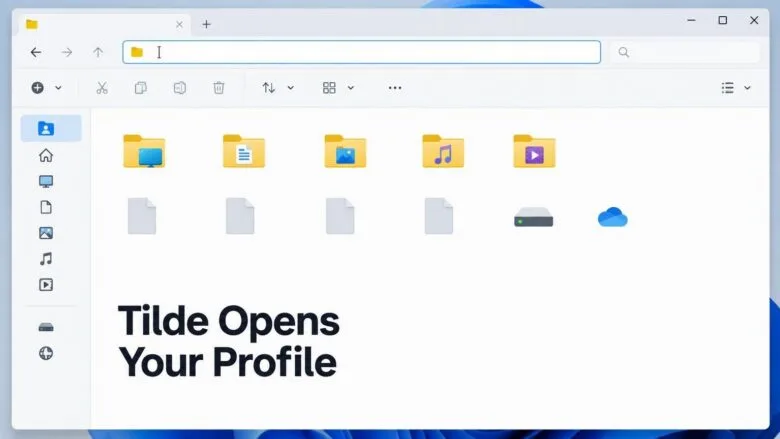
The tilde (~) in the File Explorer address bar in Windows 11 jumps straight to your user profile folder, the folder that holds Desktop, Documents, Downloads and AppData for your account. Type ~ in the address bar, press Enter, and File Explorer opens that folder.
The shortcut also works with subfolders. For example, ~\AppData opens the AppData folder inside your profile. It currently exists only in preview builds, which are test versions Microsoft releases through the Windows Insider Program to people who sign up for them. Microsoft documents it in Experimental Build 26340.9596, released Oct 2, 2026, and it may change before it reaches regular Windows 11 releases.
Type ~ (a lone tilde) in the File Explorer address bar and press Enter to open your user profile folder, which holds Desktop, Documents, Downloads and AppData. Add a path after it, such as ~\AppData, to open a subfolder. The shortcut only works on Windows 11 preview builds, starting with 26340.9596, not on regular releases.
What the tilde does in the address bar
Short answer: typing a tilde in the File Explorer address bar and pressing Enter opens your Windows 11 user profile folder. It opens the profile of the account that is signed in, so the result is different on each account and each PC.
The address bar is the path box at the top of a File Explorer window. It normally takes a full path such as 📁C:\
Your user profile folder is the personal folder Windows creates for each account. It sits inside 📁C:\
Two behaviours are confirmed:
- A lone ~ opens your user profile folder.
- ~ followed by a backslash and a folder name opens that subfolder of your profile, for example
~\AppData.
Nothing beyond that is documented. This article does not claim the tilde works in the Run dialog, Command Prompt, PowerShell or an app’s Open dialog. Treat it as a File Explorer address bar feature only.
Before you start: check that your PC has the feature
Microsoft lists the change in build 26340.9596. Whether every later or earlier preview build includes it is not confirmed, so compare your build number against that one first. Preview features can also be changed, delayed or removed before release. If the shortcut behaves differently from what is described here, your build is probably newer or older than the documented one.
To see whether a PC is enrolled, open Settings Windows Update Windows Insider Program. The page shows your enrolment status and the channel you are on. This applies to both Windows 11 Home and Pro.
Using the shortcut needs no administrator rights. Joining the Windows Insider Program and changing to a different update channel is a separate matter. It can require you to approve prompts on the PC. This article does not cover enrolment.
How to use the tilde in the File Explorer address bar
Check your build number first. Then type the tilde to open your user profile folder, and type a subfolder path to open one of its subfolders. Use these steps to do all of that from start to finish.
- Open Settings. Press Win+I. The Settings window opens on the System page.

- Select System, then About. The path is Settings System About. Scroll down to the section called Windows specifications. It lists your edition, version and OS build.
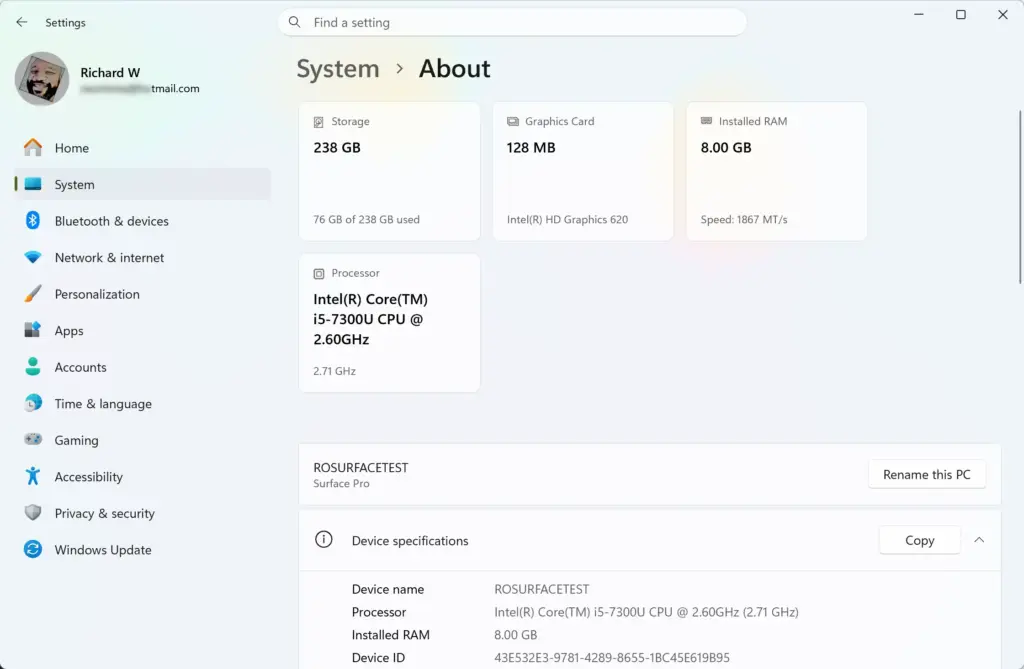
- Read the OS build line. Look for 26340.9596 or a build documented to include the shortcut. If your build number is much lower, or you are not on an Insider preview, the tilde will not work yet. Step 8 explains what you will see.
- Open File Explorer. Press Win+E, or select the folder icon on the taskbar. A File Explorer window opens on Home or your chosen start folder.

- Click the address bar. It is the long box at the top that shows your current location. Pressing Ctrl+L or Alt+D also moves the cursor there. The current path becomes highlighted text you can type over.
- Type ~ and press Enter. On a US keyboard layout, the tilde is the key under Esc, typed with Shift held down. Other layouts place it elsewhere. On a UK layout, for example, it sits next to the Enter key and needs Shift. File Explorer opens your user profile folder, and the address bar shows the full path to it.
- Click the address bar again and type ~\AppData. Press Enter. File Explorer opens the AppData folder inside your profile. The backslash separates the tilde from the subfolder name, as in any normal path.
- Check the result if nothing happens. If File Explorer does not open your profile, your build does not include the shortcut, or the text was entered wrong. Retype the tilde with no spaces before or after it, then check the build number from step 3. If the build is not a match, use the fallback in the next section.
That’s it. You should now be able to reach your profile folder, and any folder inside it, by typing a few characters instead of the full path.
AppData is a hidden folder, which means File Explorer does not show it in normal folder listings. Typing its path in the address bar still opens it, so no view settings need changing. Once you are inside, you may want to see other hidden items. The guide on customizing Windows 11 File Explorer covers those view options.
What you can type after the tilde
Anything that is a subfolder of your profile can follow the tilde and a backslash. The pattern is always ~\FolderName, and more levels can be added with more backslashes. The only example Microsoft gives is ~\AppData.
Other standard profile subfolders include Desktop, Documents, Downloads, Music, Pictures and Videos. Typing ~\Downloads should follow the same rule as ~\AppData. The rule is the same for each, but only the AppData example is confirmed.
Once the address bar shows a full path, you can edit it as usual. Click the address bar, press the End key, and add or remove folder names. There is no need to retype the tilde each time.
Use the tilde with the address bar’s other controls
The tilde fits into the same typing habits already used in the address bar. Press Ctrl+L or Alt+D to focus the bar. Type the destination, then press Enter to open it. The address bar has other keyboard routes as well, which the guide on using access keys in Windows 11 File Explorer explains.
The address bar keeps a list of paths you typed earlier. A path such as ~\AppData may appear in that list of suggestions on later visits. To remove old entries, follow the steps in how to clear File Explorer address bar history in Windows 11. Whether the address bar stores the tilde form or the expanded path is not documented.
If the tilde does not work: use %USERPROFILE%
On a standard Windows 11 release, the tilde shortcut is not available. A long-standing alternative works in File Explorer on all current versions: the environment variable %USERPROFILE%. An environment variable is a named placeholder that Windows replaces with a real value, here the path to your profile folder.
- Open File Explorer. Press Win+E. A File Explorer window opens.
- Click the address bar. Press Ctrl+L if you prefer the keyboard. The current path is highlighted.
- Type 📂%USERPROFILE% and press Enter. File Explorer opens your user profile folder, the same place the tilde reaches.
- Add a subfolder if needed. Type
%USERPROFILE%\AppDataand press Enter to open AppData.
That’s it. You should now be in your profile folder on any Windows 11 release, with no preview build needed.
The percent signs are required. The variable name is not case sensitive, so lowercase works as well. This method needs no administrator rights.
Other ways to reach your profile folder
Typing is the fastest route for a profile subfolder you visit rarely, but a permanent link is also possible. Pinning your user folder to Quick access (the list of frequent folders in the File Explorer sidebar) puts it one click away. The guide to using Favorites in Windows 11 File Explorer shows how to pin and unpin folders.
Browsing by hand also works. Open This PC, open the system drive (usually C:), open Users, then open the folder with your account name. That path is long, and it is the reason a one-key shortcut is useful.
Common problems and what they mean
- Typing ~ does nothing special. Your PC is not on a preview build that includes the shortcut. Check Settings System About, then use
%USERPROFILE%until the feature reaches your release. - The wrong folder opens. Check the full path now shown in the address bar. If you are signed in to a different account than you expected, the profile belongs to that account. The tilde opens the profile of whoever is signed in.
- A subfolder is not found. Check the spelling and make sure there is a backslash between the tilde and the folder name. A forward slash or a space can break the path.
- Behaviour changes after a build update. Preview features move between builds. The shortcut could change, or be removed, as Microsoft adjusts it.
How to undo or turn it off
The tilde shortcut changes nothing on your PC. It only affects how File Explorer reads text typed in the address bar, so there is nothing to revert. Stop typing the tilde and the address bar behaves as before.
Microsoft has not documented a Settings page or on/off option for the shortcut. If you want it gone entirely, leaving the Windows Insider Program and returning to a release build is the only route this article can describe. That process is outside its scope.
What to do next
When the tilde reaches your regular Windows 11 build, expect File Explorer to open your profile with a single character. Until then, %USERPROFILE% does the same job. If you spend a lot of time in the address bar, changing the File Explorer layout in Windows 11 is the next adjustment to make. Folders such as AppData are then clearer to read once you arrive.
Have a question about this guide?
Answered by AI from this guide. Good questions may be added to this page — please don't include personal details.
Did this guide fix your problem?

About the Author
Richard
Tech Writer, IT Professional
Richard is a writer at Geek Rewind who turns complex IT tasks into clear, step-by-step guides. He draws on years of hands-on experience in system administration and enterprise IT operations, focusing on Windows, Linux and WordPress: the problems people actually run into, and the fixes that work. His server and WordPress guides come from systems he runs himself. Richard builds and maintains the platform behind Geek Rewind, from its Ubuntu servers and Nginx configuration to its custom WordPress plugins. Many new tutorials start with readers' questions, and he's always glad to answer them in the comments.
No comments yet — be the first to share your thoughts!