Should You Enable Full Folder Path in File Explorer Title Bar

- 3 ways to do it
- Needs administrator rights
- Includes a restart or sign-out
Full folder path in File Explorer shows the exact route to your open folder at the top of the window, instead of only the folder name. By default Windows 11 shows the short name, which keeps the window tidy but hides where you actually are.
With the setting on, the complete address of the folder, such as a drive letter followed by each folder name, appears in the window title. It works like a permanent street sign for your files. You can see your exact location on the drive at a glance, even if you have hidden the address bar below the title bar.
The setting is off by default on both Windows 10 and Windows 11 in all editions. It is stored per user account, so turning it on for yourself does not change it for other people who use the PC.
Yes. Enable full folder path in File Explorer to see the complete route to your current folder in the title bar instead of just the folder name. Open File Explorer, click the three dots (Windows 11) or View tab (Windows 10), select Options or Change folder and search options, click the View tab, check Display the full path in the title bar, then click Apply and OK.
Why you should enable full folder path in File Explorer title bar
Seeing the full path tells you where you are on your computer without stopping to check. It prevents mistakes with similarly named folders, because the complete route to your current documents stays in view. Here are the main benefits.
- Better organizationIf you have several folders with the same name in different places, such as “Backup” or “Photos”, the full path tells them apart right away.
- Fewer mistakesBefore you delete, move or edit files, a quick look at the path confirms you are in the right place and not changing the wrong documents.
- Quicker troubleshootingIf a colleague or support person asks where a file is, you can read the location straight off the top of the window instead of digging for it.
- Save screen spaceSome advanced users hide other navigation bars to make room for more files. They use only the top strip to keep track of their location.
Potential downsides to consider
The drawbacks are small, but they exist. The main one is visual clutter at the top of the window. Very long paths take up a lot of room and can get cut off, which makes them harder to read quickly.
- Visual clutterLong paths take up a lot of space across the window. If a path is very long, it may be cut off with a row of dots (an ellipsis) at the end.
- ReadabilityA long string of folder names and backslashes can look messy and crowd the top of your window.
- Habit changeIf you are used to seeing a clean folder name, the extra information may take a few days to get used to.
- Windows 11 tabsFile Explorer in Windows 11 uses tabs. In a tabbed window, the title bar may not show the full path even with this option turned on, and the tab itself may still show only the folder name. To see the full path anyway, click an empty part of the address bar or press Ctrl+L. You can also hover over File Explorer on the taskbar and check the window preview.
How to enable the full folder path in File Explorer
There are three ways to turn this on. The Folder Options window is the safest, and it works the same on Windows 10 and Windows 11. The Registry Editor and Command Prompt methods are for cases where the normal options are not available or you want to script the change.
Option 1Enable full path using folder settings (Recommended)
Folder Options is the safest way to enable the full folder path. You do not need admin rights or any special skills, and it takes a few clicks. Windows 10 and Windows 11 reach it by slightly different routes, which the steps below point out.
- Open File Explorer by clicking its icon on the taskbar or pressing the Win+E on your keyboard. A File Explorer window opens.

File Explorer - In Windows 11, click the three horizontal dots in the toolbar. In Windows 10, click the View tab at the top instead. A menu or ribbon opens.
- Click Options (Windows 11) or Change folder and search options (Windows 10). The Folder Options window opens.
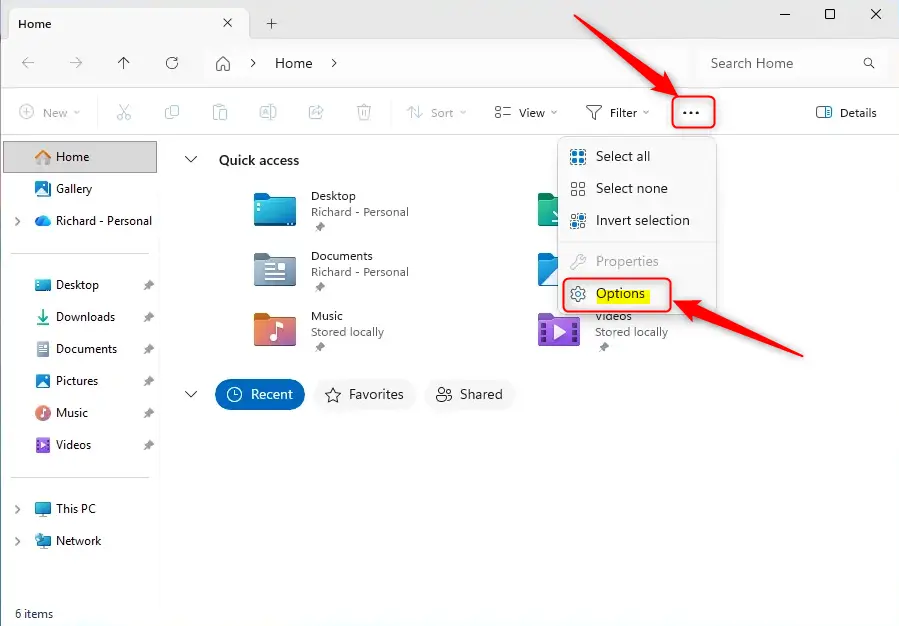
File Explorer options window showing folder open settings in Windows 11. - Click the View tab at the top of the Folder Options window. A list called Advanced settings appears.
- Scroll through the Advanced settings list until you find Display the full path in the title bar.
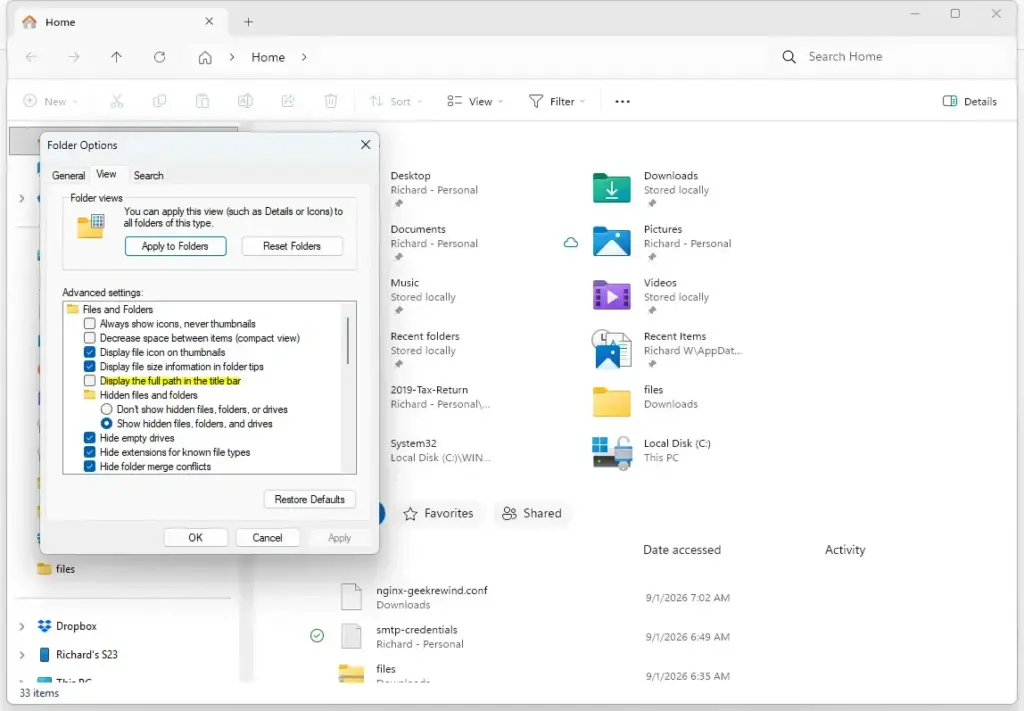
File Explorer - Click the check box next to it so a checkmark appears.
- Click Apply at the bottom right, and then click OK. The Folder Options window closes.
That’s it. Your open File Explorer windows should update right away to show the full path in the title bar. If one does not, close it and open it again.
In Windows 11, a window with several tabs may still not show the full path in its title bar. Click the address bar or press Ctrl+L to see the full path there instead.
To undo the change, repeat the steps and clear the check box. If the option is greyed out or keeps switching back, the setting may be managed by your organization, so check with your IT administrator.
Option 2Enable full path using the Windows Registry
The Windows Registry (the database where Windows stores its settings) lets you make the change by hand when the normal menu options are not available. It works on both Home and Pro editions. It is meant for advanced users, because changing the wrong value can cause problems on your computer.
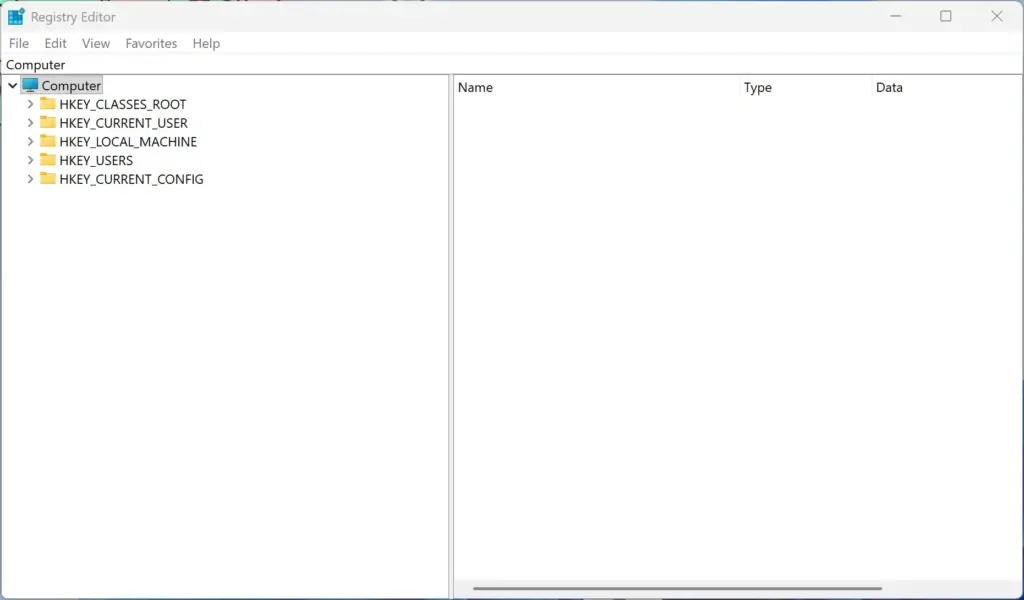
- Click the Start button, type Registry Editor, and click the matching result. Approve the User Account Control prompt if it appears. The Registry Editor window opens.
- In the left sidebar, expand the folders to reach 🗝️HKEY_CURRENT_USER\
Software\ . You can also paste this path into the address bar at the top of the Registry Editor. The CabinetState key is now selected, and its values show in the right pane.Microsoft\ Windows\ CurrentVersion\ Explorer\ CabinetState
Before you edit anything, back up the key so you can restore it if something goes wrong. For extra safety, you can also create a restore point first: type “Create a restore point” in the Start menu and follow the System Properties window. The export below takes only a few seconds.
- Right-click the CabinetState key in the left sidebar and choose Export. A save window opens.
- Type a name such as CabinetState-backup, pick a folder you will remember, and click Save. Windows writes a .reg file with the current values of the key.
- Look in the middle pane (the right side of the window) for a value named FullPath or FullPathAddress.
- If the FullPath value is not there, right-click an empty space in the right pane and select New. Then choose String Value or DWORD (32-bit) Value, and name the new value FullPath. If it already exists, leave its type as it is.
- Double-click the FullPath value and change the Value data to 1 to turn the setting on.
- Click OK and close the Registry Editor.
- Restart your computer, or restart Windows Explorer in Task Manager, to see the change. In Task Manager, find Windows Explorer in the list, right-click it, and choose Restart. The taskbar will flicker briefly, which is normal.
That’s it. After the restart, File Explorer shows the full folder path in the title bar of regular windows. As with Option 1, a tabbed window in Windows 11 may still hide it, so press Ctrl+L to see the path in the address bar.
To undo the change, set the value data back to 0 and restart Windows Explorer again. To restore the whole key, double-click the .reg backup file you saved and confirm the prompts.
Option 3Enable full path via Command Prompt
Command Prompt is a text window where you type commands instead of clicking through menus. In principle, it can set the same per-user registry value that Option 2 sets by hand, which makes it useful for scripting.
This guide does not include a ready-made command, because the settings in Option 1 and Option 2 are safer and have been described step by step. If your IT team already has a tested command or script that sets the FullPath value in the CabinetState key, you can run it as follows.
- Click the Start button, type cmd, and click Command Prompt. A black command window opens.
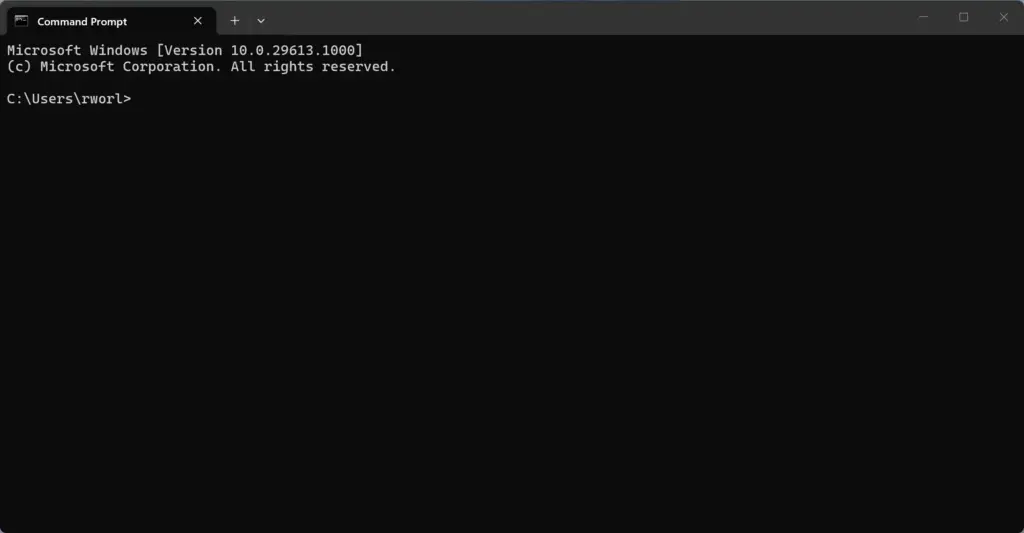
Command Prompt - Type or paste your tested command, then press Enter. A confirmation message should appear when it succeeds.
- Close the Command Prompt window when you are finished. Reopen File Explorer, or restart Windows Explorer from Task Manager, if the title bar does not change.
That’s it. If the command ran without errors, the full path now shows in the File Explorer title bar for your account. If you do not have a command, use Option 1 or Option 2 instead.
If you ever want to turn the setting off, the quickest way is to clear the check box in Folder Options as described in Option 1.
Summary
Enabling the full folder path in the File Explorer title bar is a quick way to make Windows easier to navigate. Showing your exact location at the top of the window helps you avoid mistakes and stay organized across all your drives.
Keep in mind that tabbed windows in Windows 11 may still hide the path, so the address bar and Ctrl+L remain useful. If the extra text bothers you, it takes only a few clicks in Folder Options to switch it back off.
Have a question about this guide?
Answered by AI from this guide. Good questions may be added to this page — please don't include personal details.
Did this guide fix your problem?

About the Author
Richard
Tech Writer, IT Professional
Richard is a writer at Geek Rewind who turns complex IT tasks into clear, step-by-step guides. He draws on years of hands-on experience in system administration and enterprise IT operations, focusing on Windows, Linux and WordPress: the problems people actually run into, and the fixes that work. His server and WordPress guides come from systems he runs himself. Richard builds and maintains the platform behind Geek Rewind, from its Ubuntu servers and Nginx configuration to its custom WordPress plugins. Many new tutorials start with readers' questions, and he's always glad to answer them in the comments.
No comments yet — be the first to share your thoughts!