How to Enable or Disable Win32 Long Paths in Windows 11

- 3 ways to do it
- Needs administrator rights
- Group Policy needs Windows 11 Pro, Enterprise or Education
- Includes a restart or sign-out
This article explains how to enable or disable Win32 Long Paths in Windows 11. There are three ways to do it: the Settings app, the Local Group Policy Editor, and the Registry Editor.
You can enable or disable Win32 Long Paths in Windows 11 through the Settings app. Navigate to System Advanced and toggle the “Enable long paths” option. Alternatively, use the Group Policy Editor or Registry Editor for more advanced control.
What Are Win32 Long Paths?
Win32 Long Paths is a Windows feature that lets apps work with file paths much longer than the old 260-character limit (known as MAX_PATH). Deeply nested folders and very long file names no longer hit that limit. Starting with Windows 10 version 1607, Microsoft added support for long paths, and apps can now use paths of about 32,767 characters.
The 260-character limit matters if you work with deeply nested folders, build output, node_modules trees, or synced archives. Files buried that deep can be impossible to open, copy, or delete with some apps. Turning on long paths removes that barrier.
One thing to know up front: turning the setting on does not change every program. Only apps that their developers have updated to support long paths will use the longer limit. Apps that have not been updated behave as before, and some built-in tools, File Explorer included, may still struggle with very long paths. Enabling the setting is safe, but you may not see a difference in every app.
Method 1Enable Win32 Long Paths Using Settings
The Settings app is the simplest method, and it works on both Windows 11 Home and Pro. Open Settings, go to System, then Advanced, and switch on Enable long paths. This option only appears in newer Windows 11 builds. If you don’t see it, update Windows, or use the Group Policy or Registry method below.
- Open the Settings app. Click the Start menu and select Settings, or press Win+I.
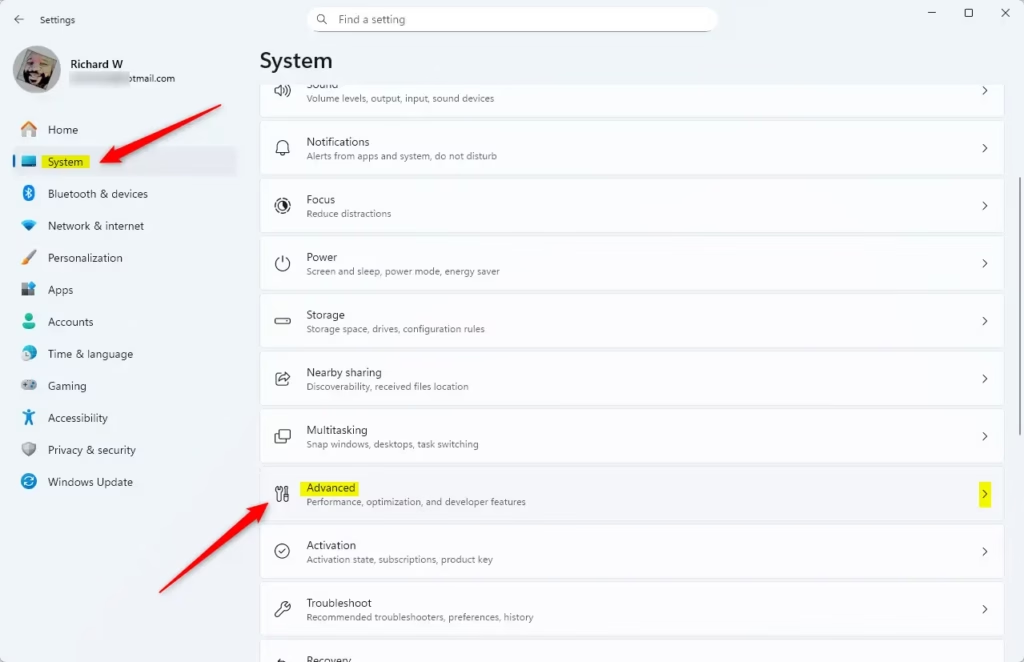
- Click System on the left side.
- Select Advanced on the right to expand it. You should see a list of advanced options on the page.
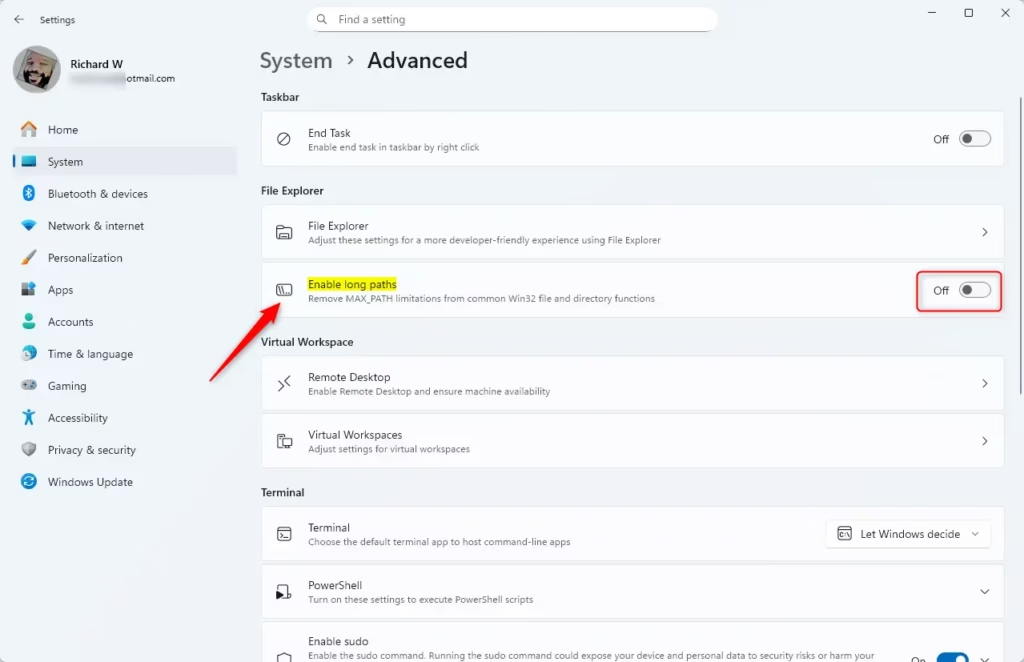
- Find the Enable long paths tile.
- Switch the toggle On to enable long paths, or Off to disable them. Windows may ask for administrator approval. If so, approve the prompt. The toggle should show its new state.
- Close Settings when you’re done. If an app still doesn’t handle long paths, restart the app, or sign out and back in.
Method 2Enable Win32 Long Paths in Group Policy Editor
Administrators can turn on the Win32 long paths setting with the Local Group Policy Editor. This is a good choice when you manage several computers, because the same policy can be applied to all of them. The Local Group Policy Editor is included in Windows 11 Pro, Enterprise and Education. It is not available in Home, so Home users should use the Settings app or the Registry Editor instead.
- [ADMIN] Open the Local Group Policy Editor. Search for
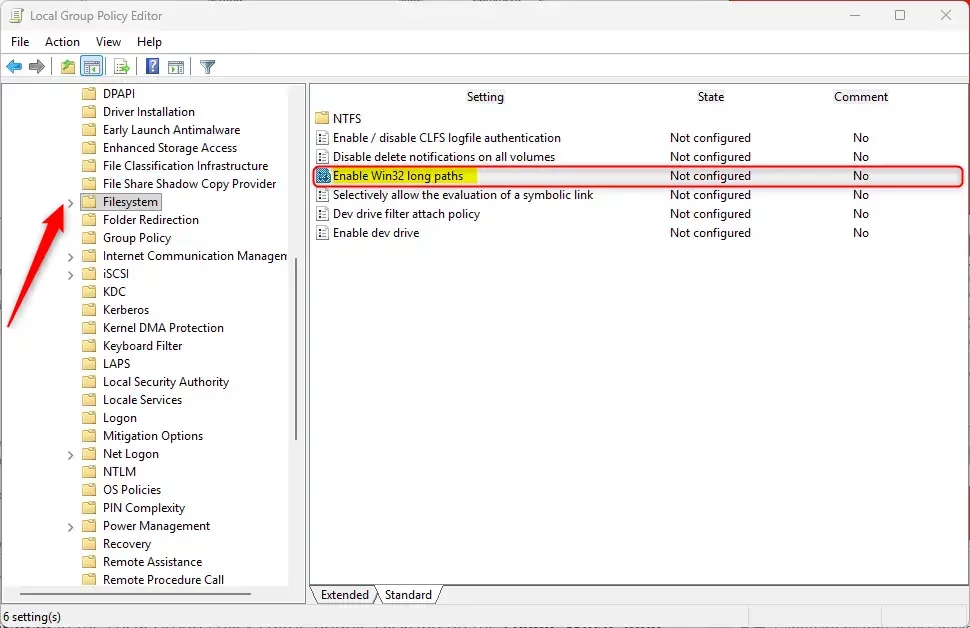
gpedit.mscin the Start menu and open it. The editor window should appear. - Navigate to this folder path:
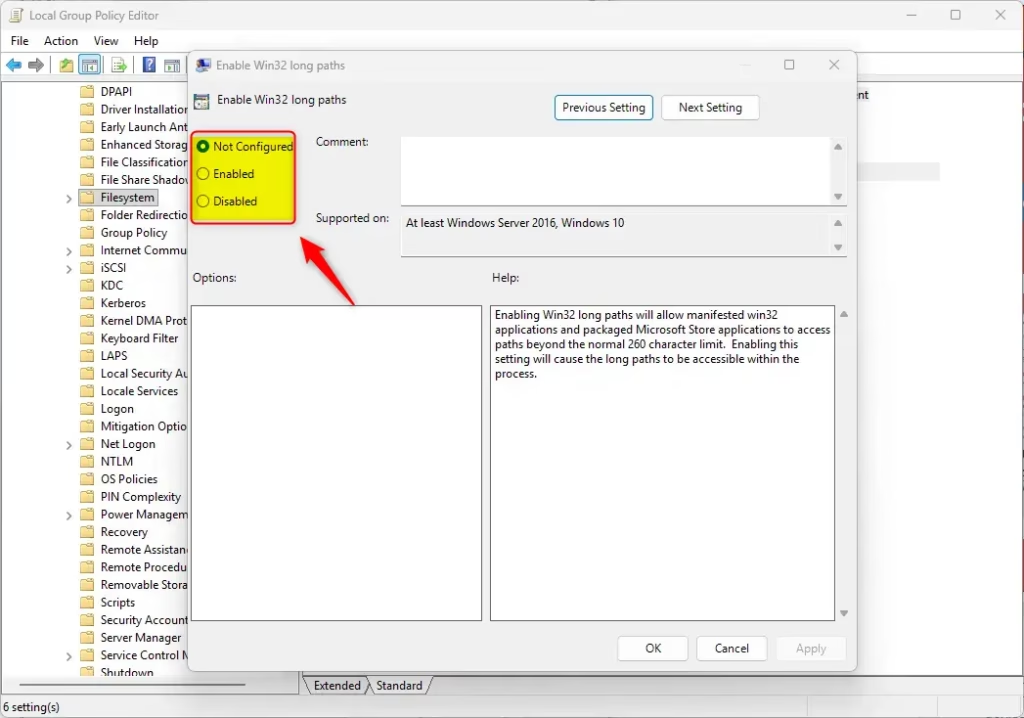
Computer Configuration > Administrative Templates > System > Filesystem - In the right panel, find Enable Win32 long paths and double-click it. A settings window for the policy should open.
- Choose one of these options:
- Not Configured (default) — The policy is not set, and Windows uses its own setting.
- Enabled — Long paths will work in apps that support them.
- Disabled — Turns off Win32 long paths.
- Click OK to save.
- Restart the computer so the change applies everywhere. To undo it later, return to the same policy and choose Not Configured or Disabled.
Method 3Enable Win32 Long Paths Using Registry Editor
The Registry Editor method works on every edition of Windows 11, including Home. You open the editor, go to one key, and add or change a single value. A wrong change in the registry can cause problems, so back up first.
- [ADMIN] Open the Registry Editor. Search for
regeditin the Start menu and open it. Approve the User Account Control prompt if it appears. - Navigate to this path:
Computer\HKEY_LOCAL_MACHINE\SYSTEM\CurrentControlSet\Control\FileSystem - Right-click the FileSystem folder on the left. A context menu should appear.
- Select New DWORD (32-bit) Value. A new value appears in the right pane with its name ready to edit. If the value already exists in the right pane, skip to step 6 and edit it instead.
- Name it
LongPathsEnabledand press Enter. - Double-click the value to open it.
- Under Value data, enter 1 to enable long paths for all users, or 0 to disable them.
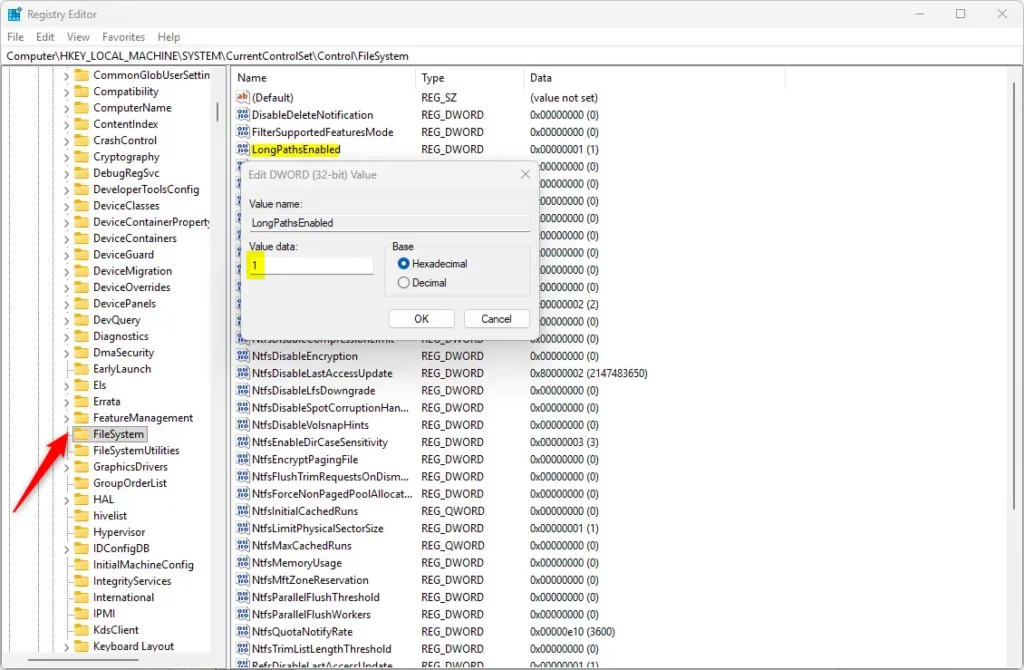
- Click OK. The value list should now show your number in the Data column.
- Restart your computer. Some apps pick up the change right away, but a restart makes sure it applies everywhere.
To undo the change, open the same value and set it back to 0, or restore the registry backup you made.
Summary
Win32 Long Paths lets apps use file paths up to 32,767 characters, a big jump from the old 260-character limit. It helps most if you often work with many nested folders or very long file names.
Why enable it? If you work with complex folder structures or long file names, you’ll stop hitting the old character limit in apps that support it.
What happens when enabled? Only apps designed to support long paths will use the feature. Other apps keep working as they did before, with the old limit.
How to enable it? You have three choices:
- Settings app — The easiest method. Just toggle a switch. It only appears in newer Windows 11 builds.
- Group Policy Editor — For administrators on Pro, Enterprise or Education editions. Good for managing several PCs.
- Registry Editor — The most technical method, and it works on Home too. Always back up first.
Key tips to remember:
- Always back up the registry before making changes.
- Restart your computer after making changes so they apply everywhere.
- Only apps coded to support long paths will benefit from this feature.
- To undo any method, set the option back to Off, Disabled or 0, depending on the method you used.
Have a question about this guide?
Answered by AI from this guide. Good questions may be added to this page — please don't include personal details.
Did this guide fix your problem?

About the Author
Richard
Tech Writer, IT Professional
Richard is a writer at Geek Rewind who turns complex IT tasks into clear, step-by-step guides. He draws on years of hands-on experience in system administration and enterprise IT operations, focusing on Windows, Linux and WordPress: the problems people actually run into, and the fixes that work. His server and WordPress guides come from systems he runs himself. Richard builds and maintains the platform behind Geek Rewind, from its Ubuntu servers and Nginx configuration to its custom WordPress plugins. Many new tutorials start with readers' questions, and he's always glad to answer them in the comments.
No comments yet — be the first to share your thoughts!