Find Photos You Imported from a Camera in Windows 11

- 31 steps
- Needs administrator rights
Photos you import from a camera in Windows 11 go to the Pictures folder by default, usually inside a subfolder named after the import date. File Explorer shows them in about 30 seconds if you know where to look.
Pictures is a personal folder at 📁C:\
This guide shows how to open the right folder, how to search when the folder name is not obvious, and what to check when nothing turns up. None of these steps need administrator rights.
Photos imported from a camera in Windows 11 usually go to the Pictures folder, inside a date-named subfolder such as 2025-03-14. To find them, press Win+E, click Pictures in the left pane, then double-click the newest date folder. If nothing is there, check the folder you chose during the import, your OneDrive folder, or the camera’s memory card.
Where 🪟 Windows 11 Saves Photos You Import From a Camera
The save location depends on how you imported. Here are the common cases:
- Photos app import: Files go to a folder inside Pictures, normally named by date. The folder you choose in the import window overrides this.
- AutoPlay import: AutoPlay is the prompt Windows shows when you plug in a camera or memory card. Choosing an import option there also saves to Pictures unless you picked another folder.
- Drag and drop or copy and paste: The photos are wherever you dropped them. That is often the Desktop or Downloads folder.
- OneDrive camera import: If OneDrive imports photos when you connect a device, they sit inside your OneDrive folder, not in a local-only folder.
Camera files also keep their original names, such as IMG_0412.JPG or DSC_0087.JPG. That naming helps when you search later.
Find Your Imported Photos in File Explorer
Start with File Explorer. Open the Pictures folder first, then check the date folders inside it. The steps below take you from opening the Pictures folder to confirming that the photos came from your camera.
- Open File Explorer . Press Win+E. A window opens, usually on Home.
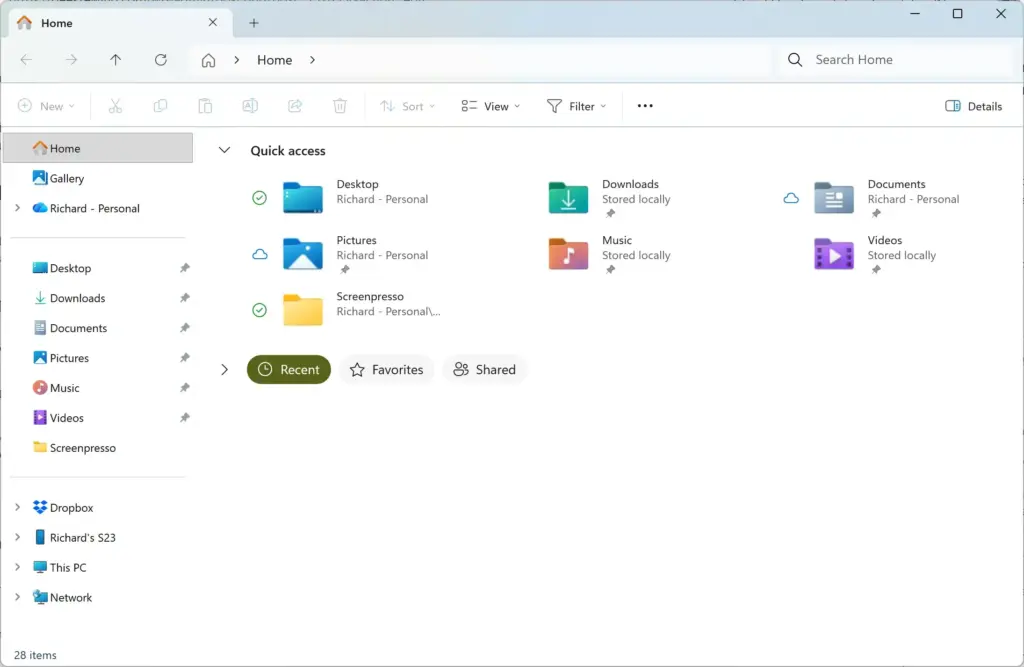
Windows 11 File Explorer showing Dropbox folder in sidebar. - Click Pictures in the left pane. If you do not see it, click This PC and double-click Pictures.
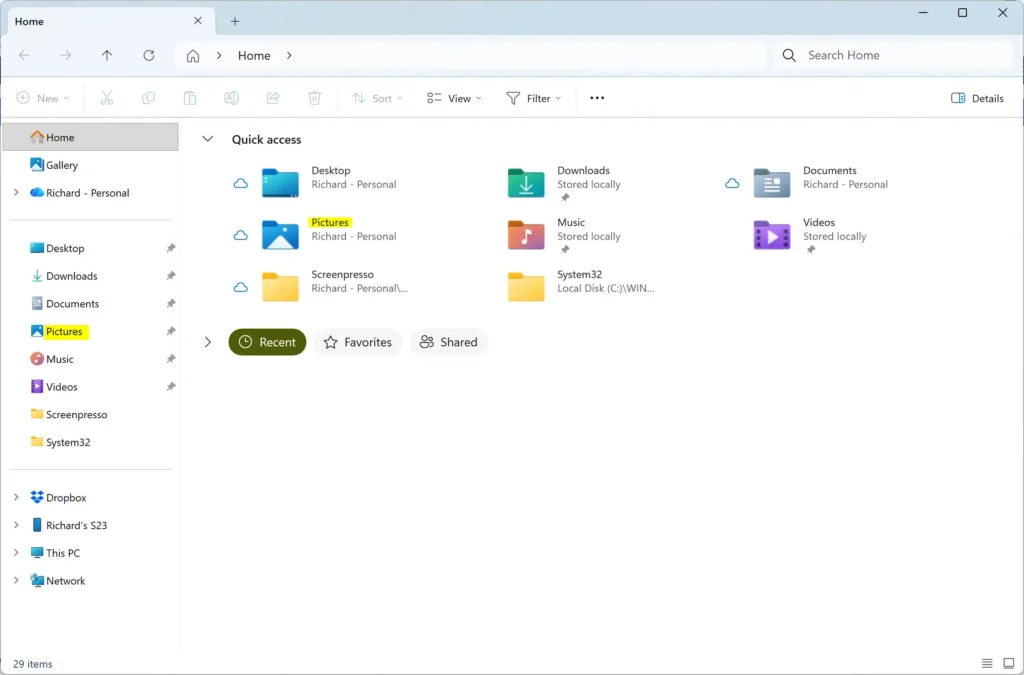
File Explorer - Click View and choose Extra large icons. Thumbnails help you recognize folders full of photos.
- Look for subfolders named with a date. Import folders often look like 2025-03-14, sometimes with a label added after the date.
- Click Sort and choose Date modified. Pick Descending if it is not already set. Your most recent import should now appear first.
- Double-click the newest date folder. The photos from your camera should appear as thumbnails.
- Right-click one photo and choose Properties. The Properties window opens on the General tab.
- Click the Details tab. Check Camera maker, Camera model and Date taken to confirm the photo came from your camera.
- Close the Properties window. Click OK or the X.
- Right-click the import folder and choose Pin to Quick access. The folder now appears in the left pane for next time.
If the thumbnails are blank icons or the files will not open, they may be RAW files. RAW is an unprocessed format that some cameras save, with extensions such as .CR2, .NEF or .ARW. Windows needs a small add-on, called a codec, that can read the file format. Microsoft offers one called Raw Image Extension in the Microsoft Store, and your camera maker may offer its own.
Check whether the date folders are in a different location
They may also be in a different user account’s Pictures folder. Windows keeps each account’s files separate. If more than one person uses the PC, sign in to the account you used to import.
Find Imported Photos by Searching
Search works when you do not remember the folder. The goal is to list every picture on your PC and narrow it to the camera files. File Explorer searches the folder you are in, so start at the top level.
- Open File Explorer . Press Win+E.

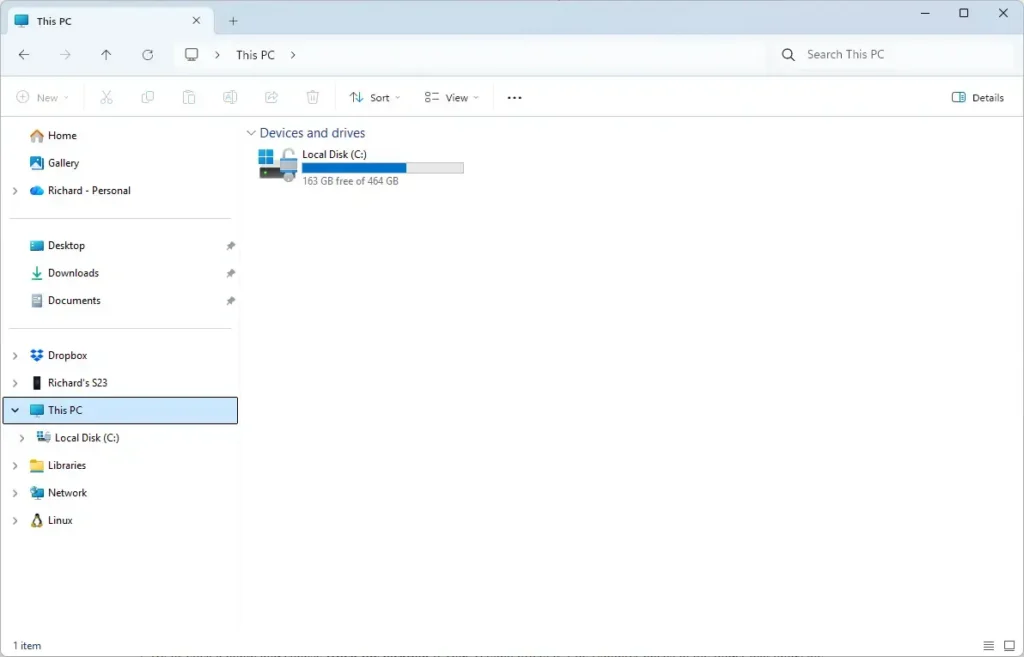
File Explorer - Click This PC in the left pane. Searching from here covers every drive on the computer.
- Click the search box in the top right corner.
File Explorer - Type
kind:pictureand press Enter. File Explorer lists every picture it finds. The search can take a minute on a large drive, and a green progress bar runs under the address bar while it works. - Click Sort and choose Date modified. Photos from a recent import move to the top.
- Right-click any photo in the results and choose Open file location. A new window opens in the folder that holds it.
To narrow the list, search by file name instead. Cameras usually number files in a pattern, so typing IMG_ or DSC_ into the search box often finds only your camera shots. You can also search by file type, which is the ending after the dot in a file name, such as *.jpg, or *.arw for a Sony RAW file.
If the search finds a thousand photos and you want only one trip, try the datetaken: filter followed by a year, such as datetaken:2025. This filter relies on the date the camera recorded. The filter misses files that have no date information.
Searches can also come up empty for folders that Windows has not indexed. Indexing is how Windows builds a list of file names ahead of time so searches run fast. Searches still work in unindexed folders but run slower and may need more time to finish.
Find Imported Photos in the Photos App
The Photos app shows pictures from the folders it watches, which include Pictures and your OneDrive pictures. If you imported with the Photos app, this is the place the import finishes. Photos app menus vary between versions, so your labels may differ a little from the ones here.
- Open Start . Click the Start button on the taskbar .
- Type Photos and press Enter. The Photos app opens.
- Click Gallery in the left pane. Newer versions of the app show all your photos here, newest first.
- Scroll to the date you imported. Photos are grouped by the date they were taken, not the date you imported them.
- Right-click a photo and choose Open file location if your version offers it. File Explorer opens in the folder that holds the file.
If the photos do not appear, the folder may not be on the app’s watched list. Open the Photos app settings (the gear icon) and look for the section that lists your folders or locations. Add the folder that holds your imported photos to the list. The Photos app can only show folders you let it read.
For a full walkthrough of importing in this app, see How to Import Photos and Videos in Windows 11.
Check Whether OneDrive Moved Your Pictures Folder
OneDrive can take over your Pictures folder when you turn on folder backup. Your photos then live in 📁C:\
- Open File Explorer . Press Win+E.
- Right-click Pictures in the left pane and choose Properties.
- Click the Location tab. The path box shows where the folder really lives. A path that contains OneDrive means OneDrive controls it.
- Click Cancel. Nothing changes.
Check the status icon next to each file in a OneDrive folder. A cloud outline means the file is online-only and not stored on this PC. Right-click the file and choose Always keep on this device to download a local copy.
To learn how to bring photos from other cloud services into OneDrive, see How to Import Photos and Files from Google Drive and Photos to OneDrive. If you use Google Drive instead, How to Sync Files & Photos to Google Drive in Windows 11 covers that setup.
If the Photos Are Still Not on Your PC
Work through these checks before you delete anything from the camera or format the memory card.
Look at the camera or memory card directly
Connect the camera with its USB cable, or put the memory card in a card reader. Open File Explorer and click This PC. The camera or card appears under Devices and drives, or as a portable device (a camera or phone shown as a device, not a drive letter).
Open it and look for a folder named DCIM. Cameras store photos there in subfolders such as 100CANON or 101NIKON. If your photos are in DCIM, the import never finished, and you can copy them across yourself.
Check for an unfinished import
A cable pulled out early, a sleeping camera or a full drive can stop an import partway. You may find only some of the photos. Reconnect the camera, make sure it is switched on, and run the import again. On some cameras you must set the USB mode to file transfer or PTP (Picture Transfer Protocol, a standard for moving photos) before Windows can read it.
Look in the folders you used for copy and paste
If you dragged photos out of the camera, open Desktop and Downloads first. Then search for kind:picture as described earlier. The date sort puts recent copies at the top, even in an unexpected folder.
Change Where Windows Saves Your Pictures
You can move the Pictures folder so that future imports land somewhere else, such as a larger drive. This changes where your Pictures folder lives. Windows then offers to move the files already in it. Plan for that before you click, because moving thousands of photos takes time.
- Open File Explorer. Press Windows + E.
- Right-click Pictures in the left pane and choose Properties.
- Click the Location tab.
- Click Move. A folder picker opens.
- Choose the new folder and click Select Folder.
- Click OK. Windows asks whether to move your existing files to the new location. Choose Yes to move them, or No to leave them where they are.
To undo the change, return to the Location tab and click Restore Default, then click OK. The Photos app also lets you choose a destination in its import window. See How to Find Personal Photos in the Pictures Folder on Windows 11 for more on how that folder works.
What to Do Next
Keep the memory card's contents until you have opened a few files and confirmed that they are complete. If you want to find photos that did not come from a camera at all, How to Find My Photos on This Computer covers a broader search. How to Easily Transfer Photos to Windows 11 covers phones.
Have a question about this guide?
Answered by AI from this guide. Good questions may be added to this page — please don't include personal details.
Did this guide fix your problem?

About the Author
Richard
Tech Writer, IT Professional
Richard is a writer at Geek Rewind who turns complex IT tasks into clear, step-by-step guides. He draws on years of hands-on experience in system administration and enterprise IT operations, focusing on Windows, Linux and WordPress: the problems people actually run into, and the fixes that work. His server and WordPress guides come from systems he runs himself. Richard builds and maintains the platform behind Geek Rewind, from its Ubuntu servers and Nginx configuration to its custom WordPress plugins. Many new tutorials start with readers' questions, and he's always glad to answer them in the comments.
No comments yet — be the first to share your thoughts!