How to Change the Location of Your OneDrive Folder

Changing the location of your OneDrive folder lets you move your files to a larger drive, such as a secondary D: drive, to free up disk space on your main C: drive without losing any data. OneDrive is Microsoft’s built-in cloud storage service that automatically syncs your files across all your devices.
Relocating the folder takes only a few clicks through the OneDrive settings menu and keeps all your files safe, backed up, and fully accessible. The steps are the same on Windows 11 Home and Pro, and you do not need to restart the PC.
Before you start, check two things. First, let OneDrive finish syncing so nothing is half uploaded. Second, make sure the new drive is formatted as NTFS, because OneDrive does not support other file systems or removable drives for its main folder. The whole job has three parts: unlink the PC, move the folder, and sign back in.
To change your OneDrive folder location, first unlink your PC from OneDrive via the Account tab in settings. Then, use File Explorer to move your entire OneDrive folder to the desired new location. Finally, sign back into OneDrive and select the new folder location during setup.
Step 1Disconnect Your Current OneDrive Link
Unlinking your PC from OneDrive lets you safely change the OneDrive folder location without losing or corrupting your files. Unlinking stops syncing on this PC and releases the folder, so Windows lets you move it. It does not delete anything.
Here’s how to do it:
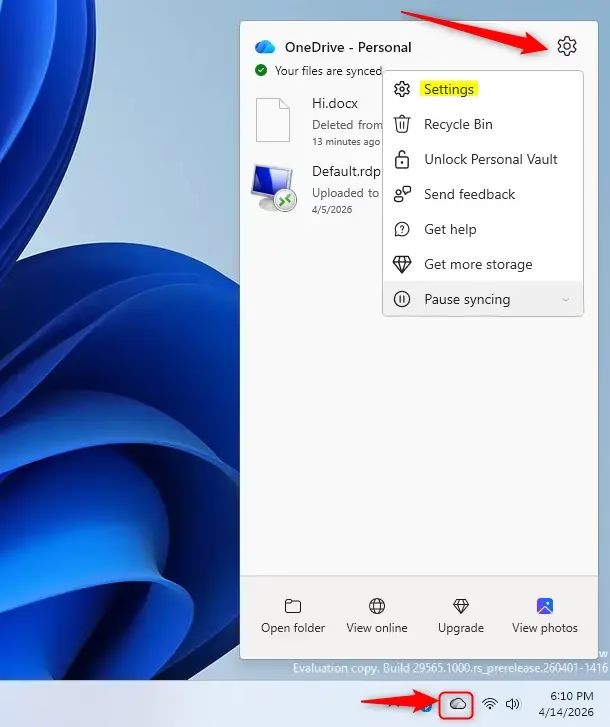
- Look for the small blue (or sometimes white) cloud icon in your system tray . This is usually in the bottom-right corner of your screen, near the clock.
- If you don’t see the icon, click the small arrow pointing up (Show hidden icons) to reveal the hidden icons, then look for the cloud there.
- Click the cloud icon. A small OneDrive window appears.
- Click the Help & Settings icon in that window. It looks like a gear. On some builds it sits at the top right of the window.
- Choose Settings from the menu. The OneDrive settings window opens with a few tabs or sections.
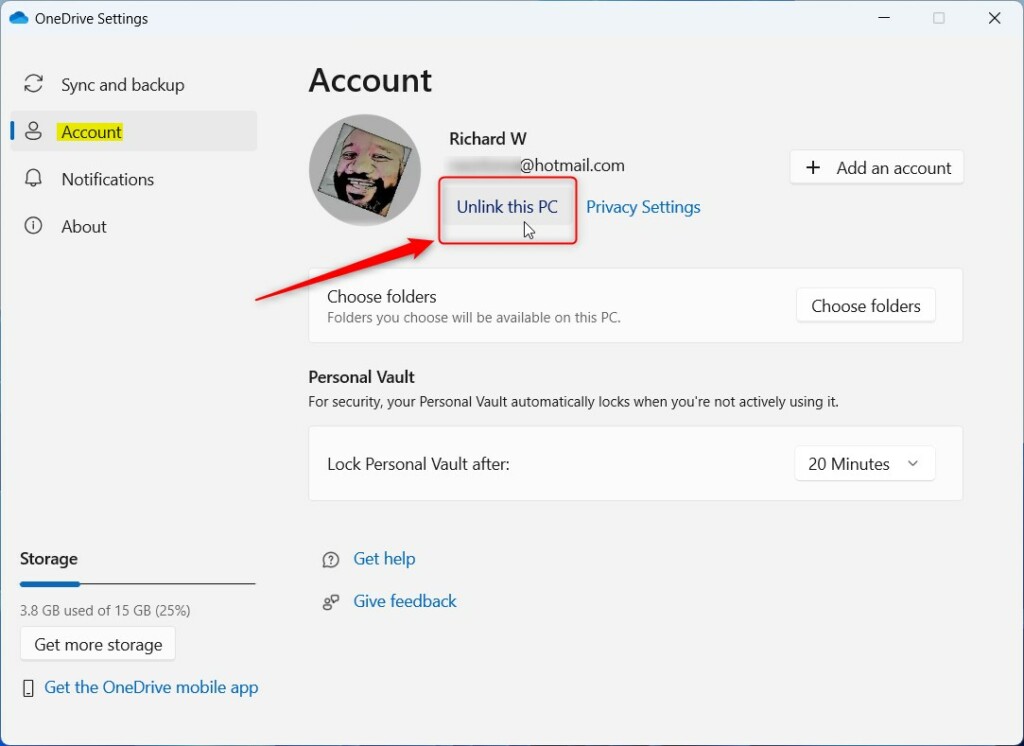
- Click the Account tab.
- Click Unlink this PC. A box pops up asking if you’re sure.
- Click Unlink account to confirm. A OneDrive setup window with a sign-in prompt usually appears. You can close it for now. We come back to it later.
If you back up your Desktop, Documents, or Pictures folders with OneDrive, stop that backup first. Open the same Settings window, go to the sync and backup section, and use Manage backup to turn off the folders you don’t want to be redirected. If you skip this, those folders can end up pointing at the old location.
It only disconnects the computer from that specific OneDrive folder location. Files remain safe on Microsoft's servers.
Step 2Move Your OneDrive Folder
Moving your files to a new drive means cutting the whole folder and pasting it in the new place, so that you can change the OneDrive folder location. Do this in File Explorer, and move the entire directory, not just the files inside it. A cut and paste on the same drive is instant. Between two drives it copies and then removes the original, so large folders take longer.
- Press the Windows key + E to open File Explorer. You can also click the folder icon on your taskbar.
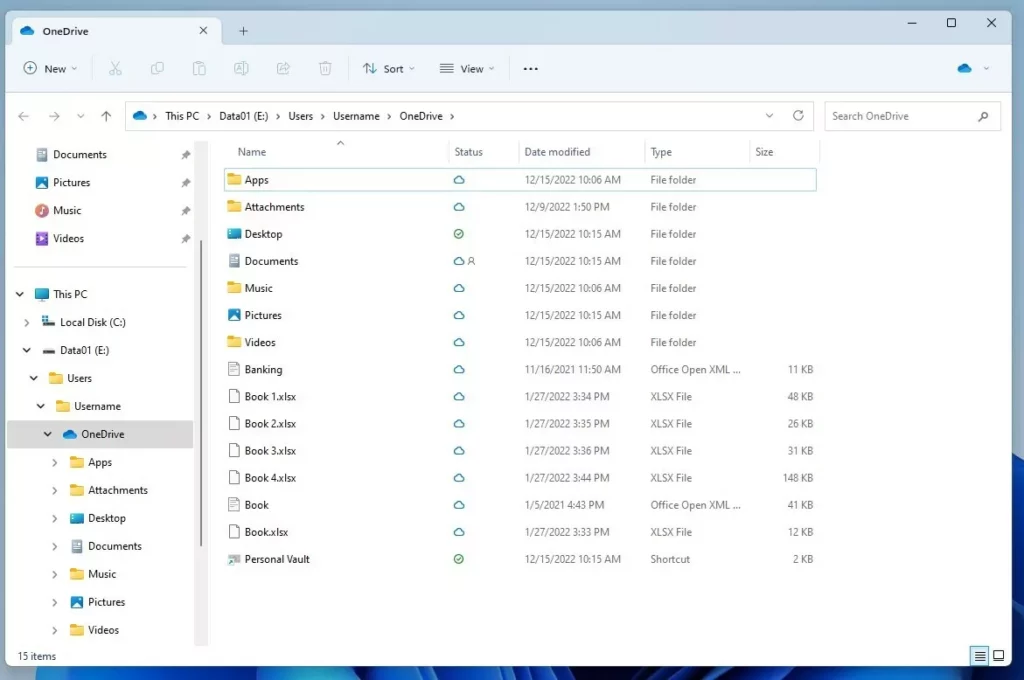
- Go to your current OneDrive folder. By default it is in your user profile and looks like this:
C:\Users\YourUsername\OneDrive - Click the OneDrive folder once to select it. Don't open it.
- Right-click the folder and choose Cut. The folder icon looks slightly faded.
- Go to the new location you want, like
D:\MyCloudFiles\OneDriveor a folder on a different drive. - Right-click an empty spot and choose Paste. You should see a progress window, and then the folder appears in the new location with your files inside.
You can also click and drag the whole OneDrive folder to its new destination. If Windows says a file is in use, make sure you completed the unlink step and that OneDrive is no longer running. Then try again. Note where you put the folder, because you need to select it later. Choose a spot you don't plan to change again.
Step 3Connect OneDrive to Its New Location
Reconnecting the app to your files finishes the process when you change the OneDrive folder location on Windows. You sign in again and point OneDrive at the folder you moved, so syncing resumes normally.
- Open the OneDrive setup window. If you closed it earlier, click Start, type OneDrive, and open the app. Sometimes Windows offers the setup again on its own after unlinking.
- Enter your Microsoft account email and password. Sign in as you normally do.
- Watch for the screen that shows where OneDrive wants to create its folder by default. This is the important part. Don't click through it quickly.
- Click Change location. A browsing window opens.
- Go to the exact folder where you moved your OneDrive files in Step 2. For example, if you moved it to
D:\MyCloudFiles\OneDrive, select thatOneDrivefolder. Select the folder itself, not the drive or the parent folder above it. - Click Select Folder (the button may be labeled OK on some builds).
- Read the message that appears. You'll probably be told the folder you chose already contains files. This is what we want. Click Use this location (or a similar button).
- Finish any other setup steps. OneDrive now looks at the files in your new location and syncs any changes.
When setup ends, open the OneDrive cloud icon again. It should show your files syncing or up to date. To confirm the move worked, open the OneDrive folder from the navigation pane in File Explorer and check that its address shows the new path. To undo the change later, repeat the same three parts and pick the old location.


OneDrive compares cloud files with the files in the new local folder when it reconnects. Folders you previously chose to sync have to be selected again during setup. If you skip this step, OneDrive downloads all your cloud files again, which wastes bandwidth. It can also fill up the new drive if your cloud storage is large, so check the free space before you finish.
Reference:
https://support.microsoft.com/en-us/onedrive/change-the-location-of-your-onedrive-folder
Summary
Completing the steps to change the OneDrive folder location takes only a few minutes when you follow the proper order. You must first unlink your account from the system tray, move the files to your new drive using File Explorer, and finally sign back into the app to point it toward the new folder location.
- First, unlink your PC from OneDrive through its settings. Your files remain safe in the cloud.
- Next, use File Explorer to move your entire OneDrive folder from its old location to your desired new location.
- Finally, start the OneDrive setup again, sign in, and choose the Change location option to point OneDrive to the folder you just moved.
Have a question about this guide?
Answered by AI from this guide. Good questions may be added to this page — please don't include personal details.
Did this guide fix your problem?

About the Author
Richard
Tech Writer, IT Professional
Richard is a writer at Geek Rewind who turns complex IT tasks into clear, step-by-step guides. He draws on years of hands-on experience in system administration and enterprise IT operations, focusing on Windows, Linux and WordPress: the problems people actually run into, and the fixes that work. His server and WordPress guides come from systems he runs himself. Richard builds and maintains the platform behind Geek Rewind, from its Ubuntu servers and Nginx configuration to its custom WordPress plugins. Many new tutorials start with readers' questions, and he's always glad to answer them in the comments.
No comments yet — be the first to share your thoughts!