How to Import Photos and Videos in Windows 11


Importing photos and videos in Windows 11 copies your pictures and videos from devices like phones, cameras, and USB drives onto your computer’s hard drive. Moving these files keeps your memories safe and easy to find when you want to view, edit, or share them. It also gives you a backup if the phone is lost or broken.
You can use built-in tools like the Microsoft Photos app or File Explorer to handle the transfer in just a few clicks. Windows 11 can create a dedicated folder in your Pictures library for the imported files, so they stay organized. This guide covers the Photos app, File Explorer , cloud sync, and what to check if your PC does not see your device.
Open the Photos app, connect your phone or camera with a USB cable, and click Import at the top right. Select your device, tick the photos and videos you want, then pick a folder such as Pictures. Windows copies them to your computer. If Import is missing, use File Explorer to copy files from the device’s DCIM folder.
Comparison of Import Methods
| Method | Speed | Convenience |
|---|---|---|
| USB Cable | Fast | Medium |
| OneDrive/Cloud | Depends on Internet | High |
| File Explorer (Copy/Paste) | Fast | High |
How to Import Using the Photos App
To import photos in Windows 11 with the built-in Photos app, you connect your phone or camera to your PC with a USB cable, open the app, and click the Import button in the top right corner. This method lets you pick specific pictures and choose where to save them on your computer before copying them over.
If you do not see an Import button in your version, use the File Explorer method in the next section. It works the same way on every edition, Home and Pro.
- Open the Photos app from the Start menu. If you cannot see it, type Photos in the search box. The Photos window opens with your picture library.

Microsoft Photos app on the All apps list - Connect your phone or camera using a USB cable. Unlock the phone first. On an iPhone, tap Trust or Allow when it asks whether to trust this computer. On Android, pull down the notification shade and set the USB mode to File Transfer.
- Click Import at the top of the app. A short menu of import sources appears.
- Select your device from the list. Windows reads the device and shows the photos and videos on it. This can take a minute if the phone holds a lot of media. If your device is not listed, see the troubleshooting section below.
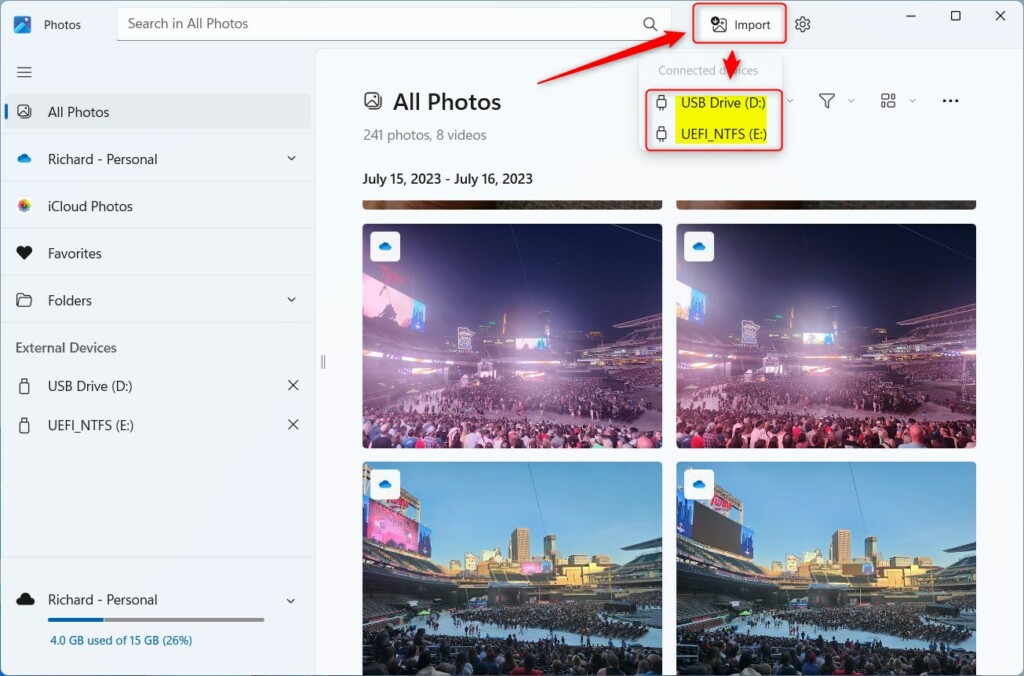
Windows 11 import photos and videos into photos app - Choose the photos you want to move. Tick the checkbox on each thumbnail. Videos show up in the same list as photos.
- Pick a folder to save them in. Pictures is a good default because other apps look there first. Windows copies the selected files into that folder, and you can watch the progress in the app.
- Select Delete items after import if you want to clear space on your phone. Leave it off until you have opened a few of the imported files and confirmed they play correctly. Once the originals are deleted from the phone, you cannot get them back from there.
If Windows blocks the copy, sign in with an administrator account or pick a folder inside your own user profile.
Importing via File Explorer
You can import photos in Windows 11 by using File Explorer to copy files directly from your connected phone or camera. After plugging in your device, open File Explorer, find your device in the sidebar, open the DCIM folder where your pictures live, and copy them to your computer’s Pictures folder.
This method needs no extra app and gives you full control over what is copied and where it goes. It also works with a camera's SD card in a card reader, which shows up as a drive.
- Connect your device via USB. Unlock it, and approve the trust or file transfer prompt on the phone if one appears.
- Open File Explorer (Windows key + E). The File Explorer window opens.
- Find your device in the left sidebar. It is usually listed under This PC. If you do not see it there, scroll down the sidebar or press F5 to refresh.
- Open the DCIM folder. On a phone you may first need to open the internal storage folder. The camera folders are inside DCIM, and they hold both photos and videos.
- Select your files, right-click, and choose Copy. To select everything in the folder, click inside it and press Ctrl + A. Copy leaves the originals on the phone, so nothing is lost if something goes wrong.
- Navigate to your desired folder on your PC and Paste. A copy progress window appears. Wait for it to close before you unplug the device, because pulling the cable mid-copy can leave damaged files.
Cloud Integration: OneDrive and iCloud
You can sync your OneDrive storage to see your files on any device. For iPhone users, installing iCloud for Windows allows your photos to sync automatically to your PC without cables.
Cloud sync needs an internet connection and enough storage in your cloud account. Large video files can take a while to upload and download, so a cable is still faster for a big first transfer.
Troubleshooting Common Issues
If your PC does not see your device, work through these checks one at a time. Most cases come down to the cable or the phone's USB mode:
- Use a different USB cable. Some cables only charge and do not carry data. A cable that came with the phone is the safest choice. Trying another USB port on the PC also helps.
- Ensure your phone is unlocked. Many phones hide their photos from the PC while the screen is locked.
- Check your phone settings to ensure it is in File Transfer mode. On Android, the default is often charging only, so change it from the USB notification. On an iPhone, tap Trust when asked.
- Update your drivers via Device Manager. Right-click the Start button, open Device Manager, expand Portable Devices, right-click your device, and choose Update driver. Restart the PC afterwards if Windows installs something.
Summary
Importing your media into the Photos app keeps your files organized in one place. Whether you use a USB cable for speed or cloud services for convenience, your photos will be ready for viewing and editing. Remember to check your device settings if you run into connection issues, and confirm your imported files open correctly before you delete anything from the phone.
Have a question about this guide?
Answered by AI from this guide. Good questions may be added to this page — please don't include personal details.
Did this guide fix your problem?

About the Author
Richard
Tech Writer, IT Professional
Richard is a writer at Geek Rewind who turns complex IT tasks into clear, step-by-step guides. He draws on years of hands-on experience in system administration and enterprise IT operations, focusing on Windows, Linux and WordPress: the problems people actually run into, and the fixes that work. His server and WordPress guides come from systems he runs himself. Richard builds and maintains the platform behind Geek Rewind, from its Ubuntu servers and Nginx configuration to its custom WordPress plugins. Many new tutorials start with readers' questions, and he's always glad to answer them in the comments.
[…] can use the Photos app to replace an image background, remove an image background, import photos and videos, show iCloud in the app, change mouse wheel behavior, and […]