How to Enable or Disable iCloud Photos in Windows 11 Photos App


The Microsoft Photos app connect your iCloud account to Windows Photos is a built-in tool on your computer. It helps you view, edit, and organize your pictures.
Open the Photos app, select Settings, and turn the Show iCloud Photos toggle on or off. Changing it shows or hides your iCloud photos in the Photos app only. It does not stop syncing or free disk space, which you control in the iCloud for Windows app.
Why manage your iCloud Photos on 🪟 Windows 11?
Managing your iCloud Photos on Windows 11 lets you see your iPhone pictures right on your PC. You can also hide them from the Photos app when you don’t want them there. You control which photos show up in the Windows 11 Photos app, so you decide how your collection looks.
It does not control syncing, downloading or storage. Those are handled by the iCloud for Windows app. Turning the setting off in Photos will not stop your photos from syncing and will not free any disk space. The sections below explain where to manage each part.
What happens when you are done?
Once you finish these steps, your iCloud Photos will either appear or disappear from the left sidebar in the Microsoft Photos app.
- If enabled: your iCloud photos show in the Photos app. The syncing itself is done by iCloud for Windows, so new photos arrive as long as iCloud Photos is turned on there and on your Apple device.
- If disabled: the Photos app stops showing your cloud-based images, which gives you a cleaner, more focused workspace. Syncing carries on in the background, and the files already downloaded stay on your PC.
To change what is actually synced or stored, use the iCloud for Windows app, not the Photos app.
Prerequisites
Before you begin, ensure you have the following:
- An active Apple ID with iCloud Photos enabled on your iPhone or iPad. If iCloud Photos is off on the Apple device, there is nothing for your PC to sync.
- Windows 11 updated to the latest version.
- A Windows 11 install that can use the Microsoft Store. The iCloud for Windows app comes from the Store, so you need Store access. You do not need a Microsoft account for this, but the Store itself must be available and working.
- A current version of the Photos app from the Microsoft Store. Open the Store, go to Library, and install any pending updates for Microsoft Photos.
- iCloud for Windows installed and signed in. The Show iCloud Photos toggle only appears in the Photos app when this is the case.
- Two-factor authentication enabled on your Apple account for security.
If the toggle is missing later on, the cause is almost always one of the items above. Check them first.
Initial Setup and Installation
To see your iCloud photos in the Windows 11 Photos app, you first need to install the official iCloud for Windows app. Download it from the Microsoft Store, then open the app and sign in with your Apple ID. Make sure the Photos option is checked, and click Apply to start syncing your pictures.
- Visit the Microsoft Store to download the official iCloud app, and install it.
- Open the app and sign in with your Apple ID. Enter the two-factor verification code that appears on your Apple device if you are asked for it.
- Select Photos (or turn on iCloud Photos in the app's Photos options) and click Apply.
- Wait for the app to start syncing. The app will now sync your photos to your PC. The first sync can take a while if you have a large library.
This iCloud for Windows app is where you control syncing, downloads and storage. If you want to stop syncing, turn off the Photos option here and click Apply. Do that, not the Photos app toggle, when you want to stop the sync.
If the iCloud Photos option does not show up in the Photos app after you sign in, close the Photos app and open it again. If it is still missing, restart your PC. As a last step, sign out of iCloud for Windows, sign back in, and check again.
How to show or hide iCloud photos
You can change the iCloud Photos setting in the Windows 11 Photos app at any time. You do not need administrator privileges to complete these steps for managing your iCloud Photos. Before you start, make sure iCloud for Windows is installed and signed in, and that the Photos app is up to date. Otherwise the toggle will not be there.
- Open the Photos app from your Start menu. The Photos window opens.

Microsoft Photos app on the All apps list - Click the Settings gear icon at the top right. The Settings page opens.

Windows Photos app settings button - Find the Personalization section.
- Toggle the Show iCloud Photos switch to On or Off. The iCloud Photos entry then appears in or disappears from the left sidebar. If the switch is not there, go back to the requirements above.
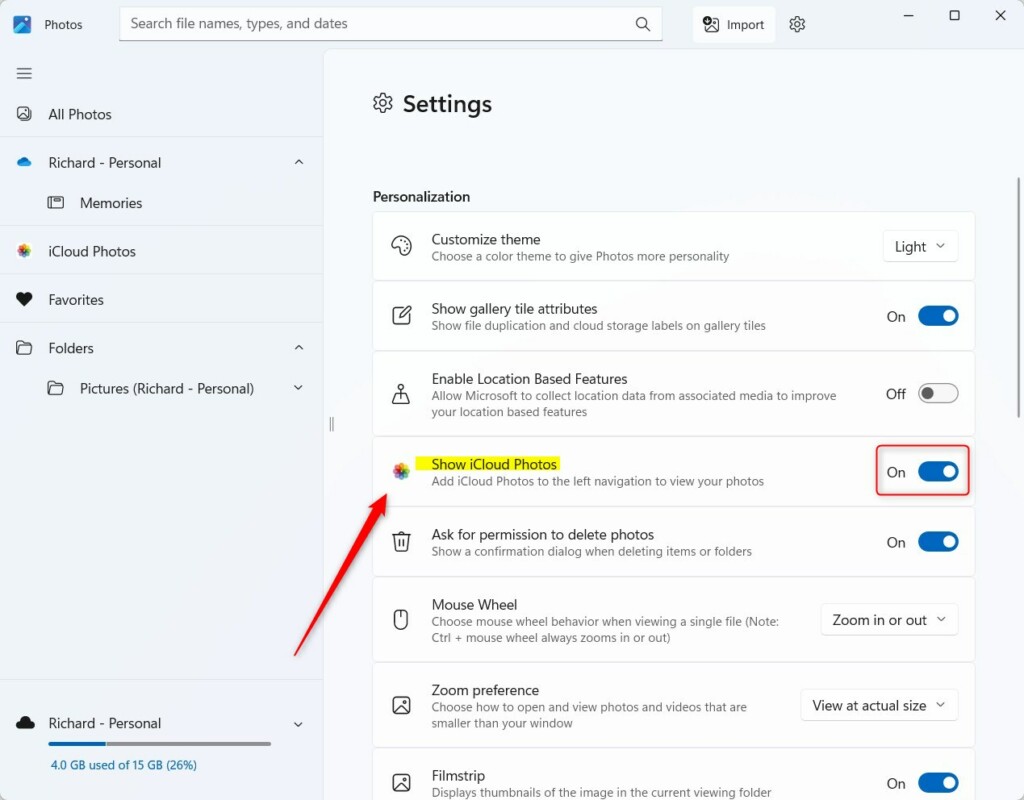
Turn show iCloud photos on or off in the Photos app
To undo the change, flip the same switch back. Nothing is deleted either way. Switching it off only hides your iCloud photos in the app, so it will not stop syncing and will not free up disk space.
File Explorer Integration
Once iCloud is installed, you can access your files directly through File Explorer. Open File Explorer and select iCloud Photos in the left navigation pane (it is also located under your user folder, e.g. C:\Users\Username\iCloud Photos). This integration makes it easy to drag and drop files between your computer and the cloud.
With iCloud Photos syncing on, a deletion can carry over to iCloud and your other Apple devices. If you want to free disk space, check the options in the iCloud for Windows app first, and don't simply delete photos from the folder.
Troubleshooting Sync Errors
If your iCloud Photos aren't syncing correctly on Windows 11, work through these checks in order:
- Check your internet connection.
- Make sure your iCloud storage isn't full.
- Confirm that iCloud Photos is still turned on on your iPhone or iPad.
- Open the iCloud for Windows app and click the Repair button.
- Update Windows 11 and the Photos app from the Microsoft Store, then restart your PC.
- If the option still doesn't appear in the Photos app, sign out of iCloud for Windows, sign back in, and check again.
Simple fixes like these clear up most sync errors.
Summary
You can easily manage iCloud Photos on Windows 11 by installing the iCloud for Windows app from the Microsoft Store and signing in with your Apple ID. Once set up, you can turn iCloud Photos on or off directly within the Windows 11 Photos app settings to control which photos appear.- Install the iCloud for Windows app from the Microsoft Store to begin.
- Use the Photos app settings to toggle iCloud visibility.
- Check your storage limits regularly to ensure smooth syncing.
- Use File Explorer for quick access to your cloud-stored images.
- Always keep your Apple ID credentials secure and use two-factor authentication.
Have a question about this guide?
Answered by AI from this guide. Good questions may be added to this page — please don't include personal details.
Did this guide fix your problem?

About the Author
Richard
Tech Writer, IT Professional
Richard is a writer at Geek Rewind who turns complex IT tasks into clear, step-by-step guides. He draws on years of hands-on experience in system administration and enterprise IT operations, focusing on Windows, Linux and WordPress: the problems people actually run into, and the fixes that work. His server and WordPress guides come from systems he runs himself. Richard builds and maintains the platform behind Geek Rewind, from its Ubuntu servers and Nginx configuration to its custom WordPress plugins. Many new tutorials start with readers' questions, and he's always glad to answer them in the comments.
[…] Photos app to replace an image background, remove an image background, import photos and videos, show iCloud in the app, change mouse wheel behavior, and […]
[…] The Photos app comes already installed on Windows 11. You can open, view, and organize your photos here. It also lets you edit pictures and even connect to online photo storage like OneDrive or iCloud. […]