How to Use Generative Erase in Windows 11 Photos App

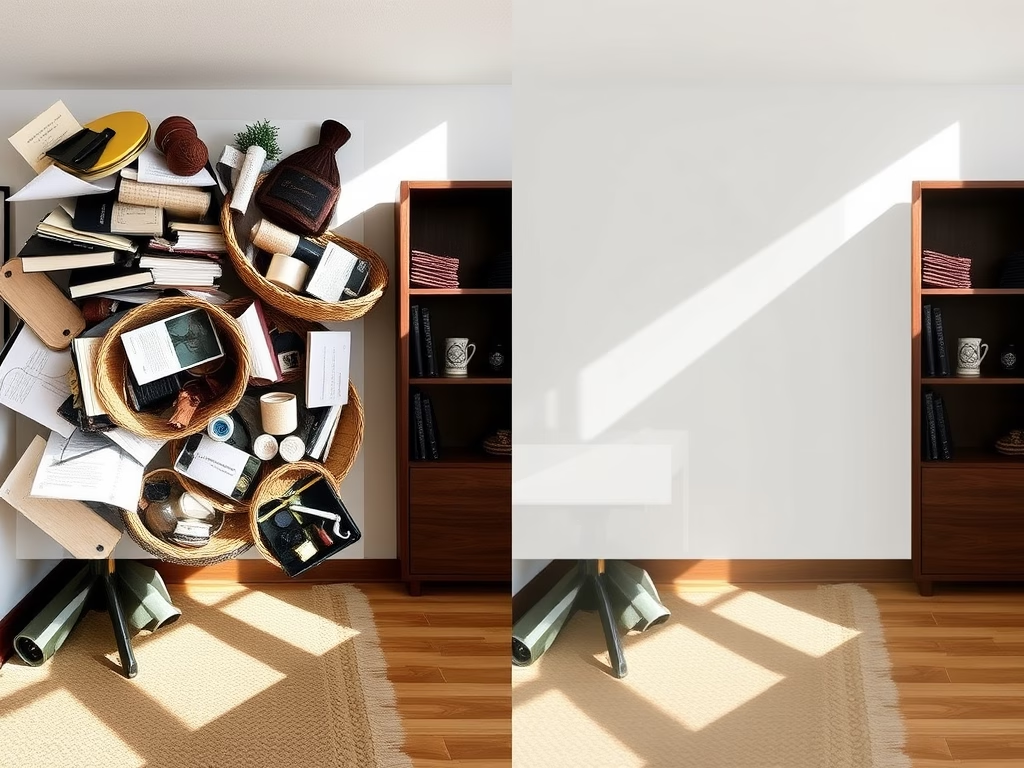
Generative Erase in the Windows 11 Photos app removes unwanted objects from your pictures using artificial intelligence. You brush over a distraction, such as a stray person, a sign or a power line, and the app fills the gap to match the rest of the picture.
The feature needs Windows 11 version 23H2 or newer and a current version of the Photos app. It lets you edit photos on your PC without installing heavy editing software.
Open the Photos app, double-click the photo, click Edit Image, then click the Erase tab in the toolbar. Paint over the unwanted object with your brush, and the app automatically fills the area to match the background. Adjust brush size as needed and save when satisfied.
What is the Photos app?
If you don’t see the Erase tool described below, your Photos app is probably out of date. Open the Microsoft Store, go to Library, check for updates , and then reopen Photos.
What is Generative Erase?
Generative Erase, found in Photos app version 2024.11020.21001.0 and later, removes objects from photos. It cleanly takes out people, signs and other unwanted items. It does a better job than older eraser tools. It can handle large areas and still leave a natural-looking result.
It works best when the background behind the object is fairly simple, such as sky, grass, a wall or water. Busy patterns and fine detail are harder to fill in convincingly, so expect to check the result closely.
How to Use Generative Erase
Generative Erase is a quick way to remove unwanted people, objects or background clutter from a picture. You open the photo in the Photos app and paint over the distraction. The tool fills in the empty space so the final photo looks natural. Follow the steps below.
- Open the Photos app and choose the picture you want to edit. Double-click it so it opens in the full viewer.
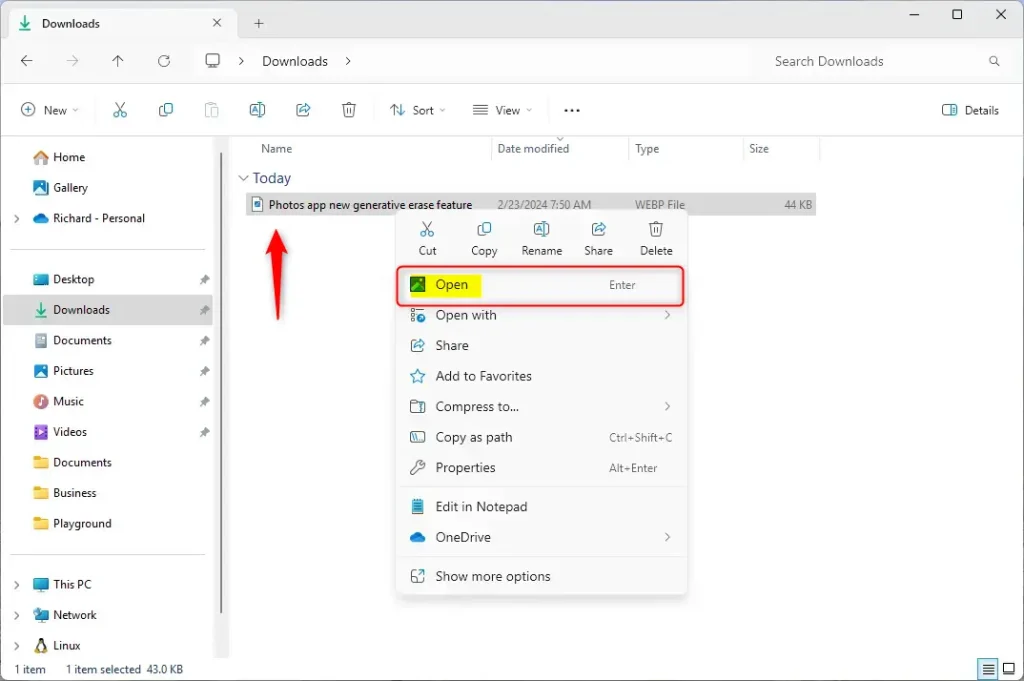
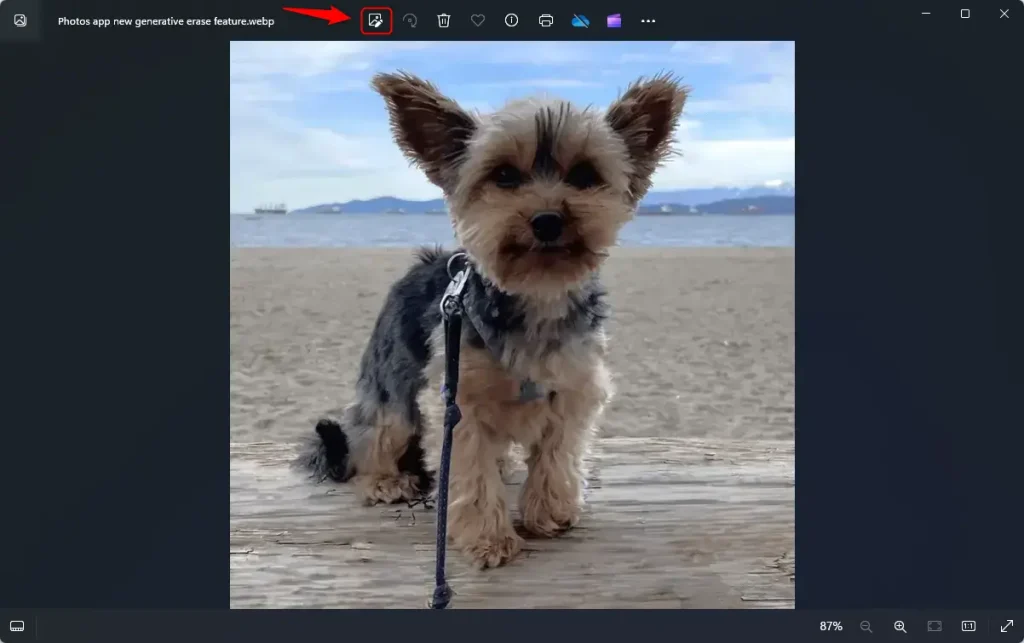
- Click the Edit Image button at the top. You can also press
Ctrl + Eon your keyboard. The editing view opens, with a set of editing tabs along the top.
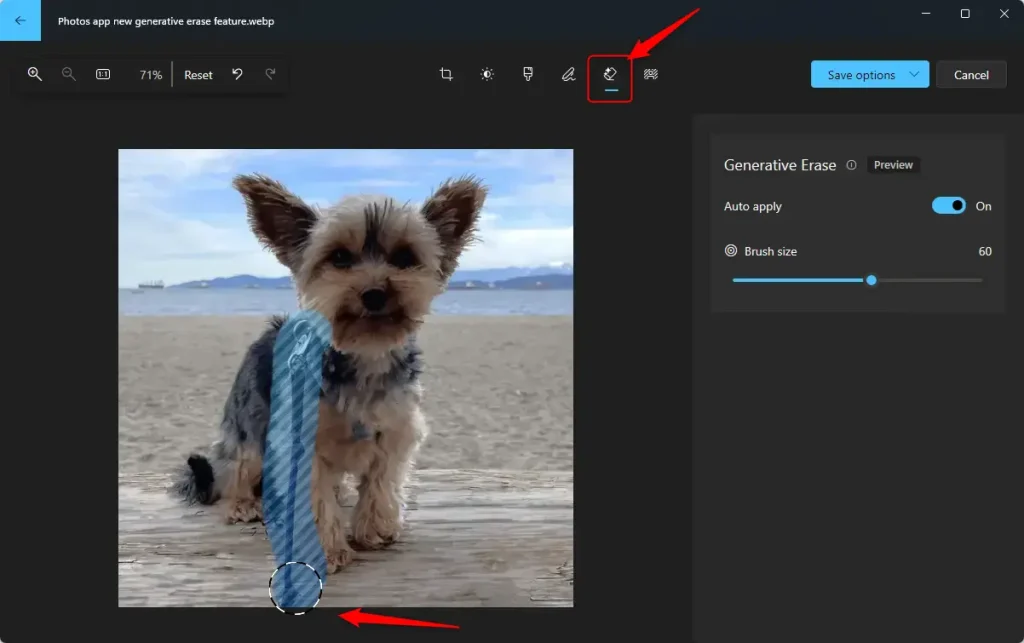
- Look at the toolbar at the top and click the Erase tab. If you can't find it, update the Photos app as described earlier, and check that you are running Windows 11 version 23H2 or newer. A brush size control appears.
- Use your mouse, pen or finger to paint over the object or area you want to remove. Cover the whole object, including its edges and any shadow it casts, so no fragments are left behind.
- Change the brush size as needed. Make it smaller for precise edits around fine detail, or bigger for large areas. You can change the size between strokes.
- Watch as the unwanted object disappears. The background fills in to match its surroundings. Zoom in and check the edges of the filled area. If something is left over, paint over it again. If you don't like the result, use the undo option in the editor and try again with a slightly different brush stroke.
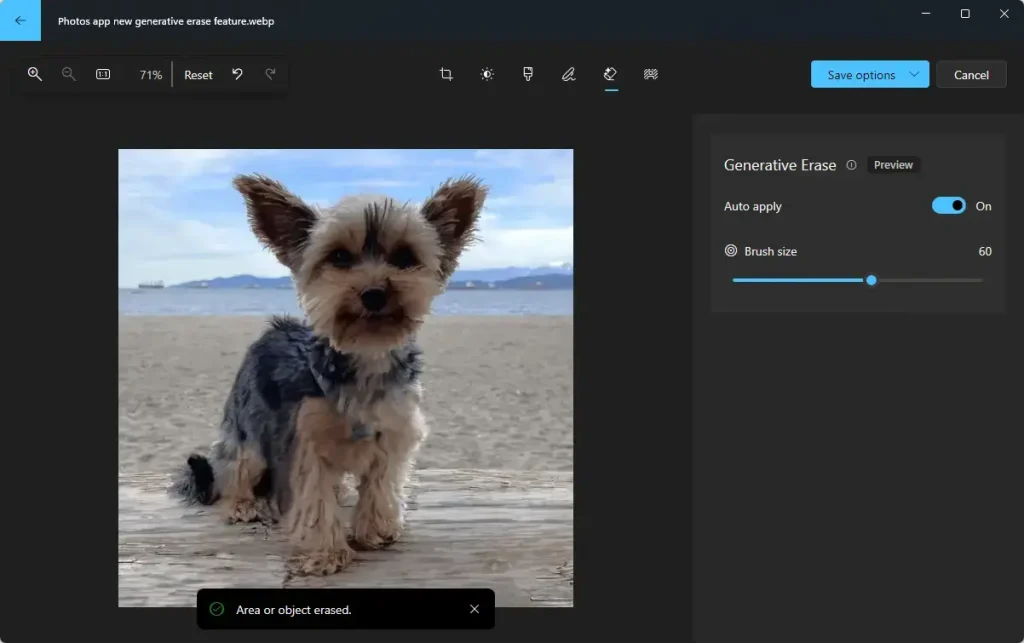
By default, Auto Apply removes the object as soon as you finish a brush stroke. You can switch it off for more precision. With Auto Apply off, you can paint several masks (the selected regions marked for removal) across the image and then apply them together, before saving. This gives you more manual control over the erased sections and helps when you want to fix several objects in one pass. Switch Auto Apply back on at any time to return to the default behavior.
- When you're happy with the result, save your edited photo. If the editor offers a save-as-copy option, use it. That keeps the original file untouched, so you can go back to it if you change your mind.
Summary
Generative Erase in the Windows 11 Photos app is a fast way to clean up your pictures without advanced editing skills. It fills blank spaces to match the surrounding background. You can adjust the brush size for small details, and you can turn off Auto Apply if you need to mark several objects before applying the changes.
Switch off Auto Apply when you want to erase several objects carefully before saving. Save a copy so the original stays safe.
Try it on a few of your own photos to see how well it handles different backgrounds.
For more information, check out the official Microsoft blog post.
Was this guide helpful?

About the Author
Richard
Tech Writer, IT Professional
Richard is a writer at Geek Rewind who turns complex IT tasks into clear, step-by-step guides. He draws on years of hands-on experience in system administration and enterprise IT operations, focusing on Windows, Linux and WordPress: the problems people actually run into, and the fixes that work. His server and WordPress guides come from systems he runs himself. Richard builds and maintains the platform behind Geek Rewind, from its Ubuntu servers and Nginx configuration to its custom WordPress plugins. Many new tutorials start with readers' questions, and he's always glad to answer them in the comments.




No comments yet — be the first to share your thoughts!