Import Photos from a Camera to Your PC in Windows 11

- 46 steps
- Needs administrator rights
- Includes a restart or sign-out
Connect the camera to your PC with a USB cable, and Windows copies its new pictures to a folder on your computer. The quickest way is to connect the camera with a USB cable, open the Photos app, and select Import From a USB device.
This post also covers File Explorer and SD card readers, which work when the Photos app does not show your camera. None of the methods need administrator rights, except the driver fix in the troubleshooting section. That step has an administrator note beside it.
To import photos from a camera to your PC in Windows 11, connect the camera with a USB cable, open the Photos app, select Import, then From a USB device. Set the camera’s USB mode to MTP or PTP first. Windows then copies the new pictures into your Pictures folder, and you can choose which ones to import.
What you need before you start
Most cameras made in the last 15 years work with Windows 11 without extra software. Windows treats the camera as a storage device and reads its pictures directly. Before you connect anything, check these items:
- A USB cable that carries data. The cable that came with the camera is the safest choice. Some cables only charge, and Windows will not see the camera at all if you use one of those.
- A charged battery. A camera that shuts off mid-transfer can leave a half-copied file. Charge it first, or use the camera’s mains charger (AC adapter) if it has one.
- Enough free space on your PC. Open File Explorer, select This PC, and check the free space on drive C:. Raw files (unprocessed images straight from the camera’s sensor) from a recent camera often run 25 MB or more each, so a full card can need many gigabytes.
- Optionally, an SD card reader. Many laptops have a built-in slot. Desktop PCs often do not, but a USB card reader is inexpensive and usually faster than the camera’s own USB connection.
Also check the camera’s USB mode. Many cameras have a menu setting that controls what the camera does when plugged in. Look for options named MTP, PTP, PC Connection, or Mass Storage.
MTP (Media Transfer Protocol) and PTP (Picture Transfer Protocol) are standard ways for a device to share files with a PC. Either one works with Windows 11. A setting such as Charge only does not.
Import photos from a camera to your PC in 🪟 Windows 11 with the Photos app
The Photos app can pull every new picture off the camera and sort it into folders on your PC. The steps below cover the whole process, from connecting the camera to checking the import.
- Turn on the camera. Wake the screen if it has gone dark, because some cameras block transfers while locked or asleep.
- Set the camera’s USB mode to MTP or PTP. Use the camera’s menu for this, and skip the step if your camera does not offer the setting.
- Plug the USB cable into the camera. Use the port on the camera that the manual lists for data transfer.
- Plug the other end into a USB port on your PC. A port directly on the PC is more reliable than one on a hub or keyboard.
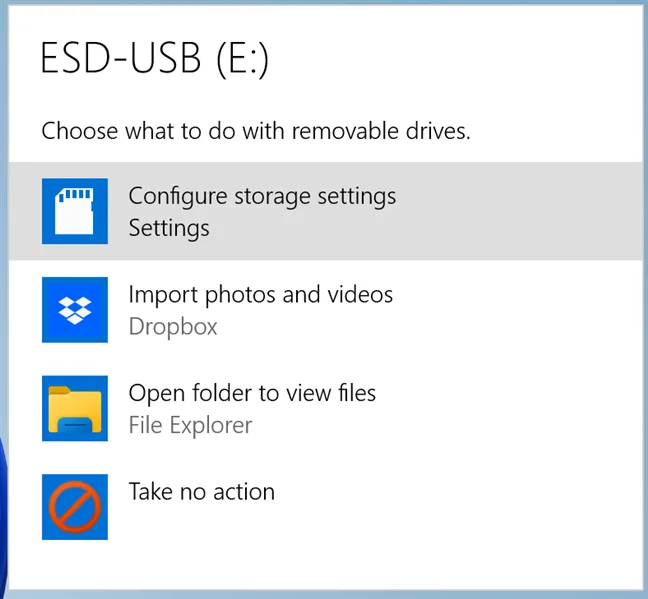
- Wait for the connection sound. Windows plays the device-connected chime and may show a notification or an AutoPlay prompt. If a prompt asks what to do, you can choose Import photos and videos (Photos) and skip to step 9.
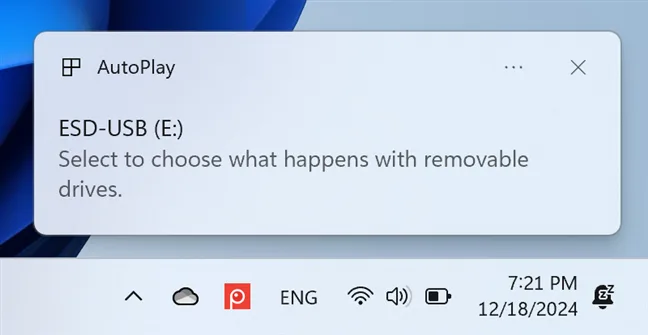
Settings > Bluetooth & devices > AutoPlay - Select Start, type Photos, and press Enter. The Photos app opens and shows your picture library.
- Select Import in the top toolbar. A short menu opens.
Settings > Bluetooth & devices > AutoPlay - Select From a USB device. Windows searches the camera for pictures and videos, which takes a few seconds to a few minutes depending on how full the card is.
- Choose your camera from the list if Windows asks which device to use. The app then shows thumbnails of everything it found.
- Select the photos you want. Use Select all for everything, or tick individual thumbnails. New items that you have not imported before may be selected for you.
- Check the destination folder shown on the screen. If the app offers a link to change it, use that to pick a different folder. By default, the pictures go into your Pictures folder.
- Leave any “delete after importing” option unticked. Deleting from the camera cannot be undone from Windows, so wait until you have checked the copies.
- Select Import (or Import selected, depending on your Photos version). A progress bar shows the transfer.
- Wait until the import finishes. The Photos app opens the imported pictures when it is done.
- Eject the camera. Select the Safely Remove Hardware and Eject Media icon in the system tray (you may need to select the up arrow to show hidden icons), choose your camera, then unplug the cable.
The menu labels differ slightly between Photos app versions. If you do not see Import at all, use the File Explorer method in the next section. It does not depend on the Photos app version.
Photos does not duplicate pictures that you already imported once. That makes it useful for a camera whose card you do not clear often. To see where the files landed, read how to find photos you imported from a camera in Windows 11.
If the Photos app does not work for you, copy the files by hand with File Explorer instead, as described in the next section. For more on the app itself, see how to import photos and videos in Windows 11.
Copy photos from the camera with File Explorer
File Explorer gives you full control over which folders and files move, and it works when the Photos app cannot see the camera. Follow the steps below to copy the pictures by hand.
- Connect the camera to the PC. Turn it on first and set the USB mode as described above.
- Press Win+E. File Explorer opens.

File Explorer - Select This PC in the left pane. Your drives and connected devices appear on the right.
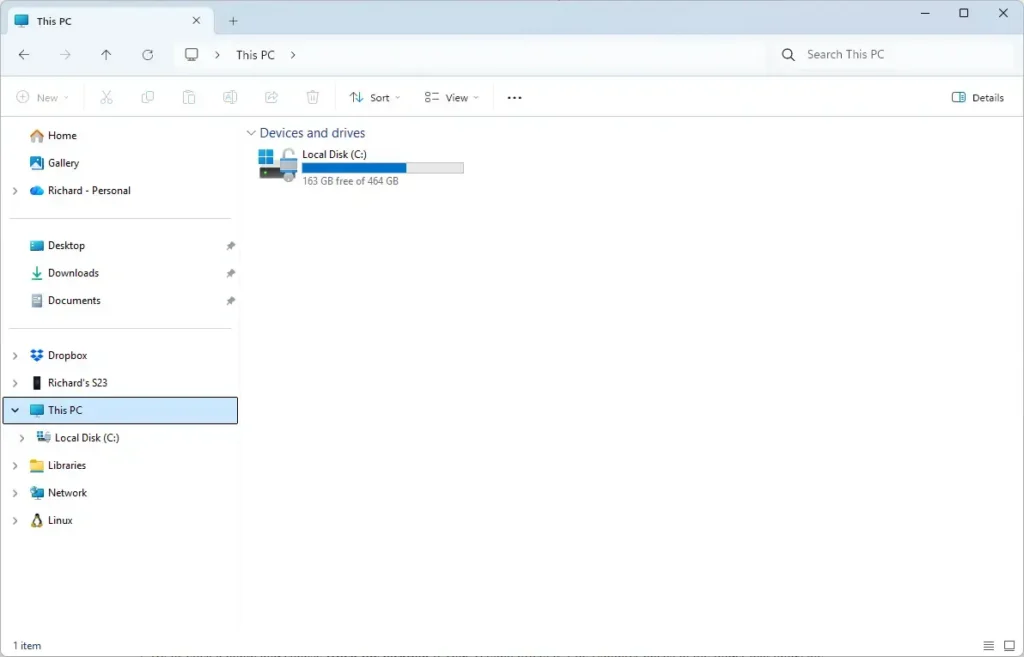
File Explorer - Find your camera. It shows up either under Devices and drives as a drive letter, or as a named device with a camera icon.
- Double-click the camera. If it contains more than one storage area, such as Internal Storage and SD Card, open the one that holds your pictures.
- Open the DCIM folder. DCIM stands for Digital Camera Images, and almost every camera stores its pictures inside it.
- Open the subfolder inside DCIM. The name depends on the maker and is often a number followed by letters, such as 100CANON or 101NIKON. Larger cards can have several of these folders.
- Press Ctrl+A to select every file in the folder. To pick only some, hold Ctrl and click each file.
- Press Ctrl+C. Windows copies the selected files.
- Open the destination folder in a second File Explorer window. A good choice is a new folder inside Pictures, named with the date or event.
- Press Ctrl+V. A copy window shows progress, and it closes when the transfer is complete.
- Repeat steps 7 to 11 for each remaining folder inside DCIM.
If you want your pictures backed up beyond this one PC, the next step is cloud sync. See how to sync files and photos to Google Drive in Windows 11 for one route.
Import from an SD card instead of the camera
Taking the memory card out of the camera and reading it directly is often faster, and it spares the camera’s battery. The card appears as an ordinary removable drive.
- Turn off the camera. Removing a card from a camera that is on can corrupt it.
- Remove the memory card. Most cards release with a gentle push, and the compartment is usually on the side or under the battery door.
- Insert the card into your PC’s card slot. If the PC has no slot, put it into a USB card reader and plug that in.
- Wait for the card to appear. Windows may show an AutoPlay notification in the corner of the screen.
- Open File Explorer and select This PC. The card appears under Devices and drives with a drive letter, such as E:.
- Open the drive, then open the DCIM folder.
- Copy the picture folders to your PC. Follow steps 8 to 12 in the File Explorer section above.
- Eject the card. Right-click the drive in File Explorer and select Eject, then remove it once Windows says it is safe.
The Photos method works with a card too. With the card inserted, select Import From a USB device in the Photos app, and choose the card when the app asks.
Change what Windows does when you plug in a camera
AutoPlay is the Windows feature that decides what happens when you connect a camera or insert a card. It might open the Photos app, open a folder, or do nothing. If a window keeps opening that you do not want, change the AutoPlay setting for that device type.
- Open Settings. Press Win+I.
- Go to Bluetooth & devices AutoPlay. The AutoPlay page opens.
- Check the switch labelled Use AutoPlay for all media and devices. If it is off, Windows takes no action when you connect a camera.
- Find your camera or card under Choose AutoPlay defaults. A device appears in the list only after it has been connected once.
- Select the drop-down menu for the device and choose an action. Typical options are Import photos and videos (Photos), Open folder to view files (File Explorer), Take no action, and Ask me every time.
Open the AutoPlay page in Settings and choose Ask me every time if you switch between methods. Confirm the exact menu path against your Windows 11 version. To undo any change, return to the same page and pick another option.
If 🪟 Windows 11 doesn’t see your camera
A camera that does not appear in the Photos app or File Explorer is almost always a cable, a port, or a camera setting. Work through these causes in order, starting with the cheapest to check.
Check the cable, port and camera mode
Try a different USB cable first, then a different USB port directly on the PC. Charge-only cables are common, and they look identical to data cables. Then confirm the camera is switched on and the USB mode is MTP or PTP. After changing the mode, unplug the cable and plug it back in.
Update or reinstall the camera driver
A driver is the software that lets Windows talk to a device. This fix needs an administrator account, and Windows may ask you to confirm with a prompt.
- Right-click Start. A menu opens.
- Select Device Manager. The list of hardware opens.
- Expand Portable Devices and look for your camera. If you do not see it there, check Cameras and Imaging devices. A device with a yellow warning triangle needs attention.
- Right-click the camera and select Update driver.
- Select Search automatically for drivers. Windows looks for a better driver and installs it if one exists.
- Restart the PC if Windows asks. Then reconnect the camera.
Open Device Manager and right-click the camera. Choose Update driver. If Windows finds nothing new, choose Uninstall device, unplug the camera, wait ten seconds, and plug it in again. Windows reinstalls the driver on its own. Check the camera maker’s support site as well, since some older models need their own driver or app.
Photos show as blank thumbnails or won’t open
Raw files are unprocessed images that some cameras save instead of, or alongside, JPEG photos (the most common picture format). Windows cannot always display them without an extra codec (a small piece of software that reads a file format). Search the Microsoft Store for Raw Image Extension, install it, and reopen the folder. Whether your specific camera model is supported depends on the extension’s current list, so check the camera maker’s site if the thumbnails stay blank.
The card shows as empty or asks to be formatted
A prompt to format usually means the card was removed while the camera was writing to it, or the card’s file system (the way data is organised on the card) has errors. Try the card in another reader or port first. If the prompt persists, stop using the card and look for recovery software before you write anything new to it.
Check your copies before you erase the card
Checking the transfer takes about two minutes. It catches most copy problems before you erase the card. Open the destination folder and compare the file count with the camera’s folder. In File Explorer, select all files and read the count in the status bar at the bottom of the window. Open a handful of pictures from the start, middle, and end to confirm they display correctly.
After that, erase the card with the camera’s own Format command, not by deleting files in Windows. Formatting inside the camera rebuilds the folder structure in the way the camera expects.
What to do next
Back up the imported photos to a second place, such as OneDrive or an external drive, before you reuse the card. If you later import from a phone instead of a camera, how to transfer photos to Windows 11 from a phone covers that route. If you already have pictures in Google Drive or Google Photos, importing photos and files from Google Drive and Photos to OneDrive moves them into your Microsoft account.
Have a question about this guide?
Answered by AI from this guide. Good questions may be added to this page — please don't include personal details.
Did this guide fix your problem?

About the Author
Richard
Tech Writer, IT Professional
Richard is a writer at Geek Rewind who turns complex IT tasks into clear, step-by-step guides. He draws on years of hands-on experience in system administration and enterprise IT operations, focusing on Windows, Linux and WordPress: the problems people actually run into, and the fixes that work. His server and WordPress guides come from systems he runs himself. Richard builds and maintains the platform behind Geek Rewind, from its Ubuntu servers and Nginx configuration to its custom WordPress plugins. Many new tutorials start with readers' questions, and he's always glad to answer them in the comments.
No comments yet — be the first to share your thoughts!