Find My Folders on This PC in Windows 11

- 29 steps
- Needs administrator rights
Your personal folders are in File Explorer, under This PC, in a section called Folders. Press Win+E, click This PC in the left pane, and look for Desktop, Documents, Downloads, Music, Pictures and Videos.
This PC is the page in File Explorer that lists your personal folders and every drive connected to the computer. The steps below work the same on Windows 11 Home and Pro, need no administrator rights, and need no restart. The rest of the guide covers what to do when This PC is missing, a folder is gone, or a file is not where you expect.
Your personal folders are in File Explorer under This PC, in the Folders section. Press Win+E, click This PC in the left pane, and look for Desktop, Documents, Downloads, Music, Pictures and Videos. Windows 11 opens File Explorer to Home by default, so you need that extra click to reach This PC.
What This PC shows in 🪟 Windows 11
This PC has two main sections. The Folders section holds the six standard folders that belong to your user account. The Devices and drives section lists your internal drive (usually Local Disk (C:)), plus USB drives, external disks and optical drives.
If you connect a shared network folder to a drive letter (a letter such as Z:), it appears in a third section, Network locations. A folder you mounted from a drive into another folder (attached inside another folder, so it looks like part of that folder) does not get its own entry here. It stays inside the folder where you mounted it.
How to find your folders on This PC
These steps open the Folders section so you can see and open your folders on this PC. Each step names the exact label you will see on screen.
- Open File Explorer. Press Win+E, or select the yellow folder icon on the taskbar. A File Explorer window opens, usually on the Home page.

File Explorer - Select This PC in the left pane. The navigation pane (the list of locations on the left side of the window) shows it below your pinned folders. The main area now shows Folders and Devices and drives.
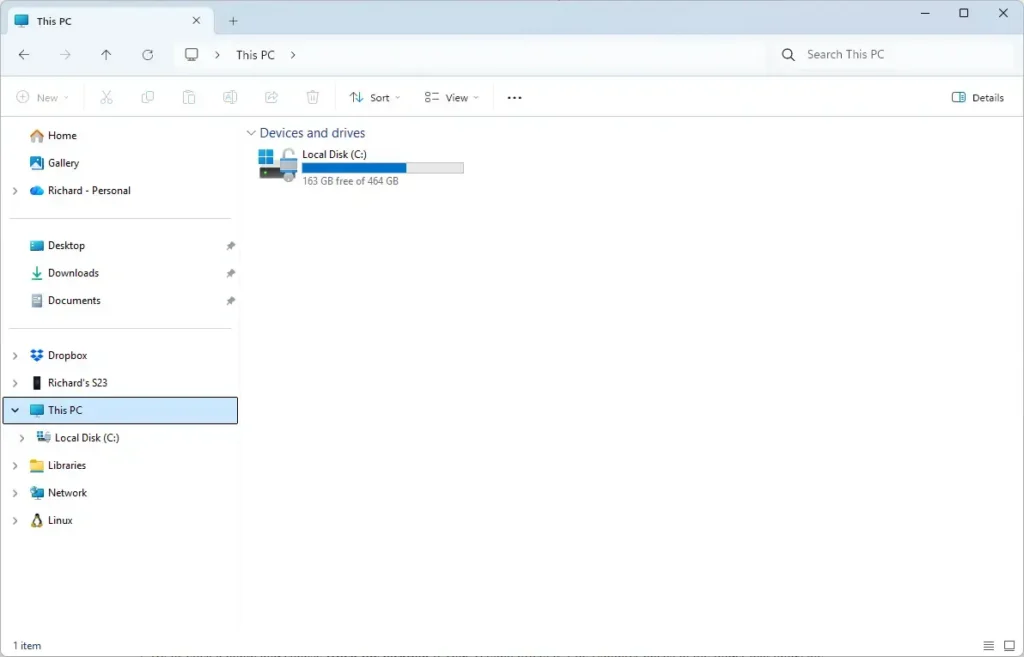
File Explorer - Look for the Folders heading. It sits at the top of the main area and lists Desktop, Documents, Downloads, Music, Pictures and Videos.
- Select the small arrow next to Folders if the section is collapsed. The six folder tiles appear below the heading.
- Double-click the folder you want. Its contents open in the same window.
- Click the address bar to see the full path. The address bar is the box at the top that shows where you are. It turns into plain text such as 📁C:\
Users\ .USERNAME\ Documents - Right-click the folder in This PC and select Properties. Open the Location tab to see where the folder is stored.
The last two steps matter if you back up files or move them between PCs. The address bar and the Location tab tell you the real storage location, which is not always the C: drive.
Where the default folders actually live
Each standard folder is a subfolder of your user profile, the folder that holds everything personal to your account. On most PCs the profile is 📁C:\
- Desktop is 📁C:\
Users\ .USERNAME\ Desktop - Documents is 📁C:\
Users\ .USERNAME\ Documents - Downloads is 📁C:\
Users\ .USERNAME\ Downloads - Music is 📁C:\
Users\ .USERNAME\ Music - Pictures is 📁C:\
Users\ .USERNAME\ Pictures - Videos is 📁C:\
Users\ .USERNAME\ Videos
Other user accounts on the same PC have their own profile folders. Accounts with standard (non-administrator) permissions cannot open another person’s Documents or Desktop by default.
If OneDrive changed the location
If you turned on OneDrive folder backup, Windows moves Desktop, Documents and Pictures into your OneDrive folder. The path then looks like 📁C:\
This catches people out when they look for files in 📁C:\
If This PC is missing from the left pane
The whole navigation pane can be hidden, which makes This PC look missing. Turn it back on from the View menu.
- Open File Explorer. Press Win+E.
- Select View in the toolbar. A menu opens with display options.
- Point to Show. A submenu opens.
- Select Navigation pane. A check mark appears next to it, and the left pane returns with This PC in the list.
If the pane is visible but you still do not see This PC, scroll down in the pane. It sits below the pinned folders and above Network, so a long list of pinned items can push it off screen.
Make File Explorer open to This PC
This setting skips the Home page so File Explorer opens straight to your folders and drives. It affects only your account and you can change it back at any time.
- Open File Explorer. Press Win+E.
- Select the three dots (See more) in the toolbar. A menu opens.
- Select Options. The Folder Options window opens on the General tab.
- Open the list next to Open File Explorer to. Two choices appear: Home and This PC. Newer builds add more choices.
- Select This PC.
- Select Apply, then OK. The next File Explorer window opens on This PC.
To undo this, repeat the steps and choose Home in step 5.
Put a This PC shortcut on the desktop
A desktop icon gives you a one-click route to your folders without opening File Explorer first. Windows 11 hides the icon by default. In Settings, Windows calls the icon Computer. On the desktop, the label reads This PC.
- Open Settings. Press Win+I.
- Go to Personalization Themes. The theme options open.
- Select Desktop icon settings under Related settings. A small window opens.
- Tick the Computer box.
- Select Apply, then OK. The This PC icon appears on the desktop.
Clear the Computer box to remove the icon again.
If a folder is missing from the Folders section
Windows 11 normally shows all six standard folders. If one is gone, or it points to the wrong place, something probably changed or damaged the folder’s stored location. The Location tab can reset it to the default.
- Open File Explorer. Press Win+E.
- Go to your user profile folder. Click the address bar, type 📂%userprofile%, and press Enter. The folder 📁C:\
Users\ opens.USERNAME - Right-click the folder that misbehaves and select Properties. The Properties window opens.
- Open the Location tab. It shows the folder’s current path.
- Select Restore Default. The path changes back to the standard location.
- Select Apply. If Windows asks whether to create the folder, select Yes.
- Select OK. Open This PC again to confirm the folder is back.
If the Location tab is not in the folder’s Properties, the folder is not one of the six standard ones. Only the standard folders have a Location tab.
If the folder was deleted by mistake, check the Recycle Bin on the desktop first. Right-click the item there and select Restore. For more on how deletion works, see how to delete files and folders in Windows 11.
Find folders that are not in the default six
Folders you made yourself, or that apps created, do not appear in the Folders section. They live somewhere on a drive. Search, hidden items and pinning each help. Search finds files by name, hidden items reveal folders that stay out of sight, and pinning keeps the ones you use most one click away.
Search from This PC
Search covers every drive when you start from This PC. Select This PC in the left pane, click the search box in the top-right corner, and type part of the folder name. Press Enter.
Results appear in the main area, with the path of each result in a column. Locations in the search index (a list Windows keeps to speed up searches) return results quickly, and other locations take longer.
If a folder you know exists never shows up in search, it may be excluded from the index on purpose. See how to hide folders from Windows Search to check whether that applies to you.
Show hidden folders
Some folders are hidden by default, such as AppData inside your user profile. Apps store settings and caches (temporary files that help apps run faster) there. To see them, open File Explorer, select View, point to Show, and select Hidden items.
Hidden folders appear with a faded icon. Select Hidden items again to hide them.
Pin the folders you use most
Pinning puts a folder on the Home page and in the left pane, so you reach it in one click. Right-click the folder and select Pin to Quick access. A pin icon appears next to it.
Right-click it again and select Unpin from Quick access to remove it. The folder itself is not touched.
Work with the folders once you find them
After you locate a folder, the usual next tasks happen in the same window. To create a new folder inside Documents or any other location, right-click empty space and choose New Folder. To change a name, see how to rename folders in Windows 11.
If you want to compare two folders side by side, open each folder in its own window. This is useful when you copy files between Documents and an external drive.
What to do next
If a folder still does not appear after you check This PC, search, and hidden items, look in the Recycle Bin and in your OneDrive folder. Backup can move files there. Feature updates and a new user profile can reset your File Explorer start page and pinned folders, so repeat the steps under Make File Explorer open to This PC if Home returns. To tidy your folders once you find them, learn how to delete folders in Windows 11 safely.
Have a question about this guide?
Answered by AI from this guide. Good questions may be added to this page — please don't include personal details.
Did this guide fix your problem?

About the Author
Richard
Tech Writer, IT Professional
Richard is a writer at Geek Rewind who turns complex IT tasks into clear, step-by-step guides. He draws on years of hands-on experience in system administration and enterprise IT operations, focusing on Windows, Linux and WordPress: the problems people actually run into, and the fixes that work. His server and WordPress guides come from systems he runs himself. Richard builds and maintains the platform behind Geek Rewind, from its Ubuntu servers and Nginx configuration to its custom WordPress plugins. Many new tutorials start with readers' questions, and he's always glad to answer them in the comments.
No comments yet — be the first to share your thoughts!