How to Delete Folders in Windows 11

Folders you no longer need take up space and make it harder to find the ones you do. This guide covers every common way to delete a folder in Windows 11: keyboard shortcuts, File Explorer , the right-click menu , PowerShell and Command Prompt. It also explains what happens to the folder afterwards and how to get it back.
Open File Explorer , select the folder you want to delete, and press Del to send it to the Recycle Bin , or press Shift+Del to permanently remove it without recovery. The folder disappears immediately.
What is a Folder?
A folder is like a box on your computer. It holds files and sometimes other folders inside it. Folders help you keep your stuff organized so you can find things quickly.
Check what is in a folder before you delete it. Open it and look, because a folder with an odd name can still hold documents you need.
Where Do Deleted Folders Go?
When you delete a folder from your internal drive in Windows 11, it normally goes to the Recycle Bin . The Recycle Bin lets you get the folder back if you change your mind. Deleted folders stay there until you empty the Recycle Bin or Windows clears old items to make room. A folder that is too large for the Recycle Bin’s size limit is deleted permanently instead, and Windows warns you first.
They are permanently deleted right away. Folders on network locations usually behave the same way.
You can turn on Recycle Bin for removable drives if you want to be safer when deleting files from those devices.
To restore a folder that went to the Recycle Bin, open the Recycle Bin from the desktop, right-click the folder, and click Restore. It returns to the place it was deleted from. If you notice the mistake straight away, pressing Ctrl+Z in File Explorer also undoes the last delete.
Why Learn to Delete Folders?
People delete folders for a few common reasons:
- Free up space on your computer.
- Keep your files tidy and organized.
- Protect your private information by deleting sensitive folders.
- Stop other users from messing with your important files.
If the folder holds private data, remember that a folder sitting in the Recycle Bin is not really gone. Empty the Recycle Bin, or use one of the permanent methods below, when you want it removed for good.
How to Delete Folders in 🪟 Windows 11
1Using Keyboard Shortcuts
Keyboard shortcuts are the fastest way to delete a folder in Windows 11. You select the folder and press one key combination. The plain Delete key sends the folder to the Recycle Bin. Shift+Delete removes it permanently and bypasses the Recycle Bin.
- Open File Explorer and go to the folder you want to delete.
- Select the folder by clicking it once. It should now be highlighted.
- Press one of the keys listed below on your keyboard. With Delete, the folder disappears from the list. Depending on your Recycle Bin settings, you may first see a confirmation box. With Shift+Delete, Windows always asks you to confirm that you want to permanently delete the folder. Click Yes only if you are sure, because this cannot be undone from the Recycle Bin.
| Shortcut Keys | What It Does |
|---|---|
| Delete | Deletes folder and sends it to Recycle Bin |
| Ctrl + D | Also deletes folder and sends it to Recycle Bin |
| Shift + Delete | Permanently deletes folder (no Recycle Bin) |
2Using File Explorer Command Bar
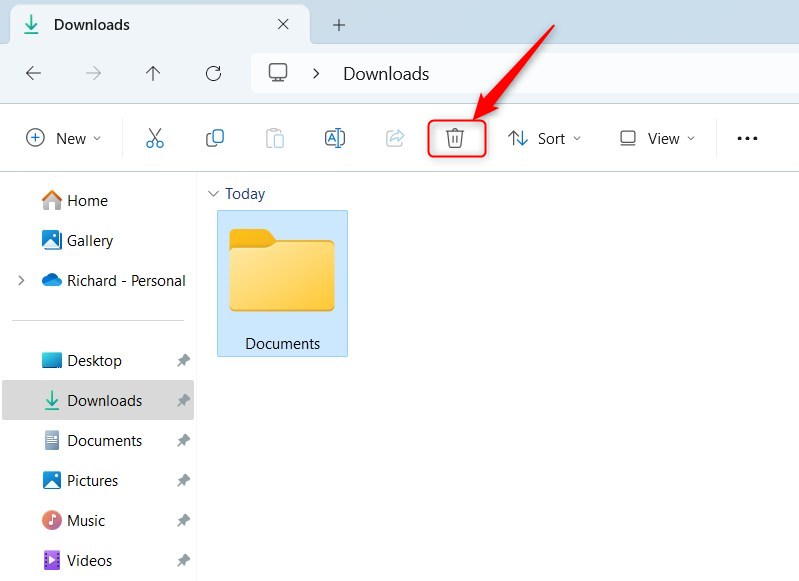
The command bar at the top of File Explorer has a Delete button. It is a good choice if you prefer clicking to remembering shortcuts. It sends the folder to the Recycle Bin, so you can recover it later.
- Open File Explorer by clicking the folder icon on your taskbar or by pressing Windows + E.
- Find the folder you want to delete and click it once to select it.
- In the command bar at the top, click the Delete button (the trash can icon). If you cannot see its label, hover over the icon and the name appears. The folder vanishes from the list.
If the trash can icon is greyed out or missing, you have probably not selected anything. Click the folder once and look again. If the window is narrow, some buttons can also be hidden behind the three-dot menu at the end of the command bar.
3Using Right-Click (Context Menu)
- Open File Explorer.
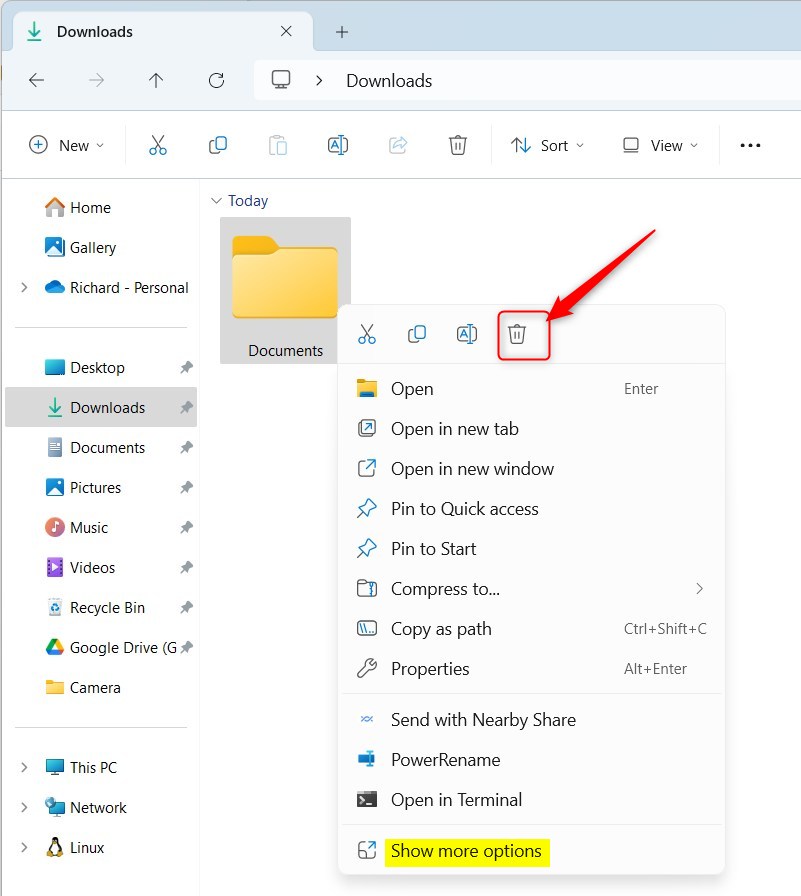
- Right-click the folder you want to delete. A menu appears.
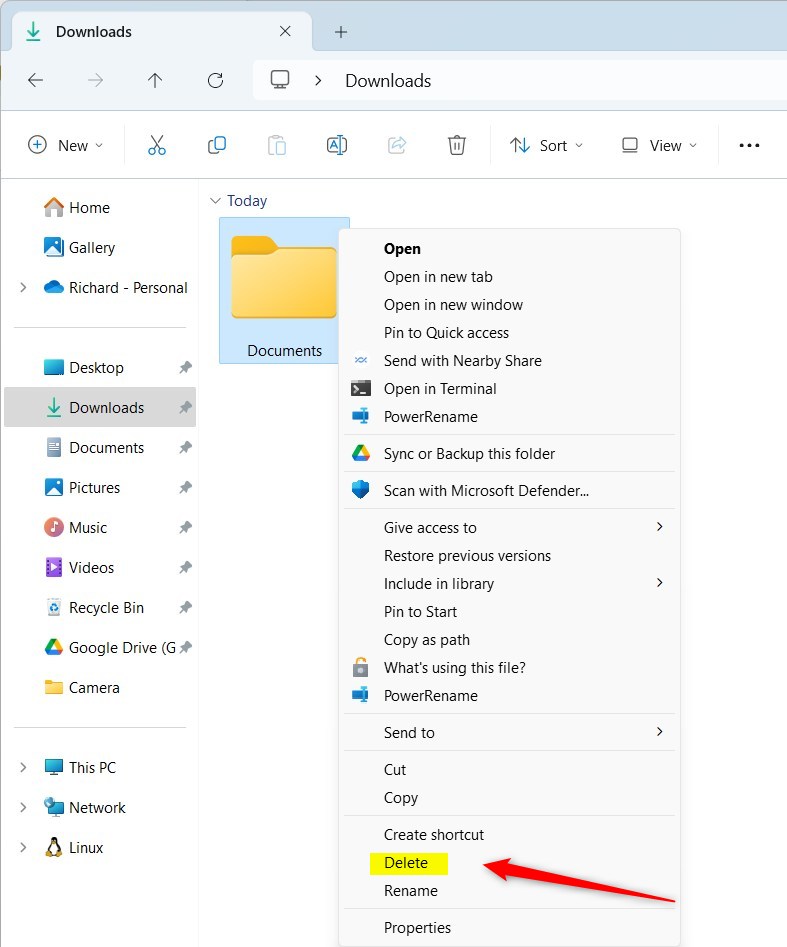
- Click the Delete option (the trash can icon) in the menu. In the Windows 11 menu, it is the icon in the row at the top or bottom. Hovering over it shows its name. The folder moves to the Recycle Bin.
Extra tip: Hold the Shift key while right-clicking to get the full classic menu, where you can also find the Delete option. You can get the same menu by clicking Show more options at the bottom of the normal right-click menu.
4Deleting Folders Using PowerShell (Advanced)
PowerShell offers a command-line method for permanently deleting folders in Windows 11. It is useful for stubborn folders and for scripts. You must open Windows Terminal as an administrator and then type a specific command. The command removes the folder and bypasses the Recycle Bin entirely, so check the path carefully before you press Enter.
- Open Windows Terminal as an administrator and choose the PowerShell tab. [Admin privileges required] To run it as an administrator, right-click the Terminal icon and click Run as administrator. Then click Yes on the User Account Control prompt. The title bar should show that it is running as Administrator.
- Type the command below to permanently delete a folder, replacing the path with your folder's location. If the path contains spaces, wrap it in quotation marks. Press Enter to run it.
Remove-Item -Path "C:\Users\User\Downloads\MyFolder" -Recurse -ForceExample:
Remove-Item -Path "C:\Users\User\Downloads\MyFolder" -Recurse -ForceIf the command works, PowerShell returns to a new prompt without a message. Open File Explorer to confirm that the folder is gone. If you see an error, check the path for typos first. An error can also mean a program is still using something in the folder.
To delete a folder to the Recycle Bin using PowerShell, use this command instead. You can restore the folder afterwards from the Recycle Bin:
(New-Object -ComObject "Shell.Application").Namespace(0).ParseName("C:\Users\User\Downloads\MyFolder").InvokeVerb("delete")5Deleting Folders Using Command Prompt
Command Prompt does the same job as PowerShell. Use whichever one you are more comfortable with. The result is also a permanent deletion with no Recycle Bin.
- Open Windows Terminal as an administrator and choose the Command Prompt tab. [Admin privileges required] Right-click the Terminal icon, click Run as administrator, and click Yes on the User Account Control prompt.
- Type this command to permanently delete a folder, changing the path to match yours. Wrap the path in quotation marks if it contains spaces. Press Enter to run it.
You can also delete folders in Windows 11 using the Command Prompt, which is handy for quick, permanent removals. Open Windows Terminal as an administrator and type a specific command. Remember to change the path to the folder you want to delete.When the prompt returns with no error, the folder has been removed. Check File Explorer to be sure.
The `Remove-Item -Path "folder_path"` PowerShell command moves a specified folder to the Recycle Bin in Windows 11. This action retains the folder in the Recycle Bin for up to 30 days, allowing users to recover the folder. The folder does not permanently delete with this command.
PowerShell (New-Object -ComObject "Shell.Application").Namespace(0).ParseName("C:\Users\User\Downloads\MyFolder").InvokeVerb("delete")
Summary
Here is a short recap:
- Deleting folders helps keep your computer clean and organized.
- Folders you delete usually go to the Recycle Bin, so you can recover them if needed.
- You can delete folders permanently by using the Shift key or command-line tools.
- There are many ways to delete folders, so choose the one you feel most comfortable with.
Deleting folders in Windows 11 helps keep your computer clean and organized. Most deleted folders go to the Recycle Bin, allowing recovery. For permanent removal, you can use keyboard shortcuts like Shift+Delete or command-line tools such as PowerShell or Command Prompt.
A few cautions apply to every method. Do not delete folders inside the Windows or Program Files folders unless you know exactly what they do. If Windows says a folder is in use, close any program that might have it open and try again, or restart the PC. If Windows asks for administrator permission, it usually means the folder belongs to the system or to another user, so stop and check before you continue.
Have a question about this guide?
Answered by AI from this guide. Good questions may be added to this page — please don't include personal details.
Did this guide fix your problem?

About the Author
Richard
Tech Writer, IT Professional
Richard is a writer at Geek Rewind who turns complex IT tasks into clear, step-by-step guides. He draws on years of hands-on experience in system administration and enterprise IT operations, focusing on Windows, Linux and WordPress: the problems people actually run into, and the fixes that work. His server and WordPress guides come from systems he runs himself. Richard builds and maintains the platform behind Geek Rewind, from its Ubuntu servers and Nginx configuration to its custom WordPress plugins. Many new tutorials start with readers' questions, and he's always glad to answer them in the comments.
No comments yet — be the first to share your thoughts!