How to Create Folders in Windows 11

- 20 steps
- Needs administrator rights
Creating folders in Windows 11 lets you group and manage your files to keep your PC organized. A folder is a digital container that holds your documents, pictures, and even other folders in one handy spot.
You can make a brand-new folder in just three clicks right on your desktop or inside any File Explorer window. Organizing your files this way saves time and stops your screen from getting cluttered with stray items. This guide covers five methods: the right-click menu, the File Explorer command bar, a keyboard shortcut, Command Prompt, and PowerShell. All of them work the same on Windows 11 Home and Pro.
Right-click on an empty space, select New, then Folder. Alternatively, open File Explorer, click the New button, and choose Folder. You can also press Ctrl+Shift+N.
1Create a Folder Using the Right-Click Menu
You can create folders in Windows 11 by right-clicking any empty space on your desktop or inside File Explorer. This method is the fastest way to organise your files. Just right-click, point to New, and select Folder to make a new directory ready for your files.
On Windows 11, the right-click menu is the newer, shorter version. New is listed in it, both on the desktop and in File Explorer. If you ever land in the older, longer menu, you can get there from the short one with Show more options, or by pressing Shift+F10. New is in both menus.
- Go to the spot where you want the folder — your Desktop, inside another folder, or on a drive.
- Right-click on an empty space (not on a file or icon). A context menu opens next to your pointer.
- From the menu, hover over New. A submenu opens with items such as Folder, Shortcut, and the file types you can create.
- Click Folder.
- You will see a new folder pop up with the name New folder highlighted, ready for you to name it. Just type the name you want and press Enter.
If you press Enter without typing, the folder keeps the name New folder. To rename it later, click it once and press F2. If you made the folder by mistake, press Ctrl+Z right away to undo it, or select it and press Del to send it to the Recycle Bin.
If New is missing, you probably right-clicked on a file or icon instead of empty space. It also doesn’t appear in places that only list items, like Home or This PC. Open a real drive or folder and try again. In some locations, such as the root of the C: drive or the Program Files folder, Windows may ask for administrator permission or refuse. Use your Documents folder or another folder in your user profile instead.
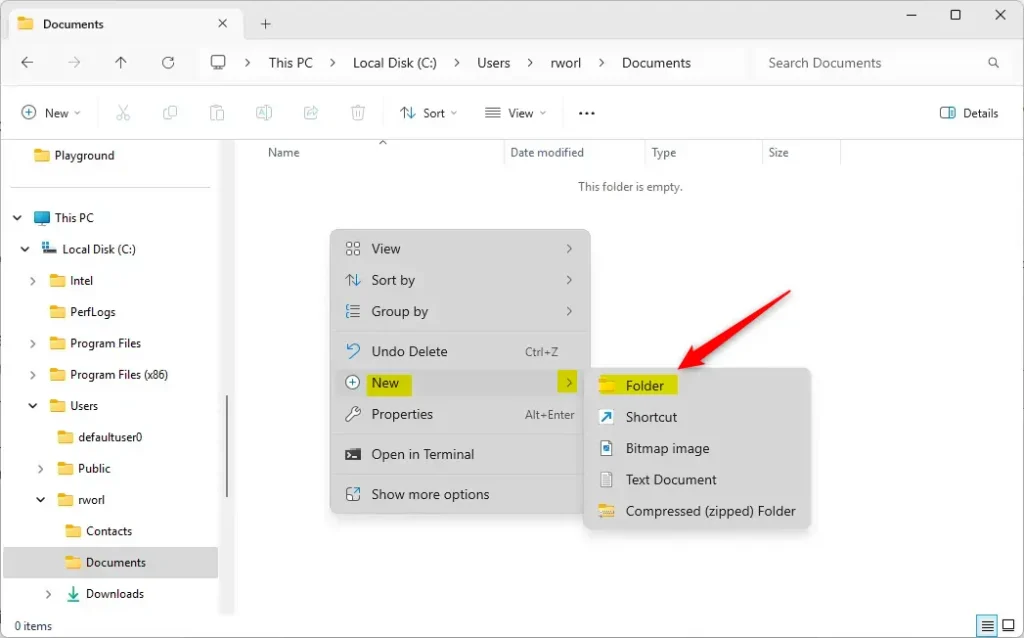
The process: right-click, choose New, then Folder.
2Create a Folder Using File Explorer’s Command Bar
You can create folders using the File Explorer command bar when you already have a window open. This method lets you click buttons instead of using keyboard shortcuts or right-clicking. Open File Explorer, go to your destination folder, click the New button at the top, and select Folder.
The command bar is the row of buttons above the file list. It changes depending on where you are. The New button is only there when you’re inside a folder or drive you can write to.
- Open File Explorer by clicking its icon on the taskbar or pressing
Win + Eon your keyboard. A File Explorer window opens. - Go to the place where you want the new folder. Use the navigation pane on the left or the address bar at the top.
- Click the New button near the top. A dropdown list opens.
- Select Folder from the dropdown. Folder is the first item in the list.
- Type a name for your folder and press Enter. The folder now shows in the file list with your name.
If the New button is missing or greyed out, you’re most likely in Home, This PC, or a search results view. Open an actual folder and the button comes back. Folder names can’t contain these characters: \ / : * ? ” < > |. If you type one, Windows blocks the name and shows a warning.
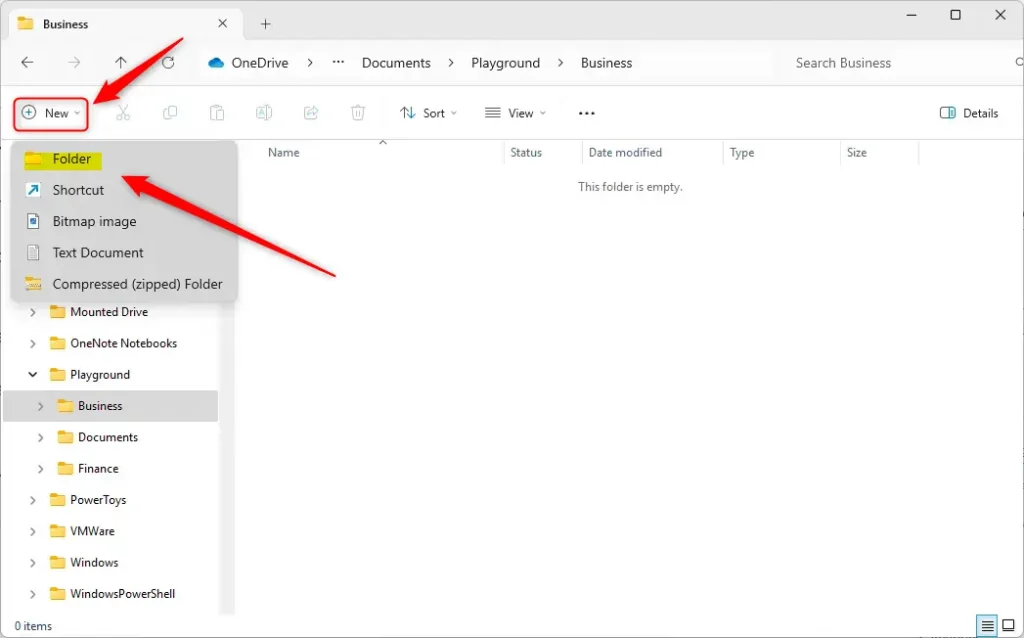
Click “New” then “Folder” in File Explorer.
3Create a Folder Using a Keyboard Shortcut
You can create folders instantly in Windows 11 by pressing Ctrl+Shift+N on your keyboard. This shortcut works anywhere on your desktop or inside File Explorer. Pressing these keys together makes a new folder appear straight away, so you can type a name and press Enter.
This is the quickest method once you get used to it, because your hands never leave the keyboard. Make sure the right window has focus before you press the keys. If you’re on the desktop, click an empty spot on it first.
- Open the location where you want the new folder (like Desktop or inside File Explorer).
- Press
Ctrl + Shift + Nat the same time. Hold the first two keys, then tap the last one. - A new folder will appear with its name highlighted. Just type the name and press Enter.
If nothing happens, the window you’re in may not have focus, or you may be in a view that can’t hold folders, such as Home or This PC. Click inside a normal folder window or on the desktop and press the keys again. To undo the new folder, press Ctrl+Z.
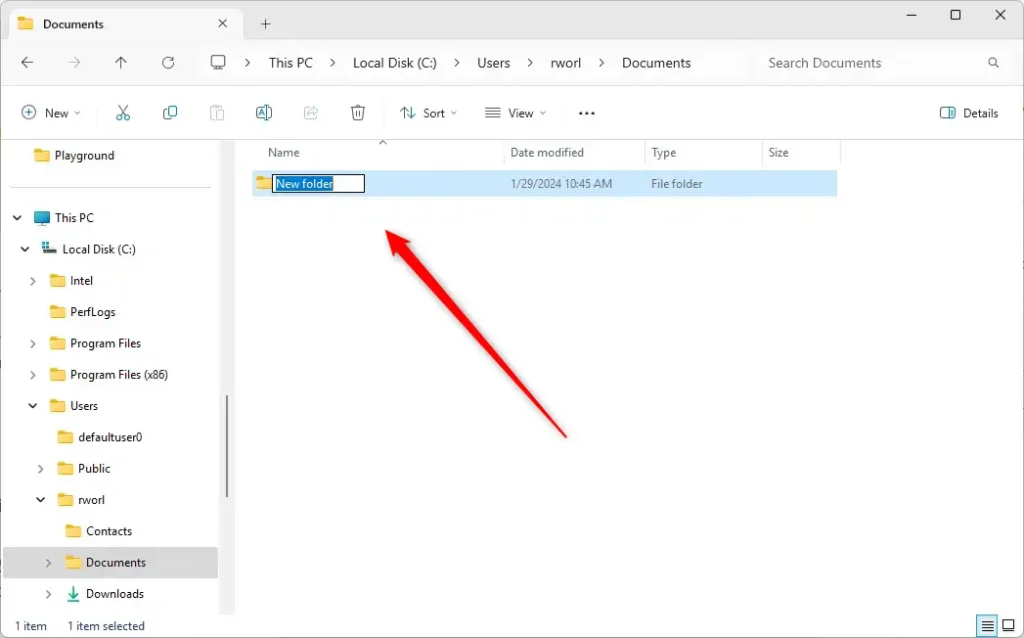
Hitting Ctrl+Shift+N on your keyboard instantly generates a fresh directory, leaving the title highlighted so you can type a name right away.
4Create a Folder Using Windows Terminal (Command Prompt)
You can create folders using Command Prompt by running the mkdir command. This method works well if you already use the command line for system tasks. Open Command Prompt, go to the folder where you want the new directory, and type mkdir followed by your folder name.
The command line is also handy when you need to make several folders quickly or work from a script. A regular (non-administrator) window is enough for folders in your own user profile.
- Open Windows Terminal or Command Prompt by typing
cmdin the search box and clicking the app. A window opens with a prompt showing your current folder, usually your user profile. - Type
cd Documents(or another folder path) and press Enter. This moves you to the folder where you want the new folder. The prompt now shows the new location. - Type
mkdir NewFolderand press Enter. ReplaceNewFolderwith your folder name. - The folder will be created in that location. Command Prompt usually prints nothing when it works, and you just get a new prompt line. Open the location in File Explorer to check that the folder is there.
If the folder name contains spaces, put the whole name in double quotes, or the command will treat each word as a separate folder. If you see “Access is denied”, you’re in a protected location. Move to a folder inside your user profile, or open the window as administrator.
cd Documents
mkdir NewFolder5Create a Folder Using Windows PowerShell
You can create folders using Windows PowerShell (a command-line shell designed for system administration) with the New-Item command. This gives you another terminal-based way to build directories. Open PowerShell, move to your target location, and type the New-Item command with your chosen folder name.
PowerShell works much like Command Prompt for this job, but it prints a short summary of what it created, which makes it easy to confirm the result.
- Open Windows PowerShell by searching in the Start menu. On Windows 11, it may open inside the Windows Terminal app. That’s normal.
- Use
cdto go to the folder where you want your new folder. The prompt updates to show the new location. - Type this command and press Enter:Code
New-Item -Type Directory -Name "FolderName"
Type your desired folder name where it says FolderName.
When the command succeeds, PowerShell prints a small table with the folder’s mode, last write time, and name. If you get an “access denied” error, you’re in a protected location, so switch to a folder in your user profile and run it again. If the folder already exists, PowerShell tells you so and doesn’t create a second one.
Quick Tips
- Give your folders clear names so you know what’s inside. A name like “Tax Documents 2024” is far easier to find later than “Stuff”.
- Keep your desktop and files organized for easier access. Too many items on the desktop can slow down how fast you find things.
- Try different ways and pick what feels easiest for you! Most people end up using the Ctrl+Shift+N shortcut or the right-click menu.
Summary
- Folders help keep your files neat and easy to find.
- You can create folders by right-clicking, using File Explorer, keyboard shortcuts, or commands.
- Using descriptive folder names makes your computer more organized.
- Knowing how to make folders is a helpful skill for everyone who uses a Windows PC.
You have several different ways to create folders in Windows 11 depending on what you prefer. You can use right-click menus, the File Explorer command bar, keyboard shortcuts, or command-line tools like Command Prompt and PowerShell to organise your files easily. None of them needs a restart, and any folder you create by mistake can be undone with Ctrl+Z or deleted in a couple of clicks.
Have a question about this guide?
Answered by AI from this guide. Good questions may be added to this page — please don't include personal details.
Did this guide fix your problem?

About the Author
Richard
Tech Writer, IT Professional
Richard is a writer at Geek Rewind who turns complex IT tasks into clear, step-by-step guides. He draws on years of hands-on experience in system administration and enterprise IT operations, focusing on Windows, Linux and WordPress: the problems people actually run into, and the fixes that work. His server and WordPress guides come from systems he runs himself. Richard builds and maintains the platform behind Geek Rewind, from its Ubuntu servers and Nginx configuration to its custom WordPress plugins. Many new tutorials start with readers' questions, and he's always glad to answer them in the comments.
No comments yet — be the first to share your thoughts!