How to Hide Folders from Windows Search in Windows 11


Exclude folders from Windows 11 search by going to Settings, then Search, then Advanced search options, and adding the folders to the “Exclude these folders” list. This prevents their contents from appearing in search results .
Hide content from Windows Search results in 🪟 Windows 11
You can hide folders from Windows Search in Windows 11 using Settings Privacy & security > Searching Windows. Add the folder to the excluded list, and Windows stops returning files from that location when you type in the taskbar search box .
The exclusion list belongs to Enhanced search, the mode that indexes your whole PC instead of just the default locations. Excluding a folder also excludes the folders inside it. Excluded files are only hidden from search results . Anyone who opens the folder in File Explorer can still see them, so this is not a replacement for permissions or encryption.
Web results are handled by a separate feature, which lets you prevent Windows from including content from the web in its search results .
Here is how to set up the excluded folders. The same steps work on Windows 11 Home and Pro, and you don’t need to restart.
Nearly every system configuration lives inside the Windows Settings app , so start there.
- Press the Win+I shortcut to open Settings .

If the shortcut doesn’t work, type Settings into the taskbar search box and open the app from the results.
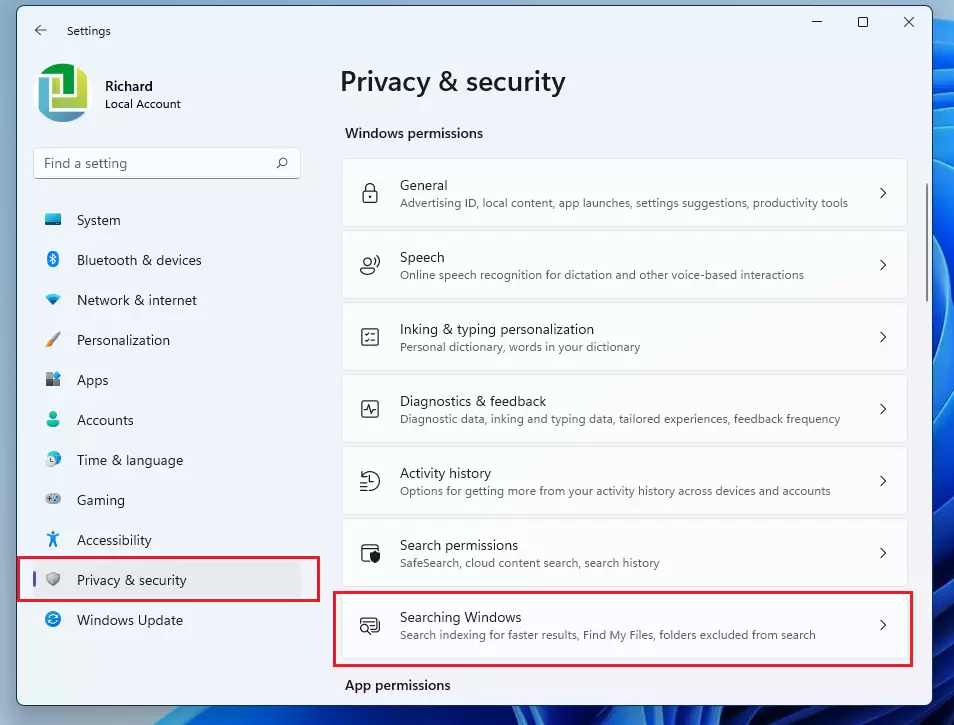
- Select Privacy & security in the left pane of Settings.
- Select Searching Windows. The Searching Windows page opens.
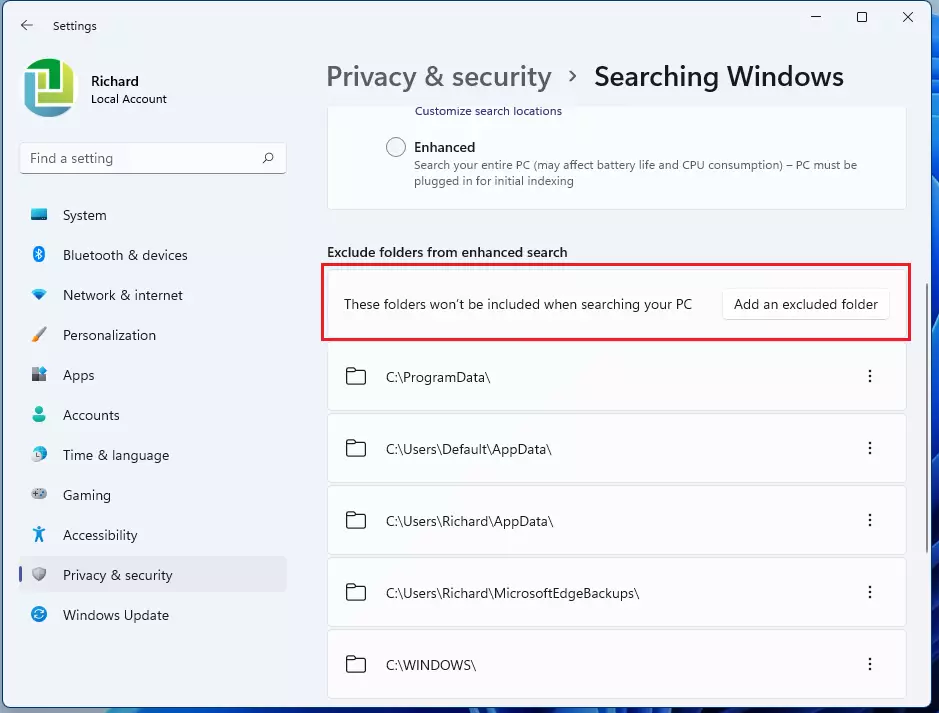
- Scroll down to the Exclude folders from enhanced search section.
If you don’t see an excluded-folders list, check the Find my files setting near the top of the page. The list is tied to Enhanced search, and the layout of this page can differ slightly between Windows 11 builds.
- In the Exclude folders from enhanced search section, select These folders won't be included when searching your PC.
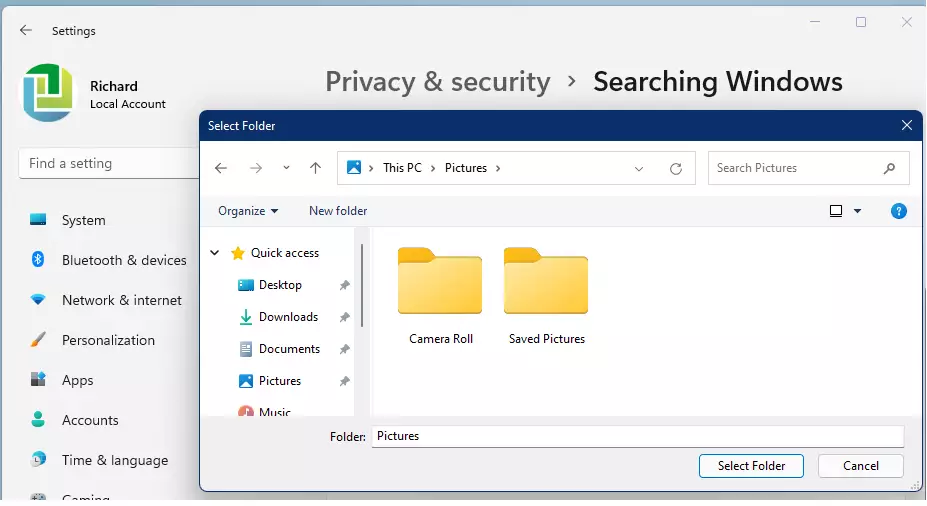
- Click the Add an excluded folder button. A folder picker opens.
- Browse to the folder you want to hide from Windows Search and select it. The folder picker closes and you are back on the Searching Windows page.
The folder now appears in the list of excluded folders under Exclude folders from enhanced search. Repeat the steps above for each additional folder. If a file still shows up in search, wait a few minutes and try again, because Windows may need a moment to update the index.
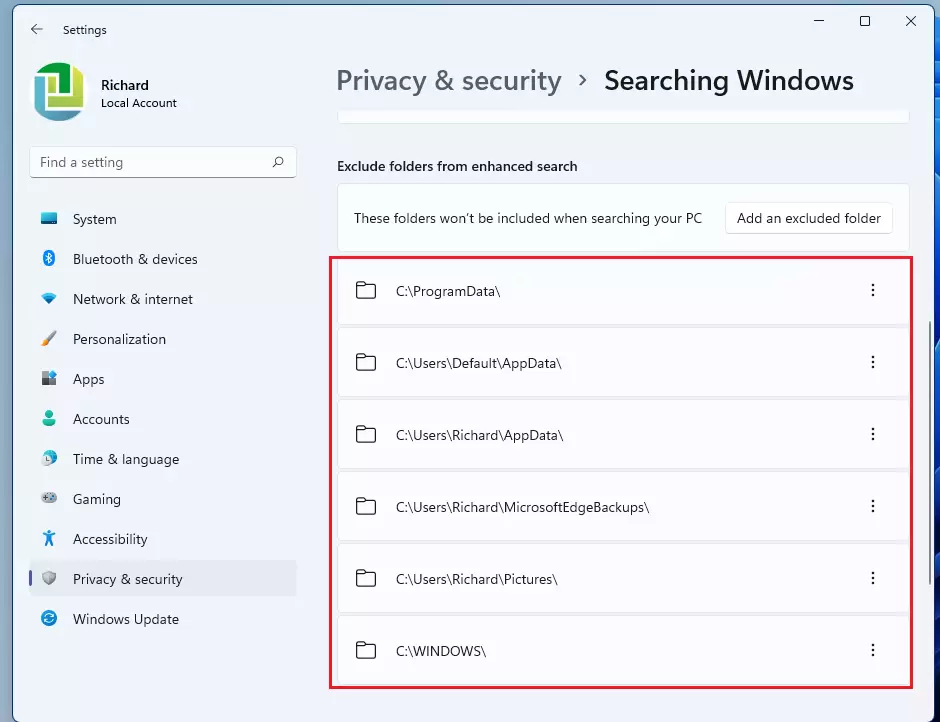
To undo an exclusion, find the folder in the list and do the following.
- Click the vertical ellipse (three dots) next to the folder.
- Select Remove. The folder disappears from the list, and Windows can include its files in search results again.
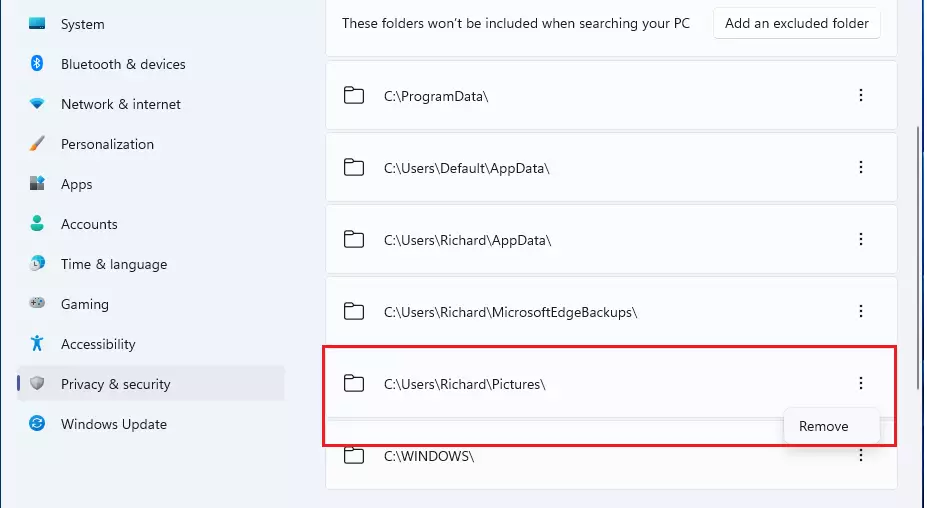
When you are done, close the Settings app. Changes are saved as you make them, so there is nothing else to confirm.
Conclusion:
- Hiding specific folders from Windows Search keeps irrelevant or private content out of your results and can make searching less cluttered.
- Open Settings quickly with the Windows key + I shortcut, or by typing Settings in the taskbar search box.
- Go to Privacy & security Searching Windows, then add the folders under Exclude folders from enhanced search.
- Remove a folder from the list at any time to make it searchable again.
- Excluding a folder only hides it from search. It does not lock or protect the files.
Have a question about this guide?
Answered by AI from this guide. Good questions may be added to this page — please don't include personal details.
Did this guide fix your problem?

About the Author
Richard
Tech Writer, IT Professional
Richard is a writer at Geek Rewind who turns complex IT tasks into clear, step-by-step guides. He draws on years of hands-on experience in system administration and enterprise IT operations, focusing on Windows, Linux and WordPress: the problems people actually run into, and the fixes that work. His server and WordPress guides come from systems he runs himself. Richard builds and maintains the platform behind Geek Rewind, from its Ubuntu servers and Nginx configuration to its custom WordPress plugins. Many new tutorials start with readers' questions, and he's always glad to answer them in the comments.
No comments yet — be the first to share your thoughts!