How to Change SafeSearch Settings in Windows 11

SafeSearch in Windows 11 filters adult and explicit material out of the web results that Windows Search shows. That covers what appears when you search from the taskbar . It is a built-in filter, and changing it takes about a minute.
There are 3 levels: Strict, Moderate and Off. Strict blocks the most explicit text, images and videos. Moderate blocks adult images and videos but leaves normal text results alone, and it is the default.
Browsers and search engines such as Edge, Bing and Google keep their own SafeSearch settings. The last section of this tutorial covers them.
To change SafeSearch in Windows 11, open Settings , select Privacy & security, then click Search permissions and choose Strict, Moderate or Off under the SafeSearch section. Moderate is the default. The change applies to your signed-in account immediately and needs no restart. If the section is missing, your build, region or a work or school account may be limiting it.
How to Change SafeSearch Settings in 🪟 Windows 11
The Settings app is the supported way to change SafeSearch. The path is Settings Privacy & security Search permissions From that page you choose Strict, Moderate or Off.
The Search permissions page with a SafeSearch section is part of Windows 11, but its availability depends on your build and region. On some builds, or where web results in Windows Search are limited, the page looks different or has no SafeSearch section. On a PC managed by a work or school account, an administrator can hide the section or lock it.
Where the section is present, it works the same on Windows 11 Home and Pro. The change applies to the account you are signed in with and does not need a restart.
- Open Windows Settings . Click the Start button and then the gear icon, or press
Windows + Ion your keyboard. The Settings window opens with the System page showing. More about opening Settings - On the left side, click Privacy & security. The privacy options appear on the right.
- On the right side, find and click Search permissions. It sits in the Windows permissions group, so you may need to scroll down to reach it. The Search permissions page opens.💡If you can't find Search permissions
Microsoft has removed SafeSearch from Windows, so Search permissions and its Strict, Moderate, and Off options no longer appear in Settings. There is no direct replacement in Windows, so this step and the steps after it won't work on your PC. To filter explicit results, change SafeSearch in your web browser: open its settings and search for
SafeSearch. You can also manage it online through your Microsoft account. These settings only apply to search in those places, not to Windows Search from the taskbar . 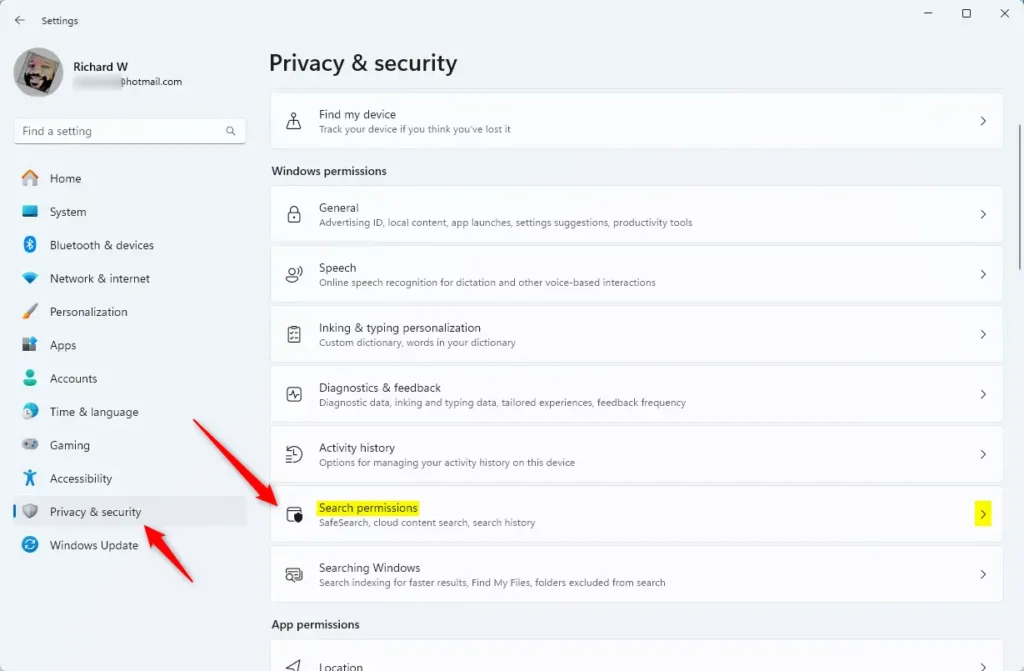
Windows 11 Search permissions tile - Scroll down until you see the SafeSearch section. It lists the three filter levels as options you can select. If you cannot find this section, your build or region may not include it, as noted above.💡If you can't find the SafeSearch section in Windows
Microsoft has removed SafeSearch from Windows Settings , so the Strict, Moderate, and Off options no longer appear under Search permissions. There is no direct replacement in Windows. To filter explicit results, set SafeSearch in your browser: in Microsoft Edge or Google Chrome, open Settings and search for SafeSearch. You can also manage it online through your Microsoft account. These browser and account settings apply only to search in those places, not to Windows Search from the taskbar .
- Choose your SafeSearch setting. Click the option you want and the selection moves to it right away:
- Strict: Blocks most adult content. Pick this on a shared or family PC.
- Moderate: Blocks some adult content (this is the default setting).
- Off: No filtering. You see all results.
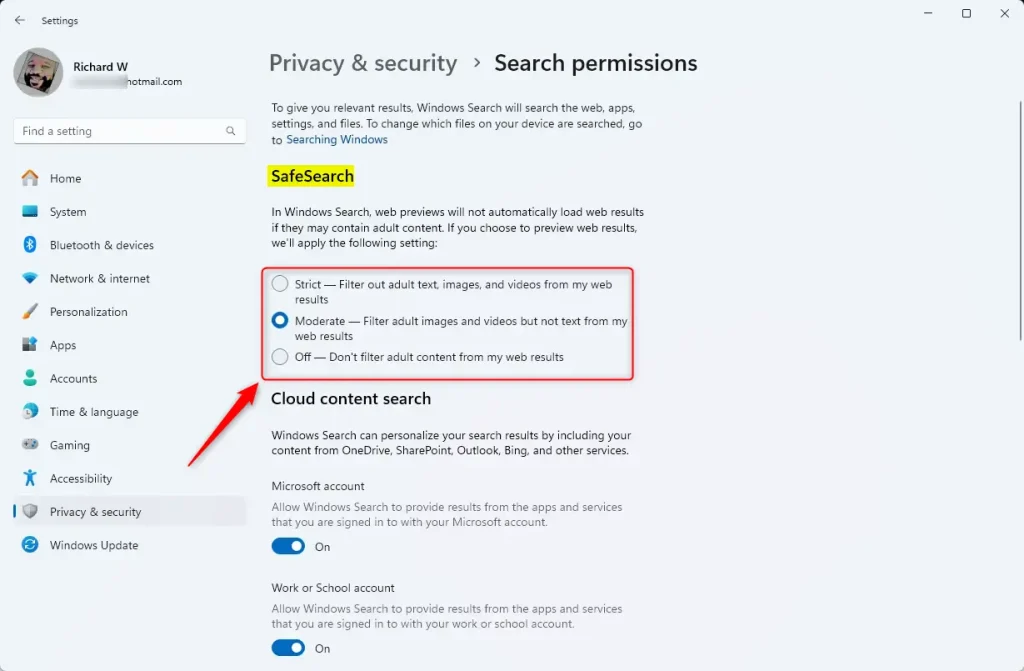
SafeSearch filter options in Settings - Close the Settings app when you are done. Windows saves your change automatically, and you do not need to restart. To undo it, come back to the same page and select your previous level. If the options are greyed out or the page will not let you change them, the PC is probably managed by a work or school account, and your administrator controls the setting.
Another Way: Change SafeSearch Using the Registry Editor (For Advanced Users)
You can also set SafeSearch through the Registry Editor, the Windows tool that stores system and app settings. This suits you if you want to script the change or check the value directly. Press Win+R, type regedit, and press Enter to open the tool.
Then go to 🗝️HKEY_CURRENT_USER\
⚠️ Registry Editor asks for administrator approval (UAC prompt); the 🗝️HKEY_CURRENT_USER change itself applies only to your account.
Before you start, export the Search key (File Export in Registry Editor). This gives you a backup file you can double-click to restore.
If the Settings app already does what you need, use that instead. The registry method also depends on the same availability as the Settings page: on builds without a SafeSearch section, the value may have no visible effect.
- Open the Registry Editor. Press
Windows + Rto open the Run box. Typeregeditand press Enter. Click Yes if User Account Control asks for permission. The Registry Editor window opens. Learn how to open Registry Editor - Navigate to this folder path:
Computer\HKEY_CURRENT_USER\SOFTWARE\Microsoft\Windows\CurrentVersion\SearchSettings. You can expand the keys in the left pane one at a time, or paste the path into the address bar at the top of the window. The keys under SearchSettings appear in the left pane and its values in the right pane. - Look for an entry named
SafeSearchModein the right pane. Check the Name column carefully, since the spelling has to match exactly. - If the entry is there, double-click it. If not, right-click in the empty space and choose New DWORD (32-bit) Value. Name it
SafeSearchMode. A new entry appears in the list. Double-click it to open the edit window. - Set the value for the SafeSearch level you want. Type the number in the Value data box:
0= SafeSearch Off (no filter)1= Moderate filter2= Strict filter
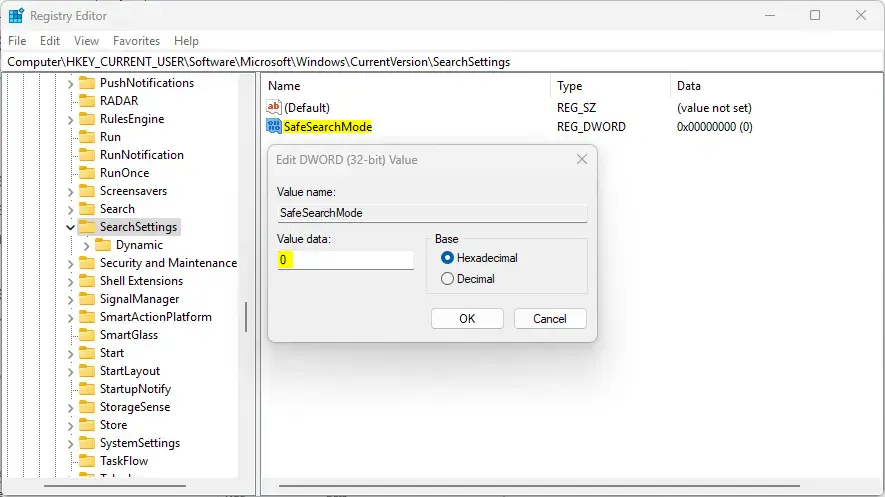
SafeSearch registry setting - Click OK and close the Registry Editor. The new number now shows in the Data column.
- Restart your computer to apply the change. After you sign back in, open Settings Privacy & security Search permissions and confirm the SafeSearch level matches what you set. To undo the change, set the value back to its previous number or import the backup you exported.
Summary
SafeSearch in Windows 11 helps keep web searches cleaner by blocking inappropriate content. It offers levels from Strict to Off, and the Settings app is the better choice for most users. Use the registry method only if you need to script the change, and back up the key first.
The Windows setting does not control your browser. To get the same filtering in the places where you search, set each one yourself:
- Bing: Open Bing in your browser, select the menu icon at the top right, choose Settings, and then pick a level under SafeSearch. Choose Strict, Moderate or Off, and save if Bing asks you to.
- Microsoft Edge: Edge searches with Bing by default, so Bing's SafeSearch setting applies. Edge also has search and privacy options under Settings Privacy, search, and services. The exact wording changes between Edge versions.
- Google: Open Google Search settings from the Settings link on the Google results page and find the SafeSearch option. Google offers filter levels such as Filter, Blur and Off. Your choice is saved with your Google account or in the browser.
For children, consider Microsoft Family Safety. It lets a parent manage content filters for a child's Microsoft account, including web and search filtering in Edge. Those rules can override a level a child sets on their own, so you do not need to check each browser by hand.
Questions readers asked
Is SafeSearch still in Windows 11 Settings?
No. Microsoft has removed SafeSearch from Windows, so you won't find Search permissions or the Strict, Moderate, and Off options in Settings. There is no direct replacement in Windows. To filter explicit search results, open your browser's settings and search for SafeSearch there. You can also manage it online through your Microsoft account. These settings only affect searches made in those places, not Windows Search from the taskbar.
Is SafeSearch still in Windows 11?
No. Microsoft has removed the SafeSearch options from Windows 11 Settings, so you won't find Strict, Moderate, or Off under Search permissions. There is no direct replacement in Windows. To filter explicit results, change SafeSearch in Microsoft Edge or Google Chrome, or manage it online in your Microsoft account. Those settings cover searches made in those places, not Windows Search from the taskbar.
Still have a question?
Answered by AI from this guide. Good questions may be added to this page — please don't include personal details.
Did this guide fix your problem?

About the Author
Richard
Tech Writer, IT Professional
Richard is a writer at Geek Rewind who turns complex IT tasks into clear, step-by-step guides. He draws on years of hands-on experience in system administration and enterprise IT operations, focusing on Windows, Linux and WordPress: the problems people actually run into, and the fixes that work. His server and WordPress guides come from systems he runs himself. Richard builds and maintains the platform behind Geek Rewind, from its Ubuntu servers and Nginx configuration to its custom WordPress plugins. Many new tutorials start with readers' questions, and he's always glad to answer them in the comments.
No comments yet — be the first to share your thoughts!