How to Change SafeSearch Settings in Windows 11

SafeSearch in Windows 11 filters adult and explicit material out of web results shown by Windows Search. That covers what you see when you search from the taskbar . It is a built-in filter, and you can change it in a minute.
There are 3 levels: Strict, Moderate, or Off. Strict blocks the most explicit text, images, and videos. Moderate blocks adult images and videos but leaves normal text results alone. Moderate is the default. Browsers and search engines such as Edge, Bing, and Google keep their own SafeSearch settings, so check those too if you want the same filtering inside a browser.
To change SafeSearch settings, open Settings , go to Privacy & security, then Search permissions. Scroll down to the SafeSearch section and choose Strict, Moderate, or Off. Your selections are saved automatically.
How to Change SafeSearch Settings in 🪟 Windows 11
The easiest and supported way to change SafeSearch is the Settings app. Press Win+I, go to Privacy & security, and click Search permissions. From there you can choose Strict, Moderate, or Off. This works the same on Windows 11 Home and Pro. The change applies to the account you are signed in with and does not need a restart.
- Open Windows Settings . Click the Start button and then the gear icon, or press
Windows + Ion your keyboard. The Settings window opens with the System page showing. More about opening Settings - On the left side, click Privacy & security. The privacy options appear on the right.
- On the right side, find and click Search permissions. It sits in the Windows permissions group, so you may need to scroll down a little to reach it.
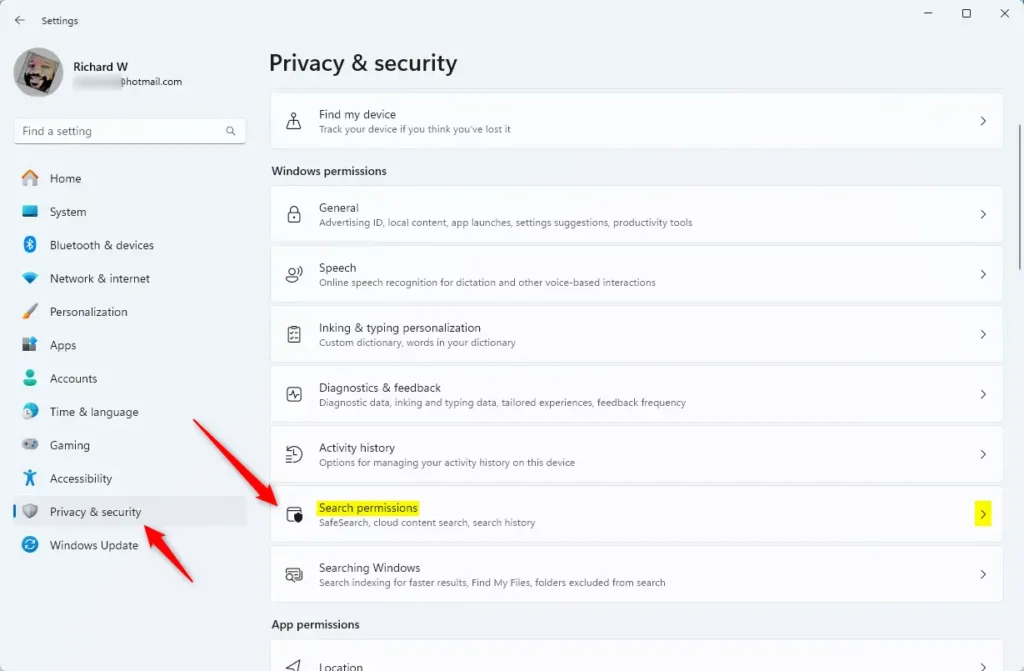
Windows 11 Search permissions tile - Now, scroll down until you see the SafeSearch section. It lists the three filter levels as options you can select.
- Choose your SafeSearch setting. Click the option you want and the selection moves to it right away:
- Strict: Blocks most adult content. Pick this on a shared or family PC.
- Moderate: Blocks some adult content (this is the default setting).
- Off: No filtering. You see all results.
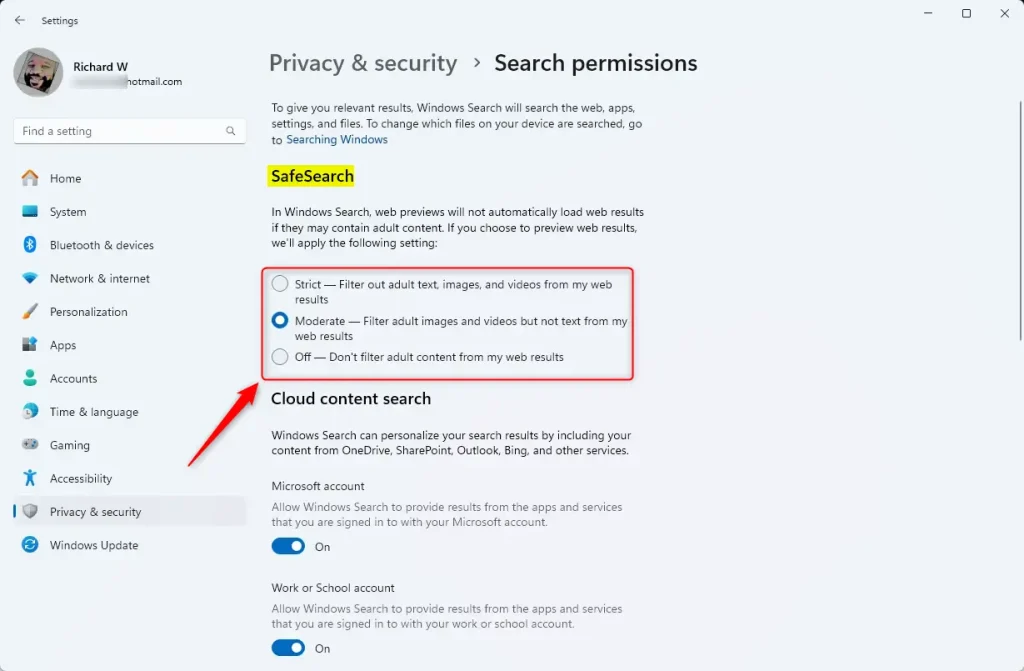
SafeSearch filter options in Settings - Close the Settings app when you’re done. Your changes are saved automatically, and you don’t need to restart. To undo the change, come back to the same page and select your previous level. If the options are greyed out or the page won’t let you change them, the PC is probably managed by a work or school account, and your administrator controls the setting.
Another Way: Change SafeSearch Using the Registry Editor (For Advanced Users)
You can also set SafeSearch through the Registry Editor if you prefer to script it or want to check the value directly. Press Win+R, type regedit, and press Enter to open the tool. Then go to 🗝️HKEY_CURRENT_USER\
⚠️ Admin privileges required for this method.
Editing the registry by hand can cause problems if you change the wrong value. Before you start, export the Search key (File Export in Registry Editor) so you have a backup you can double-click to restore. If the Settings app already does what you need, use that instead.
- Open the Registry Editor. Press
Windows + R. Typeregeditand hit Enter. Click Yes if User Account Control asks for permission. The Registry Editor window opens. Learn how to open Registry Editor - Navigate to this folder path:
Computer\HKEY_CURRENT_USER\SOFTWARE\Microsoft\Windows\CurrentVersion\SearchSettingsSettings. You can expand the keys in the left pane one at a time, or paste the path into the address bar at the top of the window. The keys under Search appear in the left pane and its values in the right pane. - Look for an entry named
SafeSearchModein the right pane. Check the Name column carefully, since the spelling has to match. - If it’s there, double-click it. If not, right-click in the empty space and choose New DWORD (32-bit) Value. Name it
SafeSearchMode. A new entry appears in the list. Double-click it to open the edit window. - Set its value according to how you want SafeSearch. Type the number in the Value data box:
0= SafeSearch Off (no filter)1= Moderate filter2= Strict filter
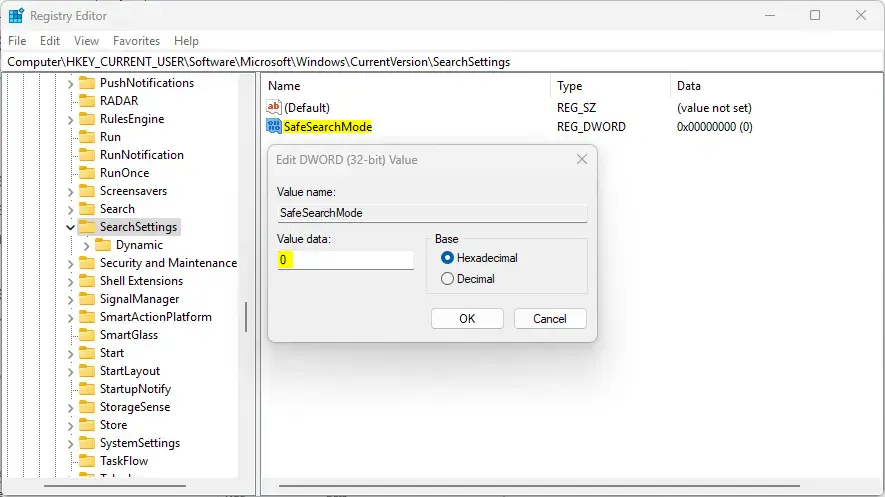
SafeSearch registry setting - Click OK and close the Registry Editor. The new number now shows in the Data column.
- Restart your computer to apply the changes. After you sign back in, open Settings Privacy & security > Search permissions to confirm the SafeSearch level matches what you set. To undo the change, set the value back to its previous number or import the backup you exported.
Summary
SafeSearch in Windows 11 helps keep web searches cleaner by blocking inappropriate content. It offers levels from Strict to Off, and the Settings app is the simplest way to manage it for most users. Use the registry method only if you need to script the change, and back up the key first.
Have a question about this guide?
Answered by AI from this guide. Good questions may be added to this page — please don't include personal details.
Did this guide fix your problem?

About the Author
Richard
Tech Writer, IT Professional
Richard is a writer at Geek Rewind who turns complex IT tasks into clear, step-by-step guides. He draws on years of hands-on experience in system administration and enterprise IT operations, focusing on Windows, Linux and WordPress: the problems people actually run into, and the fixes that work. His server and WordPress guides come from systems he runs himself. Richard builds and maintains the platform behind Geek Rewind, from its Ubuntu servers and Nginx configuration to its custom WordPress plugins. Many new tutorials start with readers' questions, and he's always glad to answer them in the comments.
No comments yet — be the first to share your thoughts!