How to Add or Remove the Windows 11 Gallery Folder


The Windows 11 Gallery folder is a dedicated picture viewer built into File Explorer (the file management app in Windows). It puts all your stored images into one central feed. Windows 11 introduced this feature in build 22621 to make photo browsing faster without opening a separate app. If you don’t see Gallery in File Explorer at all, check that Windows Update is current, because the feature arrived in a later update to that release. It can also be hidden with the registry method covered later in this tutorial.
You can customize this view by adding specific folders that contain your pictures. You can also remove unwanted folders to keep your photo collection tidy. Neither action moves or deletes the pictures themselves.
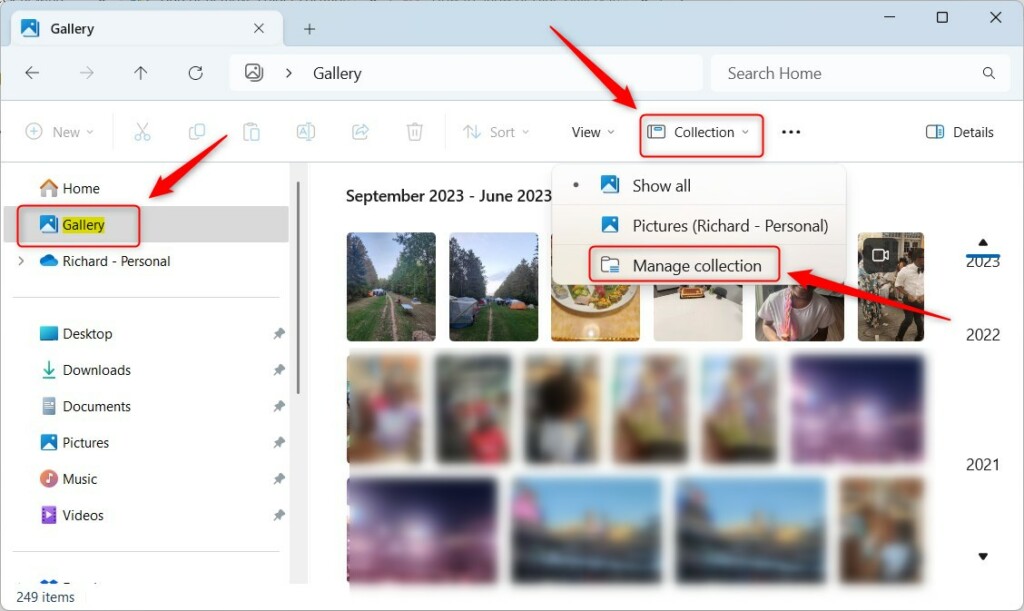
Open File Explorer , click Gallery, then Collection, and Manage collection. Use the Add button to include folders or select and click Remove to exclude them. This customizes where File Explorer finds your photos without moving files.
Add or remove folders in File Explorer
Gallery management lets you choose which pictures appear in your photo feed by adding or removing folders directly from File Explorer . Open File Explorer, click Gallery on the left side, and use the Collection menu to pick the folders you want to see. This controls which local folders show up. It does not delete your actual image files from your computer.
The steps are the same on Windows 11 Home and Pro, and you don’t need administrator rights. No restart is needed. Changes apply as soon as you close the dialog.
- Open File Explorer and click on Gallery in the side menu. The right pane should fill with thumbnails of your pictures, and the command bar at the top should show a Collection menu. That menu only appears while Gallery is selected. If you are in another folder, you won’t see it.
- Select Collection and then Manage collection in the top menu bar. A dialog should open listing the folders that currently feed your Gallery.
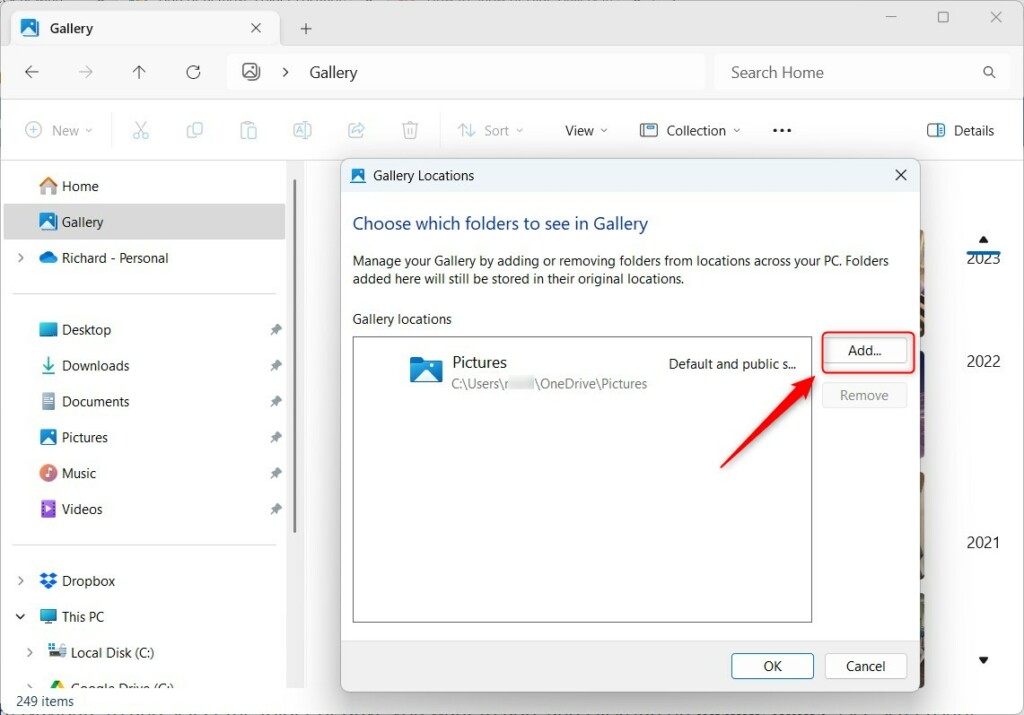
- Click the Add button to pick a folder from your PC. A folder picker should open. The files will stay in their original location, such as
C:\Users\Username\Pictures\NewFolder. Gallery only reads from that location and does not copy anything.
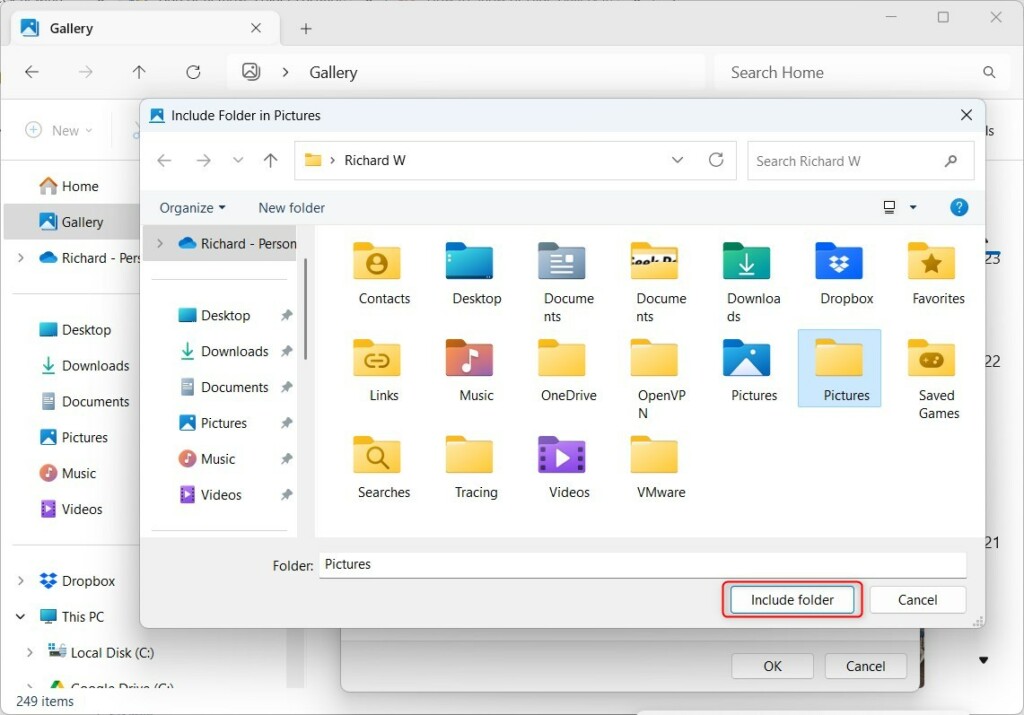
- Select the folder you want and click Include folder. The folder should now appear in the list in the dialog. Close the dialog and the pictures from that folder will show in the Gallery feed. A folder with many images can take a moment to fill in.
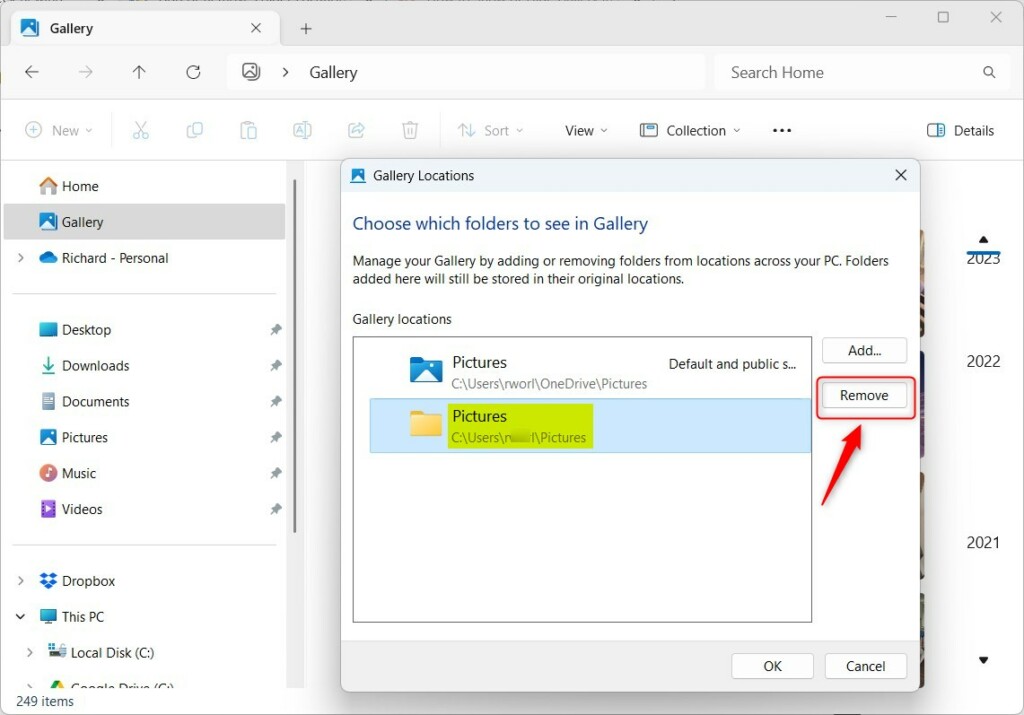
To remove a folder later, follow the steps below. The folder and its pictures stay on your PC. They just stop appearing in Gallery. To bring a folder back, repeat the add steps above.
- Go back to Collection and then Manage collection in the File Explorer command bar. The list of included folders should open again.
- Select the folder you want to remove and click Remove. The folder should disappear from the list. Close the dialog and its pictures will no longer show in Gallery.
Advanced Management: Registry and PowerShell
Windows 11 Gallery management through the Registry Editor lets you completely hide the Gallery shortcut from the File Explorer side menu. You need to open the Registry Editor, go to 🗝️HKEY_CURRENT_USER\
Before you change anything, back up the registry. In Registry Editor, use File Export to save a copy. You need an administrator account to edit this key. The Registry Editor is available on both Home and Pro editions.
To hide the Gallery from the navigation pane, navigate to HKEY_CURRENT_USER\Software\Classes\CLSID\{e88865ea-0e1c-4e20-9aa6-edcd0212c87c}. Create a new DWORD value and name it System.IsPinnedToNameSpaceTree. Then, set its value to 1.
Close and reopen File Explorer, or sign out and back in, so the navigation pane refreshes. Gallery should then be gone from the left side. To undo the change, delete the value you created and refresh File Explorer the same way. If you only want to stop certain pictures from appearing, use the Manage collection method instead. It is much safer.
Cloud Integration: OneDrive and iCloud
Your Gallery works automatically with OneDrive's Camera Roll Backup feature. If you use iCloud for Windows, ensure your iCloud Photos folder is included in your collection settings to see those images in the Gallery. Open Collection Manage collection, and if the iCloud Photos folder is not in the list, add it with Add and Include folder as described above.
Summary
Managing the Windows 11 Gallery keeps digital decluttering efforts on track. Whether you use the File Explorer interface or advanced Registry tweaks, you have full control over your media management. The Gallery is a view; your files stay exactly where you put them.
Have a question about this guide?
Answered by AI from this guide. Good questions may be added to this page — please don't include personal details.
Did this guide fix your problem?

About the Author
Richard
Tech Writer, IT Professional
Richard is a writer at Geek Rewind who turns complex IT tasks into clear, step-by-step guides. He draws on years of hands-on experience in system administration and enterprise IT operations, focusing on Windows, Linux and WordPress: the problems people actually run into, and the fixes that work. His server and WordPress guides come from systems he runs himself. Richard builds and maintains the platform behind Geek Rewind, from its Ubuntu servers and Nginx configuration to its custom WordPress plugins. Many new tutorials start with readers' questions, and he's always glad to answer them in the comments.
No comments yet — be the first to share your thoughts!