How to Change System Product Name in Windows 11

The System Product Name is the text label Windows uses to describe your computer’s hardware model. Custom PC builds often show a blank or generic placeholder in this spot. You can replace it with any name you like by editing one value in the Registry Editor (a built-in Windows tool for changing low-level system settings). You can also do it from Command Prompt (a text-based tool for running system commands), but the steps below use the Registry Editor because it is easier to check your work.
A custom label makes it easier to tell several computers apart on a home network. The change takes a few minutes and one restart.
Open Registry Editor by pressing Win+R, typing regedit, and pressing Enter. Navigate to the OEMInformation folder, find or create the “Model” string value, and enter your desired system product name. Restart your computer for the changes to apply.
What is the System Product Name?
Windows reads the System Product Name to identify the hardware model. On a custom build, the motherboard firmware often leaves this field empty or fills it with a placeholder, so the label tells you nothing useful. Replacing it with something meaningful, such as “Office Desktop” or “Living Room Media PC”, helps when you manage more than one device.
The change is cosmetic. It does not touch your hardware, drivers or licence. It only changes the text Windows shows for the model.
Why Change It?
Custom builds often show a generic placeholder instead of a proper model identifier. A clear name helps you keep track of several devices on a home network. It is also useful on pre-built PCs, where an administrator can assign a name that stays memorable during network sharing.
Keep two things in mind before you start:
- This is not the same as the Device name (the computer name). You rename that separately in Settings System About
- This guide edits the model entry that Windows stores in the registry. It does not rewrite the model string stored in your motherboard firmware.
How to Change the System Product Name in 🪟 Windows 11
You change the label by editing one entry in the Registry Editor. Its key is called OEMInformation, and it sits under the Windows settings for the local machine. Because it is a machine-wide setting, you need an administrator account. A mistake in the registry can cause problems, so work carefully and change only the entry described here.
- Open the Registry Editor. Press Win+R to open the Run dialog. Type
regeditand press Enter. If a User Account Control prompt appears, click Yes. A standard user will be asked for an administrator password. The Registry Editor window should now be open, with a folder tree on the left.If you want a quick tutorial on opening Registry Editor, check this guide: How to Open Registry Editor in Windows 11.
⚠️ Admin privileges required. Without them, Windows will refuse to save the change in the next steps.
- Back up the registry (optional but sensible). Click File Export, choose a location, enter a file name and click Save. If anything goes wrong, you can double-click that file to restore the saved settings.
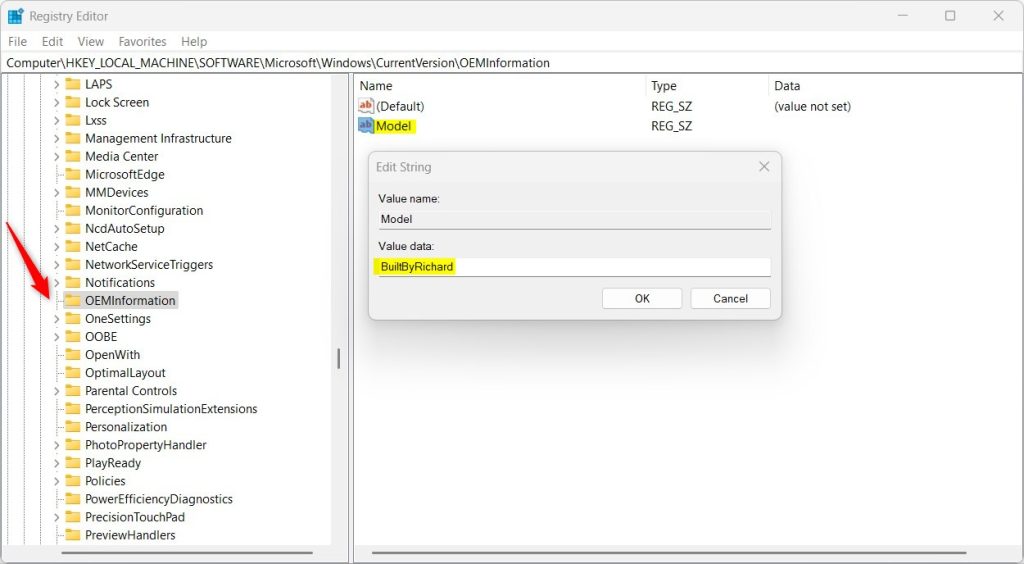
- Go to the OEMInformation key. In the left pane, click through the folders to reach this key (a “key” is a folder in the registry):
Computer\HKEY_LOCAL_MACHINE\SOFTWARE\Microsoft\Windows\CurrentVersion\OEMInformationYou can also paste the path into the address bar at the top of the Registry Editor and press Enter. When you reach the key, its entries appear in the right pane. If the OEMInformation key does not exist on your PC, right-click the CurrentVersion folder, choose New Key, and name it OEMInformation.
- Look for the Model entry. Check the right pane for an entry called Model.
- If it is there, double-click it to open it.
- If you don’t see it, right-click an empty space in the right pane. Select New String Value and name it Model. Then double-click it to open it.
- Type your new name. In the Value data box, type the name you want your computer to have, for example My Custom PC. Click OK. The new text should now appear next to Model in the right pane.
- Close the Registry Editor. Close the window. Registry changes save as soon as you click OK, so there is no separate save step.
- Restart your computer. Restart to make sure the change takes effect. This works the same on Windows 11 Home and Pro.
To undo the change later, return to the same key and delete the Model entry, or change its value back to what it was before. You can also import the backup file you exported in step 2.
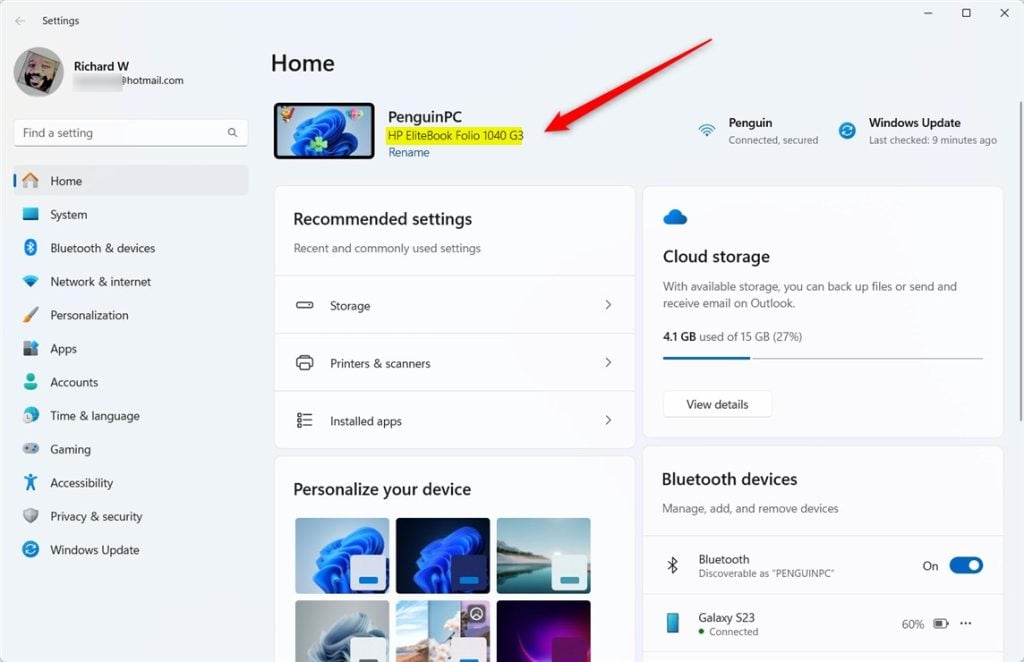
Once the computer has restarted, check that the new name is in place. Start with Settings:
- Open Settings by pressing Windows key + I.
- Go to System About
- Look under Device specifications for the Device name or System model line to see your new name.
The Device name there is your computer name, which is a separate setting. If your custom model text does not show on the About page, don't assume the edit failed. Windows 11 does not always display this value there. Look instead in the classic System Properties window, which lists the manufacturer and model details stored under OEMInformation. If it still isn't there, go back to the registry and confirm that the entry is named exactly Model, that it is a String Value, and that it is inside the OEMInformation key.
Summary
Changing the system product name in Windows 11 lets you personalize your computer with a custom label instead of the default manufacturer text. This quick registry tweak helps you identify custom-built PCs or rename machines easily without installing extra software, keeping your system details accurate and tailored to your preference.- Changing the System Product Name lets you personalize your PC with a name you like.
- This works best on custom-built PCs or devices without a fixed manufacturer name.
- It's an easy process using Windows Registry Editor. But be careful when editing the registry!
- Tip: Always back up your registry before making changes. You can do this inside Registry Editor by clicking File Export and saving a copy.
Have a question about this guide?
Answered by AI from this guide. Good questions may be added to this page — please don't include personal details.
Did this guide fix your problem?

About the Author
Richard
Tech Writer, IT Professional
Richard is a writer at Geek Rewind who turns complex IT tasks into clear, step-by-step guides. He draws on years of hands-on experience in system administration and enterprise IT operations, focusing on Windows, Linux and WordPress: the problems people actually run into, and the fixes that work. His server and WordPress guides come from systems he runs himself. Richard builds and maintains the platform behind Geek Rewind, from its Ubuntu servers and Nginx configuration to its custom WordPress plugins. Many new tutorials start with readers' questions, and he's always glad to answer them in the comments.
No comments yet — be the first to share your thoughts!