
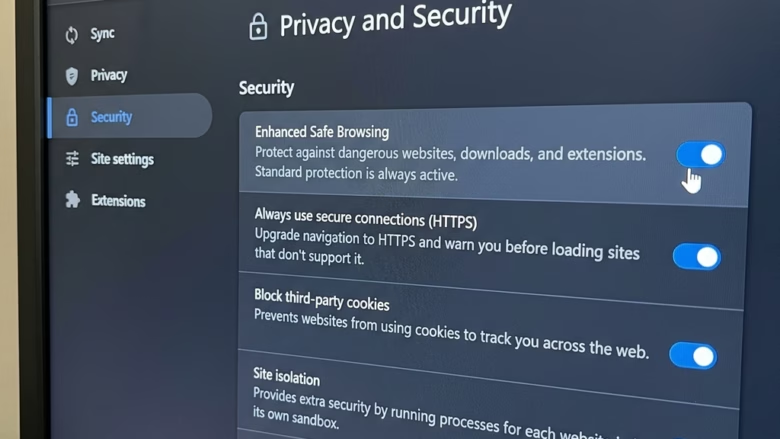
Device-based authentication in Microsoft Edge links your saved browser passwords to your Windows sign-in. You no longer need a separate password for the browser. Microsoft requires this security update, with a final deadline of June 4, 2026. After that date the browser switches over automatically to protect your private data.
The practical benefit is simple. If someone gets into your browser, whether on a shared PC or while you are away from your desk, they still cannot see or use your saved logins without passing your Windows check.
Open Microsoft Edge, click Settings (three dots) > Settings Passwords and autofill > More settings. Turn on Autofill passwords and passkeys, then enable the option for device sign-in prompt before viewing passwords. Edge now requires your Windows Hello or PIN before filling saved passwords.
Switching to Device-Based Authentication (The Best Way!)
The feature relies on your computer’s built-in security chip to keep your credentials safe from unauthorized access, whether that is someone sharing the device or an attack over the network.
You will usually see two ways to prove who you are:
- Windows Hello: The easiest option. You sign in with your face or fingerprint. If your computer has a compatible camera or fingerprint reader, use this one. Windows Hello is set up in the Windows sign-in options, not in Edge, so set it up there first if you have not already.
- Your device sign-in password/PIN: If you do not use Windows Hello, Edge asks for your normal Windows password or PIN. This is the same one you use when the computer starts or wakes up.
Menu names can differ slightly between Edge versions, so the steps below describe what to look for. They apply to current Edge on Windows 11, and the same options appear on Home and Pro editions.
- Open Microsoft Edge. Start the browser from the Start menu , taskbar or desktop. Its icon is a blue and green wave. You should see an Edge window with your home page or last session.
- Open Settings . Click the three dots (Settings and more) in the top-right corner of the window, then choose Settings from the drop-down list. A Settings page opens in a new tab, with a list of categories on the left.
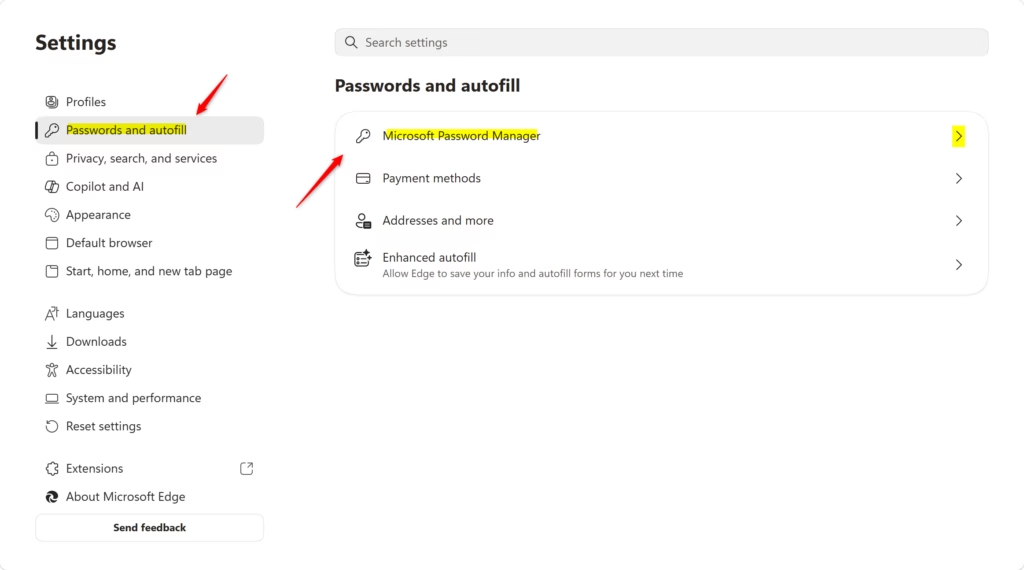
- Go to the password settings. In the left-hand list, click Passwords and autofill. Depending on your Edge version, you may see Microsoft Password Manager straight away, or you may need to open it from this page. You should now see the settings for your saved passwords.
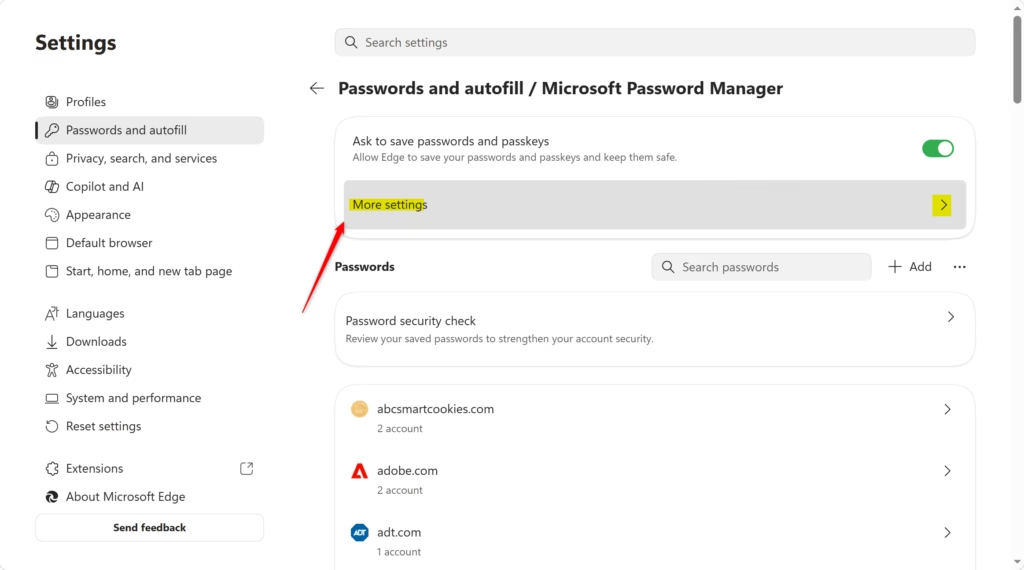
- Open the extra options. In the Password Manager section, click More settings. A longer list of password options appears.
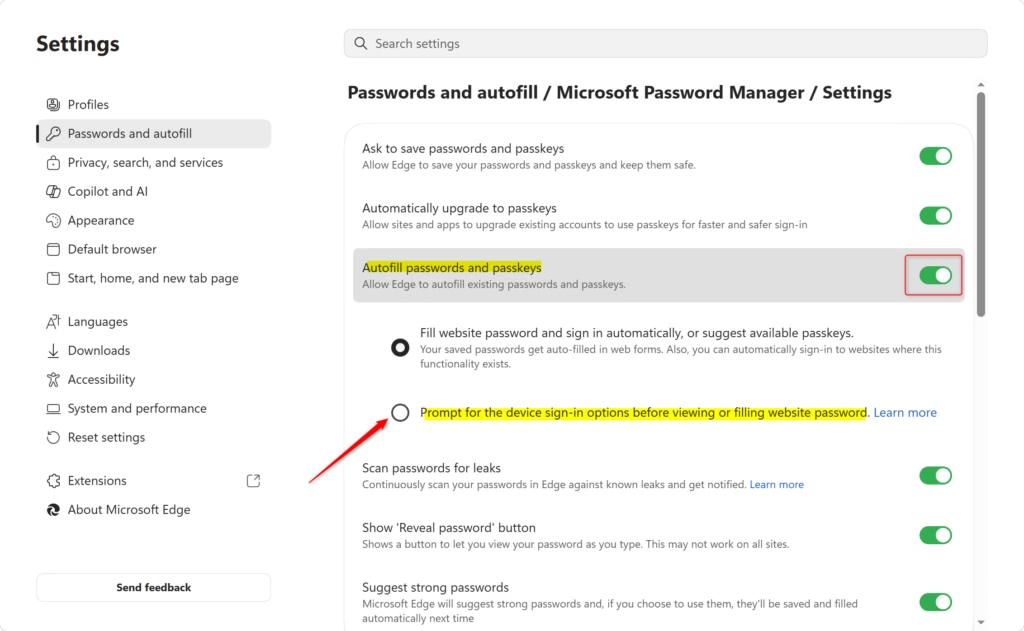
- Check that autofill is on. Find the Autofill passwords and passkeys switch. It must be turned on for saved passwords to fill in at all. When it is active, the switch shows blue or green. If it is grey, click it once to turn it on.
- Choose the device sign-in prompt. Look for an option worded something like Prompt for the device sign-in options before viewing or filling website password. Select or turn on this option. It tells Edge: “Before you fill in a password, ask me to prove it’s me using my computer’s login.” If you cannot find it, check that Edge is up to date, because older versions word or place it differently. It is also worth confirming that you are signed in to Windows with a PIN, password or Windows Hello.
- Authenticate with your device. The next time Edge is about to fill in a password, or when you try to view your saved passwords, a prompt appears asking you to prove it is you. That may be a Windows Hello prompt asking you to look at the camera or touch the fingerprint reader. Otherwise it asks for your Windows PIN or password. Complete the prompt, and Edge then fills in or shows the password. You should not need to restart the computer.
Edge will then fill passwords without asking. Given the June 4, 2026 deadline, though, expect Edge to switch this on for you eventually.
With this in place, Edge verifies your identity every time saved credentials are about to fill a form. Unauthorized access becomes much harder. Even if someone reaches your unlocked PC, they still have to pass the local Windows check before they can use your saved passwords.

Reference:
https://support.microsoft.com/en-us/edge/keep-your-saved-passwords-private-in-microsoft-edge
Summary
In short, this change moves password management to your computer's own credentials. Edge no longer uses a standalone browser password and relies on Windows Hello or your PIN to verify you instead.
Have a question about this guide?
Answered by AI from this guide. Good questions may be added to this page — please don't include personal details.
Did this guide fix your problem?

About the Author
Richard
Tech Writer, IT Professional
Richard is a writer at Geek Rewind who turns complex IT tasks into clear, step-by-step guides. He draws on years of hands-on experience in system administration and enterprise IT operations, focusing on Windows, Linux and WordPress: the problems people actually run into, and the fixes that work. His server and WordPress guides come from systems he runs himself. Richard builds and maintains the platform behind Geek Rewind, from its Ubuntu servers and Nginx configuration to its custom WordPress plugins. Many new tutorials start with readers' questions, and he's always glad to answer them in the comments.
No comments yet — be the first to share your thoughts!