How to Use InPrivate Browsing in Microsoft Edge


InPrivate browsing in Microsoft Edge is a built-in privacy mode. It stops the browser from saving your browsing history, cookies, site data, and information you type into forms, including passwords. When you close all your InPrivate windows, Microsoft Edge deletes this data from your device. Anyone else who shares your computer cannot see what you did in that session.
This mode only hides your actions locally, on your own PC. It does not stop websites, a network administrator, your employer or school, or your internet service provider from seeing the pages you visit. Files you download stay in your Downloads folder, and any favorites you add stay in Edge after the window closes. Extensions are also turned off in InPrivate windows unless you allow them individually.
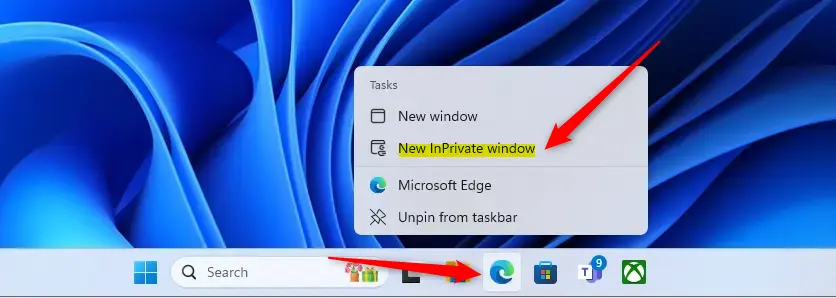
Press Ctrl+Shift+N while Microsoft Edge is open to launch an InPrivate window. Alternatively, right-click the Edge icon on your taskbar and select “New InPrivate window,” or open Edge, select the three-dot menu at the top right, and choose “New InPrivate window.” InPrivate stops Edge from saving your browsing history, cookies, site data, and form information.
Open InPrivate browsing windows in Microsoft Edge
The fastest is the keyboard shortcut. Press Ctrl+Shift+N while Edge is open and a new InPrivate window appears. The other methods below work even when Edge is closed.
To use the taskbar :
- Find the Microsoft Edge icon on your taskbar.
- Right-click the icon. A small menu (the jump list) opens above it.
- Select “New InPrivate window.”
A new Edge window opens with a dark theme and an “InPrivate” badge near the address bar. If you don’t see the Edge icon, pin it first by finding Edge in the Start menu , right-clicking it, and choosing the pin option.
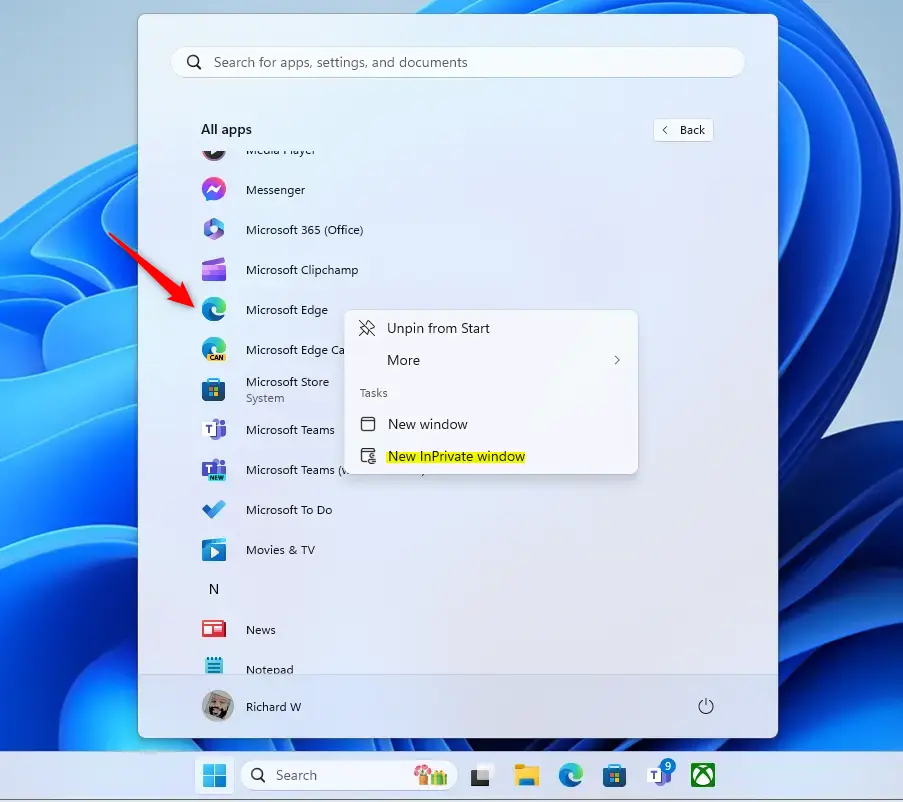
To use the Start menu :
- Open the Start menu.
- Select All apps.
- Scroll to Microsoft Edge and right-click it.
- Select "New InPrivate window."
You should see the same InPrivate window as before. If the option is missing from the right-click menu, open Edge normally and use one of the other methods.
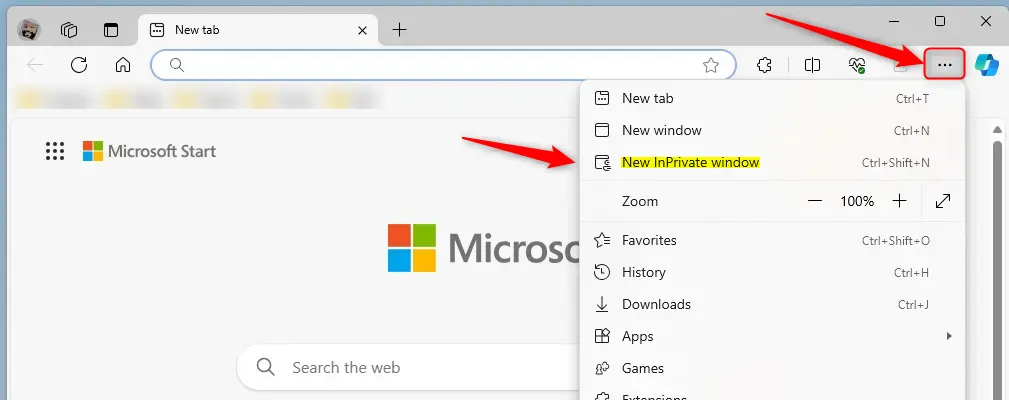
You can also start from inside Edge, using the menu:
- With Edge open, select the Settings and more button, the three horizontal dots at the top right. You can also press Alt+F.
- Select "New InPrivate window" from the list.
Your regular Edge window stays open. The InPrivate window opens separately, so you can switch between the two. Only the InPrivate window follows private rules.
Open InPrivate Browsing Window in Microsoft Edge using Shortcut or Command
You can also launch an InPrivate session from Command Prompt, a text-based interface for interacting with the operating system. This is handy for scripts and shortcuts. You type the full path to Edge followed by the -inprivate switch.
- Open Command Prompt. Search for it in the Start menu and select it.
- Paste "C:\Program Files (x86)\Microsoft\Edge\Application\msedge.exe" -inprivate, including the quotation marks. The quotes are needed because the path contains spaces.
- Press Enter.
A new InPrivate window opens right away. If Command Prompt says it cannot find the path, Edge may be installed in a different location on your PC. Check the folder in File Explorer and adjust the path to match.
"C:\Program Files (x86)\Microsoft\Edge\Application\msedge.exe" -inprivate OR "C:\Program Files (x86)\Microsoft\Edge\Application\msedge.exe" -inprivate -new-window
You can add a web address after the command to open a specific page straight away in the new InPrivate window. Put a space between -inprivate and the address. Example:
"C:\Program Files (x86)\Microsoft\Edge\Application\msedge.exe" -inprivate https://geekrewind.com
To end the session and clear its data, close every InPrivate window. Data is only deleted once the last one is closed. If you leave one open, the session continues. Here is what InPrivate does for you:
- Opening an InPrivate browsing window in Microsoft Edge allows you to surf the web without leaving a trail of cookies, temporary files, or browsing history on your computer.
- This mode ensures that Edge won't save your browsing history, search history, or any information you enter in forms during the session.
- While InPrivate browsing provides privacy during the session, it's important to note that websites can still personalize content based on cookies and site permissions until all InPrivate windows are closed.
- Users can further enhance their privacy by turning on the strict mode in Tracking prevention to restrict personalized content and ads in Edge.
Have a question about this guide?
Answered by AI from this guide. Good questions may be added to this page — please don't include personal details.
Did this guide fix your problem?

About the Author
Richard
Tech Writer, IT Professional
Richard is a writer at Geek Rewind who turns complex IT tasks into clear, step-by-step guides. He draws on years of hands-on experience in system administration and enterprise IT operations, focusing on Windows, Linux and WordPress: the problems people actually run into, and the fixes that work. His server and WordPress guides come from systems he runs himself. Richard builds and maintains the platform behind Geek Rewind, from its Ubuntu servers and Nginx configuration to its custom WordPress plugins. Many new tutorials start with readers' questions, and he's always glad to answer them in the comments.
No comments yet — be the first to share your thoughts!