How to Force Users to Sign into Microsoft Edge on Windows 11


- 12 steps
- Needs administrator rights
- Group Policy needs Windows 11 Pro, Enterprise or Education
The BrowserSignin policy on Windows 11 makes Microsoft Edge ask for a Microsoft account sign-in before anyone can browse. Without signing in, the user can’t use the browser, so no one can surf anonymously.
IT administrators use this on school and office computers to keep track of who uses which account and to block guest-style browsing. You need an administrator account on the PC to apply it. The policy covers the whole PC, not just your own profile.
Set the BrowserSignin policy to 2 in the Registry Editor. Go to Computer\🗝️HKEY_LOCAL_MACHINE\
Force users to sign into Microsoft Edge
The setting lives in the Registry Editor, the database that stores core Windows settings. You add one entry, and after that Edge asks for a Microsoft account sign-in the first time someone opens it. Edge does not need to be reinstalled or reconfigured. Because this is a registry change, it works on Windows 11 Home as well as Pro, Enterprise and Education. No Group Policy editor is needed.
The job has four parts: open the Registry Editor, back up, add the entry, and set its value. Each part is a few clicks. Do them in order and don’t skip the backup.
- Open the Registry Editor.
- If User Account Control asks whether to allow the app to make changes, click Yes. You should now see the Registry Editor window, with a folder tree on the left and values on the right.
Create a registry backup or a System Restore point first. A wrong edit in the registry can cause problems, and either backup lets you roll back quickly. The backup takes a minute and the rest of the guide is easy to undo, but this is the habit that saves you on the day something goes wrong.
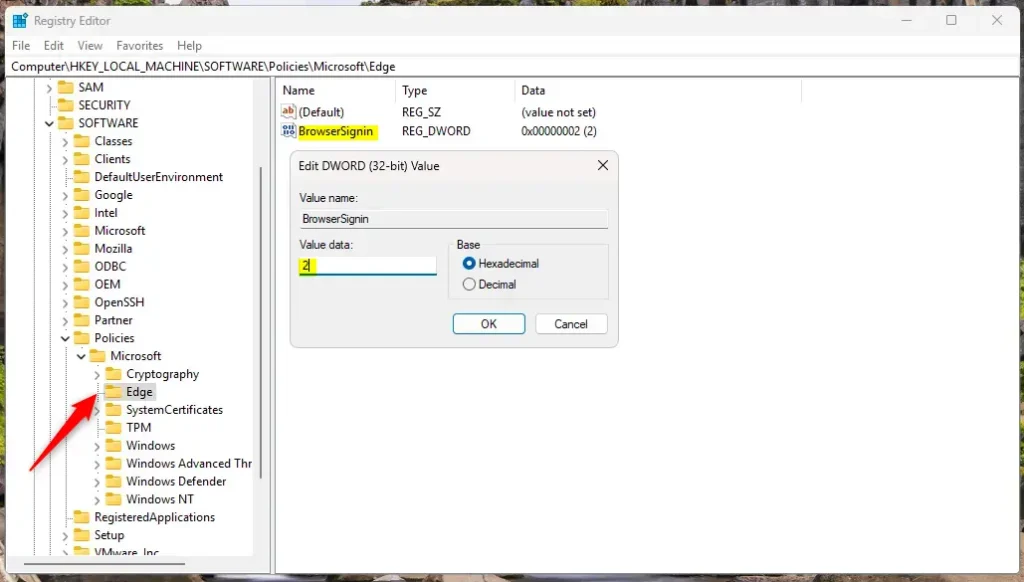
Computer\HKEY_LOCAL_MACHINE\SOFTWARE\Policies\Microsoft\Edge
- In the left pane, go to the target registry key shown above. If part of the path is missing, for example the Edge folder, right-click the parent key, choose New Key, and give it the exact name shown. Repeat until the full path exists.
- Click the final key so it is selected, then right-click the white space in the right pane.
- Select New DWORD (32-bit) Value. A new entry appears with its name highlighted for editing.
- Type BrowserSignin and press Enter. Spell it exactly and keep the capital letters. Edge ignores a policy with the wrong name.
Choose the 32-bit DWORD even if your Windows is 64-bit. That is the type this policy uses.
- Double-click BrowserSignin. The Edit DWORD (32-bit) Value box opens.
- In the Value data field, enter
2to require a sign-in. - Click OK. The entry now shows the new value in the Data column.
This policy accepts other values too. 0 turns browser sign-in off, 1 lets users choose, and 2 forces the sign-in. Use the value in the step above for this guide.
To undo the change, remove the policy so Edge goes back to its default behavior. Users are then no longer forced to sign into Microsoft Edge with a Microsoft account.
- Go back to the same registry key in the Registry Editor.
- Right-click BrowserSignin and choose Delete.
- Click Yes to confirm. The entry disappears from the right pane.
If you would rather keep the entry but switch the rule off, set its value to 0 instead.
BrowserSignin
A restart may be required to apply the changes, either when you add the policy or when you remove it. Close the Registry Editor and restart Windows if Edge does not behave as expected. If Edge was open while you made the change, close it completely and open it again first, since that is often enough.
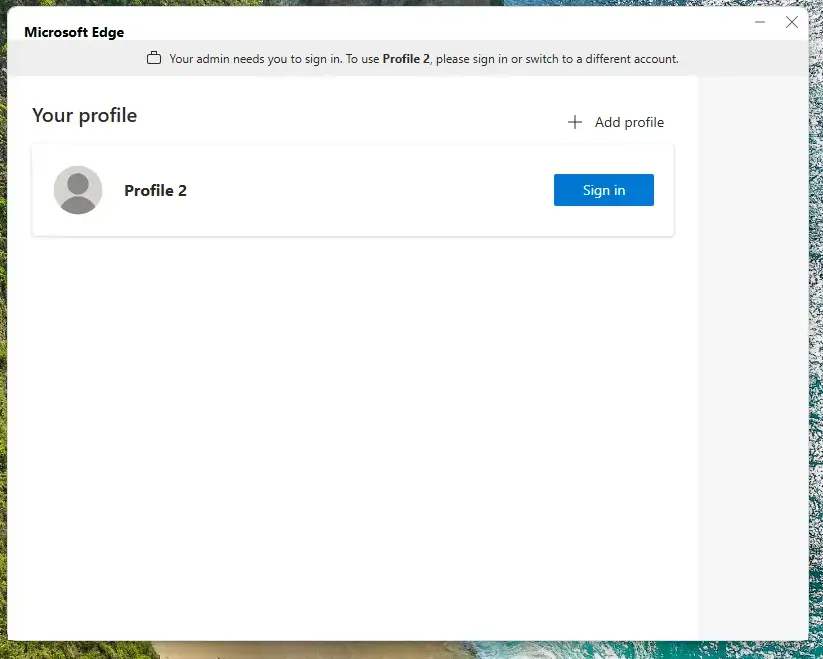
The configuration is complete. The next time Edge starts, it should ask the user to sign in before browsing. To confirm Edge has picked up the policy, type edge://policy in the address bar and look for BrowserSignin in the list. Edge’s settings may also show a “Managed by your organization” notice. Both are normal when a policy is active.
Before you roll this out, it helps to know what it gives you and what it asks of your users.
Requiring users to sign into Microsoft Edge gives you a structured browsing experience with reliable data syncing. Authentication also adds a security layer, because Edge verifies who the user is before browsing starts. Users should know about the requirement in advance, so they have their account details ready the first time Edge opens.
- Increased SecurityRequires users to authenticate, adding a layer of security to browsing activities.
- Data SynchronizationKeeps browsing data in sync across the devices a user signs in on.
- Policy ControlGives system administrators a way to manage user access effectively.
- Simple ImplementationThe process involves a few straightforward changes to the Windows Registry.
- Easily ReversibleThe enforcement can be undone by deleting the policy entry if needed.
This policy suits organizations that want a consistent user experience and some oversight of browser activity. For a single home PC it is rarely needed, but the same steps work there, and the backup and delete steps above make it safe to try.
Have a question about this guide?
Answered by AI from this guide. Good questions may be added to this page — please don't include personal details.
Did this guide fix your problem?

About the Author
Richard
Tech Writer, IT Professional
Richard is a writer at Geek Rewind who turns complex IT tasks into clear, step-by-step guides. He draws on years of hands-on experience in system administration and enterprise IT operations, focusing on Windows, Linux and WordPress: the problems people actually run into, and the fixes that work. His server and WordPress guides come from systems he runs himself. Richard builds and maintains the platform behind Geek Rewind, from its Ubuntu servers and Nginx configuration to its custom WordPress plugins. Many new tutorials start with readers' questions, and he's always glad to answer them in the comments.
No comments yet — be the first to share your thoughts!