How to Manage Page Colors in Microsoft Edge


Page colors in Microsoft Edge let you override bright website backgrounds with dark or custom shades across all web pages. In Edge version 120 and newer, you do this from one setting. It reduces eye strain during long reading sessions, and you don’t have to change your whole Windows system theme. The setting works on every edition of Windows 11, Home included.
Open Edge Settings, navigate to Accessibility, and select a Page color theme. To apply colors to all sites, disable the “Only apply page colors when high contrast themes are on” setting. You can also specify sites to exclude from this feature.
Turn on or off Page colors in Microsoft Edge
Page colors change the background and text colors of websites so they are easier on your eyes. They only affect the web page content. The Edge toolbar, tabs and menus keep following your normal browser theme. You switch the feature on or off in the browser settings: open the settings menu, go to the accessibility section, and pick the color scheme you want for web pages. The steps below show each part.
- Open the Microsoft Edge browser.
- Click the Settings and more button (three horizontal dots) in the top right corner. You can also press Alt+F. A menu drops down.
- Select Settings. The Settings page opens in a new tab.

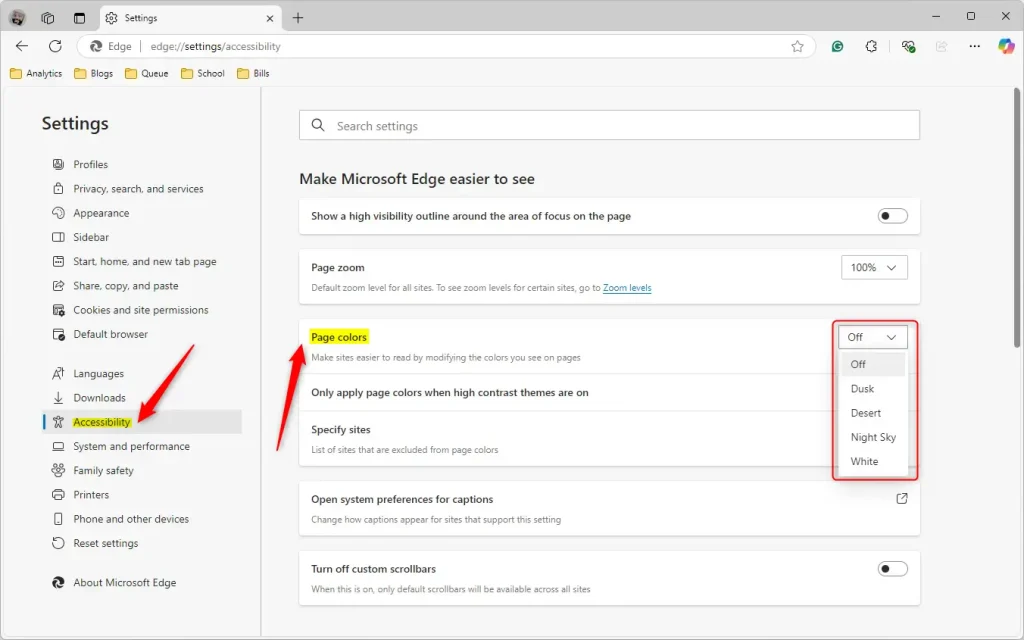
- On the Settings page, click Accessibility in the left-hand menu. The accessibility options appear on the right.
- Find the Page colors section and choose the color scheme that suits you.
The available theme color values are Dusk, Desert, Night Sky, and White. Dusk, Desert and Night Sky recolor the page backgrounds, and White gives you the normal look. The change should apply right away. If an open tab still looks the same, reload it. To undo the change at any time, come back to this section and select White.
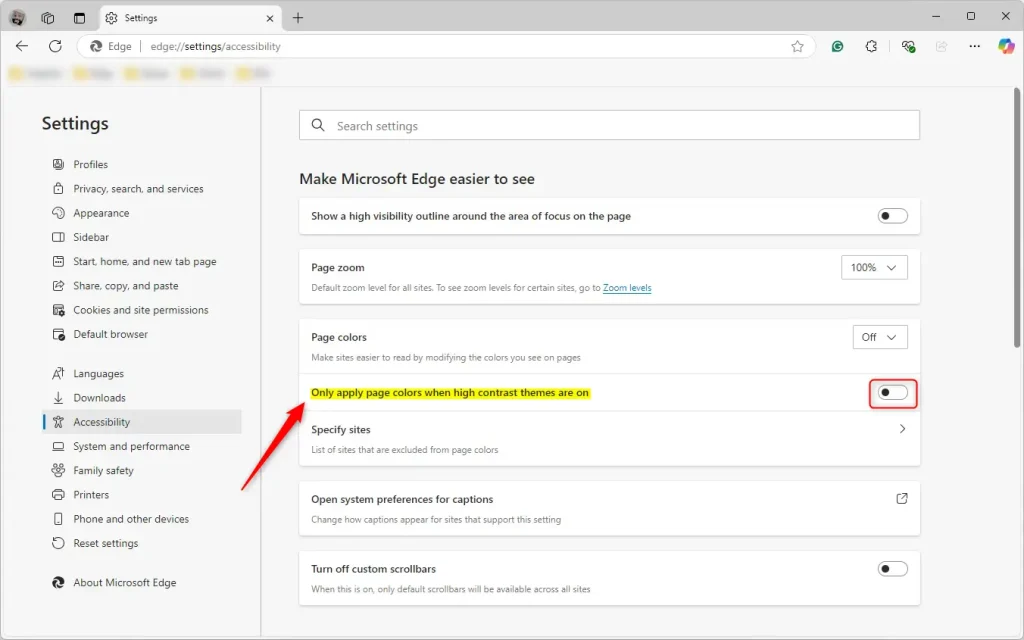
By default, Edge may apply Page colors only while a Windows Contrast theme is active. If you pick a scheme and nothing changes on your pages, this is the usual reason. To apply Page colors on all web pages, whether or not a high contrast theme is active, turn off the Only apply page colors when high contrast themes are on setting.
- Find the Only apply page colors when high contrast themes are on setting under Page colors.
- Switch the toggle off. Your chosen color scheme now shows on every web page.
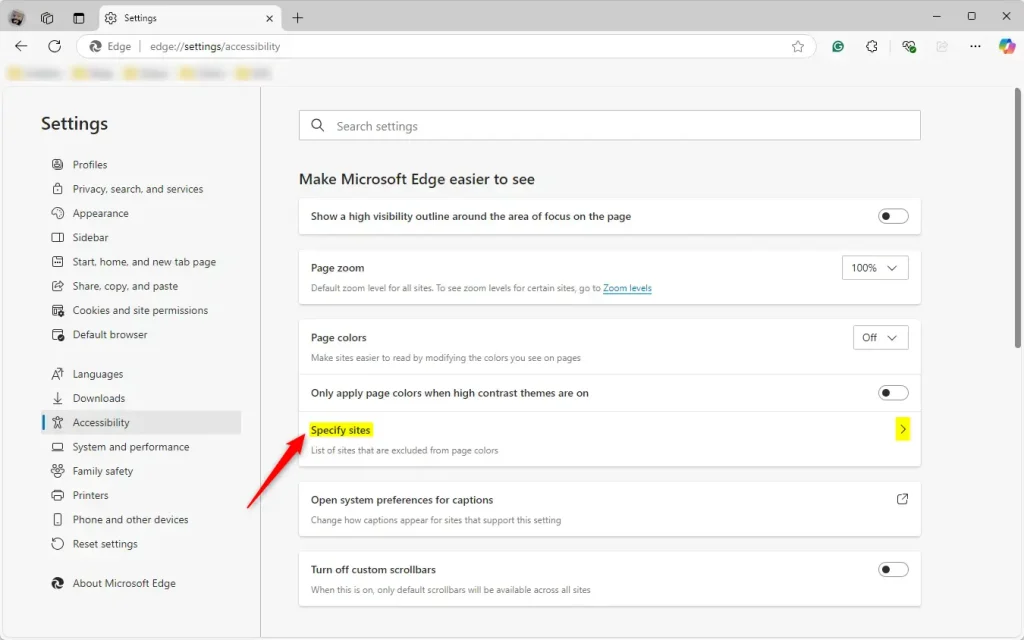
Some sites look worse with recolored backgrounds, for example pages with charts, photos or custom branding. You can leave those sites out of the feature.
- Click Specify sites to open the list of excluded sites.
- Add each web page you want to exclude from Page colors. Those pages will keep their original colors, and every other site keeps your chosen scheme.
- Close the Settings tab when you are done. Edge saves your choices as you make them, so there is no Save button and you don’t need to restart the browser.
The configuration process is complete.
Reference:
Configuring the Page colors feature makes everyday web reading more comfortable. Here are the key points for reference:
- Accessibility: Page colors support users with vision impairments, color blindness, or light sensitivity.
- Customization: You can choose from Dusk, Desert, Night Sky or White to match your preference.
- High Contrast Settings: Depending on your choice, the feature applies to all pages or only when a high contrast theme is on. If your colors don't show, check this setting first.
- Site Exclusions: You can exclude specific websites through Specify sites, so you can keep flexible control over how each site looks.
- User-Friendly: All options are in Settings Accessibility, and you can switch back to White whenever you like.
These adjustments give you a more comfortable and personal browsing setup.
Have a question about this guide?
Answered by AI from this guide. Good questions may be added to this page — please don't include personal details.
Did this guide fix your problem?

About the Author
Richard
Tech Writer, IT Professional
Richard is a writer at Geek Rewind who turns complex IT tasks into clear, step-by-step guides. He draws on years of hands-on experience in system administration and enterprise IT operations, focusing on Windows, Linux and WordPress: the problems people actually run into, and the fixes that work. His server and WordPress guides come from systems he runs himself. Richard builds and maintains the platform behind Geek Rewind, from its Ubuntu servers and Nginx configuration to its custom WordPress plugins. Many new tutorials start with readers' questions, and he's always glad to answer them in the comments.
This doesn’t make it easier for those with impairments – we only need it on specific pages not EVERY page.
It would be better for it to have a toggle for it to apply to every page and a list of pages to INCLUDE it on rather than a list of pages to exclude it from as that could run in to 1000’s