
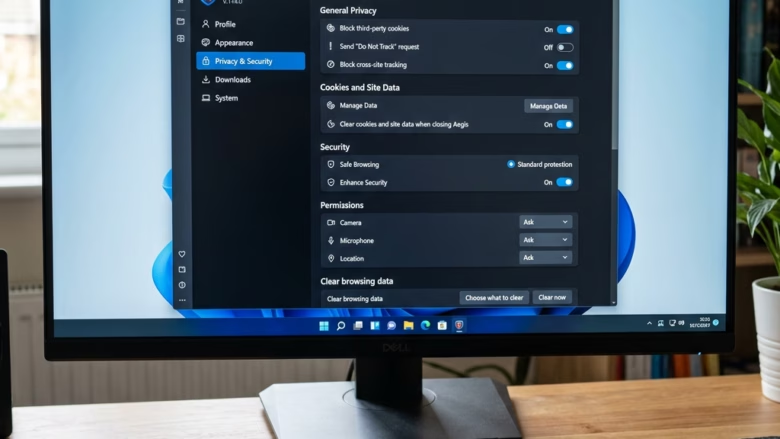
Personalized advertising in Microsoft Edge uses your web searches and browsing history to show you ads based on your interests. According to the original guidance, Microsoft shares this data with advertising partners across versions 90 and later of the browser to pick out products you might click on.
You can turn this ad tracking on or off at any time in your browser settings. Turning it off stops Microsoft from using your personal browsing habits to choose ads. You will still see the same total number of web ads, but they will be less tied to what you do online.
This tutorial covers two places to make the change: the Edge settings page and the Microsoft privacy dashboard. Neither one needs a restart, and you can reverse either one at any time by flipping the same switch back.
Open Microsoft Edge, click the three dots menu, select Settings, then Privacy, search, and services. Scroll to Personalized advertising and toggle it off. Ads will no longer be based on your browsing history, though you’ll still see the same number of ads overall.
How Your Information is Used
Microsoft Edge collects browsing data so it can show you Microsoft Edge ads that match your interests. This data includes the web pages you visit, the links you click, and how you use different browser features. The browser only gathers this information if the relevant permissions are turned on, which is why the switches in the later sections matter.
- Websites you visit: What pages you go to, in what order, and when. This is the biggest input for ad targeting.
- Favorite pages: Sites you save or add to your collections.
- How you use the browser: Which features you use and how often.
- What you see online: The actual pages and information you look at.
- Your device: Basic details about your computer and browser.
Personalized advertising shows ads based on the websites you visit. For example, after you search for running shoes, ads for athletic wear may appear. After you research a vacation, travel deals could be shown. The stated aim is to make your online experience more relevant. Microsoft uses this advertising data only with your permission, as outlined in its privacy policy (version 2.1 in the original guidance).
Important Note: When you use InPrivate mode or browse as a guest, Microsoft Edge doesn’t save your activity for ads. Your personal notes within Collections are also never used for advertising purposes. So if you only want a few sessions kept out of ad targeting, an InPrivate window does that without changing any settings.
How to Change Your Ad Settings
You can switch each of these features on or off. Work through the steps below and set each one the way you want it. The whole process takes a few minutes.
Step 1Open Microsoft Edge Settings
To change your Microsoft Edge ad preferences, you first need to open the browser's main menu and go to Settings. From there you reach your profile and browser controls.
- Open Microsoft Edge on your computer. Any normal browser window will do.
- Look for the three dots (...) in the top-right corner. This is the Settings and more menu. Click it. A drop-down list of options opens.
- From the list that appears, choose Settings. The Settings page opens in a new tab, with a list of categories down the left side.

This is faster if you do it often.
Step 2Go to Privacy, Search, and Services
The Privacy, search, and services page controls how the browser handles your data, including how Microsoft Edge ads are managed. You find it in the left sidebar of the main Settings screen.
- In the left sidebar, click Privacy, search, and services. The main pane changes to show tracking prevention, browsing data options and related privacy controls. If the sidebar is hidden because your window is narrow, widen the window or use the menu icon at the top left of the Settings page.
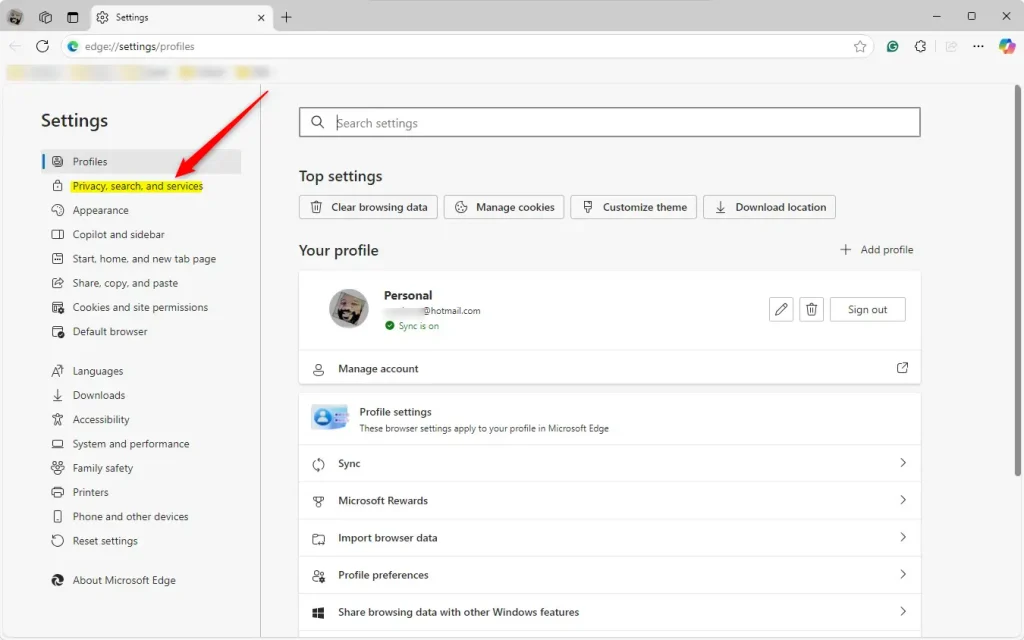
This page lets you manage how Microsoft Edge uses your information, including what it shares for personalized ads and other Microsoft services. Exact labels and layout change between Edge releases, so your screen may differ slightly from the wording below. If a setting is greyed out and the page says your browser is managed by your organization, an administrator controls it and you can't change it yourself.
Step 3Control Browsing Activity for Personalization
Browsing activity personalization lets Microsoft use your web history to show you targeted Microsoft Edge ads. To turn it off, scroll down the privacy page, find the personalization section, and set the switch the way you want it.
- Scroll down on the Privacy, search, and services page until you see the part about personalization.
- Select Privacy. The related options for saving and using your browsing data should now be visible.
- Look for a switch that says something like: "Allow Microsoft to save your browsing activity including history, usage, favorites, web content, and other browsing data to personalize Microsoft Edge and Microsoft services like ads, search, shopping and news." The wording varies a little between Edge versions. Look for the one that mentions saving browsing activity to personalize your experience.
- To turn OFF personalization based on browsing activity: Click the switch so it turns grey or shows it's off. The change applies straight away, with no Save button and no restart.
- To turn ON personalization based on browsing activity: Click the switch so it turns blue or shows it's on. This is also how you undo the change later.
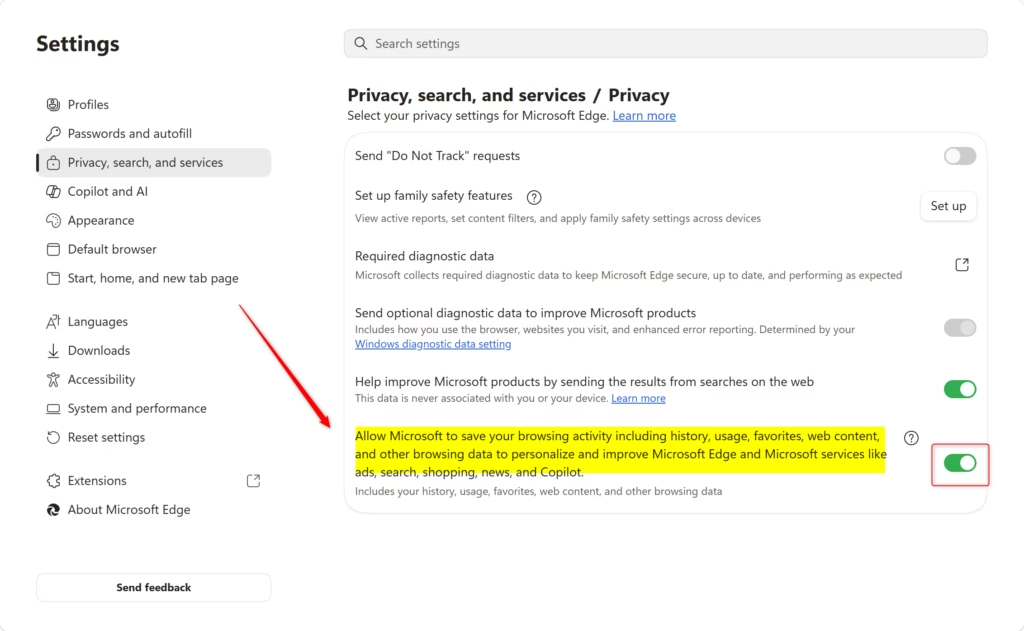
As a result, ads, search results, and news may become less tailored to your interests. If you prefer them to be more relevant, leave this setting enabled.
Step 4Manage Interests and Ad Settings on the Microsoft Privacy Dashboard
The Microsoft Privacy Dashboard lets you control Microsoft Edge ads and targeted interests across all your devices at once, because the setting belongs to your Microsoft account rather than to one browser. Make sure you are signed into your Microsoft account in the browser, then open the dashboard link from the Edge settings page to update your ad preferences.
- Check that you are signed into Microsoft Edge with your Microsoft account. You usually need to be for this to work. If you are signed in, your profile picture or name appears next to the address bar. If you aren't, you can sign in from the profile icon, or you can sign in later on the dashboard page.
- Go back to the Settings menu in Edge.
- Under Privacy, search, and services, find a link that says something like "Manage your interests and ad settings" or "Manage Microsoft advertising." This will likely take you to your Microsoft account's privacy dashboard. You can also go directly to
account.microsoft.com/privacy. - Sign in to your Microsoft account if asked. Use the same account you use in Edge.
- On the privacy dashboard, look for settings about advertising. You will probably see a switch for "See ads that interest you" or something similar.
- To stop personalized ads completely: Turn the "See ads that interest you" setting OFF. To undo this later, return to the same page and turn it back ON.
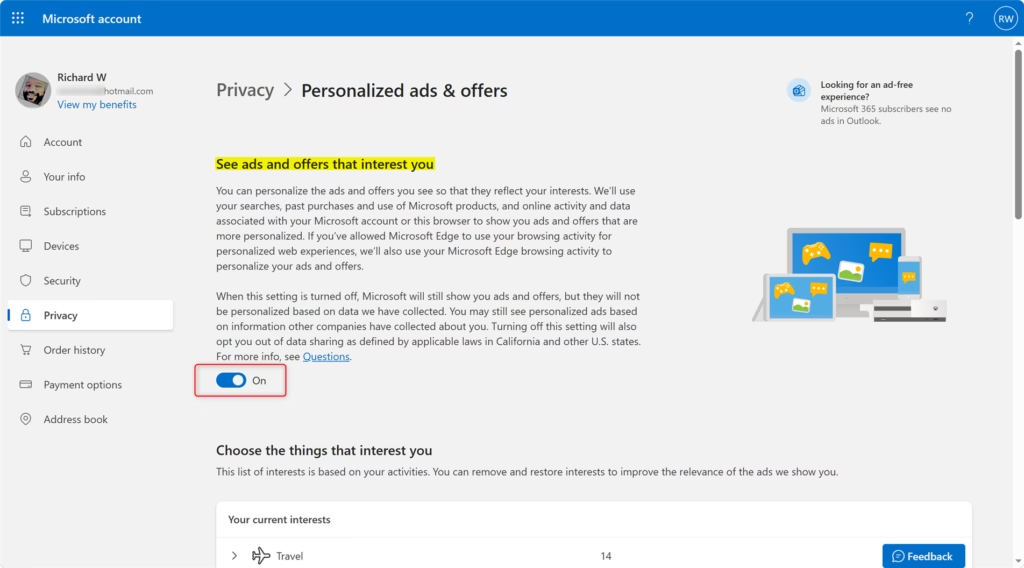
Important Difference: Disabling "See ads that interest you" on the Microsoft privacy dashboard offers a more comprehensive level of control. If it is turned OFF, Microsoft will NOT use your information for personalized ads, even if the Edge browsing activity setting (from Step 3) is enabled.
Keep in mind, though, that this dashboard setting won't stop personalization for search results, your news feed, or other Microsoft websites if they use your browsing activity. Those are still managed by the setting in Step 3. If you want the least personalization overall, turn off both.
Reference:
Summary
You can control personalized Microsoft Edge ads in two ways. Adjust the browsing activity switch in the browser itself, or visit the Microsoft Privacy Dashboard for wider, account-level control. For the strictest result, turn off both, and remember that either one can be switched back on at any time.
Have a question about this guide?
Answered by AI from this guide. Good questions may be added to this page — please don't include personal details.
Did this guide fix your problem?

About the Author
Richard
Tech Writer, IT Professional
Richard is a writer at Geek Rewind who turns complex IT tasks into clear, step-by-step guides. He draws on years of hands-on experience in system administration and enterprise IT operations, focusing on Windows, Linux and WordPress: the problems people actually run into, and the fixes that work. His server and WordPress guides come from systems he runs himself. Richard builds and maintains the platform behind Geek Rewind, from its Ubuntu servers and Nginx configuration to its custom WordPress plugins. Many new tutorials start with readers' questions, and he's always glad to answer them in the comments.
No comments yet — be the first to share your thoughts!