How to Control Your Music and Podcasts Directly from Your PC Using Phone Link

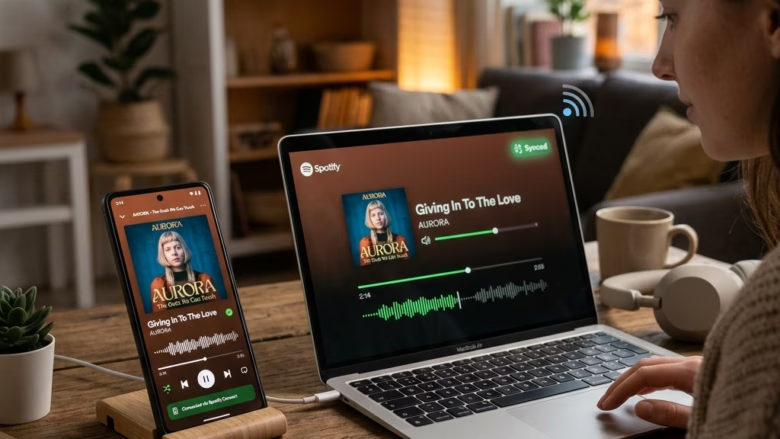
Phone Link audio controls let you pause tracks, skip songs, and adjust the volume on your phone from your Windows 11 desktop, so you don’t have to pick up the device. The feature needs Phone Link version 1.22082.50.0 or newer and works with the usual music and podcast apps. Your Android phone must already be paired with Phone Link. If the controls are missing later, check the Phone Link version first. You can update it from the Microsoft Store.
Turn on audio controls by switching on Show audio currently playing from my phone in Phone Link on your PC (gear icon, then Personalization). Your audio app must also allow notifications on your Android phone, and Phone Link must be version 1.22082.50.0 or newer. The player then shows Previous Track, Play/Pause and Next Track buttons.
Get Your Apps Ready
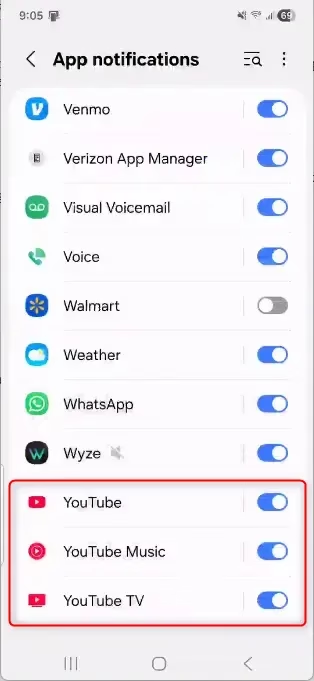
Windows can only see what is playing on your phone if the audio app is allowed to post notifications. Phone Link reads the media alert that the app shows while a track plays. If notifications are off for that app, no player appears on your PC. Menu names vary a little between Android makers, so look for the closest match if yours is worded differently.
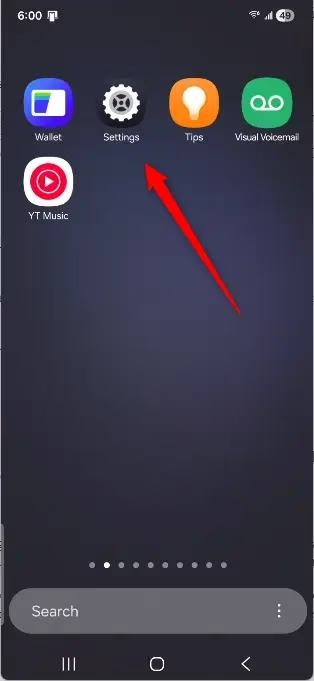
- Open Settings on your Android phone.
- Tap Notifications. You should see a list of installed apps and their notification settings.
- Find your audio app in the list, such as Spotify, Pocket Casts, or YouTube Music.
- Make sure the switch next to Show notifications is on. Repeat this for every music or podcast app you want to control from your PC.
Turn On Audio Controls in Phone Link on Your PC
Next, tell Phone Link on your PC to show the audio playing on your phone. It takes a few clicks in the Phone Link settings, and you shouldn’t need to restart anything.
- Open the Phone Link app on your Windows computer.
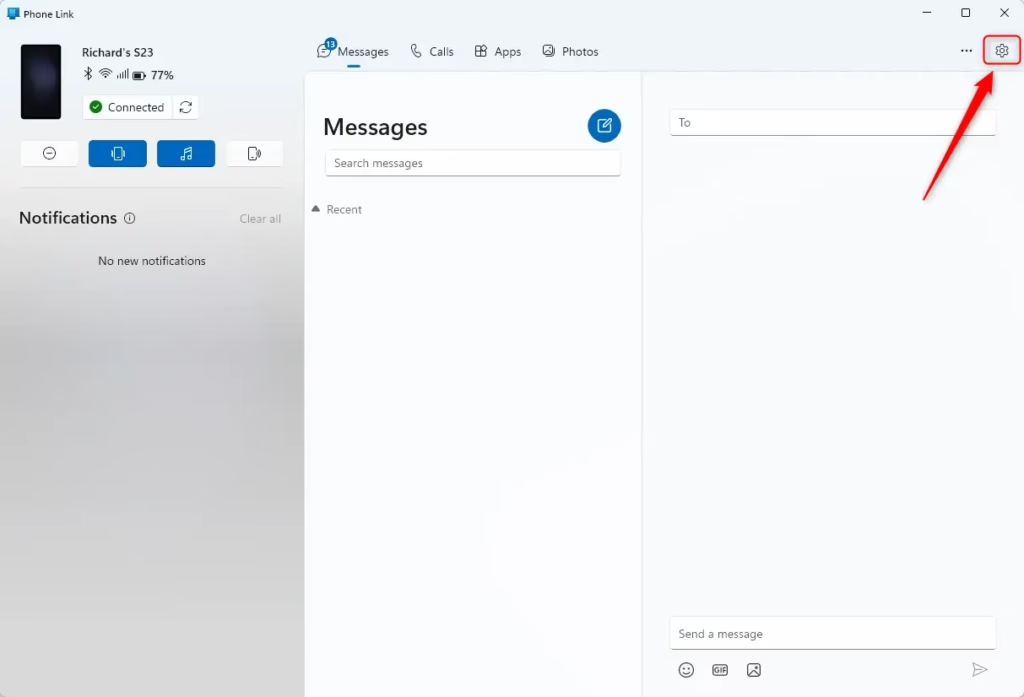
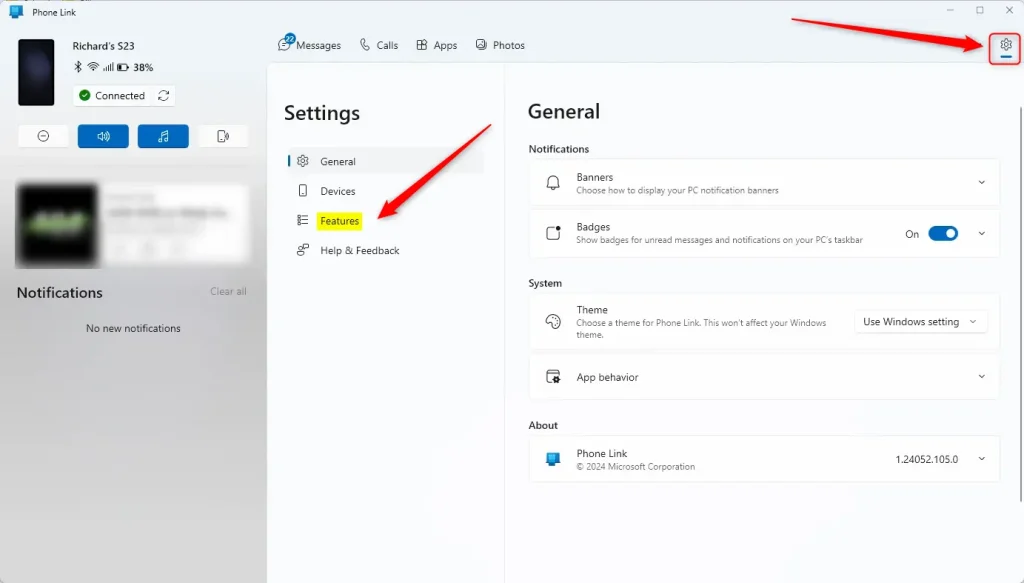
- Click the gear icon in the Phone Link window to open Settings.
- Go to the Personalization section.
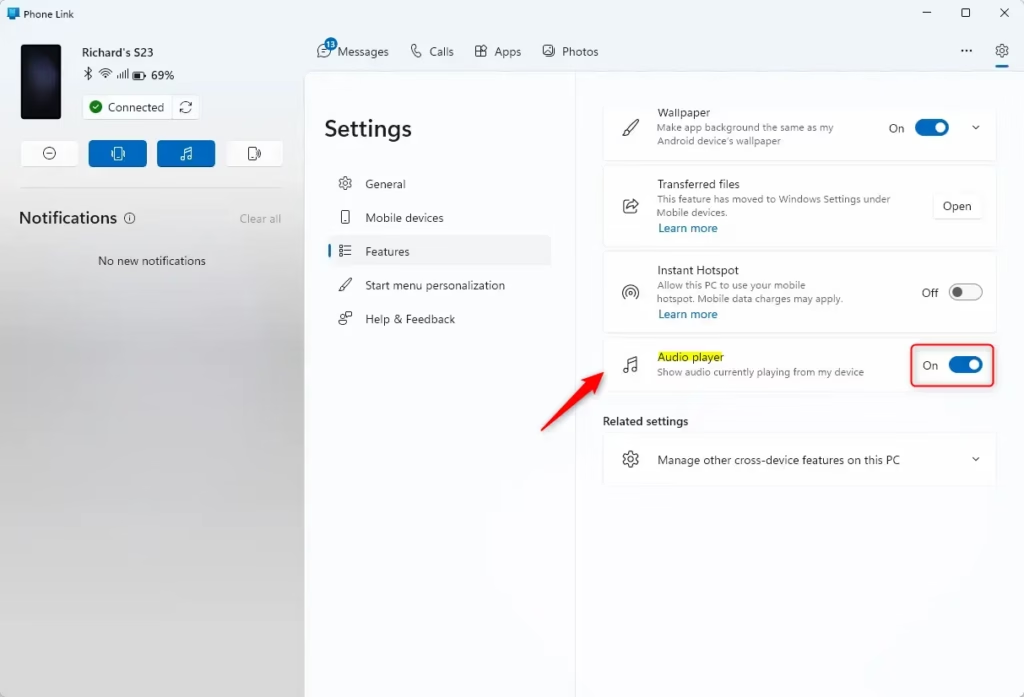
- Find the option labeled Show audio currently playing from my phone.
- Turn the switch next to it to On. The music player will now appear in Phone Link whenever audio plays on your phone.
If you ever want the player gone, come back to the same place and switch it to Off.
What Happens When It’s All Set Up
With both settings on, start playing something on your phone. A media player appears on your PC screen whenever audio is playing on the phone. It has the standard buttons:
- Previous Track
- Play/Pause
- Next Track
If the player doesn’t show up, check these things in order:
- Confirm audio is actually playing on the phone.
- Check that notifications are on for that app.
- Check that the Show audio currently playing from my phone switch is still on.
- Make sure Phone Link is updated to version 1.22082.50.0 or newer.
Reference:
Summary
Phone Link lets you control your Android phone’s music and podcasts from your PC. For basic playback controls, two things must be true. Your phone’s audio apps must be allowed to show notifications, and the audio playing setting must be turned on in the Phone Link app on your computer.
Have a question about this guide?
Answered by AI from this guide. Good questions may be added to this page — please don't include personal details.
Did this guide fix your problem?

About the Author
Richard
Tech Writer, IT Professional
Richard is a writer at Geek Rewind who turns complex IT tasks into clear, step-by-step guides. He draws on years of hands-on experience in system administration and enterprise IT operations, focusing on Windows, Linux and WordPress: the problems people actually run into, and the fixes that work. His server and WordPress guides come from systems he runs himself. Richard builds and maintains the platform behind Geek Rewind, from its Ubuntu servers and Nginx configuration to its custom WordPress plugins. Many new tutorials start with readers' questions, and he's always glad to answer them in the comments.
No comments yet — be the first to share your thoughts!