Customize Touch Cursor Feedback Bubbles in Windows 11 Accessibility Settings

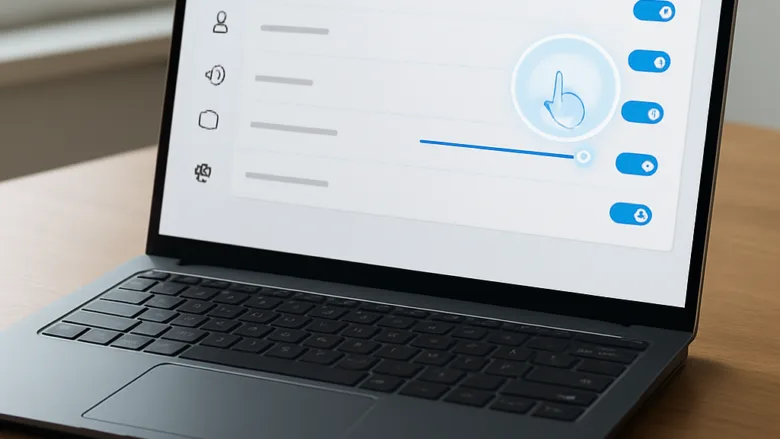
Touch cursor feedback bubbles in Windows 11 are small visual circles that appear on your screen whenever you tap a touchscreen laptop or tablet. They show you exactly where your finger lands, so you never have to guess if a tap worked.
You can turn on and customize these touch indicators in the Windows 11 accessibility settings. The options are limited, but they help if you have trouble spotting standard touch points, especially on high-resolution displays. The steps are the same on Windows 11 Home and Pro, and none of them need a restart.
To customize touch cursor feedback bubbles in Windows 11, open Settings , go to Accessibility, then select Mouse pointer and touch. Toggle the Touch indicator switch on to enable small gray circles under your fingertip when tapping. Check the checkbox for Make the circle darker and larger to increase visibility against bright backgrounds.
Why Use Touch Cursor Feedback Bubbles?
The feedback bubble is a visible marker that shows up under your fingertip each time you tap. It helps you hit small targets like close buttons and text links accurately. It also confirms your taps instantly if your touchscreen feels unresponsive.
Touch cursor feedback bubbles help everyday computer users in several ways:
- Confirm Taps: You instantly know if the computer registered your touch, which prevents double-tapping errors.
- Improve Precision: You can see the exact center point of your touch, which helps you hit small targets on the screen.
- Accessibility Support: Users with visual impairments or motor skill challenges benefit from seeing a clear marker where their finger meets the display.
- Presentation and Teaching: If you record your screen or give presentations, viewers can see where you are touching the screen.
How to Open Accessibility Settings in 🪟 Windows 11
You reach the accessibility settings through the Settings app . It takes a few clicks from the Start menu .
- Click the Start button on your taskbar at the bottom of your screen. The Start menu opens.

Taskbar - Type Settings into the search box. The Settings app appears at the top of the results.
- Click the Settings app icon in the search results. The Settings window opens.
- Look at the menu on the left side of the Settings window.
- Scroll down that menu and click Accessibility.
You are now in the main Accessibility page. From here, you can change how your mouse, keyboard, text cursor, and touch screen behave.
How to Enable the Touch Indicator in 🪟 Windows 11
Turning on the touch indicator makes a small circle appear every time you touch your screen. The switch is in the mouse pointer and touch page of the accessibility settings.
- Open the Windows 11 Settings app.
- Click Accessibility in the left-side menu.
- Scroll down the main window and click Mouse pointer and touch.
- Look for the section related to touch settings.
- Find the switch labeled Touch indicator.
- Click the switch to turn it on. It is active when the switch turns blue and moves to the right.
Now tap your screen with your finger. You should see a small gray circle appear under your fingertip every time you touch the display.
If you do not see the Touch indicator switch, your device may not have a touchscreen, or Windows may not detect it. The touch options usually only appear on devices with touch hardware. See the troubleshooting section below if your device does have a touchscreen.
How to Make the Touch Feedback More Obvious
The default gray circle can be hard to see against bright backgrounds or busy images. Windows 11 gives you one option to make it more obvious. It sits directly under the Touch indicator switch on the same page.
- Open Settings, then go to Accessibility and select Mouse pointer and touch.
- Make sure the Touch indicator switch is on.
- Look just below the switch for the checkbox Make the circle darker and larger.
- Tick the checkbox. The option is greyed out while the touch indicator is off, so turn the switch on first if you cannot click it.
- Tap the screen to test it. The circle should now look darker and bigger under your finger.
This makes the touch point easier to see in whatever app or webpage you are using. To go back to the default look, untick the checkbox. Windows 11 does not offer a color picker for the touch indicator in Settings, so darker and larger is the main way to make it stand out.
How to Troubleshoot Missing Touch Bubbles or Ghost Touches
Work through these fixes in order, starting with the easiest:
- Restart Your Computer: A restart clears temporary software glitches that might stop your touchscreen from communicating properly with Windows 11.
- Clean Your Screen: Dust, oil, and smudges can trick your touchscreen into thinking a finger is pressing down constantly. Power the device off if you can, then wipe the screen gently with a clean microfiber cloth.
- Check for Windows Updates: Microsoft regularly releases updates that fix touchscreen bugs, and updates can also bring newer display drivers. Open Settings, go to Windows Update, and click Check for updates. Install anything that is offered, then restart if asked.
- Calibrate Your Touchscreen: If your touches do not line up with the feedback bubbles, search for "Calibrate the screen for pen or touch input" in the Windows search bar and follow the on-screen calibration wizard.
After each fix, tap the screen again to see whether the bubbles appear where your finger lands. Also confirm that the Touch indicator switch is still on.
Advanced Customization: Changing Touch Feedback via the Windows Registry
Advanced users can change touch feedback behavior through the Registry Editor, a tool for changing advanced system settings. For most people the Settings app is the better choice. The steps below use the older Control Panel instead, which does not need any registry editing.
If you ever do edit the registry, back it up or create a restore point first, and follow steps carefully to protect your operating system.
If you want to manage how pen and touch input interact with your display, use the Pen and Touch control panel:
- Click the Start button, type Control Panel, then press Enter. The Control Panel window opens.
- In the Control Panel search box, type Pen and Touch.
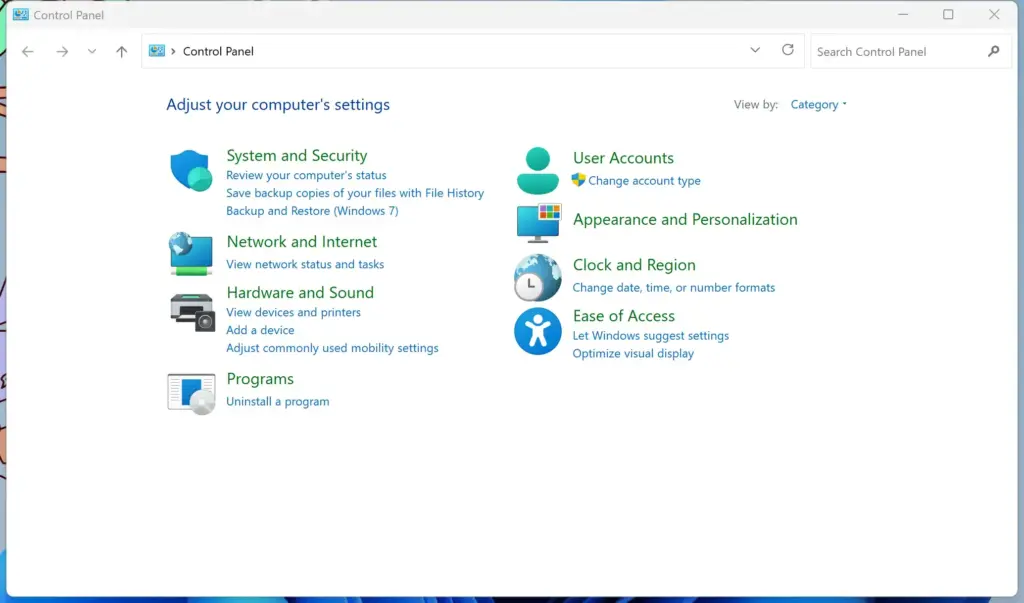
Control Panel - Click the Pen and Touch option to open the configuration window.
- Go to the Touch tab at the top of the window.
- Adjust settings such as showing visual feedback when you touch the screen, and whether you want to see the feedback ring. Click OK to save.
If Pen and Touch does not appear in the search results, your device may not support pen or touch input. In that case, use the Settings app steps from earlier.
How to Turn Off Touch Feedback Bubbles
Turning the bubbles off takes a few seconds. This is useful when you want a clean display with no tapping marks.
- Open the Windows 11 Settings app.
- Click Accessibility in the left-side menu.
- Select Mouse pointer and touch.
- Locate the Touch indicator switch.
- Click the switch to turn it off. The switch turns gray and moves to the left.
Your screen immediately stops showing the gray circles when you tap the display. To bring them back, follow the same steps and turn the switch on again.
Summary
Touch cursor feedback bubbles give you better visibility and control when using a touchscreen. By turning on, styling, or turning off the touch indicator, you can set up your display to match your own viewing and tapping preferences.
Have a question about this guide?
Answered by AI from this guide. Good questions may be added to this page — please don't include personal details.
Did this guide fix your problem?

About the Author
Richard
Tech Writer, IT Professional
Richard is a writer at Geek Rewind who turns complex IT tasks into clear, step-by-step guides. He draws on years of hands-on experience in system administration and enterprise IT operations, focusing on Windows, Linux and WordPress: the problems people actually run into, and the fixes that work. His server and WordPress guides come from systems he runs himself. Richard builds and maintains the platform behind Geek Rewind, from its Ubuntu servers and Nginx configuration to its custom WordPress plugins. Many new tutorials start with readers' questions, and he's always glad to answer them in the comments.
No comments yet — be the first to share your thoughts!