What Is Read Aloud in Windows 11

Read Aloud in Windows 11 is a text-to-speech tool (software that turns written text into spoken audio). It reads the text on your screen in a natural-sounding voice, and you start it from inside the app. Windows 11 has no single Read Aloud switch. Microsoft Edge and Microsoft Word each include their own version, and Narrator (the built-in screen reader) reads everything on screen instead.
This post explains what Read Aloud does, where it lives, and how it differs from Narrator. It also covers the steps to start it in Edge and Word, and the usual reasons it goes silent or disappears. None of the steps need administrator privileges, and they work the same on Windows 11 Home and Pro.
Read Aloud in Windows 11 is a text-to-speech feature (software that turns written text into spoken audio) built into apps such as Microsoft Edge and Microsoft Word, not a single system-wide switch. Start it from inside the app: in Edge, press Ctrl+Shift+U to hear the page. Windows’ Narrator is a different tool that reads everything on screen.
What Read Aloud Does in 🪟 Windows 11
Read Aloud takes the text of a web page, document, or email and speaks it through your speakers or headphones. It reads at a speed you choose and, in most apps, highlights each word as it goes. This helps if you want to proofread by ear, listen to a long article while you do something else, or rest your eyes.
People with dyslexia, low vision, or reading fatigue also use it to follow text with less strain. It is a reading aid, not an accessibility tool that controls the computer for you. That distinction matters because Windows 11 has another feature, Narrator, that sounds similar but does a different job.
Read Aloud reads the content you are looking at: the body of a page or document. It skips most of the surrounding interface, such as menus and toolbars. You start it from inside the app, and it stops when you close it.
Where Read Aloud Is Available
Each app that offers it has its own button, its own voice settings, and its own shortcut. These are the places you will most often find it.
Microsoft Edge
Edge is the browser built into Windows 11. Its Read Aloud reads web pages, PDF files opened in the browser, and text you select. It offers a large set of Natural voices (online voices that sound closer to a real person than the older built-in ones).
The shortcut is Ctrl+Shift+U. For a dedicated walkthrough, see how to use Read Aloud in Microsoft Edge.
Microsoft Word and other Microsoft 365 apps
Word has a Read Aloud button on the Review tab. It reads your document from the cursor position onward. Outlook has a similar option for reading emails.
In recent versions of Word, the shortcut to start and stop it is Ctrl+Alt+Space. The exact layout of the ribbon (the strip of tabs and buttons across the top) varies by version. The button may sit in a slightly different place on your copy.
Immersive Reader
Immersive Reader is a reading view in Edge and other Microsoft apps that strips away clutter and offers its own Read Aloud button. In Edge, press F9 to switch to it. It is useful when a page has many ads or sidebars that would otherwise get in the way.
Read Aloud vs. Narrator
The two features use the same speech software (the voice engine), but they serve different purposes. Picking the wrong one often makes Read Aloud seem broken.
- Read Aloud reads one page or document, then stops. You keep using your mouse and keyboard as usual while it reads.
- Narrator is a screen reader. It speaks everything you move to: buttons, menu items, notifications, and the text of whatever app is open. It is built for people who cannot see the screen well. It changes how you use the whole PC, not only one app.
If you only want an article or document read to you, use Read Aloud. Turn on Narrator when you need Windows itself to describe what is on screen. Narrator is covered in its own section below.
How to Use Read Aloud in Microsoft Edge
This is the quickest way to try Read Aloud, because Edge is already installed on every Windows 11 PC. These steps read a full page. Reading only part of a page is covered at the end of the list.
- Open Microsoft Edge and go to a page with text, such as a news article. Edge opens the page as usual.
- Press Ctrl+Shift+U. A Read aloud toolbar appears near the top of the page, and Edge starts speaking from the top. A highlight follows the word being read.
- Select the Pause button on the toolbar to stop temporarily. Select it again to continue from the same spot.
- Select the Next paragraph or Previous paragraph button to skip ahead or go back. Use these when a section does not interest you or you missed a sentence.
- Select Close on the toolbar, or press Ctrl+Shift+U again, to end Read Aloud. The toolbar disappears and the audio stops.
If the keyboard shortcut does nothing, open the menu instead. Select Settings and more (the three dots at the top right of Edge), then choose More tools and select Read aloud. The label can vary slightly between Edge versions, so look for the Read aloud entry in that list.
To have Edge read only part of a page, select the text with your mouse, right-click it, and choose the Read aloud option from the menu. Edge reads only the selected passage.
Change the Voice and Reading Speed in Edge
The default voice works, but the Natural voices are far less robotic, and slowing down or speeding up changes how much you absorb. These settings are saved, so you set them once.
- Start Read Aloud in Edge with Ctrl+Shift+U. The toolbar appears.
- Select Voice options on the toolbar. A panel opens with a speed slider and a list of voices.
- Drag the Reading speed slider to a slower or faster setting. The change applies right away, so you hear it without restarting.
- Choose a voice from the list. Voices marked Natural sound the most lifelike. Edge speaks a short sample or switches the live voice so you can compare.
Edge’s Natural voices rely on an internet connection. If you are offline, they may not be available, and Edge falls back to the older voices installed on your PC.
How to Use Read Aloud in Microsoft Word
Read Aloud in Word is handy for catching mistakes. Your ear notices missing words and awkward sentences that your eyes skip over. Word reads from wherever your cursor sits, so click where you want to begin before you start.
- Open your document in Word. Click in the text where you want the reading to start.
- Select the Review tab on the ribbon. The review tools appear.
- Select Read Aloud. A small control bar appears at the top right of the document, and Word starts reading with each word highlighted.
- Select Pause to stop, or Previous and Next to jump by paragraph.
- Select Settings (the gear icon) on the control bar to adjust the reading speed and choose a voice.
- Select Close on the control bar to stop. The highlight disappears.
If you do not see Read Aloud on the Review tab, your copy of Word may be an older version that does not include it. Word 2019 and later and Microsoft 365 include it, but I cannot confirm every edition, so check the Review tab on your own copy.
How to Turn On Narrator When You Need the Whole Screen Read
Because it changes how Windows responds to your keystrokes, expect it to behave differently once it starts. Win+Ctrl+Enter starts Narrator, and the same keys stop it.
- Press Windows + Ctrl + Enter. A Narrator welcome window may appear, and a voice starts speaking.
- Select Start and then Settings if you want to adjust it. Our post on the Start button in Windows 11 explains how to find it.
- Go to Settings Accessibility Narrator The Narrator page opens with a toggle at the top.
- Change the voice or speed in the options on that page. Narrator's voice controls are separate from Edge's.
- Press Windows + Ctrl + Enter again to turn Narrator off. The speech stops.
In Windows 11 version 22H2 and later, the Narrator page also offers Add natural voices. Natural voices are higher-quality voices you download once, and they then run on your PC. If you do not see that button, check that Windows is up to date. If you cannot find Settings quickly, type Narrator into the search box on the Windows 11 taskbar and open the result.
Check the System Text-to-Speech Voice in 🪟 Windows 11
Windows also keeps one voice for the whole system. Some apps use it to speak text. It is separate from the voices in Edge. Changing it does not alter how Read Aloud sounds in Edge, but it can affect other apps that rely on the system voice.
- Open Settings and go to Settings Time & language Speech The Speech page opens.
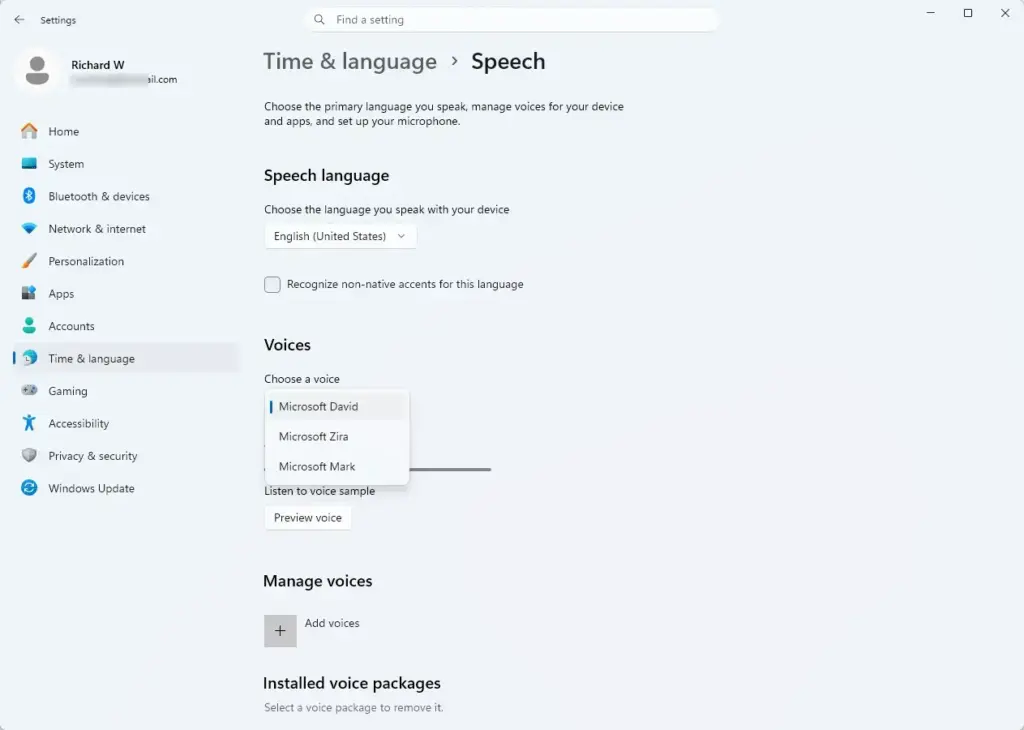
- Look for the voice list and the speed slider on the page. These control the system voice.
- Select a voice, and use the preview option on the page to hear a sample. The sample plays through your current audio device.
The layout of the Speech page changes between Windows 11 versions, so labels may differ slightly on your PC.
Why Read Aloud Is Missing, Silent, or Greyed Out
Most problems come down to the page, the volume, or the version. Work through these in order.
- No sound at all. Check the volume and the output device. Right-click the speaker icon in the taskbar to confirm the right speakers or headphones are selected. Also check whether the Edge tab shows a muted speaker icon.
- The option is missing on a page. Edge cannot read some pages, including its own internal pages. Pages that show text only as an image, such as a scanned PDF, have nothing for Read Aloud to speak, because it needs real text.
- The voice sounds robotic. In Edge, open Voice options, then choose a Natural voice. In Narrator, use Add natural voices.
- Natural voices will not play. Edge's Natural voices need an internet connection. Reconnect and try again.
- The shortcut does nothing. Another app may be using the same key combination. Use the Settings and more menu in Edge instead.
- Read Aloud is missing in Word. Your version of Word may be too old to include it. Check the Review tab.
- Edge has no Read aloud entry at all. Update Edge. Open Settings and more, then Help and feedback, then About Microsoft Edge, and let it check for updates.
How to Turn Read Aloud Off
Read Aloud only runs when you start it, so there is nothing to disable permanently. To stop it, close the toolbar in the app you are using, or press the shortcut again. In Edge, that is Ctrl + Shift + U.
In Word, select Close on the control bar, the small toolbar Read Aloud shows while it reads. To stop Narrator, press Windows + Ctrl + Enter.
What to Do Next
If the default voice bothers you, try a Natural voice in Edge first, since that gives the biggest improvement with the least effort. For the full set of Edge controls and shortcuts, read how to start and close Read Aloud in Microsoft Edge. If you find you need the whole screen read to you rather than one page, explore the options on the Narrator page in Settings Accessibility
Have a question about this guide?
Answered by AI from this guide. Good questions may be added to this page — please don't include personal details.
Did this guide fix your problem?

About the Author
Richard
Tech Writer, IT Professional
Richard is a writer at Geek Rewind who turns complex IT tasks into clear, step-by-step guides. He draws on years of hands-on experience in system administration and enterprise IT operations, focusing on Windows, Linux and WordPress: the problems people actually run into, and the fixes that work. His server and WordPress guides come from systems he runs himself. Richard builds and maintains the platform behind Geek Rewind, from its Ubuntu servers and Nginx configuration to its custom WordPress plugins. Many new tutorials start with readers' questions, and he's always glad to answer them in the comments.
No comments yet — be the first to share your thoughts!