How to Change Your Wi-Fi Network or Forget a Wireless Connection in Windows 11

Switching to a different Wi-Fi network in Windows 11 takes about ten seconds from the taskbar . Forgetting a wireless connection means removing it so Windows stops connecting to it automatically. That takes a bit longer, because you can do it from Quick Settings or from the full Settings app .
Both tasks live in the same place: the Network & internet section of Settings. Windows 11 handles them differently depending on whether you’re currently connected to the network you want to change or forget, so the steps aren’t identical for every situation.
This guide covers the common scenarios: switching networks when you’re already online, connecting to a new network, and permanently removing a saved network so you won’t rejoin it by accident. It also covers what gets deleted when you forget a network, why the option is sometimes missing, and how IT staff can clear stubborn profiles.
To switch networks, click the network icon next to the clock, expand Wi-Fi , select the network, and click Connect. To forget a saved network, open Settings Network & internet Wi-Fi Manage known networks, select the network, and click Forget. Windows deletes the saved password, so you will need to re-enter it to rejoin.
How to Switch to a Different Wi-Fi Network
To connect to a different network, such as moving from your home Wi-Fi to a mobile hotspot, you don’t need to change any settings first. Windows lets you pick a new network straight from the taskbar .
- Click the network icon in the taskbar , next to the clock. The Quick Settings flyout opens, with tiles and sliders for Wi-Fi , Bluetooth , volume and brightness.
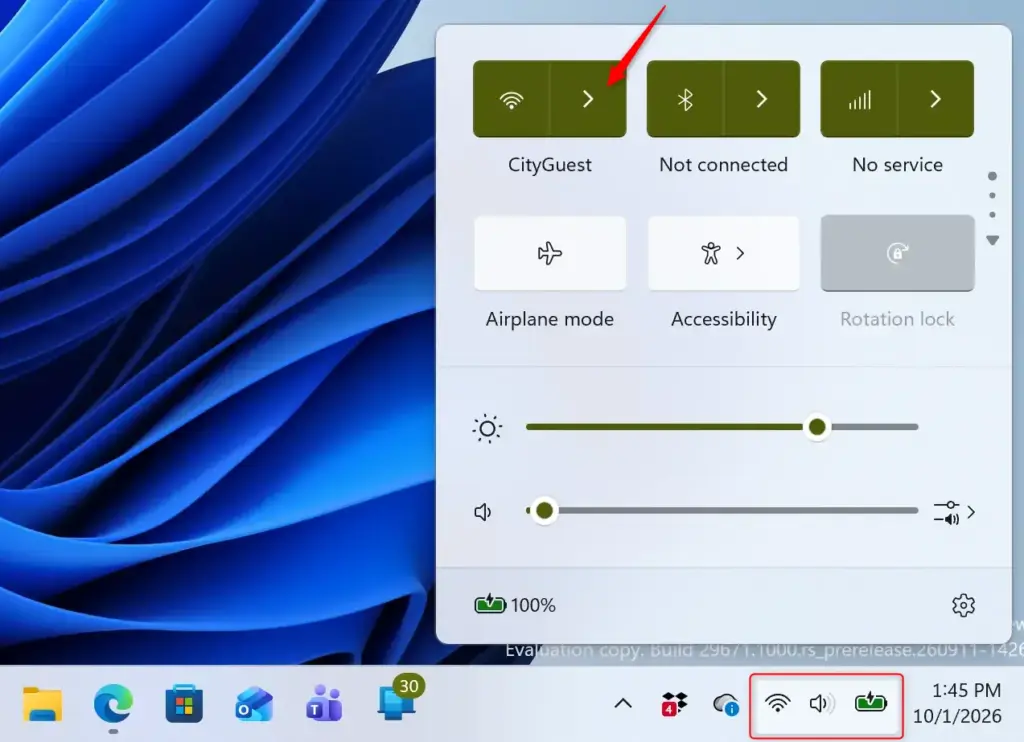
- Click the arrow next to Wi-Fi . If the Wi-Fi tile shows as off, click the tile itself first to turn Wi-Fi on. A list of nearby networks appears, sorted roughly by signal strength.
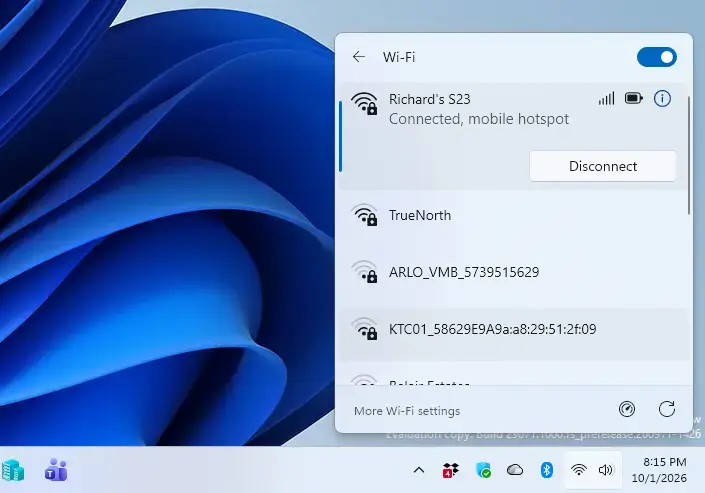
- Select the network you want to join from the list. The entry expands and shows a Connect button, and usually a Connect automatically checkbox. Click Connect.
- Enter the network password if prompted, then click Next. Windows connects, and the flyout shows the new network name with a “Connected” label under it.
If you were already connected to another network, Windows drops that connection when the new one succeeds. The old network stays saved, so you can switch back later without typing the password again.
If the network you want isn’t in the list, it may be hidden (not broadcasting its name) or out of range. Move closer to the router first and see if it appears. For a hidden network, open Settings Network & internet Wi-Fi and look for a manual connection option. Then type the network name and security details exactly as given by whoever set up the router. Even one wrong character in the name or security type will make the connection fail.
How to Forget a Wi-Fi Network You’re Currently Connected To
Forgetting a network removes its saved password and settings from your PC, so Windows stops reconnecting to it on its own. This is the fix for networks that keep auto-connecting when you don’t want them to, or for old networks (a previous employer’s office, a hotel, a friend’s house) you no longer need saved.
- Click the network icon in the taskbar to open Quick Settings.
- Click the arrow next to Wi-Fi to expand the list of networks.
- Right-click the network you’re connected to in the list. A small menu appears with network-specific options.
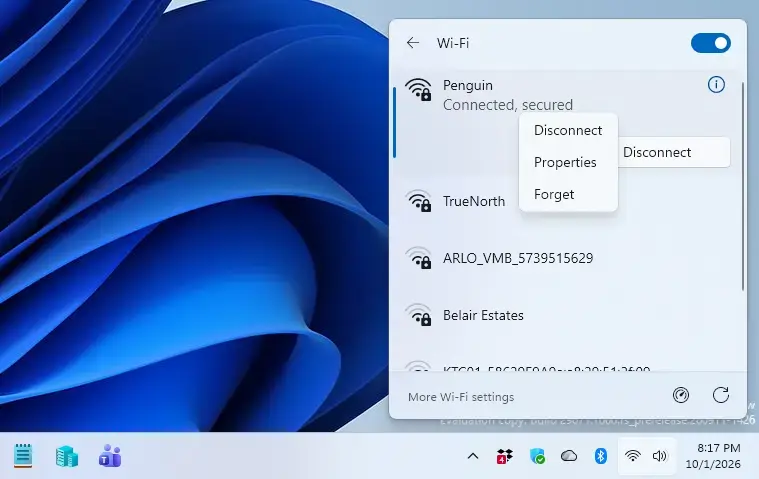
- Select Forget. Windows disconnects you immediately and deletes the saved password. The network drops out of your “known networks” list. It still shows up in the nearby networks list if it’s in range, but you’ll need to enter the password again to rejoin it.
If you don’t see a Forget option when you right-click, there are two likely causes. The network may be managed by a work or school account that pushes settings through mobile device management. Or it may be a wired Ethernet connection rather than Wi-Fi , since the Forget option only appears for wireless networks.
How to Forget a Saved Network You’re Not Connected To
In the Quick Settings Wi-Fi list, right-clicking a network you’re not connected to shows a Forget option for saved networks too. Manage known networks is still the easiest way to review every saved network at once. Use the full network settings page to forget any saved network, whether you’re connected to it or not.
- Open Settings by pressing Win+I, or right-click the Start button and select Settings.

Windows 11 Start menu with Settings gear icon highlighted. - Select Network & internet from the left-hand menu. You’ll see your current connection status at the top, including Wi-Fi , Ethernet and VPN.
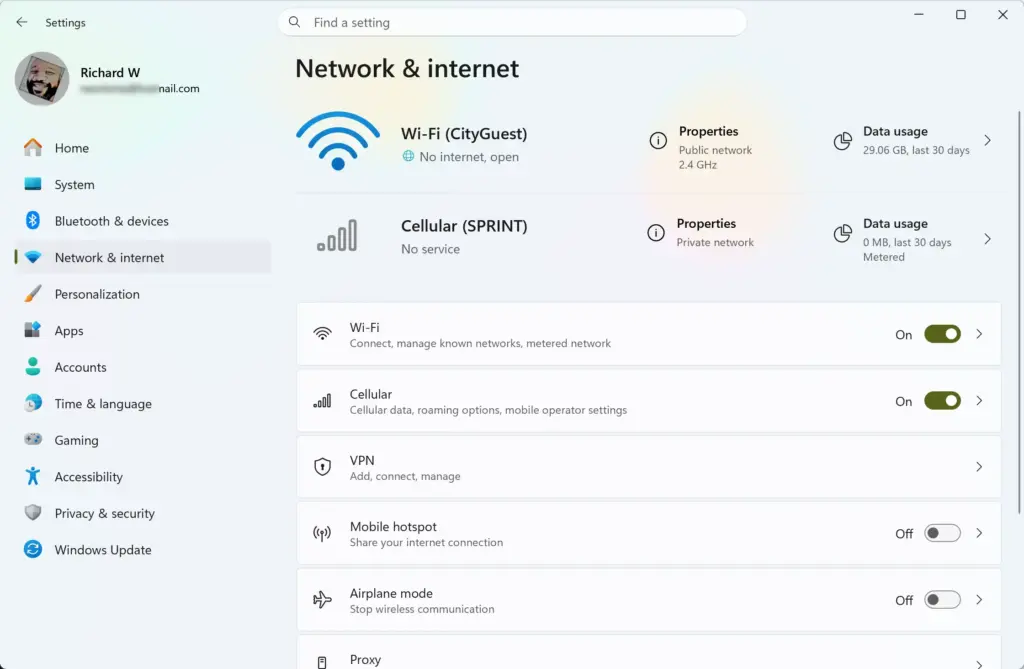
Settings › Network & internet - Select Wi-Fi from the list of connection types.
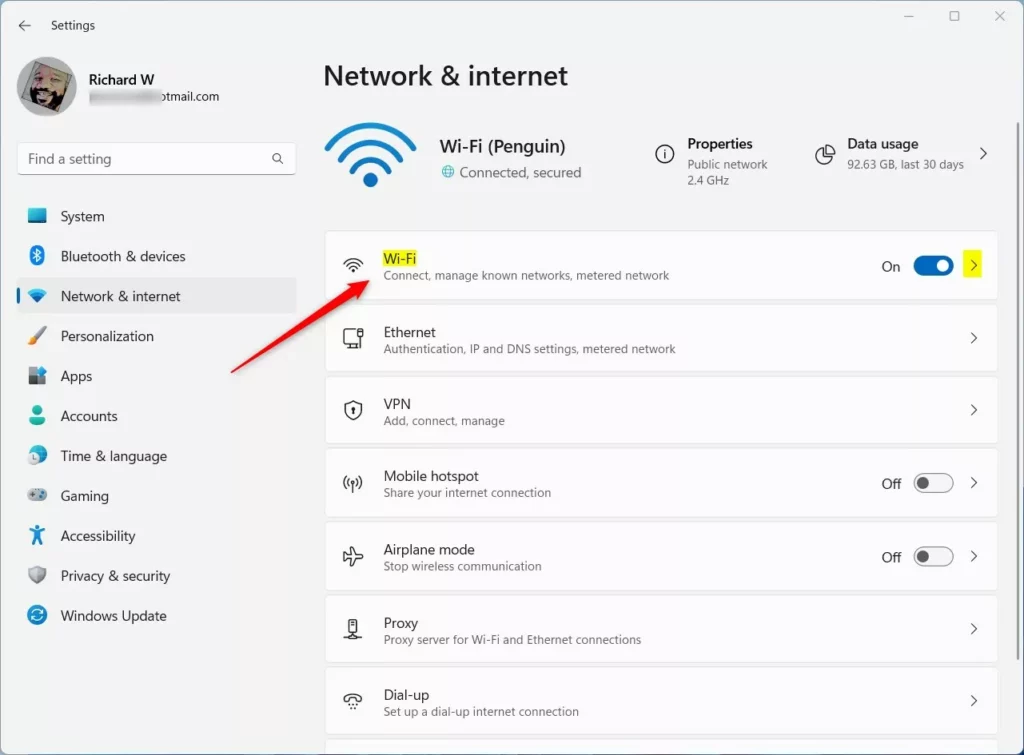
Windows 11 Wi-Fi networks profile tile for setting data limits. - Select Manage known networks. This opens a full list of every network your PC has saved a password for, whether it’s in range right now or not. If the entry is missing, check that your PC actually has a Wi-Fi adapter. Desktop PCs without one only show Ethernet.
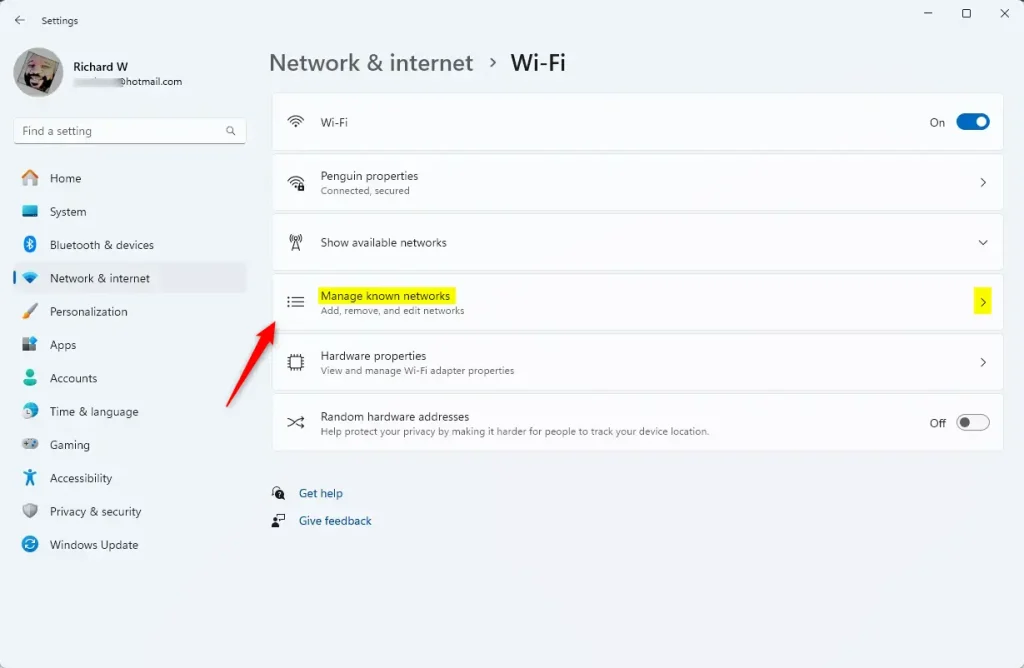
manage known wifi networks - Select the network you want to remove, then click Forget. Click Forget next to the network in Manage known networks. There is no confirmation prompt, so check the name first. The network disappears from the list and its saved password is removed.
This is the method to use for networks you’re not near anymore, like a hotel Wi-Fi from a trip months ago that still shows up in your known networks list. Clearing out old entries also cuts down on the chance of your PC joining a weak or unwanted network by mistake.
What Happens When You Forget a Network
Forgetting a network deletes more than just the password. Windows also discards the network’s profile settings. That includes whether you’d marked it as a Private or Public network, and whether it was set as a metered connection. A metered connection limits background data use, which is useful for mobile hotspots with data caps. Any firewall rules tied to that profile go too. If you reconnect to the same network later, Windows treats it as brand new and asks you to pick the network type again.
Forgetting a network does not require a restart and takes effect immediately. It also doesn’t affect any other device. Forgetting a network on your laptop doesn’t remove it from your phone or another PC, even if they’re signed in with the same Microsoft account.
Why the Forget Option Might Be Missing or Greyed Out
A few things can block access to Forget or Manage known networks:
- Work or school-managed devices. If your PC is enrolled in a company’s device management system (software that controls work computers), IT policy can lock network settings so only an administrator can add or remove saved networks. If this applies to you, contact your IT department rather than troubleshooting it yourself.
- Standard user accounts on some configurations. On most home PCs, any user account can forget a network without administrator rights, since Wi-Fi profiles are typically per-user. On shared or domain-joined machines this can be restricted. If clicking Forget does nothing or the button is greyed out, try the same steps from an administrator account.
- Airplane mode or Wi-Fi turned off. If Wi-Fi is switched off entirely, the Manage known networks page still works, but the Quick Settings flyout won’t show any networks to interact with. Turn Wi-Fi back on from Quick Settings first.
Also create a restore point first. Search for “Create a restore point” in Start, and make sure System Protection is turned on for your system drive. In Registry Editor you can also export the key you’re about to change with File Export, which gives you a file you can double-click to restore it later.
For IT staff troubleshooting a network profile that won’t clear through the Settings app, Windows stores saved network profiles in Registry Editor under HKEY_LOCAL_MACHINE\SOFTWARE\Microsoft\Windows NT\CurrentVersion\NetworkList\Profiles. Browsing there is a good way to confirm whether a profile still exists after you’ve tried to forget it through Settings. Editing or deleting entries directly is not something to do casually. There’s no undo, and removing the wrong key can affect other saved connections. Stick to the Settings app method unless a profile refuses to clear any other way.
There is also a safer alternative that doesn’t involve editing the registry. Open Terminal as an administrator and run netsh wlan show profiles to list every saved Wi-Fi profile on the PC. Then run netsh wlan delete profile, giving the profile name with the name= parameter, to remove the one you want. This is handy for IT staff because it works from a command line and can be scripted across machines. It also removes the profile cleanly rather than relying on hand-deleted keys.
How to Undo Forgetting a Network
There’s no “undo” button for a forgotten network. Windows doesn’t keep a trash bin for deleted Wi-Fi profiles. To get back online with that network, reconnect the normal way: open Quick Settings, select the network from the nearby list, and enter the password again. If it’s a network you manage yourself (your home router, for instance), the password is usually printed on a sticker on the router if you don’t remember it. For networks you don’t manage, ask whoever set it up.
Stopping Windows From Connecting to Networks You Don’t Want
If your real goal is to stop Windows from offering or auto-joining a particular network, rather than just removing one saved password, check the Connect automatically setting before you forget anything. Select the network’s entry in Settings Network & internet Wi-Fi Manage known networks (or the network’s properties page) and clear Connect automatically when in range. In Quick Settings the checkbox appears only when you first connect. This is a gentler option than forgetting the network outright. You keep the saved password, so you can still join the network quickly later without re-entering it.
What to Do Next
With your network list cleaned up, it's worth checking your current connection's properties, under Settings Network & internet Wi-Fi > your network's name. Confirm it's still set to the right network profile type for how you use it. If you're still having trouble getting a stable connection after switching networks, a quick adapter reset or driver check in Device Manager is usually the next place to look.
It is not the same as forgetting one network, and it should be your last resort. It removes all saved Wi-Fi networks, VPN connections and adapter settings, and then reinstalls your network adapters. It also resets VPN clients and virtual switches (such as those used by Hyper-V), so any virtual networking you've set up will need to be rebuilt. Windows may need to restart to finish the job, so save your work first. After the reset you'll have to re-enter the password for every Wi-Fi network you use. Try forgetting and rejoining the single problem network, a driver update, or an adapter disable and re-enable before you go this far.
Frequently asked questions
How do I forget a wireless network on 🪟 Windows 11?
Open Settings and go to Network & internet Wi-Fi Manage known networks. Find the network you want to forget and click it, then select Forget. Windows will stop connecting to it automatically and remove it from your saved networks list.
I can't forget a Wi-Fi network. What can I do?
If the Forget button is missing or greyed out, try disconnecting from that network first. Go to Settings Network & internet Wi-Fi, click the network name, then Disconnect. Return to Manage known networks and try forgetting it again.
How do I reset my network settings in Windows?
Open Settings and go to Network & internet Advanced network options Network reset. Click Reset now. This removes all saved Wi-Fi networks, VPN connections, and dial-up settings. You'll need to reconnect to networks afterwards.
How do I change the Wi-Fi network on 🪟 Windows 11?
Click the network icon in the taskbar next to the clock. Click the arrow next to Wi-Fi to see available networks. Select the network you want to join and click Connect. Enter the password if prompted.
Still have a question?
Answered by AI from this guide. Good questions may be added to this page — please don't include personal details.
Did this guide fix your problem?

About the Author
Richard
Tech Writer, IT Professional
Richard is a writer at Geek Rewind who turns complex IT tasks into clear, step-by-step guides. He draws on years of hands-on experience in system administration and enterprise IT operations, focusing on Windows, Linux and WordPress: the problems people actually run into, and the fixes that work. His server and WordPress guides come from systems he runs himself. Richard builds and maintains the platform behind Geek Rewind, from its Ubuntu servers and Nginx configuration to its custom WordPress plugins. Many new tutorials start with readers' questions, and he's always glad to answer them in the comments.
No comments yet — be the first to share your thoughts!